


Welcome Email Sequence: Build One With Automations

The first days after someone subscribes are when they pay the most attention. Here is how to build a welcome email sequence in Weesify Automations that greets every new subscriber on time, every time.
Someone has just joined your list. Right now they remember why. In a week they might not. The emails they get in those first few days shape whether they read you for years or quietly unsubscribe after the second newsletter.
A welcome email sequence is a short series of emails that goes out automatically after someone subscribes. It says hello, sets expectations and points people to your best work. Done well, it does the job of a warm introduction, without you having to be awake when someone signs up at 2am in another time zone.
This guide shows how to build one with Weesify Automations, from the trigger to the last step, and how to improve it once it is running.
In this guide
- What a good welcome sequence includes
- Building it from the recipe in five minutes
- Writing each email
- Adding branches, tags and team alerts
- Editing a live automation safely
- Reading the run history
- FAQ
What a good welcome sequence includes
You do not need ten emails. Three to four, spread over the first week or two, is plenty for most creators and small businesses. A simple shape:
| When | Job | |
|---|---|---|
| 1. Welcome | Straight away | Say thank you, say what to expect, invite a reply |
| 2. Best place to start | 2 days later | Point to your single most helpful piece |
| 3. Your story or method | 4–5 days later | Build trust with how you work and why |
| 4. A gentle offer | A week later | Introduce a course, product, booking or community |
The welcome email should arrive within minutes. The later emails should each have one purpose and one button.
Build it from the recipe
Open Engagement › Automations and choose New automation. You will see a few recipes under Start from a recipe:
- Welcome new subscribers: a warm hello, then a helpful follow-up two days later.
- Follow up form leads: tag them, tell your team, and follow up next day.
- Thank new customers: a thank-you after a purchase, then ask how it is going.
- Start from scratch: choose a trigger and build your own.
Choose Welcome new subscribers. Weesify creates a draft with the trigger Someone subscribes and three steps already in place: a welcome email, a Wait of two days, and a "Where to start" email with a button. You only need to make the words yours.
Prefer to describe it? Use Describe it and write a sentence such as "When someone subscribes, send a welcome email, wait two days, then send my best article, and tag them New subscriber." You get a draft to review, not something that runs on its own.
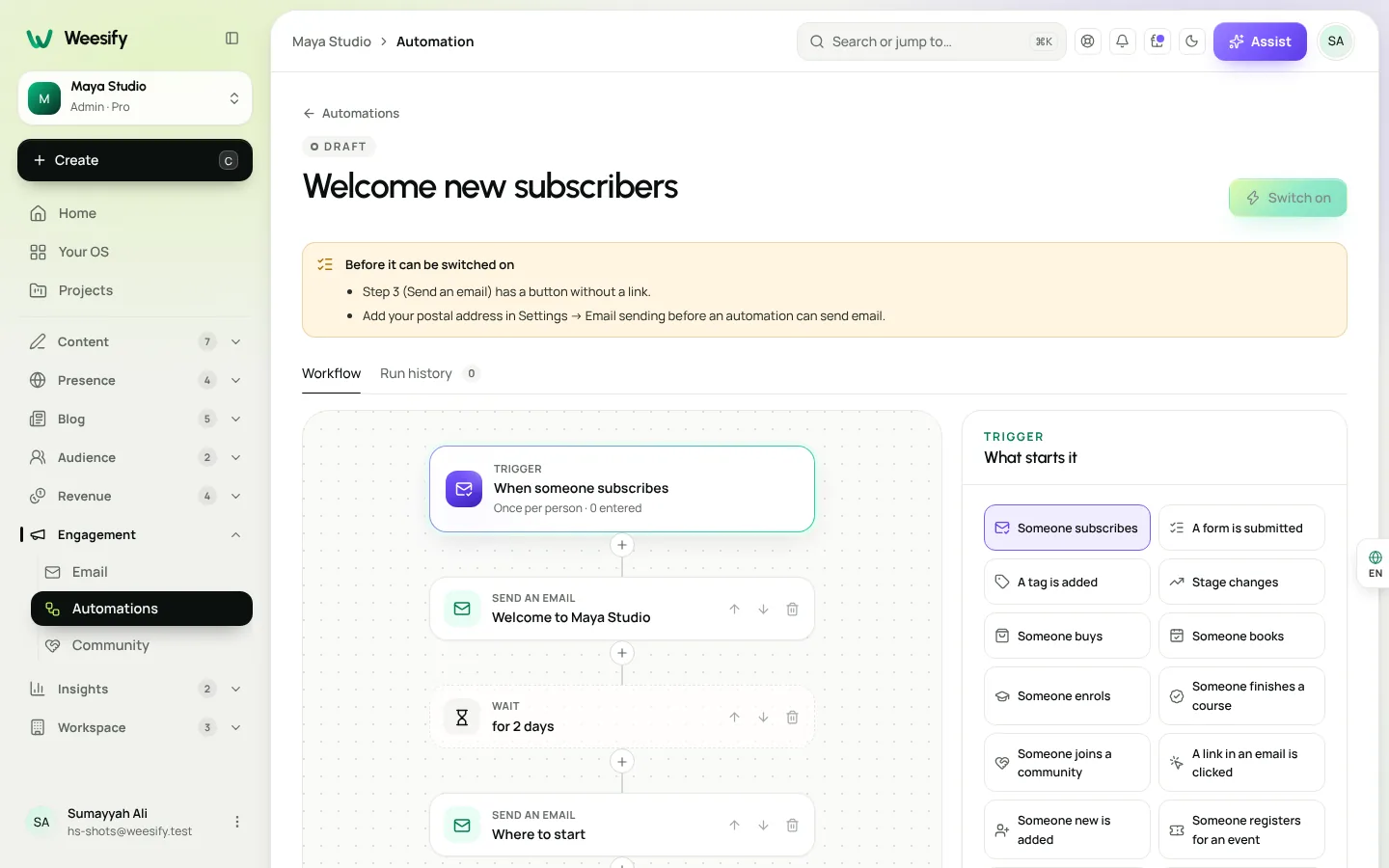
Choose who can go through it
Give it an Automation name, then answer Can someone go through it more than once? For a welcome sequence, choose Once only. Someone who unsubscribes and comes back later should not get the same welcome twice.
Pick the right trigger
Someone subscribes is the natural choice for a newsletter welcome. Other triggers may suit different welcomes:
- A form is submitted, with Which form set to a specific form, for a welcome tied to one lead magnet.
- A tag is added, for example when someone is tagged "Webinar 2026".
- Stage changes, when someone becomes a Customer or Student.
- Someone buys, Someone enrols or Someone joins a community, for welcomes after a purchase, a course enrolment or a new member joining.
Write each email
Tap + (Add a step here) and choose Send an email, or tap an existing email step to open its settings. Each email has a Subject, Preview text, Heading, Message and an optional Button with a Button link.
You can personalise with the person's first name and a fallback, so "Hi {{first_name|there}}" becomes "Hi Aisha" or "Hi there" when no name is known. The Email preview shows it as a subscriber sees it.
A few writing tips for welcome emails:
- Email 1 should be short. Thank them, tell them what you send and how often, and ask a question they can answer by replying. "What made you subscribe?" gets real answers.
- Email 2 should deliver something useful before you ask for anything. Link to your most helpful article, video or free lesson.
- Email 3 can tell your story: why you teach, cook, design or build what you do.
- Email 4 can make an offer, framed around what they told you they want.
Emails from automations only go to subscribed people. Each one carries your postal address and a one-click unsubscribe, and counts towards your monthly emails.
Add waits, branches, tags and alerts
The step library has everything a welcome flow needs:
- Wait: minutes, hours or days, up to 90 days. People wait here, then carry on.
- If / else: people go down Yes when all match or any match of your conditions, checked at that moment for that person. Everyone else goes down No.
- Add a tag and Remove a tag: label people as they move through.
- Change stage: Move them to a stage such as Lead.
- Notify your team: emailed to the owner and admins, with a link to the person.
- Send to a webhook: posts JSON with the person and what started it to an https address you choose, signed with a Signing secret so your app can trust it.
- End here: the person leaves the automation, and steps after this on the same path never run.
A smarter welcome with one branch
Say your list mixes parents and students. Ask on your sign-up form "Which describes you?" and tag people by their answer. Then, after the first welcome email:
- Add an If / else step: does the person have the tag "Parent"?
- On Yes, send "Five ways to support your child's Quran study at home".
- On No, send "How to keep a daily revision habit".
- Both paths continue to the same offer email a few days later.
Same automation, two journeys, each more relevant. The lead capture forms guide shows how to tag people from a form answer.
Switch it on
Check the Before it can be switched on list for anything missing, then choose Switch on. It starts with the next person who qualifies. People who subscribed before you switched it on are not added, so if you want to welcome existing subscribers, send them a one-off broadcast instead.
Only owners and admins can switch automations on. Editors can build and edit drafts, which makes it easy for a team member to prepare the sequence and an admin to approve it.
Edit a live automation safely
When you edit an automation that is on, you are editing a copy. The screen tells you so: the live version keeps running until you choose Publish changes, and people already in it finish on the version they started. Choose Discard changes to throw the copy away.
This means you can rewrite email 3 on a Tuesday afternoon without anyone receiving a half-finished draft.
Need to stop everything for a moment? Pause keeps people where they are until you choose Switch back on.
Read the run history
Open Run history to see each person's progress through the automation: steps that are done, waiting, skipped or failed. The automation's overview shows People in progress, Started this week and Completed.
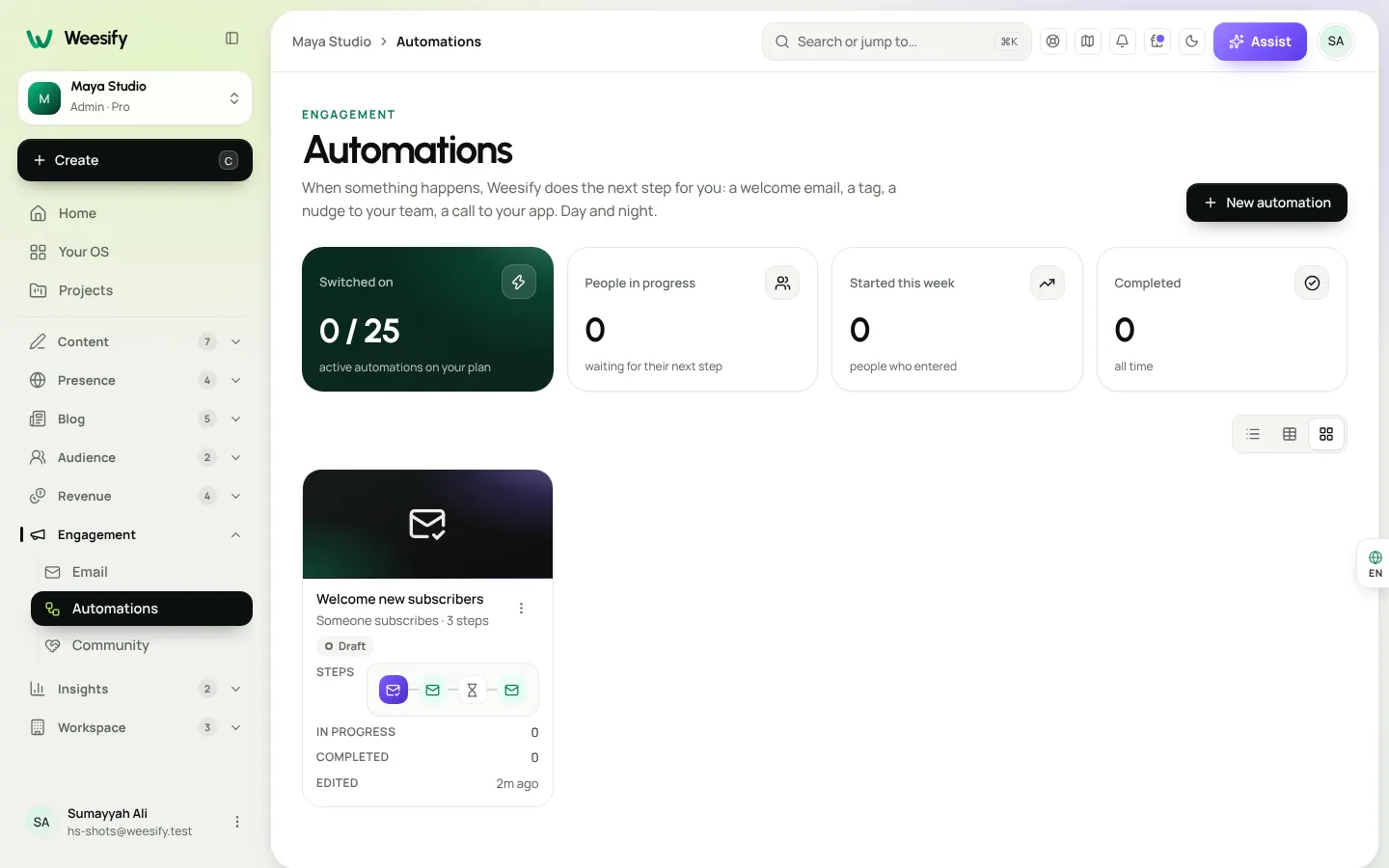
If a step is skipped, it is usually because the person was not subscribed at that moment. If a webhook fails, check that the address is correct and reachable.
To see how welcome emails influence what people do next, compare clicks on each email's button and look at the analytics funnel from visit to sign-up and sale.
Beyond the welcome
Once your welcome sequence works, the same building blocks handle the rest of the journey:
- Thank new customers after a sale from your online store.
- Welcome new students when they enrol in a course.
- Greet new members of your paid community.
Each one is a trigger, a few emails and some waits. Set it up once and it keeps working.
FAQ
How many emails should a welcome sequence have? Three or four over one to two weeks suits most people. Start with the recipe's two emails, then add more once you see which ones get clicks.
Will people who subscribed before I switched it on get the welcome? No. An automation starts for people from the moment it is switched on. Send existing subscribers a one-off broadcast if you want to reach them too.
Can I change an email while the automation is running? Yes. You edit a copy, then choose Publish changes. People already in the automation finish on the version they started.
Do automation emails go to people who unsubscribed? No. Emails from automations only go to subscribed people, and every one includes a one-click unsubscribe.
Can my team be told when someone important signs up? Yes. Add a Notify your team step, optionally after an If / else that checks a tag or stage.
Set it up once
A welcome sequence is the most valuable automation most creators will ever build. It is the first impression, repeated perfectly for every new subscriber.
Start your 14-day trial and switch on your welcome sequence today.
Keep reading
 Guides
Content Calendar Planner: A Step-by-Step Guide
A content calendar only helps if it is honest about your time. Here is how to use Weesify's planner to map campaigns, catch clashes and keep a steady rhythm.
Guides
Content Calendar Planner: A Step-by-Step Guide
A content calendar only helps if it is honest about your time. Here is how to use Weesify's planner to map campaigns, catch clashes and keep a steady rhythm.
 Guides
Remove Pauses and Filler Words From Video Automatically
Long pauses and 'um's make good videos feel slow. Here is how Weesify Video Studio finds them for you, lets you review each one, and removes them in one tap.
Guides
Remove Pauses and Filler Words From Video Automatically
Long pauses and 'um's make good videos feel slow. Here is how Weesify Video Studio finds them for you, lets you review each one, and removes them in one tap.
 Guides
Launch an Online Course on Weesify, Step by Step
From a rough outline to a published course with quizzes, drip release and certificates. Here's how to launch an online course on Weesify without a separate course platform.
Guides
Launch an Online Course on Weesify, Step by Step
From a rough outline to a published course with quizzes, drip release and certificates. Here's how to launch an online course on Weesify without a separate course platform.
Comments
No comments yet. Start the conversation.