


Booking Page for Consultants: Fill Your Calendar Calmly

Stop the back-and-forth emails. A Weesify booking page lets clients pick a free time, pay up front and get a calendar invite and a private meeting room.
"Does Tuesday at 3 work?" "I'm in a different time zone, so maybe Wednesday?" "Let me check and get back to you." Every consultant knows this email thread. It takes four messages to book one call, and the client still forgets to pay your invoice.
A booking page for consultants ends that thread. You set your hours once; clients see only the times you're really free, in their own time zone, pay when they book, and get a calendar invite. With Weesify, online sessions also get their own private meeting room, so there's no outside video link to send. This post walks through a set-up that works for strategy calls, audits, coaching and advisory sessions.
In this guide
- What a good consulting booking page needs
- Build your booking page in Weesify
- Protect your time with buffers, notice and daily limits
- Take payment when clients book
- Meet online without sending a video link
- Manage your agenda, reschedules and no-shows
- FAQ
What a good consulting booking page needs
Before the steps, a quick checklist. A booking page that converts for consultants does five things:
- Says exactly what the session is. "45-minute pricing review" beats "Consultation".
- Shows only real availability. No double bookings, no times at 11pm.
- Takes payment up front. Paid clients turn up. Unpaid ones often don't.
- Sends confirmations and reminders for you.
- Makes the meeting itself easy. One join button, no app to install.
Weesify covers all five. Here's how.
Build your booking page in Weesify
Say you're Ibrahim, a finance consultant for small businesses, and you want to sell a "45-minute cash-flow review".
- Open Bookings under Revenue in the sidebar. On your first visit choose Set up your first booking page; after that, use New booking page.
- Under What can people book?, choose Appointments (one-to-one or small-group time from your weekly hours). The other kind, Event, is for set dates with a limited number of places, like a workshop.
- Give it a name and continue. The page opens as a draft.
- Under What it is, fill in the Name, One line about it, a Description and a Cover image. Say who the session is for and what they'll walk away with.
- Under When people can book, switch on your working days and set the hours. Choose a Length (45 minutes) and how often to Offer a start every.
- Under Where, choose online, in person or a phone call. For online sessions, you can use a Weesify meeting room or My own link.
- Under Price, choose a Currency and Price.
- Under After they book, add a Message in their confirmation, for example what to prepare before the call.
- Check What people see and Next available times, then choose Go live.
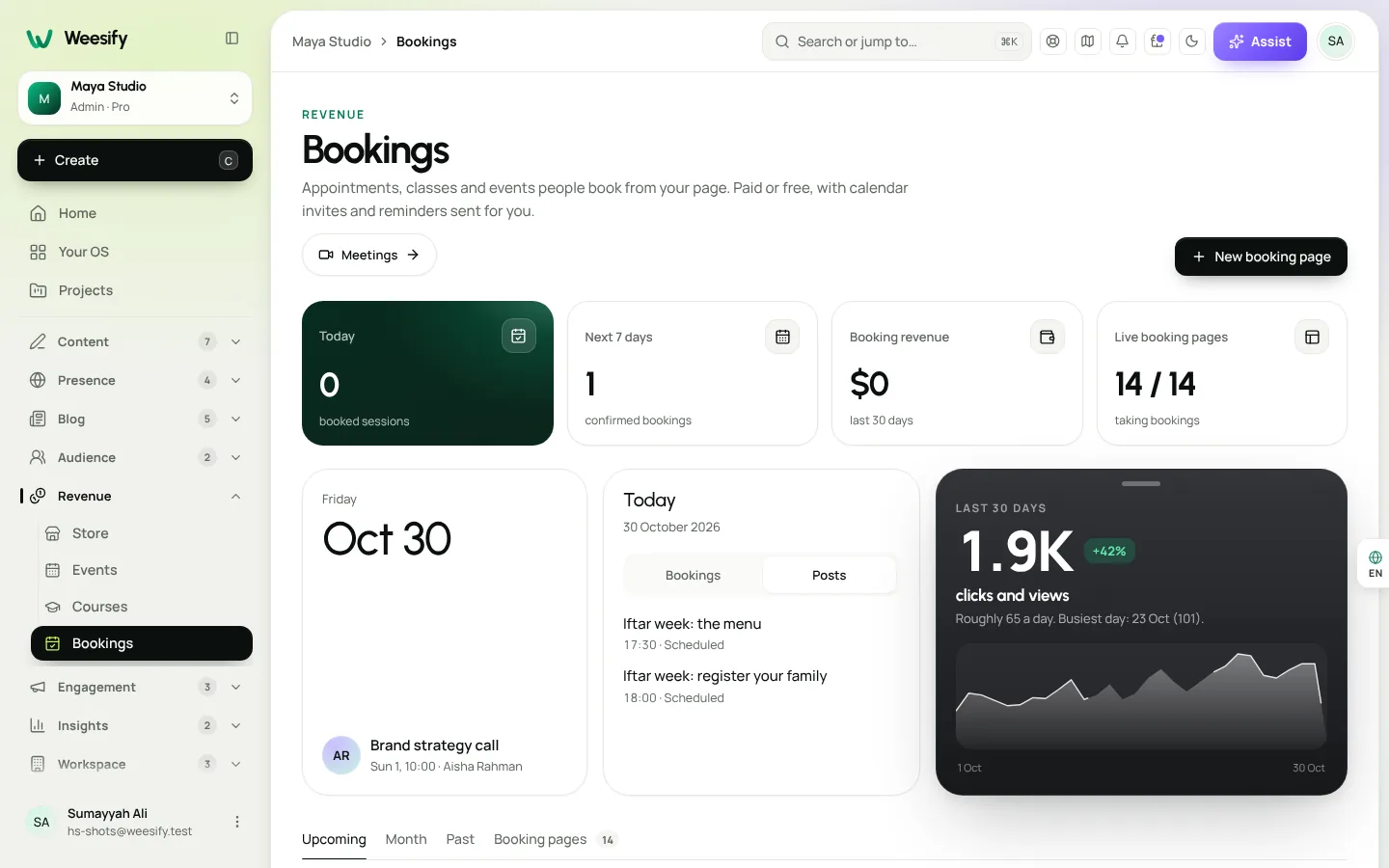
Already list your services on a website? On the Bookings screen you can paste your Services page address, and Assist lists the services it finds so you can add them as drafts. Prices are only filled in when the page states them.
Pick a design that suits your practice
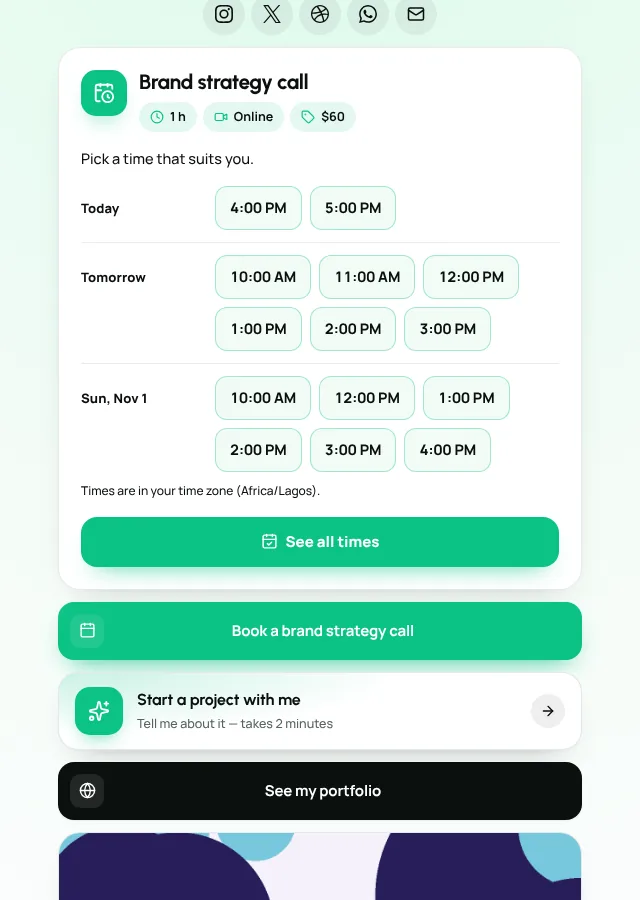
Open your booking page and find Booking page design. There are ten Templates, including Classic split, Minimal centred, Week strip, Agenda list, Services grid and Concierge. If you offer several services, Services grid and Concierge show them first. If most clients book from a phone, Week strip and Minimal centred are calm and quick. The preview uses your real times and prices, and switching never affects existing bookings.
Protect your time with buffers, notice and daily limits
Consultants burn out from back-to-back calls with no time to write notes. Fix it in the settings, not with willpower.
- Break after each booking: time to write up notes or reset before the next client.
- Minimum notice: stops someone booking a call that starts in 20 minutes. Options run from None to 1 week.
- How far ahead: limits how far into the future people can book, from 1 week to 6 months.
- Days off: choose Add a day off for holidays or travel.
- Time zone: your hours are saved in your zone. Clients see times in their own zone and can switch between 12 and 24 hour clocks.
For more control, open the page's Scheduling rules. There you'll find Break before (minutes), Break after (minutes) and Most bookings a day. You can also choose I accept each booking myself, so new bookings wait as Needs your OK while the time is held for them. That's useful if you want to check a client is a good fit first.
Share hours across several services
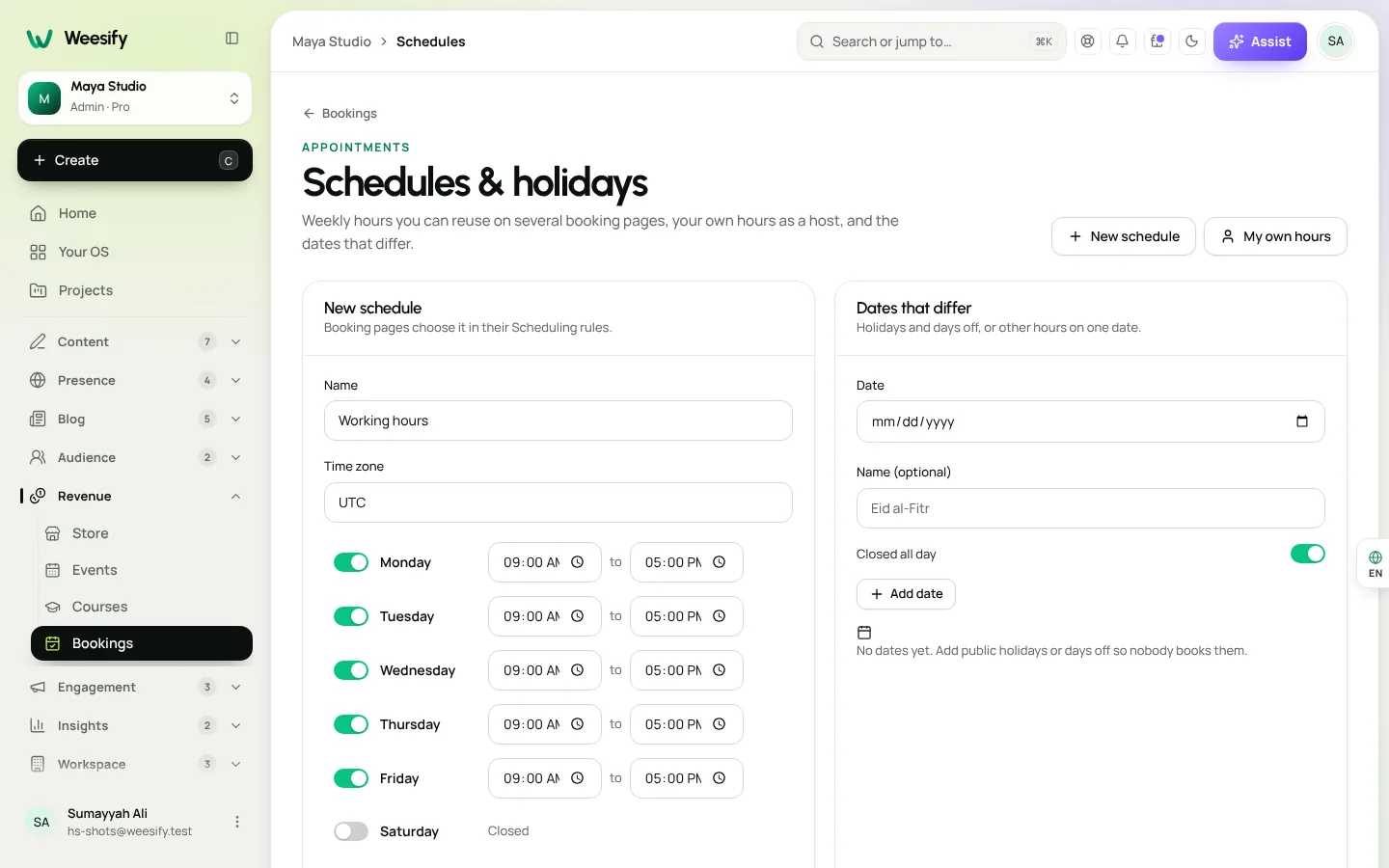
If you offer a discovery call, a full review and a monthly retainer session, you don't want to set your hours three times. Under Schedules & holidays, create weekly hours you can reuse on several booking pages, plus Dates that differ for public holidays. Each booking page then chooses that schedule in its Scheduling rules.
Working as a team
If you run a small consultancy, Who hosts in Scheduling rules lets you choose One person, Round robin (each booking goes to whoever is free, by priority and then whoever had a booking least recently) or Everyone together. A host is busy wherever they have a booking, on every booking page, so nobody gets double-booked. Our post on Weesify for coaches and consultants covers more team set-ups.
Take payment when clients book
Paid times need payments set up first; until then people can't book paid times. The store guide explains the wallet.
Once you're set up, it works like this:
- A client picks a time, and it's held for them while they pay. Their booking shows as Paying… in your list.
- Once paid, it shows as Booked. They get a calendar invite, and reminders a day and an hour before.
- If payment doesn't arrive in time, the hold is released and the booking shows as cancelled with Not paid in time.
Selling a package of sessions rather than one call? Read weekly series: sell paid sessions in one checkout. And if you want a launch offer for new clients, see discount codes and offers.
Meet online without sending a video link
Choose the Weesify meeting room for online appointments and each confirmed booking gets its own private room. Clients join from their email, in the browser: no app, no account. You start the meeting from Weesify. Rooms run on Weesify's own servers rather than an outside video service.
In Scheduling rules, you can switch on a Waiting room (you let each guest in) and choose how early Guests can join early (minutes). We explain the rooms in detail in self-hosted video meetings on Weesify, and how recordings become transcripts and summaries in meeting recordings, transcripts and summaries.
Manage your agenda, reschedules and no-shows
The Upcoming tab lists sessions grouped by Today, Tomorrow and later. The Past tab shows sessions from the last 90 days, where you mark each one Attended or No-show.
- Reschedule moves a booking to a free time and emails the client. The meeting link stays the same; they get the new time and an updated calendar file.
- Bookers can move their booking themselves if you allow it in Scheduling rules, up to a cut-off you set and a limit on Times one booking can move.
- Cancel booking emails the client. If it was paid, refund it from Store › Orders; cancelling doesn't refund automatically.
- Copy calendar link under Export & calendar gives you a private link that Google Calendar, Apple Calendar or Outlook can subscribe to. Download bookings (CSV) gives you a spreadsheet.
On your booking page, They can cancel up to sets how late clients can cancel themselves, from The start to 1 week before.
A sample set-up for a solo consultant
| Setting | Suggested starting point |
|---|---|
| Length | 45 minutes |
| Offer a start every | 60 minutes |
| Break after each booking | 15 minutes |
| Minimum notice | 1 day |
| How far ahead | 1 month |
| They can cancel up to | 1 day before |
| Where | Weesify meeting room, waiting room on |
Adjust after a month. If clients keep asking for earlier slots, widen your hours. If you're rushing between calls, add a longer break.
FAQ
Can clients book in their own time zone?
Yes. Times show in the client's own time zone, and they can switch the time zone if they're booking from somewhere else. You set your hours once in yours.
Do I need Zoom or Google Meet for online sessions?
No. Choose Weesify meeting room and each confirmed booking gets a private room hosted on Weesify's own servers. Clients join from their email in the browser. You can still use My own link if you prefer.
Can I approve bookings before they're confirmed?
Yes. In Scheduling rules, choose I accept each booking myself. Bookings wait as Needs your OK, and the time is kept for them meanwhile.
Does a booking page for consultants work for in-person meetings too?
Yes. Under Where, choose in person and add the Address. It's only shared with people once they've booked.
What happens if a paid client cancels?
They can cancel within the rules you set. Cancelling doesn't refund automatically: open the order in Store › Orders and choose Refund if you agree.
Book your first paid call
Write one clear session, set honest hours, add a buffer, and share the link in your email signature and on your link-in-bio page. The back-and-forth stops the day it goes live.
Start your 14-day trial and set up your booking page today.
Sigue leyendo
 Use cases
Weesify for Islamic Educators: Courses, Classes and Community
A practical look at how an Islamic educator can run courses, live classes, one-to-one sessions and a student community from one Weesify workspace.
Use cases
Weesify for Islamic Educators: Courses, Classes and Community
A practical look at how an Islamic educator can run courses, live classes, one-to-one sessions and a student community from one Weesify workspace.
 Use cases
Build a Paid Community on Your Own Page, Step by Step
A paid community gives your most engaged people a home and gives you income that does not depend on a feed. Here is how to plan, price and launch one with Weesify Community.
Use cases
Build a Paid Community on Your Own Page, Step by Step
A paid community gives your most engaged people a home and gives you income that does not depend on a feed. Here is how to plan, price and launch one with Weesify Community.
 Use cases
Weesify for Agencies: Host and Manage Client Websites
How an agency can host client websites, collect approvals, publish safely and hand projects over, with a separate Weesify workspace for each client.
Use cases
Weesify for Agencies: Host and Manage Client Websites
How an agency can host client websites, collect approvals, publish safely and hand projects over, with a separate Weesify workspace for each client.
Comentarios
Aún no hay comentarios. Empieza la conversación.