


Captions, Highlights and Short Clips From One Long Video

One long talk can feed your short-video channels for weeks. Here is how to find the strongest moments, add captions people can read on mute, and export clips for every feed.
Long recordings hold your best material. A 40-minute talk might contain a two-sentence answer that explains everything, a striking question, or a practical tip someone will save and share. The trouble is finding those moments, cutting them out, and making them readable for people scrolling with the sound off.
This article shows a repeatable way to turn one long video into captioned short clips using three tools in Weesify Video Studio: Highlights to find the moments, Captions to make them readable, and Export to fit every feed. It is one of the most effective growth habits for anyone who teaches, speaks or interviews.
In this guide
- Why short clips with captions work
- Step 1: transcribe the long video
- Step 2: find highlights
- Step 3: make each highlight its own clip
- Step 4: add captions that read on mute
- Step 5: add a hook and a cover
- Step 6: export for every feed
- A weekly clip routine
- FAQ
Why short clips with captions work
Short-form feeds reward two things: a strong opening and content that makes sense without sound. A clip that starts mid-thought, or that only works with the volume up, loses people in the first seconds.
Clips cut from a longer talk have a natural advantage. The content is already considered and tested, because you said it to a real audience. All you need to do is pick the right 15 to 60 seconds and package it well.
Step 1: Transcribe the long video
Open Content › Video Studio and choose New video. A good goal here is Turn a podcast into short clips, which works just as well for talks and lessons: it makes the edit vertical, tightens pauses, keeps a first 59 seconds as a starting point and adds bold word-by-word captions.
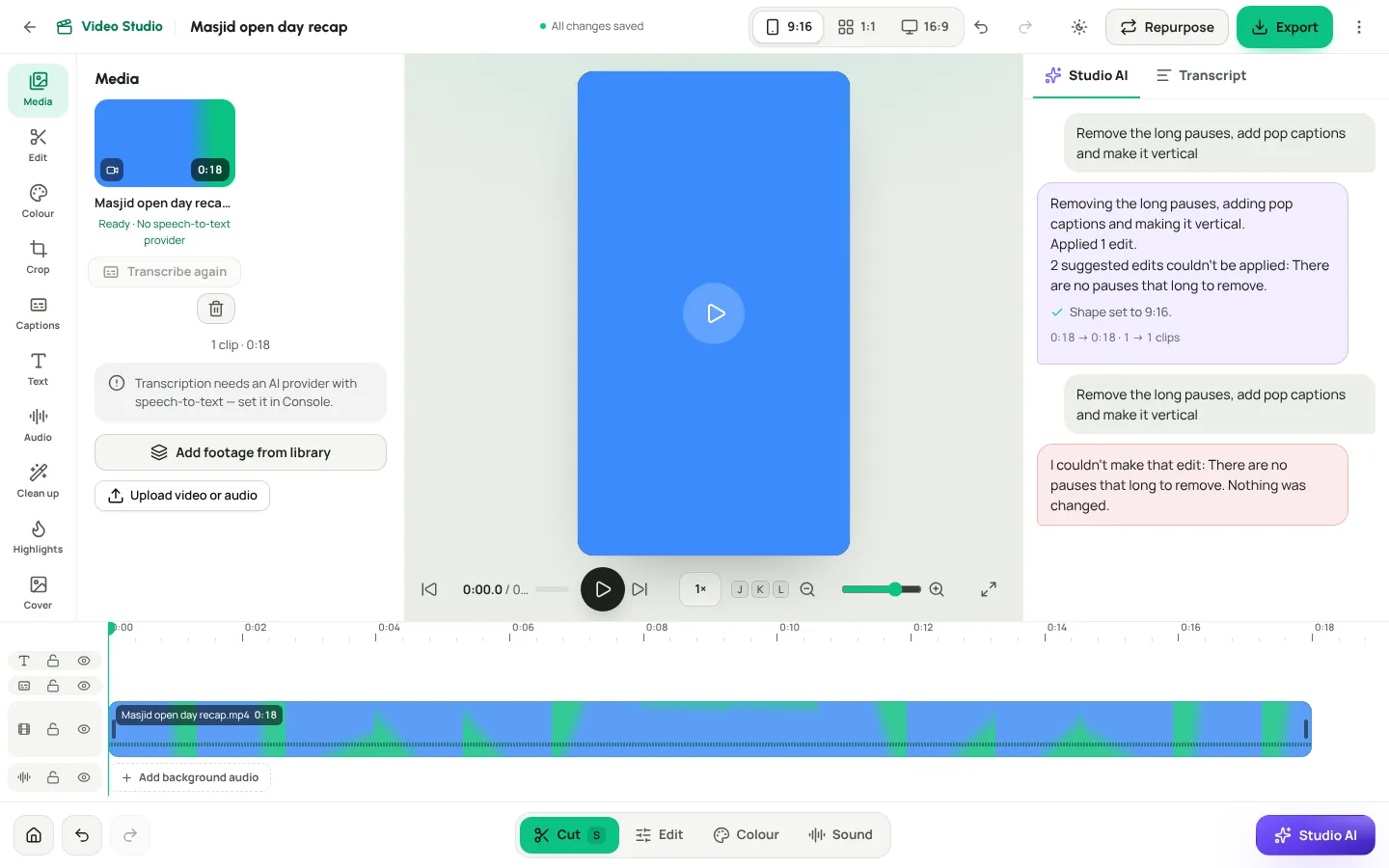
Add your footage and choose Start a video. When it is ready, open the Media tool and choose Transcribe. Wait for Transcript ready.
The transcript powers everything that follows. Before you go on, skim it and fix names: double-click a word and choose Correct. This is especially important for Arabic names and terms, which captions will display exactly as written.
Step 2: Find highlights
Open Highlights and choose Find highlights.
Video Studio reads your transcript and looks for windows of 15 to 60 seconds that start and end on full sentences. It scores each one on what tends to make a short clip work:
- A hook in the first line, such as a question, a number, or words like "how", "why" or "mistake"
- Dense speech without long pauses
- Complete sentences, so the clip makes sense on its own
The best few moments that do not overlap are offered to you. Because this works from the transcript, it does not need AI to be switched on.
Choose Preview to watch a highlight. If you see "No highlights found yet", wait until the transcript is ready, or try a longer video.
Step 3: Make each highlight its own clip
When a highlight is good, choose Make a clip. It becomes its own short project, so you can edit, caption and export it without touching the original long video.
Inside the clip, tidy it up:
- Delete a false start in the transcript.
- Open Clean up to remove any remaining "um"s and long pauses. See remove pauses and filler words automatically.
- Use Crop to set a Focal point so the speaker stays in frame in vertical, and choose Push in for gentle movement.
Step 4: Add captions that read on mute
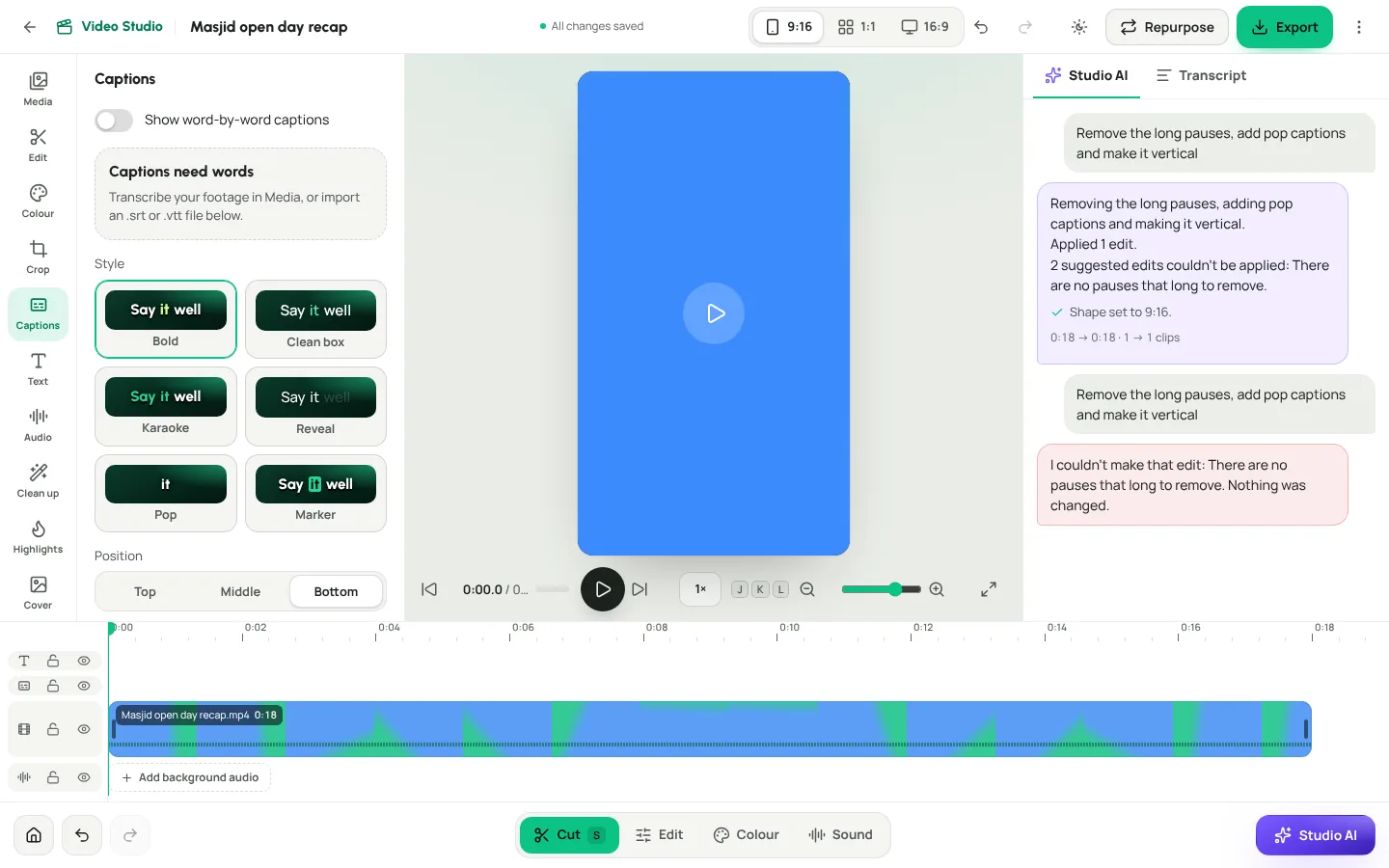
Open the Captions tool and switch on Show word-by-word captions. If it says Captions need words, transcribe first, or import a subtitle file.
Choose a Style:
| Style | A good fit for |
|---|---|
| Bold | Most short clips: strong and easy to read |
| Clean box | Lessons and explainers |
| Karaoke | Fast, energetic clips: it highlights each word as it is said |
| Reveal | Calm, reflective moments |
| Pop | Punchy tips |
| Marker | Key phrases and definitions |
Captions are always shown in the preview, so try two or three styles and keep the one that reads best on your footage.
Then choose a Position: Top, Middle or Bottom. In vertical video, Middle keeps captions clear of the app's own buttons and text at the bottom of the screen.
Using your own subtitles
Already have captions from another tool, or a translated version? Under Subtitle files, choose Import .srt / .vtt. Captions now come from that file; choose Use the transcript instead to go back. Download .srt saves a copy of your captions, which is handy for uploading to YouTube as a separate subtitle track.
Step 5: Add a hook and a cover
A short text at the start tells people why to keep watching.
- Open the Text tool.
- Type a few words, for example "3 tips for a calmer morning".
- Choose Title or Hook, set the Length, then Add at the playhead.
Keep it to a few words so it reads on a phone. Text overlays are always included in the export.
Then open Cover, scrub the strip to a strong frame, and choose Use this frame. It is saved as an image with every export, ready to use as a thumbnail.
Step 6: Export for every feed
Choose Export and pick a Format:
- Reels & TikTok for vertical 9:16
- YouTube for wide 16:9
- Square for feeds where 1:1 works best
Choose a Quality, switch on Burn in captions so captions are part of the video, and choose Export MP4. Exports render in the background; the file appears under Recent exports. Each export saves a version, so you can return to that edit later.
Do it in one sentence with Studio AI
Prefer to describe it? Open Studio AI and type "Make it vertical with pop captions", or "Add a title '3 tips' for the first 3 seconds". Each request is a single step you can undo.
Turn clips into posts
A clip needs a caption and a plan. Choose Repurpose in the editor to send the project to the Content OS, where it becomes a short-form caption, a thread, a LinkedIn-style post and more. Then schedule the posts on your content calendar planner. For the full flow, read repurpose one video into many posts.
A weekly clip routine
- Monday: pick one long recording and transcribe it
- Monday: run Find highlights and choose three
- Tuesday: make three clips, clean them up, caption them
- Tuesday: add a hook and a cover to each
- Wednesday: export, repurpose and schedule across the week
- Friday: check Content › Insights for which clip brought the most clicks
Three clips a week from one recording adds up to a steady stream of short content, without filming anything new.
Frequently asked questions
How long should a short clip be?
Highlights are 15 to 60 seconds, which suits most short-video feeds. Shorter clips with one clear idea often work best.
Do I need AI to find highlights?
No. Highlights are found from your transcript. You do need a transcript, and transcription needs AI switched on for your workspace.
Can I edit captions?
Yes. Double-click any word in the transcript and choose Correct. Captions follow the transcript as it plays after your edits.
Are captions burned into the video?
Only if you switch on Burn in captions when you export. They are always shown in the preview.
Can I keep the long video too?
Yes. Make a clip creates a separate project. The original long video stays as it is, ready for YouTube or your course.
One recording, many clips
Your best ideas deserve more than one airing. Find the moments, caption them clearly and share them everywhere.
Start your 14-day trial and make your first clips this week.
Teruskan membaca
 Growth & marketing
AI Content Ideas That Sound Like Your Brand, Not a Robot
Generic AI ideas produce generic posts. Describe your brand voice once in Weesify and every idea, angle and draft starts closer to how you actually speak.
Growth & marketing
AI Content Ideas That Sound Like Your Brand, Not a Robot
Generic AI ideas produce generic posts. Describe your brand voice once in Weesify and every idea, angle and draft starts closer to how you actually speak.
 Growth & marketing
Discount Codes and Offers That Sell Without Cheapening
Discounts can fill a launch or quietly train buyers to wait for a sale. Here's how to use Weesify discount codes, automatic sales, event codes and order bumps with intent.
Growth & marketing
Discount Codes and Offers That Sell Without Cheapening
Discounts can fill a launch or quietly train buyers to wait for a sale. Here's how to use Weesify discount codes, automatic sales, event codes and order bumps with intent.
 Growth & marketing
SEO Basics for Creators: Get Found Without the Jargon
Search engines are still how many people find a teacher, a shop or a consultant. These SEO basics for creators cover the few things that matter, and where to set each one in Weesify.
Growth & marketing
SEO Basics for Creators: Get Found Without the Jargon
Search engines are still how many people find a teacher, a shop or a consultant. These SEO basics for creators cover the few things that matter, and where to set each one in Weesify.
Komen
Belum ada komen. Mulakan perbualan.