


Meeting Recordings, Transcripts and AI Summaries

Record a client session in Weesify Meetings and get a speaker-labelled transcript and an AI summary with highlights, action items and decisions, all made on Weesify's own servers.
You finish a great client call. Ideas flowed, decisions were made, and the client agreed to three next steps. Then the next call starts, and by evening you remember two of the three.
Weesify Meetings now handles the follow-up for you. Hosts can record a meeting in their browser, and Weesify writes a transcript and an AI summary with highlights, action items and decisions. The important part: the meeting recordings, transcripts and summaries are all made on Weesify's own servers. Your conversation is never sent to an outside speech or AI service.
This post explains how recording works, what you get afterwards, who can see it, and how long it's kept.
In this guide
- What's new in Weesify Meetings
- How recording works (and how everyone is told)
- What you get: recording, transcript, AI summary
- Sharing the summary with your guest
- Retention, storage and who can see recordings
- Good habits for recording client calls
- FAQ
What's new in Weesify Meetings
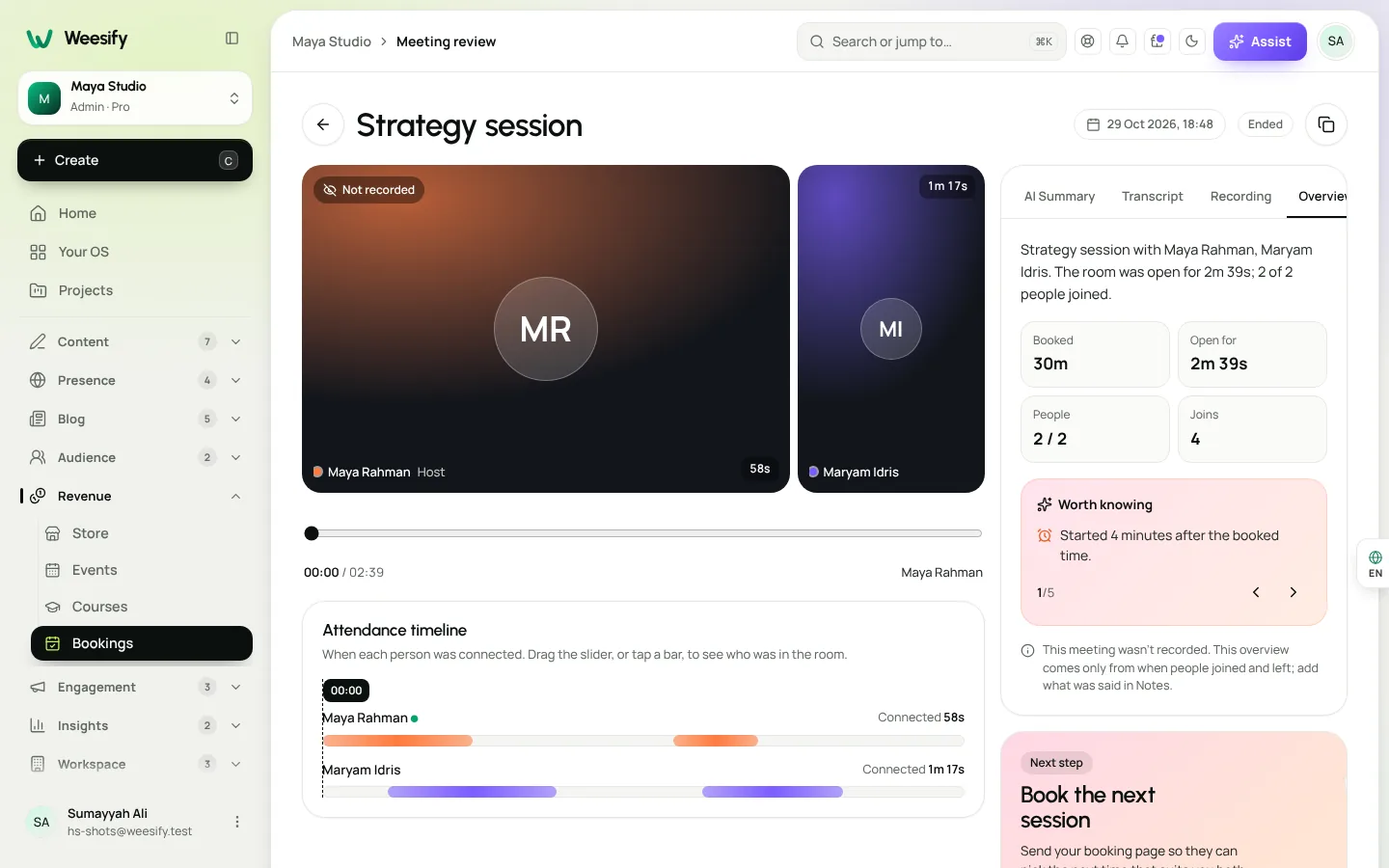
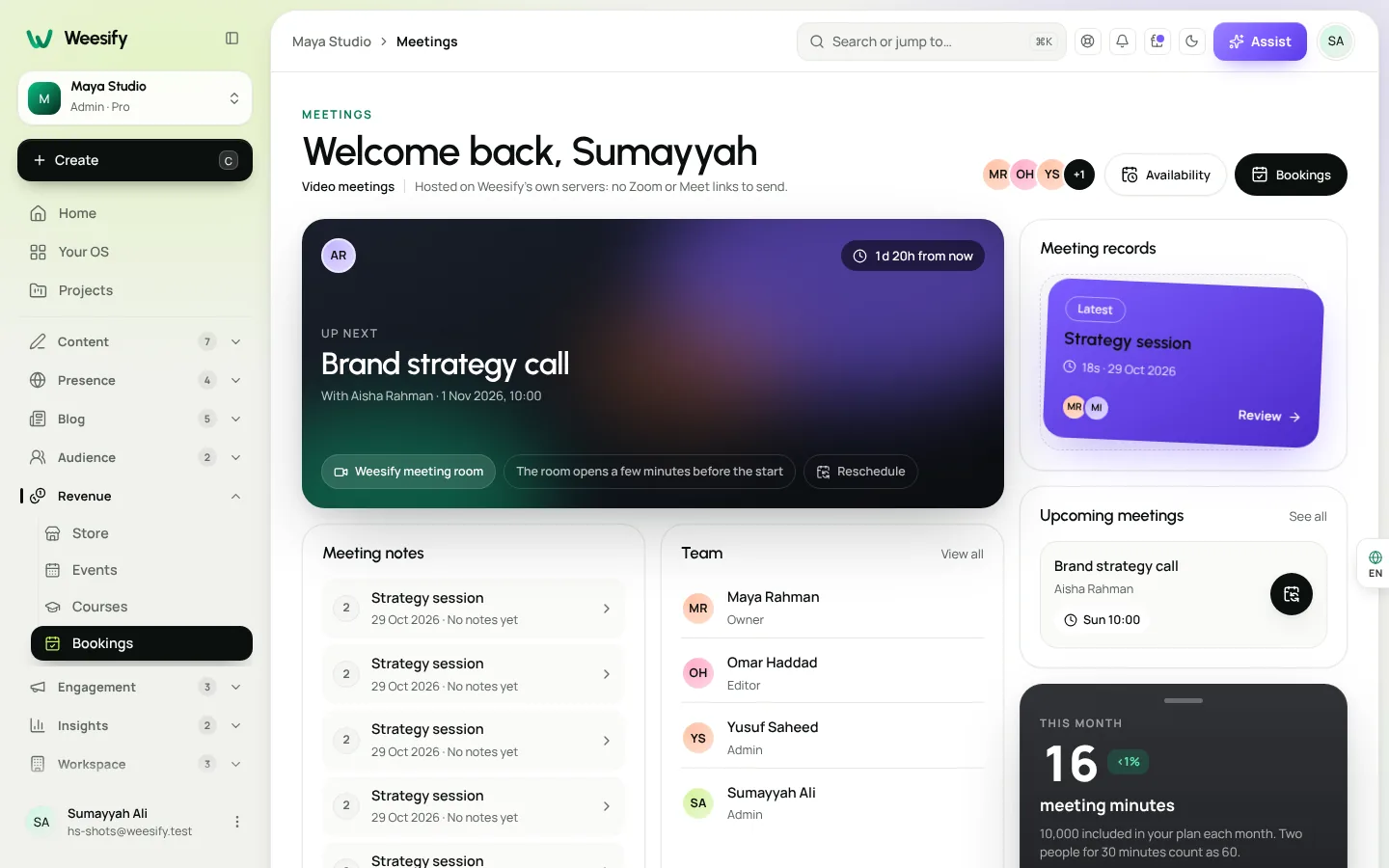
Every Weesify meeting already has a review page with an attendance timeline, activity log and private notes. (New to Meetings? Start with self-hosted video meetings on Weesify.)
Now, when a meeting is recorded, the review page also has:
- Recording: the audio and video, playable right there.
- Transcript: every word, grouped into turns and labelled by speaker.
- AI summary: a short summary plus Highlights, Action items and Decisions.
How recording works (and how everyone is told)
Recording is off by default. Nothing is recorded unless you choose to.
Turn recording on for your workspace
- Open Meetings.
- Switch on Allow recording. The setting notes: "Off by default. Everyone in the meeting is told and sees a recording badge."
- Choose how long to Keep recordings for: 7, 30, 90, 180 or 365 days, or Until deleted.
- Select Save.
You'll also see Recordings storage: how much you've used and how much your plan includes.
Record a meeting
- In the meeting, tap Record.
- Weesify asks you to confirm: "Record this meeting? Everyone in the room is told and sees the recording badge."
- Guests see a clear message: "The host is recording this meeting. The recording is used for a transcript and notes."
- When you're done, tap Stop recording. Weesify saves the last part, then shows "Recording saved. The transcript and summary appear in Meetings when they're ready."
The recording is made in the host's browser and sent to Weesify as it goes. Keep the tab open until you stop. If your connection slows, the recording keeps going and catches up. Recording works in Chrome, Edge or Firefox on a computer. If you try to end the meeting while it's still recording, Weesify asks you to stop the recording first so nothing is lost.
What you get: recording, transcript, AI summary
Once the recording is saved, Weesify listens to it on its own server. A one-hour meeting takes a few minutes, and the review page updates by itself.
The transcript
Weesify's speech engine turns the recording into text with word timings. Each word is then matched to whoever the room says was speaking at that moment, and words are grouped into turns. So you get a readable conversation, not a wall of text:
Host: So the priority for March is the new pricing page. Guest: Yes, and I'll send the old figures by Friday.
The transcript also becomes captions on the recording, so you can play it back with text on screen. If no speech is found (say the microphone was muted the whole time), the page says "No speech was found in this recording."
The AI summary
From the transcript, the Weesify AI engine writes:
| Section | What it holds |
|---|---|
| AI summary | A short paragraph of what the meeting covered |
| Highlights | The key points worth remembering |
| Action items | Next steps, with an owner when one was named |
| Decisions | What was agreed |
The summary is written in the language most of the transcript is in. Under it, Weesify is honest about what it is: "Written by the Weesify AI engine from the transcript. Check it before you share it." Use Copy summary to paste the summary and action items into an email or your project notes.
When a meeting isn't recorded
Not every meeting needs a recording. Unrecorded meetings still get the attendance timeline and activity, and the page says so plainly: "This overview comes only from when people joined and left; add what was said in Notes."
Sharing the summary with your guest
By default, only your team sees the summary. Switch on Share with the guest and they can read it from their booking link. It's a simple, professional follow-up: the client sees the same decisions and action items you do, without you writing a recap email.
Pair it with the Next step prompt on the review page (Copy booking link) so the client can book the next session while the conversation is fresh. Selling a run of sessions? See weekly series: sell paid sessions in one checkout.
Retention, storage and who can see recordings
Recordings contain your clients' words, so control matters.
- Who can open it: only your team members who manage bookings and the meeting's host.
- How long it's kept: the Keep recordings for setting. When that time is up, the recording, transcript and summary are deleted. Each recording shows "Kept until [date]" or "Kept until you delete it."
- Delete any time: Delete recording removes the recording, its transcript and summary. This can't be undone.
- Storage: if your recordings storage fills during a meeting, the recording stops and Weesify tells you why.
- Where it's processed: on Weesify's own servers, with the same self-hosted AI described in Weesify AI runs on our own servers.
Good habits for recording client calls
- Ask first, out loud. The room tells everyone, but a quick "Is it all right if I record this for my notes?" builds trust.
- Record only what you need. A long onboarding call, yes. A five-minute check-in, probably not.
- Check the summary before sharing. AI summaries are a strong first draft. Correct names and figures before you switch on Share with the guest.
- Keep your notes. Add your own context in Notes: things you noticed that a transcript can't capture.
- Set a sensible retention. If you don't need recordings after a project ends, 90 days is a reasonable default. Choose Until deleted only when you have a reason.
Who it's for
- Consultants and coaches who want a reliable record of what was agreed. See our booking page for consultants guide.
- Teachers reviewing a one-to-one lesson to plan the next one.
- Teams handing a client from one person to another, who need the context in writing.
FAQ
Are meeting transcripts made by an outside AI service?
No. Transcripts are made by Weesify's own speech engine, and summaries by the Weesify AI engine, both on Weesify's servers. A meeting is never sent to an outside speech API.
Do guests know they're being recorded?
Yes. When the host starts recording, everyone in the room is told and sees a recording badge, and guests see a message explaining that the recording is used for a transcript and notes.
How long does a transcript take?
Weesify processes the recording after it's saved. A one-hour meeting takes a few minutes, and the review page updates by itself when it's ready.
Can I get a transcript without a recording?
No. Transcripts and summaries come from a recording. For unrecorded meetings, you still get attendance, activity and your own notes.
Can my client see the recording?
Only your team members who manage bookings and the meeting's host can open the recording. You can choose to share the AI summary with the guest using Share with the guest.
Remember every conversation
Good client work runs on follow-through. Let Weesify take the notes so you can stay in the conversation.
Start your 14-day trial and record your first Weesify meeting.
Continuer la lecture
 Product news
The Weesify API and CLI: A Developer's Guide
Scoped tokens, a documented REST API, signed webhooks and a one-file CLI that deploys websites from your laptop or build pipeline. Here is how they fit together.
Product news
The Weesify API and CLI: A Developer's Guide
Scoped tokens, a documented REST API, signed webhooks and a one-file CLI that deploys websites from your laptop or build pipeline. Here is how they fit together.
 Product news
Weekly Series: Sell Paid Sessions in One Checkout
New in Weesify Bookings: sell a set of sessions, same day and time each week, in one checkout. Every week is checked before payment, and fair refunds are built in.
Product news
Weekly Series: Sell Paid Sessions in One Checkout
New in Weesify Bookings: sell a set of sessions, same day and time each week, in one checkout. Every week is checked before payment, and fair refunds are built in.
 Product news
Weesify 2.0: What's New in the Rebuilt Weesify
From a link page in 2022 to an operating system for your online presence, audience and income. Here is everything new in Weesify 2.0, in plain words.
Product news
Weesify 2.0: What's New in the Rebuilt Weesify
From a link page in 2022 to an operating system for your online presence, audience and income. Here is everything new in Weesify 2.0, in plain words.
Commentaires
Aucun commentaire pour l’instant. Lancez la conversation.