


Social Inbox: Reply to Comments Faster in One Place

Comments are where trust is built, and where questions get lost. Weesify's social inbox gathers comments from your connected accounts so your team can reply, assign and resolve them.
A post goes out. Over the next two days, people respond: a thank-you on Instagram, a question about the class time on Facebook, a thoughtful comment under a YouTube video, a request for the course link on LinkedIn. Each one deserves an answer. But checking four apps, remembering who already replied, and noticing the one question that really mattered is hard work.
A social inbox solves this by putting the comments in one place. In Weesify's Content OS, the Inbox gathers comments and mentions from your connected accounts so you can reply, hand them to a teammate and mark them done. This article shows how it works, and how three different kinds of teams can use it.
In this guide
- What the Inbox collects, and from where
- Set it up in three steps
- Reply faster with tabs, priority and suggestions
- Share the work across a team
- Three ways teams use the Inbox
- FAQ
What the social inbox collects
The Inbox gathers comments from posts you publish through Weesify on these networks, using each network's official connection:
- Facebook Pages
- YouTube
- LinkedIn Page posts
New comments arrive every few minutes once the account is connected and you have published through Weesify. TikTok, Threads, Pinterest and X do not offer comment access for this, so their comments are not shown. We would rather tell you that plainly than promise something the networks do not allow.
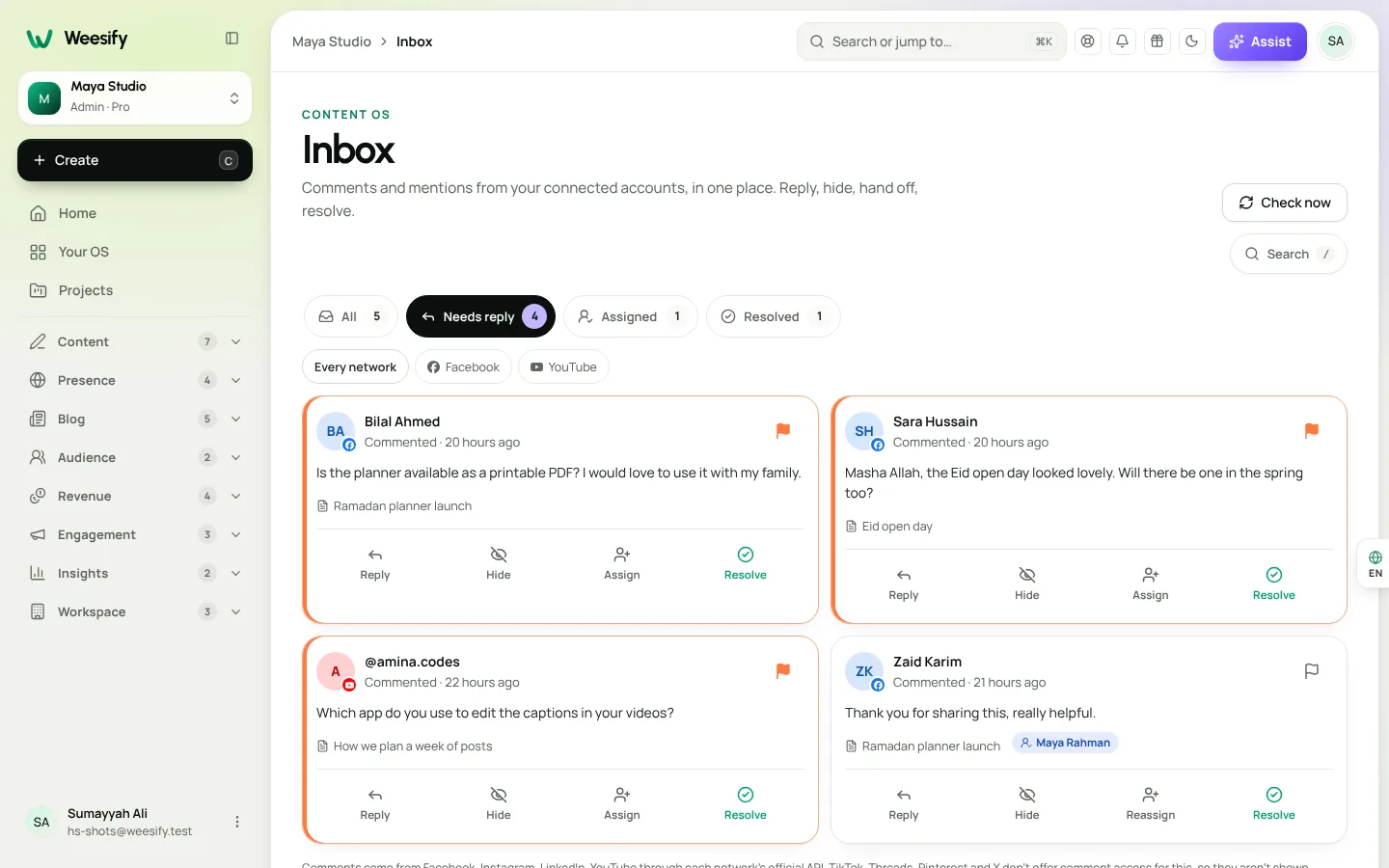
Set up your inbox in three steps
- Connect your accounts. Open Content › Accounts and choose Connect for each network. Owners and admins can do this. If the Inbox is empty, it offers a Connect accounts button that takes you there.
- Publish through Weesify. Schedule posts to connected channels with Post automatically switched on. Our guide to publishing to social networks from Weesify walks through it.
- Open Content › Inbox. Comments on those posts start arriving every few minutes. Choose Check now to look straight away.
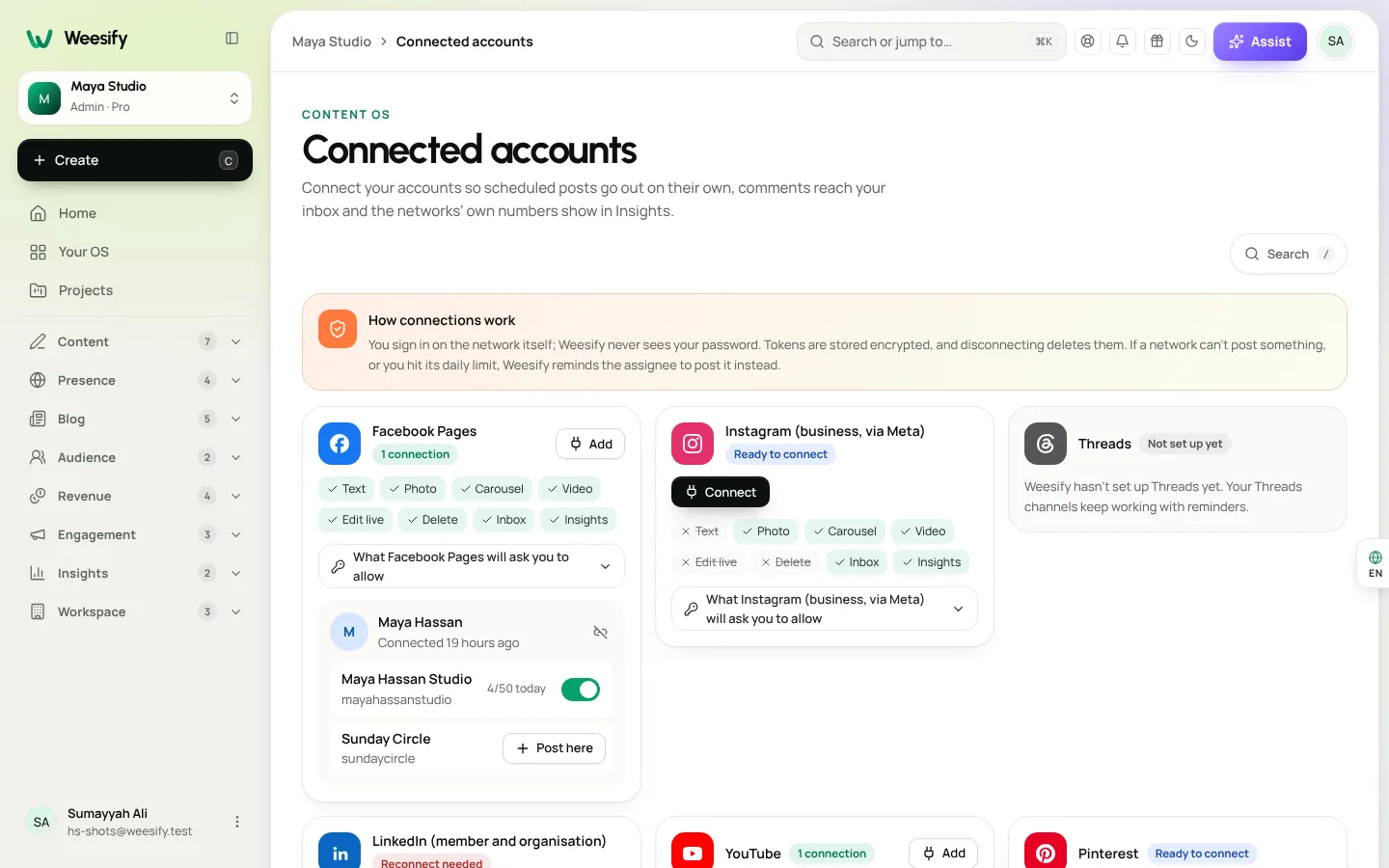
Reply faster
Use the tabs to decide what needs you
The Inbox has four tabs:
| Tab | What is in it |
|---|---|
| All | Every comment from connected accounts |
| Needs reply | Comments nobody has answered yet |
| Assigned | Comments handed to a teammate |
| Resolved | Comments you have dealt with, kept so you can find them again |
Use the Network filter to focus on one network at a time. When Needs reply is empty, you will see All caught up.
Reply in place
Open a comment and write under Your reply, then choose Send. Your reply goes to the network as a normal reply.
Stuck for words? Choose Suggest a reply to get a starting point from AI. It is a draft, not an answer: read it, make it yours, and then send. If AI is switched off for your workspace, everything else in the Inbox still works.
Prioritise, hide and resolve
- Mark as priority puts a comment at the top. Useful for a complaint, an urgent question or a press enquiry.
- Hide hides a comment on the network itself, after you confirm. Use it for spam or abuse.
- Open on the network takes you to the original comment, in context.
- Resolve marks it as dealt with. Resolved comments are kept under Resolved, and Reopen brings one back.
Share the work across a team
When more than one person looks after your accounts, the risk is not that nobody replies. It is that two people reply, or that each assumes the other did.
- Assign hands a comment to a teammate. It waits under Assigned for them, and you can Reassign it later.
- Agree who handles which kind of comment, then use Assign to keep to it. For example, course questions go to the course lead, booking questions to whoever manages the calendar.
- Reply to questions first, then thanks. A question left unanswered for a day costs more than a thank-you answered tomorrow.
Three ways teams use the social inbox
These are examples of how the Inbox fits different kinds of work. They describe workflows, not specific customers.
1. A solo teacher running weekly classes
Ustadha Maryam runs an online Qur'an class and posts a short reminder to her Facebook Page and Instagram each week. People reply asking about times, levels and whether beginners are welcome.
How she uses it: once a day she opens Needs reply, answers the questions with a link to her booking page, and resolves them. Thanks and kind words get a short reply on Friday. Her evergreen class reminder goes out through a queue, so the comments keep coming in steadily without extra posting work.
2. A small team launching a course
A three-person team is promoting a new course on Instagram, YouTube and LinkedIn. Comments spike during the launch week.
How they use it: one person triages the All tab each morning, marking pricing and access questions as priority and assigning them to the course lead. Technical questions go to the person who built the course. Everyone works from Assigned, so nobody replies twice. After launch, they look at Content › Insights to see which posts brought the most clicks, and plan the next campaign on the content calendar planner.
3. A charity or community organisation
An organisation runs a Facebook Page and a YouTube channel for its talks and appeals. Comments include questions, supportive messages and, occasionally, spam.
How they use it: volunteers take shifts with the Network filter set to their network. Spam is hidden after confirmation. Anything sensitive is marked priority and assigned to a staff member. Resolved comments stay searchable, so a new volunteer can see how similar questions were answered before.
For more on how organisations like this use Weesify, see Weesify for nonprofits and dawah organisations.
Good habits for faster replies
- Check Needs reply at the same time each day
- Reply to questions first, then thanks
- Assign anything you cannot answer yourself, rather than leaving it
- Use Suggest a reply as a draft, never as a final answer
- Resolve as you go, so Needs reply stays honest
- Turn common questions into ideas in Content › Ideas: they make great posts
That last point matters. The questions in your comments are some of the best content ideas you will ever get. Capture them, and see AI content ideas in your brand voice for turning them into posts.
Frequently asked questions
Which networks does the social inbox support?
Comments from Facebook Pages, Instagram, YouTube and LinkedIn Page posts. TikTok, Threads, Pinterest and X do not offer comment access for this, so they are not shown.
Do comments on posts I published elsewhere appear?
The Inbox brings in comments on posts you publish through Weesify on connected accounts.
How quickly do new comments arrive?
Every few minutes once the account is connected. Choose Check now to look straight away.
Can I hide spam comments?
Yes. Hide hides a comment on the network, after you confirm.
Does the AI reply for me?
No. Suggest a reply gives you a starting point. Nothing is sent until you choose Send.
One inbox, fewer missed questions
Comments are where people decide whether to trust you. Bring them into one place, share the work, and answer the questions that matter first.
Start your 14-day trial and connect your first account today.
Sigue leyendo
 Use cases
Weesify for Islamic Educators: Courses, Classes and Community
A practical look at how an Islamic educator can run courses, live classes, one-to-one sessions and a student community from one Weesify workspace.
Use cases
Weesify for Islamic Educators: Courses, Classes and Community
A practical look at how an Islamic educator can run courses, live classes, one-to-one sessions and a student community from one Weesify workspace.
 Use cases
Booking Page for Consultants: Fill Your Calendar Calmly
Stop the back-and-forth emails. A Weesify booking page lets clients pick a free time, pay up front and get a calendar invite and a private meeting room.
Use cases
Booking Page for Consultants: Fill Your Calendar Calmly
Stop the back-and-forth emails. A Weesify booking page lets clients pick a free time, pay up front and get a calendar invite and a private meeting room.
 Use cases
Build a Paid Community on Your Own Page, Step by Step
A paid community gives your most engaged people a home and gives you income that does not depend on a feed. Here is how to plan, price and launch one with Weesify Community.
Use cases
Build a Paid Community on Your Own Page, Step by Step
A paid community gives your most engaged people a home and gives you income that does not depend on a feed. Here is how to plan, price and launch one with Weesify Community.
Comentarios
Aún no hay comentarios. Empieza la conversación.