


Video Studio: Edit the Footage You Already Have
Talks, talking-head clips, screen recordings: you already have the footage. Weesify Video Studio turns it into a clean, captioned video by letting you edit the words.
Most creators and organisations are not short of video. They have a recorded talk from last month, a dozen talking-head clips on a phone, a screen recording of a lesson, a podcast conversation. What they are short of is the time and skill to turn that raw footage into something people will actually watch.
Weesify Video Studio is built for exactly that: editing the footage you already have. It does not make synthetic video. It takes your real recordings, prepares a first cut, and lets you finish the job by editing words instead of wrestling with a timeline. This spotlight explains what it does, how it works, and where it fits in your content workflow.
In this guide
- What Video Studio is (and is not)
- Start a project from a goal
- Edit by transcript
- Clean up, captions, audio and look
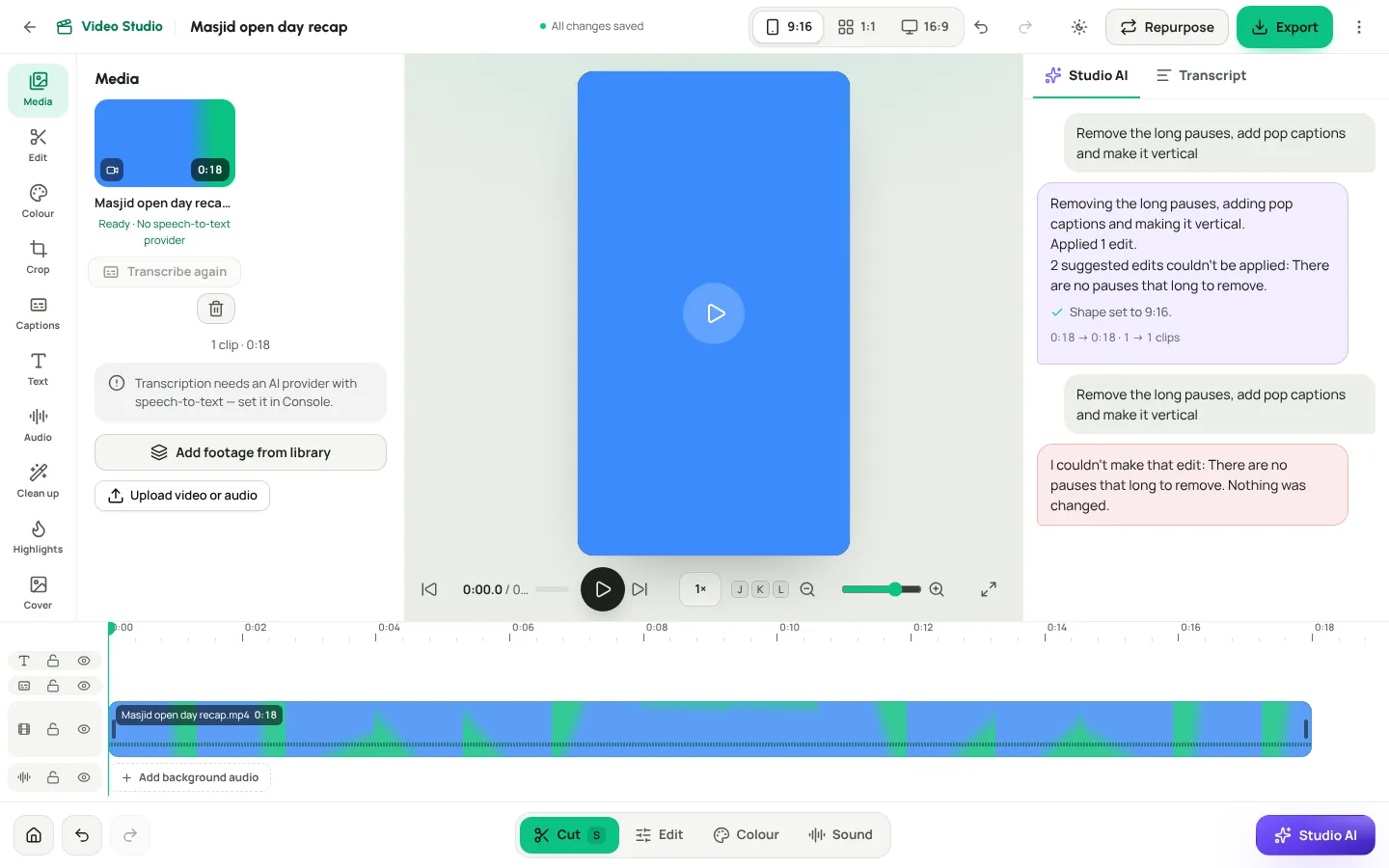
- Studio AI: describe the edit in a sentence
- Export for every network
- From video to posts
- FAQ
What Video Studio is, and is not
Video Studio lives inside the Content OS, under Content › Video Studio. It is an editor for real footage:
- Edit by transcript. Once a clip is transcribed, delete words and the matching moments leave the timeline.
- Clean up in one go. Remove long pauses and filler words, and undo any change.
- Captions. Word-by-word captions in a choice of styles.
- Background audio. An audio bed that lowers itself under speech.
- Clips. Split, trim, reorder, change speed, colour and crop.
- Titles and covers. A hook at the start and a strong cover frame.
- Export. Vertical 9:16, square 1:1 and wide 16:9 from the same project, as MP4.
Your original files are never changed. Footage lives in your media library and is shared between projects; deleting a project never deletes it.
Start from a goal, not a blank timeline
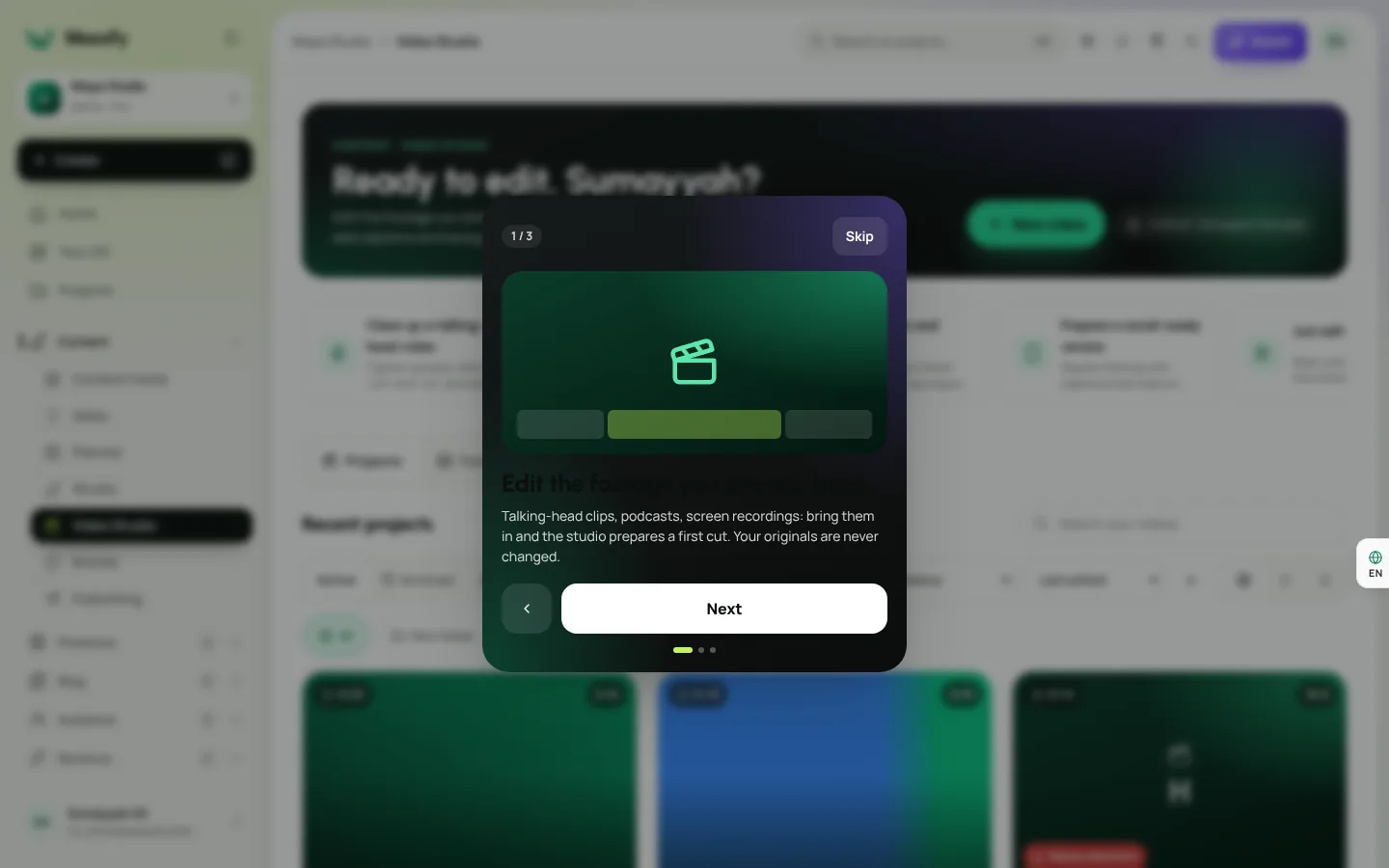
Open Content › Video Studio and choose New video. Under What do you want to do?, choose a goal. Each one prepares a first cut for that purpose:
| Goal | What the first cut does |
|---|---|
| Clean up a talking-head video | Shortens pauses, takes out clear "um" and "uh", adds clean captions |
| Turn a podcast into short clips | Makes it vertical, tightens pauses, keeps a first 59 seconds, adds bold word-by-word captions |
| Add captions and polish | Bold captions, steadier pacing and fuller sound |
| Prepare a social-ready version | Square framing with captions that read on mute |
| Just edit | Your footage on the timeline, to edit your way |
Enter a Title, for example "Ramadan preparation tips", then add footage under Footage: upload a clip, or choose from your media library in the order you want. Choose Start a video. The project shows Preparing… with a percentage while your footage is processed.
You review every step before it is applied. When the footage is ready, Your first cut lists the steps with ticks. Untick anything you do not want, then choose Apply the ticked steps. It is applied as one change you can undo.
Edit by transcript
This is the heart of Video Studio. Open the Media tool and choose Transcribe. The status moves from Transcript queued to Transcribing… to Transcript ready.
Now the transcript is a way to edit:
- Open the Transcript (on a phone, the Words quick tool).
- Select the words you do not want and delete them. They are cut from the video.
- Use Search the transcript to jump to a phrase.
- Double-click a word and choose Correct to fix a spelling in the captions. Check the spellings of Arabic names and terms.
- Press Play to check the cut. Undo walks back through your changes.
If you have ever tried to find "the bit where I said the wrong date" by scrubbing a timeline, you will feel the difference immediately.
Clean up, captions, audio and look
Each tool has a clear job:
- Clean up finds long pauses and filler words like "um". Clear ones are ticked for you; review, untick what you want to keep, and choose Remove ticked. Read the full guide: remove pauses and filler words automatically.
- Captions builds word-by-word captions from your transcript. Choose a Style such as Bold, Clean box, Karaoke, Reveal, Pop or Marker, and a Position. You can also import an .srt or .vtt file. More in captions, highlights and short clips.
- Audio makes speech clear: Level for social, Reduce background noise, a Speech boost for voices that drift from the mic, and background audio that lowers itself while someone speaks. See make quiet audio louder in your video.
- Colour applies a look such as Warm, Cool, Mono, Vivid, Fade or Cinema to one clip or all clips, with brightness, contrast and saturation.
- Crop sets a Focal point and optional Motion: Still, Push in or Pull out.
- Text adds a Title or Hook over the first seconds.
- Highlights finds the strongest 15 to 60 second moments for short clips.
- Cover lets you scrub to a strong frame and choose Use this frame.
On the timeline, tap a clip to edit it, drag its edges to trim, and use Split at playhead, Move earlier, Move later or Delete clip. Lock a track from its header to protect it while you edit others. Change the preview Shape to see the video as vertical, square or wide.
Studio AI: describe the edit in a sentence
Open Studio AI (on a phone, the AI quick tool) and type what you want:
- "Remove the long pauses"
- "Make it vertical with pop captions"
- "Give it a warm look and level the voice"
- "Add a title '3 tips' for the first 3 seconds"
Choose Send. Studio AI sees your clips, transcript and pauses, makes real edits and applies them as a single step. If you do not like the result, choose Undo this. Ask for one thing at a time for the best results, and remember that every edit also works by hand.
Where the AI runs
Studio AI and transcription run on Weesify's own AI engine when AI is on for your workspace. Your footage is not sent to an outside AI service. Read more in Weesify AI runs on our own servers.
Versions you can trust
The top of the editor shows All changes saved when your edits are safe. Use Undo and Redo, open History to see every change, and save a named version before a big change, for example "Before cutting the intro". Every export saves a version too.
Export for every network
Choose Export, pick a Format (Reels & TikTok, YouTube, Square or the edit's own shape) and a Quality, and decide whether to Burn in captions. Text overlays are always included. Choose Export MP4. Exports render in the background, so you can keep editing; the file appears under Recent exports when it is ready.
Your plan includes a monthly allowance of export minutes, and the Video Studio home shows how many you have used. Need only the sound? Extract audio gives you the finished audio as M4A, MP3 or WAV.
From video to posts
A finished video is the start, not the end. In the editor, choose Repurpose to send the project to the Content OS, where one video becomes a caption, a thread, a LinkedIn-style post, a newsletter section, a carousel outline and clip suggestions. See repurpose one video into many posts. Then send the posts for review and schedule them.
Is Video Studio right for you?
- You record talks, classes, sermons, interviews or podcasts
- You film talking-head tips on your phone
- You want captions and clean audio without learning a pro editor
- You want short clips from long recordings
- You need generated video from text prompts (Video Studio edits real footage only)
Frequently asked questions
Does Video Studio change my original files?
No. Your originals are never changed. Edits are stored as steps you can undo, and footage stays in your media library.
Can I edit on my phone?
Yes. The editor is designed for phones first, with quick tools such as Words, Sound and AI.
What formats can I export?
MP4 in vertical 9:16, square 1:1 or wide 16:9, plus audio-only as M4A, MP3 or WAV.
Do I need AI to use Video Studio?
No. Every edit works by hand. Transcription and Studio AI need AI switched on for your workspace.
How do export minutes work?
Each export counts toward your plan's monthly export minutes, and the Video Studio home shows how many you have used, for example "12 of 60 export minutes". See pricing for what each plan includes, and the tour at /features/studio.
Your footage deserves a second life
The best video you will post this month might already be on your phone. Bring it into Video Studio, edit the words, and share it everywhere.
Start your 14-day trial and open your first project today.
Keep reading
 Features
Content OS: Plan, Write and Publish Your Content in One Place
Ideas in one app, drafts in another, the calendar in a spreadsheet. Weesify's Content OS brings ideas, writing, planning, publishing and results into one calm workspace.
Features
Content OS: Plan, Write and Publish Your Content in One Place
Ideas in one app, drafts in another, the calendar in a spreadsheet. Weesify's Content OS brings ideas, writing, planning, publishing and results into one calm workspace.
 Product news
Weesify AI Runs on Our Own Servers: What That Means for You
The Weesify AI engine runs open AI models on Weesify's own servers, so drafts, Repurpose, Studio AI, Assist and transcription can work without sending your content to an outside AI company.
Product news
Weesify AI Runs on Our Own Servers: What That Means for You
The Weesify AI engine runs open AI models on Weesify's own servers, so drafts, Repurpose, Studio AI, Assist and transcription can work without sending your content to an outside AI company.
 Product news
Weesify 2.0: What's New in the Rebuilt Weesify
From a link page in 2022 to an operating system for your online presence, audience and income. Here is everything new in Weesify 2.0, in plain words.
Product news
Weesify 2.0: What's New in the Rebuilt Weesify
From a link page in 2022 to an operating system for your online presence, audience and income. Here is everything new in Weesify 2.0, in plain words.
Comments
No comments yet. Start the conversation.