


Weesify for Agencies: Host and Manage Client Websites

How an agency can host client websites, collect approvals, publish safely and hand projects over, with a separate Weesify workspace for each client.
Agencies do not lose time on the design work. They lose it on the edges: chasing a client for sign-off over email, wondering which version went live, digging out hosting logins from three years ago, or rebuilding a page because someone pushed the wrong file. Weesify for agencies gives you one place to host client websites, collect approvals, publish safely and hand projects over cleanly.
This guide follows an example studio, "Noor Creative", run by a small team of designers and one developer. The studio and its clients are invented for illustration. They are not customers, and nothing here is a testimonial.
In this guide
- A workspace per client
- Bring existing client websites into Weesify
- Edit with AI, safely
- Client review links and approval before publishing
- Publish, roll back and see every deployment
- Domains, forms and deploys from your build system
- Handover, plus a checklist and FAQ
A workspace per client
A Weesify workspace holds everything for one brand: its pages, links, audience, store, websites and team. Each workspace has its own plan, settings and members. Use the workspace switcher at the top of the sidebar to move between clients, and Weesify remembers the one you used last.
For Noor Creative, that means a workspace for each retained client. A client's contacts, form responses and numbers stay inside their own workspace, which keeps data separate and makes reporting honest.
Roles are set per workspace in Settings › Members: Owner, Admin, Editor, Analyst and Viewer, plus a Developer role on websites that can also manage API tokens and webhooks. Give each person the lowest role they need.
Bring existing client websites into Weesify
HTML Websites hosts complete static websites your team wrote: HTML, CSS, JavaScript, images and fonts. Weesify keeps the code exactly as you wrote it.
Open HTML Websites in the Presence section of the menu and choose New website. You can start from Upload files, Upload a folder, Upload a ZIP, Paste HTML, Copy a public page (only for a page you own or have permission to copy) or a Blank starter. An import report then shows what came in, the homepage it found, broken links and anything left out. Server code such as PHP is never stored or run.
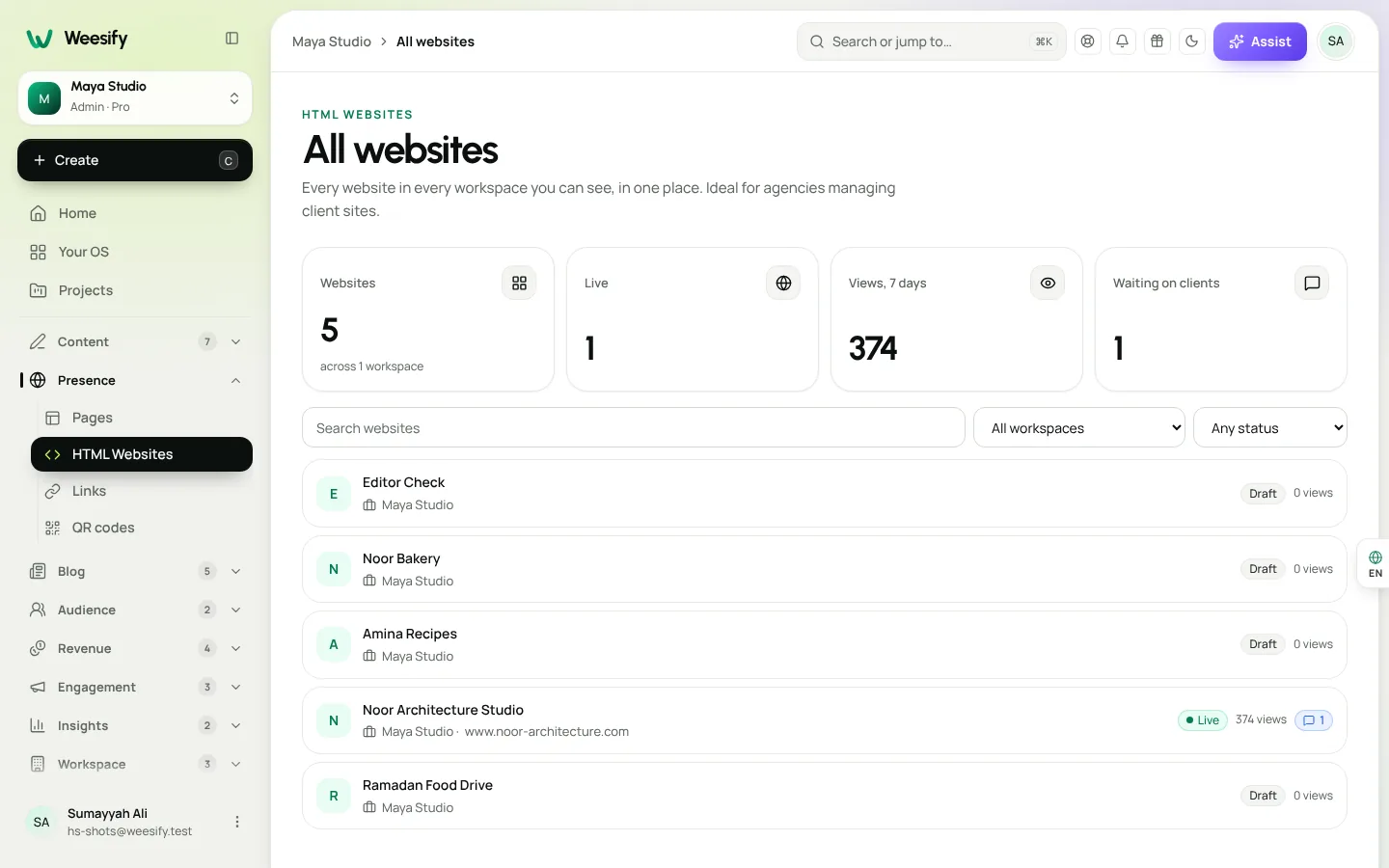
HTML Websites › All websites lists every website in every workspace you belong to, with live status, visits and reviews waiting. That is your agency dashboard. For more on hosting, read Host an HTML website on Weesify.
Edit with AI, without breaking anything
Small client requests ("can you make that heading shorter?") are where AI saves real time. In the website editor, click any element in the preview, then type what you want in Describe the change. Weesify shows the exact change before anything is saved, and you choose Accept to apply it.
The AI edits only the part you selected, in one file, with the smallest change that does the job. Every change is saved to the draft with a snapshot first, so Undo and Redo always work, and the live site does not change until you publish. If a teammate is already editing, the editor opens read-only and shows their name. Read Edit an HTML website with AI, safely.
Client review links and approval before publishing
This is the feature agencies tend to ask about first. Open a website and choose Review & team:
- Name what you are sharing, for example "Homepage round 2".
- Choose how long the link stays open, then Create link.
- Send the link to your client. It is shown once.
The link opens a frozen copy of the draft as it was when you made the link, so your later edits do not change what the client is reviewing. Clients do not need an account. They can look through every page, leave comments (optionally naming the page) and choose Approve or Request changes. You are notified, and you can reply in Review & team.
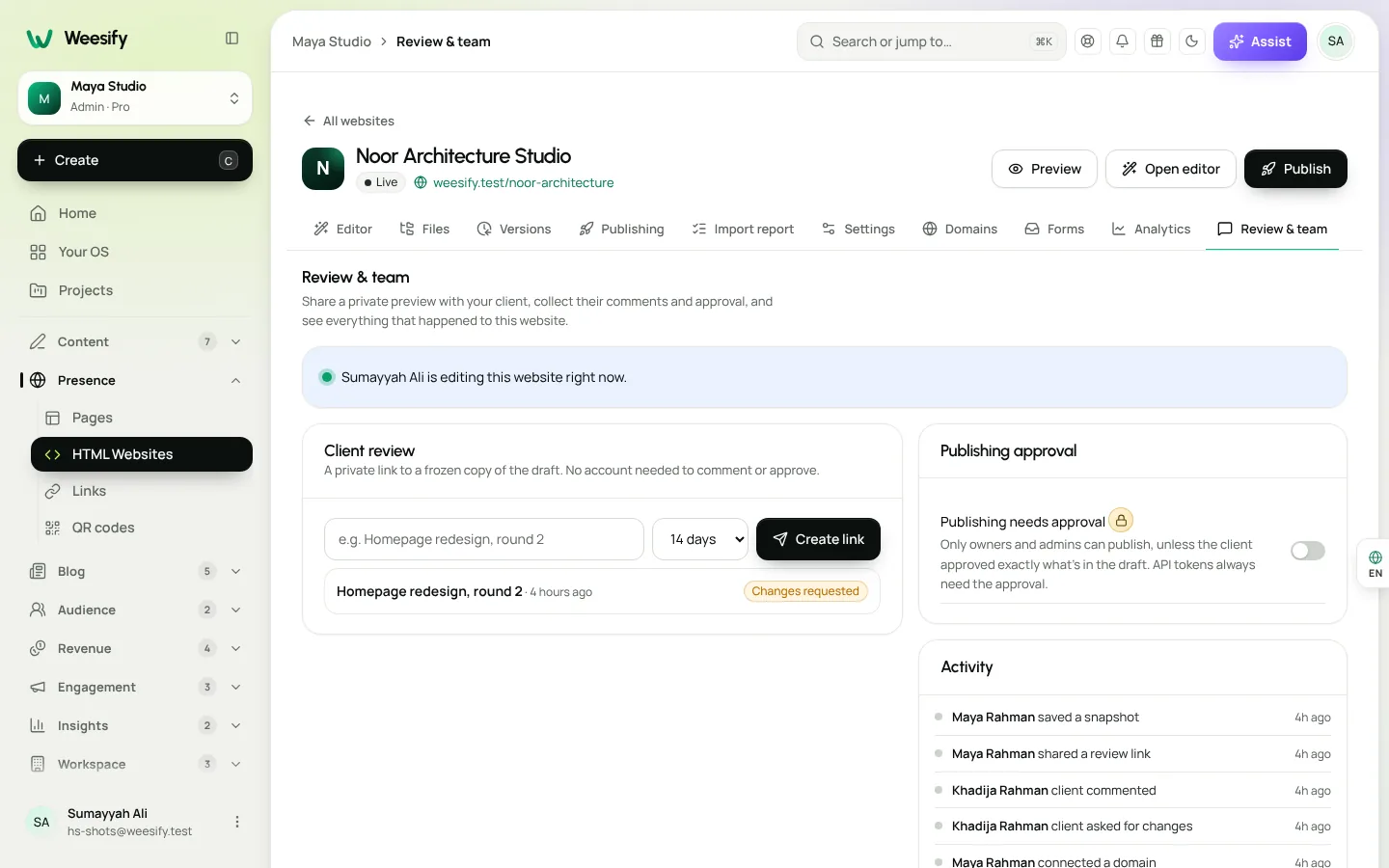
Turn on Publishing needs approval and only owners and admins can publish without sign-off. Everyone else can publish only after the client approved a review of exactly the current draft, and any later change needs a new approval. Deploys through the API always need the approval too.
Publish, roll back and see every deployment
Each website has a draft and a live version. Choose Publish, add a short note such as "New menu", and the new version goes live all at once. If anything goes wrong while publishing, the previous version simply stays live.
Publishing lists every deployment with who published it and when. Choose Roll back next to any of them and it is live again within seconds. Versions keeps automatic snapshots before every change and named ones you make, so you can compare, restore or copy a single file back.
Domains, forms and deploys from your build system
Custom domains. In the website's Domains, choose Connect domain, add the TXT record to prove ownership and the CNAME (or ALIAS/ANAME for a root domain) to point it at Weesify. Choose Check now, and HTTPS is issued automatically. See the custom domain setup guide.
Website forms. Add data-weesify-form to any HTML form and its answers arrive in the website's Forms tab, with spam filtering, email alerts and CSV export. People who leave an email address become contacts in that client's workspace.
The CLI and API. Your developer can deploy a folder with the Weesify CLI, node weesify.mjs deploy, or from a build pipeline with a WEESIFY_TOKEN secret. A deploy that needs client approval stops with exit code 2, so a pipeline never skips sign-off. See The Weesify API and CLI for developers.
Beyond websites: content and campaigns for clients
Many agencies also run a client's social content. In Content OS, posts move through stages on a board, you can send a draft to a reviewer for approval, and comments support @mentions. A brand profile keeps AI drafts in each client's voice. Read Content OS: plan, write and publish in one place.
Handing a website over
When a project ends, Transfer website moves it to a client's workspace you can manage. Files, versions, deployments and analytics move with it. Custom domains are disconnected and form responses stay in your workspace, so plan to reconnect the domain on the client's side.
Agency setup checklist
- Create one workspace per client and invite the right people with the right roles.
- Import each client website from a ZIP or folder and read the import report.
- Turn on Publishing needs approval for clients who sign off on changes.
- Share a review link for the next round of changes.
- Connect each client's custom domain and check it shows Live.
- Connect website forms so enquiries land in the client's contacts.
- Give your developer a token for CLI deploys.
Weesify for agencies at a glance
| Agency task | How Weesify handles it |
|---|---|
| Keep clients separate | One workspace per client, each with its own plan and team |
| Get sign-off | Review links with comments, Approve or Request changes |
| Avoid accidental releases | Publishing needs approval, also enforced on API deploys |
| Undo a bad release | Roll back any deployment in seconds |
| Small copy edits | AI edits that show the exact change first |
| Hand over | Transfer website to the client's workspace |
Frequently asked questions
Does my client need a Weesify account to review a website?
No. A review link opens a frozen copy of the draft. The client can comment, approve or request changes without signing in.
Can Weesify host WordPress or PHP sites?
No. HTML Websites hosts static websites only. Server code such as PHP is never stored or run, and the import report lists any files it left out. Forms that used a server script can use Website forms instead.
What happens if a deployment breaks something?
Open Publishing and choose Roll back on the previous deployment. It is live again within seconds.
Can I see all my clients' websites in one list?
Yes. HTML Websites › All websites lists every website in every workspace you belong to, with status, visits and reviews waiting.
Who pays for each client's workspace?
Each workspace has its own plan, so you can decide per client whether your agency or the client holds the plan. Compare plans on the pricing page.
Run your client work from one place
Fewer logins, clearer approvals and a rollback button for the bad days. Set up your first client workspace and import one website to see how it feels.
Start your 14-day trial. Every plan starts with a 14-day trial; you add a card to start and nothing is charged during the trial.
تابع القراءة
 Use cases
Weesify for Islamic Educators: Courses, Classes and Community
A practical look at how an Islamic educator can run courses, live classes, one-to-one sessions and a student community from one Weesify workspace.
Use cases
Weesify for Islamic Educators: Courses, Classes and Community
A practical look at how an Islamic educator can run courses, live classes, one-to-one sessions and a student community from one Weesify workspace.
 Use cases
Booking Page for Consultants: Fill Your Calendar Calmly
Stop the back-and-forth emails. A Weesify booking page lets clients pick a free time, pay up front and get a calendar invite and a private meeting room.
Use cases
Booking Page for Consultants: Fill Your Calendar Calmly
Stop the back-and-forth emails. A Weesify booking page lets clients pick a free time, pay up front and get a calendar invite and a private meeting room.
 Use cases
Build a Paid Community on Your Own Page, Step by Step
A paid community gives your most engaged people a home and gives you income that does not depend on a feed. Here is how to plan, price and launch one with Weesify Community.
Use cases
Build a Paid Community on Your Own Page, Step by Step
A paid community gives your most engaged people a home and gives you income that does not depend on a feed. Here is how to plan, price and launch one with Weesify Community.
التعليقات
لا توجد تعليقات بعد. ابدأ المحادثة.