


Weesify for Small Businesses: Sell, Book and Follow Up
How a small business can use one Weesify workspace for its page, printed QR codes, online orders, appointments and follow-up emails.
A small business rarely has a marketing team. It has an owner who also does the books, answers the phone and opens up in the morning. Weesify for small businesses is built for that person: one workspace for your page, your QR codes, your shop, your appointments and your customer list, so you are not paying for and switching between five separate tools.
To make it concrete, we will follow two example businesses we invented for this guide: "Khadija's Tailoring", a tailoring and alterations studio, and "Bilal's Bakery", a neighbourhood bakery that takes custom cake orders. They are illustrations, not customers, and nothing below is a testimonial.
In this guide
- Start with a page customers can actually find
- QR codes on everything you print
- Sell services, gift cards and digital products
- Appointments and fittings with bookings
- Turn every buyer into a customer you can follow up with
- See what is working, without cookie banners
- A first-week checklist and FAQ
Start with one page that does the work
Your Weesify page is the single address you put on your shop window, receipts and social profiles. Build it from blocks: opening hours, a map, a booking button, featured products, a contact form and links to your socials.
If you already have a website or an Instagram profile, open Presence › Pages and use Build with Assist. Paste your links and Assist builds a first draft of the page from what those links really show. It does not invent reviews, numbers or details. You then edit anything and publish. See Build pages from your links with Assist.
Connect your own domain, such as shop.yourbrand.com, so the address matches your brand. The custom domain setup guide walks through the DNS records step by step.
QR codes on everything you print
For a high-street business, print is still where many customers first meet you. Weesify's dynamic QR codes point to an address you can change later, so the code on a menu, flyer or carrier bag never has to be reprinted when your offer changes.
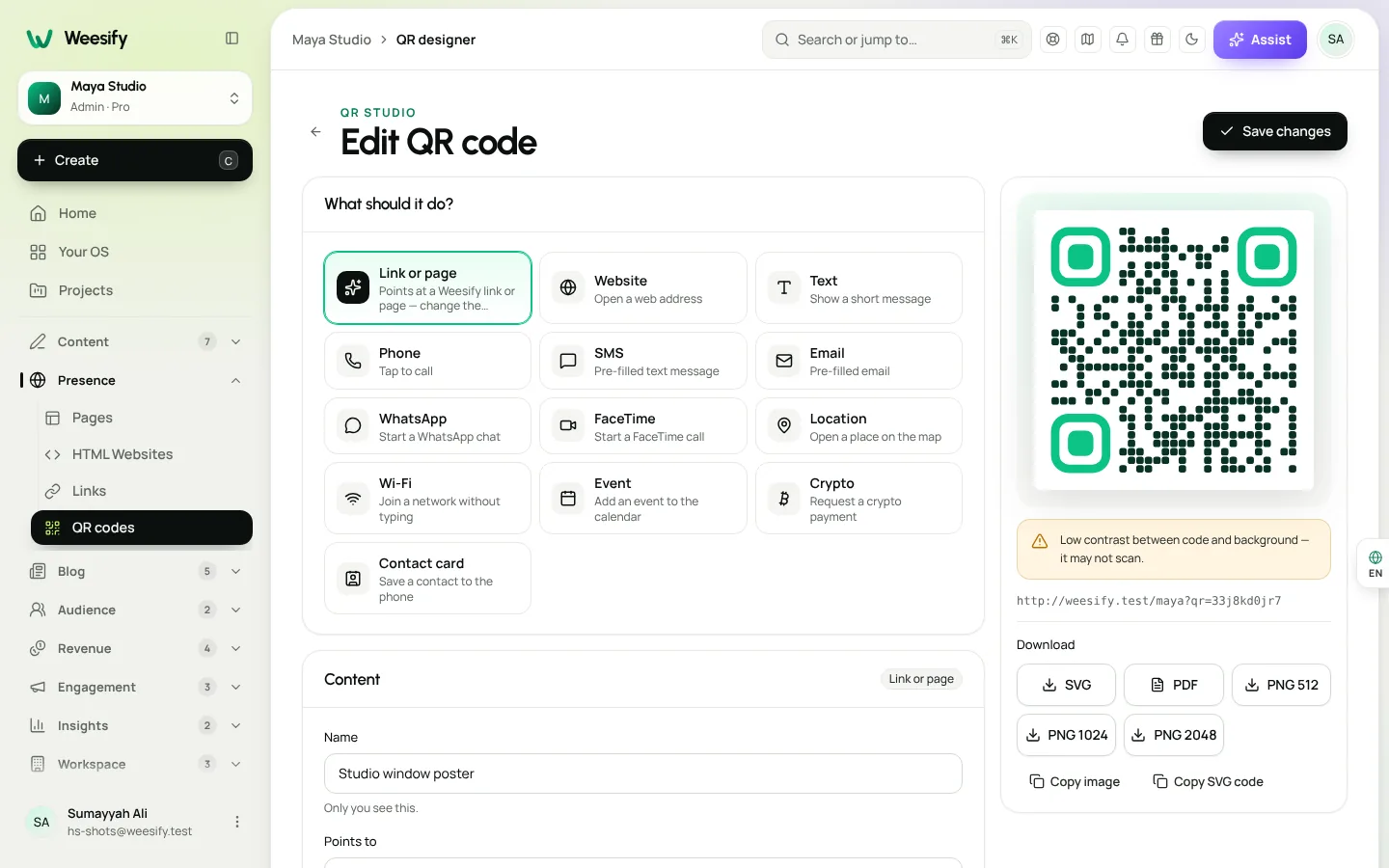
Bilal's Bakery, in our example, could put one code on the counter that opens its custom cake order form and another on paper bags for "Join our weekly specials list". Each code is counted separately, so the bakery sees which placement brings people in. Read more in Dynamic QR codes explained and QR codes for events and print.
Sell services, gift cards and digital products
Open Revenue › Store to add products. A product can be a Digital product, a Service, a Donation, a Gift card or a Paid question, each with its own page and checkout that you can put on your page or storefront. Weesify does not currently offer physical products with shipping, so a bakery or a tailor sells gift cards and paid services here, and takes detailed custom orders through a form.
Choose one of ten store templates, from Minimal to Magazine and Product launch. Shoppers get filters, sorting, search, quick view and product pages with a sticky buy bar. Only real information about your products is shown.
Buyers can pay by card, including Apple Pay and Google Pay where supported, PayPal, and local methods such as bank transfer, USSD and mobile money where Paystack or Flutterwave offer them. Prices can be shown in the buyer's own currency where the provider supports it.
Use discount codes and offers for an opening week or a loyalty thank-you, and see Store templates: pick the right one to choose a design.
Appointments and fittings with bookings
Service businesses live by their diary. Khadija's Tailoring needs fittings, consultations and collection slots. In Revenue › Bookings:
- Create a bookable service, for example "Wedding outfit fitting, 45 minutes".
- Under When people can book, set your opening days and hours.
- Add a Break after each booking so you have time to tidy up between clients.
- Set Minimum notice so nobody books a fitting ten minutes from now.
- Add Days off for holidays and stock-taking.
- Under Price, choose a currency and enter a price if you want the booking paid up front. The time is held while the guest pays.
Guests get calendar invites, reminders and a reschedule link. There are ten booking page designs, including Services grid for businesses with several services on one page. See Booking page for consultants for the full setup.
Turn buyers into customers you can follow up with
This is where one workspace pays off. Everyone who fills in a form, books an appointment or buys from your store becomes a contact in Audience, with tags, segments and a timeline of what they did.
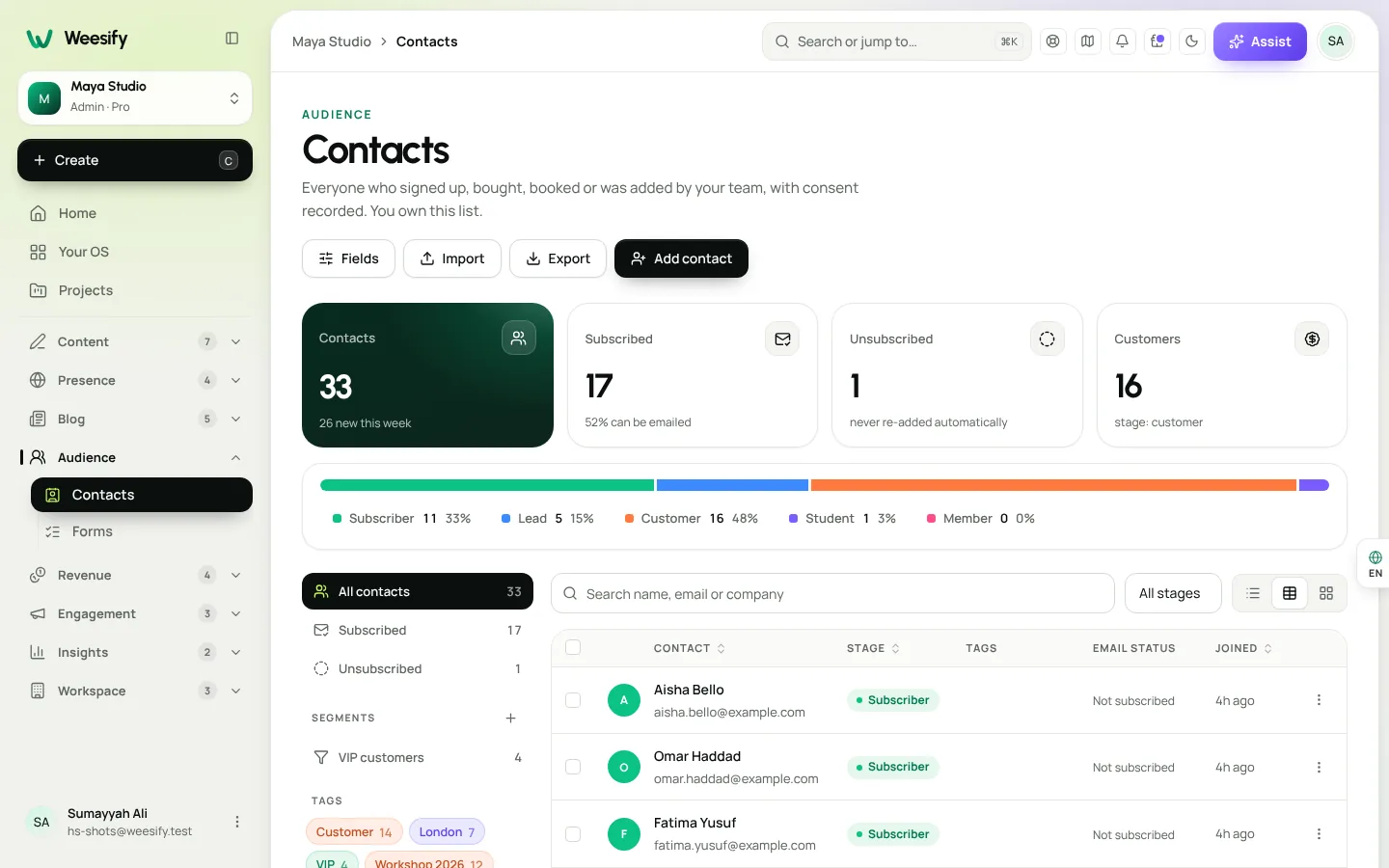
That lets you:
- Send an email broadcast to everyone tagged "cake customer" before a busy season.
- Set an automation that thanks first-time buyers and invites them back. See Automations: a welcome sequence.
- Build a form for custom orders that asks the right questions, step by step. See Forms that capture leads.
See what is working
Weesify Analytics shows views, clicks, scans and sign-ups without cookies, and Weesify's own analytics need no cookie banner. You can see which QR code placement brings the most scans, where link clicks come from and which countries and cities your visitors are in.
Read Analytics: know where visitors come from for a walkthrough.
Weesify for small businesses: what replaces what
| Job | What you might use today | In Weesify |
|---|---|---|
| A page customers can find | A basic website or a link page | Pages with blocks and your own domain |
| Printed codes | A QR generator | Dynamic QR codes with scan counts |
| Selling online | A separate shop tool | Store for services, gift cards and digital products, with checkout on your page |
| Appointments | A calendar booking app | Bookings with reminders and paid sessions |
| Customer list and emails | A spreadsheet and an email tool | Contacts, broadcasts and automations |
| Results | Guesswork | Cookieless analytics |
For a broader look, read Replace your tool stack with Weesify.
Your first-week checklist
- Create a workspace and pick a page template for your kind of business.
- Add opening hours, a map and a contact form to your page.
- Create one dynamic QR code for your counter or window.
- Add a gift card or your most-booked service to the store.
- Set up one bookable service if you take appointments.
- Write a short thank-you automation for first-time buyers.
- Check Analytics at the end of the week to see what people clicked.
Working with a small team
Invite staff from Settings › Members and give each person the lowest role they need. An Editor can update products and pages, while sending email to your whole audience stays with owners and admins. Each person has their own login, so the activity log stays clear.
Frequently asked questions
Do I need my own website to use Weesify?
No. Your Weesify page works on its own at a Weesify address with HTTPS. You can add your own domain whenever you are ready.
Can I change where a printed QR code goes?
Yes, if it is a dynamic QR code. Change its destination in Weesify and the printed code keeps working.
What does Weesify charge on sales?
On Pro, Weesify takes a 2% commission on sales; on Business, Enterprise and Custom there is no Weesify commission. Your payment provider also charges its usual processing fee. Check the pricing page for current details.
Can customers pay in their own currency?
Prices can be shown and paid in the buyer's own currency where your payment provider supports it.
Can customers pay when they book?
Yes. Bookable services can be free or paid. A paid time is held while the guest pays and confirmed once payment goes through.
Run your business from one place
You do not need a pile of subscriptions to look professional and stay in touch with customers. Start with a page and a QR code this week, then add your store and bookings as you go.
Start your 14-day trial. Every plan starts with a 14-day trial; you add a card to start and nothing is charged during the trial.
Keep reading
 Product news
Weesify 2.0: What's New in the Rebuilt Weesify
From a link page in 2022 to an operating system for your online presence, audience and income. Here is everything new in Weesify 2.0, in plain words.
Product news
Weesify 2.0: What's New in the Rebuilt Weesify
From a link page in 2022 to an operating system for your online presence, audience and income. Here is everything new in Weesify 2.0, in plain words.
 Features
Content OS: Plan, Write and Publish Your Content in One Place
Ideas in one app, drafts in another, the calendar in a spreadsheet. Weesify's Content OS brings ideas, writing, planning, publishing and results into one calm workspace.
Features
Content OS: Plan, Write and Publish Your Content in One Place
Ideas in one app, drafts in another, the calendar in a spreadsheet. Weesify's Content OS brings ideas, writing, planning, publishing and results into one calm workspace.
 Growth & marketing
Link in Bio Page That Sells: Turn Profile Visits into Sales
Most link in bio pages are a list of buttons that send people away. Here is how to build a Weesify bio page where visitors can buy, book, register and subscribe without leaving.
Growth & marketing
Link in Bio Page That Sells: Turn Profile Visits into Sales
Most link in bio pages are a list of buttons that send people away. Here is how to build a Weesify bio page where visitors can buy, book, register and subscribe without leaving.
Comments
No comments yet. Start the conversation.