


Your Weesify 14-Day Trial: How to Get the Most Out of It

A day-by-day plan for your Weesify 14-day trial, plus exactly how the trial works: the card, the end date, and what happens if you stop.
Fourteen days goes quickly. Without a plan, a trial turns into "I'll look at it properly next week", and then it is over. This guide gives you a simple day-by-day plan for your Weesify 14-day trial, so by the end you know whether Weesify fits, because you have already used it for real work.
First, the facts about how the trial works, so there are no surprises.
In this guide
- How the 14-day trial works
- Before you start: pick one real goal
- A day-by-day plan for your trial
- Where to get help along the way
- Deciding at the end
- FAQ
How the Weesify 14-day trial works
Weesify has four plans: Pro, Business, Enterprise and Custom. Every plan starts with a 14-day trial. New workspaces start their trial on Pro, and you can pick another plan from Settings › Plan & billing.
- Add your billing details. The name on the invoice, country, address and, if you have one, a tax ID.
- Save a card on the payment provider's secure page. Nothing is charged today. Your card details go straight to the provider; Weesify never sees or stores your card number.
- Agree to the terms and choose Start free trial. A welcome page shows when your trial ends.
- Use everything in the plan for 14 days. Plan & billing shows Free trial · ends with the date.
- When the trial ends, your plan continues and the saved card is charged on that day, not before.
Changed your mind? Choose End trial before the date and you will not be charged. Your workspace becomes read-only until you choose a plan, and nothing is deleted. There is one trial per workspace.
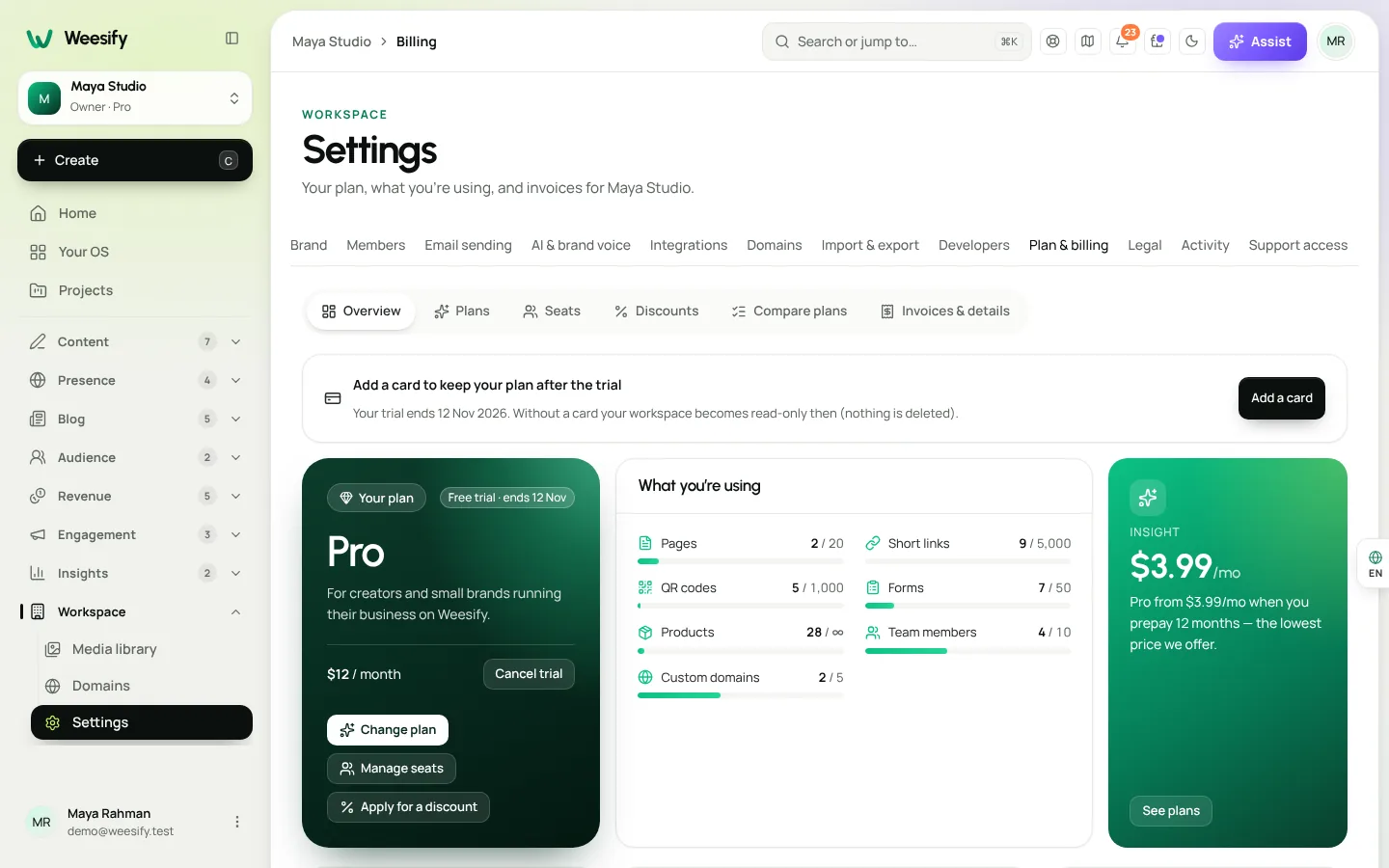
Prices and what each plan includes are on the pricing page and in Settings › Plan & billing › Compare plans.
Before you start: pick one real goal
The best trials are built around one real outcome. Pick the one that matters most to you right now:
- "Replace my link page and see where clicks come from."
- "Sell my first digital product."
- "Let clients book and pay for sessions."
- "Plan and schedule two weeks of posts."
- "Run registration and check-in for my next event."
- "Host a client's website with approvals."
Write it down. Every day of the plan below points back to it.
A day-by-day plan for your trial
Days 1–2: set up your workspace and your page
Onboarding asks you to claim your space, choose a template for your industry, and add your name, a short bio and your links, with a live preview as you go. Then choose Create my space.
- Add three to five links first. A focused page converts better than a long list.
- Upload a square logo or photo at least 400 × 400 pixels.
- If you already have a website or social profiles, try Build with Assist in Presence › Pages: paste your links and Assist drafts a page from what they really show.
- Publish early. You can keep improving while people use it.
Read A link-in-bio page that sells.
Days 3–4: connect your domain and links
Connect your own domain so your page and short links carry your brand. DNS changes can take a little while, which is why it is worth starting early. Create a couple of branded short links and one dynamic QR code for something you will actually share.
See the custom domain setup guide and Branded short links guide.
Days 5–6: capture your audience
Build one form, such as a newsletter sign-up or an enquiry form, and put it on your page. Import your existing contacts as a CSV from Contacts › Import, and say whether they agreed to hear from you. Then set up a short welcome automation so every new sign-up gets a message.
Read Forms that capture leads and Automations: a welcome sequence.
Days 7–9: launch the thing you came for
This is where your goal comes in. Set up the one offer you wrote down:
- A product in the Store. See Sell digital products online.
- A course in Courses. See Launch an online course.
- A bookable service in Bookings. See Booking page for consultants.
- An event in Events. See Host and sell event tickets.
- A client website in HTML Websites. See Weesify for agencies.
Test it yourself from start to finish, including checkout, before you share it.
Days 10–11: plan and publish content
Open Content OS. Capture a handful of ideas, write a post in the Studio, and place a week of posts on the planner. If you have a short video, open Video Studio, cut it by editing its transcript and add captions.
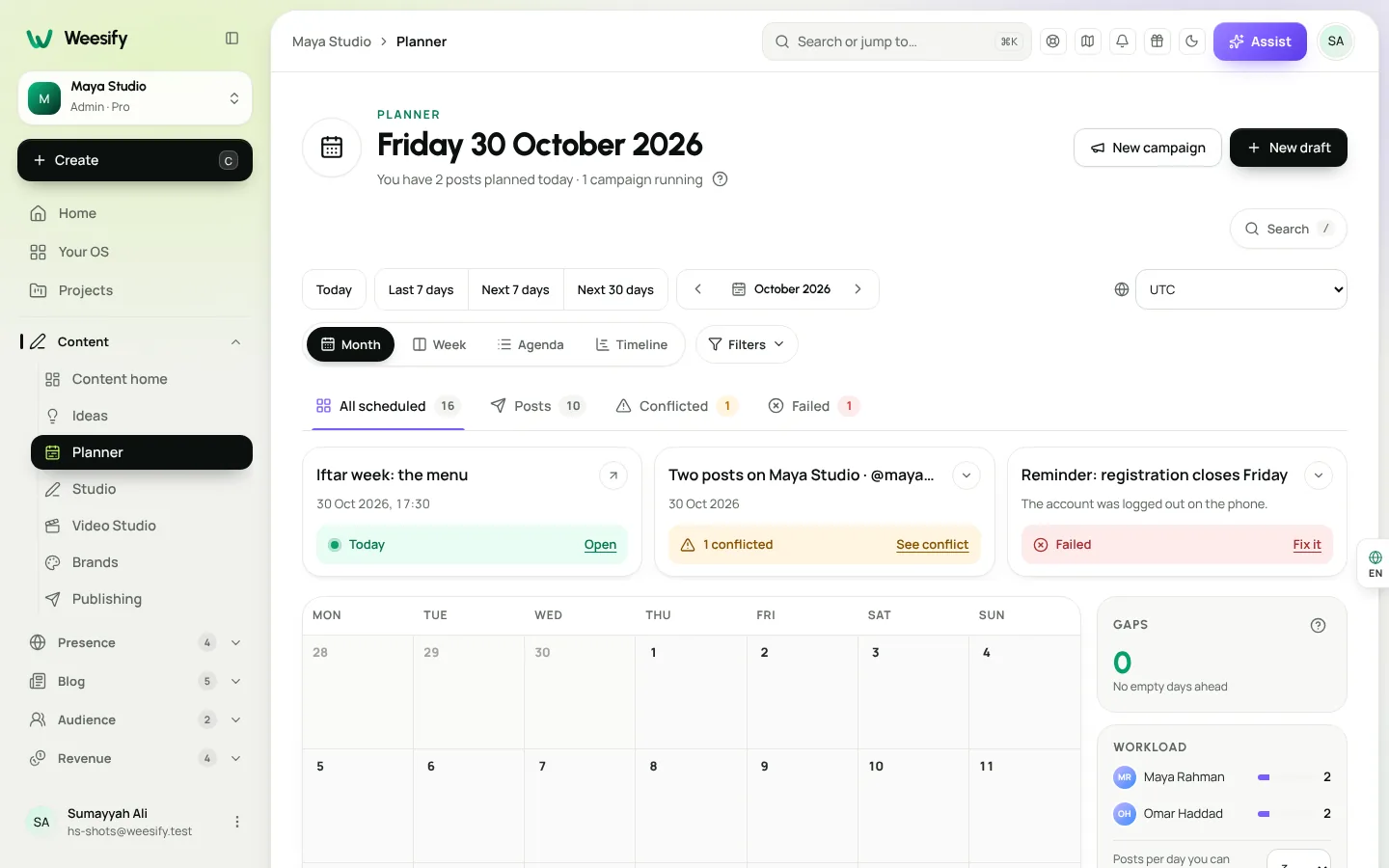
Read Content calendar planner guide and Video Studio: edit your existing footage.
Days 12–13: invite your team and check the numbers
Invite anyone who will work with you from Settings › Members, with the lowest role they need. Then open Analytics to see views, clicks, scans and sign-ups since day one. Weesify's own analytics need no cookie banner.
See Analytics: know where visitors come from.
Day 14: decide
Look back at the goal you wrote down. Did you reach it, or get close? Check What you're using on the Overview in Plan & billing, compare plans, and decide which one fits.
Your trial checklist
- Write down one real goal.
- Publish your page.
- Connect your domain.
- Create one short link and one QR code.
- Build one form and one welcome automation.
- Launch your one offer and test checkout.
- Plan a week of posts.
- Invite one teammate.
- Check Analytics.
- Compare plans and decide.
Where to get help along the way
- Guided tours. Many screens show a short tour the first time you open them. Replay it any time: open your account menu and choose Replay tour.
- Assist. Choose Assist in the top bar and ask about the screen you are on, such as "How do I schedule this post?".
- Explore your OS. See every module and what is available on your plan.
- Help Centre. Step-by-step articles at /help, including Plans and the 14-day trial.
Deciding at the end
| If... | Then... |
|---|---|
| Weesify did the job | Do nothing. Your plan continues and the saved card is charged on the trial's end date. |
| You need more seats, limits or lower sales commission | Compare plans and choose a higher one. |
| You are not ready | Choose End trial before the date. Nothing is charged and nothing is deleted. |
| You are a non-profit, school or student | Apply for a discount in Settings › Plan & billing › Discounts. |
You can upgrade, downgrade, pause or cancel at any time. Nothing is deleted when you change plans: features your plan does not include are paused until you upgrade.
Frequently asked questions
Do I need a card to start the trial?
Yes. You save a card on the payment provider's secure page to start. Nothing is charged during the 14 days.
When will I be charged?
On the day the trial ends, not before. Plan & billing shows the date under Free trial · ends.
How do I stop the trial?
Choose End trial before the end date and you will not be charged. Your workspace becomes read-only until you choose a plan, and nothing is deleted.
Can I start a second trial?
There is one trial per workspace.
Can I try a different plan than Pro?
Yes. New workspaces start on Pro, and you can choose another plan from Settings › Plan & billing. Enterprise and Custom are arranged with Weesify; choose Talk to us.
Make the fourteen days count
A trial is most useful when it ends with something real: a published page, a first sale or a full calendar. Pick your goal and start on day one.
Start your 14-day trial. You add a card to start and nothing is charged during the trial. Curious about everything in the product? Read Weesify 2.0: what's new.
تابع القراءة
 Guides
Sell Digital Products Online: Set Up Your Weesify Store
Turn your ebook, template pack or coaching session into a product people can buy from your page, with instant delivery and checkout that never sends buyers elsewhere.
Guides
Sell Digital Products Online: Set Up Your Weesify Store
Turn your ebook, template pack or coaching session into a product people can buy from your page, with instant delivery and checkout that never sends buyers elsewhere.
 Guides
Lead Capture Forms That Turn Visitors Into Contacts
A form is only useful if the answers go somewhere. Here is how to build lead capture forms in Weesify that create tagged, consent-aware contacts the moment someone presses send.
Guides
Lead Capture Forms That Turn Visitors Into Contacts
A form is only useful if the answers go somewhere. Here is how to build lead capture forms in Weesify that create tagged, consent-aware contacts the moment someone presses send.
 Guides
Custom Domain Setup Guide: Put Your Brand on Every Link
A step-by-step custom domain setup guide for Weesify: choose a subdomain, add the TXT and CNAME records, verify, and fix the most common DNS mistakes.
Guides
Custom Domain Setup Guide: Put Your Brand on Every Link
A step-by-step custom domain setup guide for Weesify: choose a subdomain, add the TXT and CNAME records, verify, and fix the most common DNS mistakes.
التعليقات
لا توجد تعليقات بعد. ابدأ المحادثة.