


Website Traffic Sources: Know Where Visitors Come From

Stop guessing which post, newsletter or poster is working. Here is how to read website traffic sources in Weesify Analytics, follow visitors to a sign-up or sale, and act on what you find.
You posted the same announcement in five places. Sign-ups came in. Which place worked? Without good analytics, the honest answer is "no idea", and next time you spread your effort evenly across channels that are not equal.
Understanding your website traffic sources turns that guess into a decision. Weesify Analytics counts every click, view, scan and sign-up across your pages, short links and QR codes, attributes each to a channel, and does it without cookies. This guide shows you where to look and what to do with what you find.
In this guide
- How Weesify counts visits (and why there are no cookies)
- Reading the Analytics overview
- Channels, referrers and UTM campaigns
- Following visitors from a view to a lead or sale
- Timing: the best days and hours
- Turning numbers into next steps
- FAQ
How Weesify counts visits
Weesify Analytics records views of your pages, clicks on your short links, scans of your dynamic QR codes and responses to your forms. It works without cookies, so visitors are not followed around the web, and you get the numbers you need without collecting more than you use.
The trade-off is simple and honest: visitors are recognised for one day only. A "repeat" visit means they came back the same day, and a journey from view to sign-up counts when it happens on the same day. Visitors are never followed across days. For most creators, that is plenty to see what works.
Read the Analytics overview
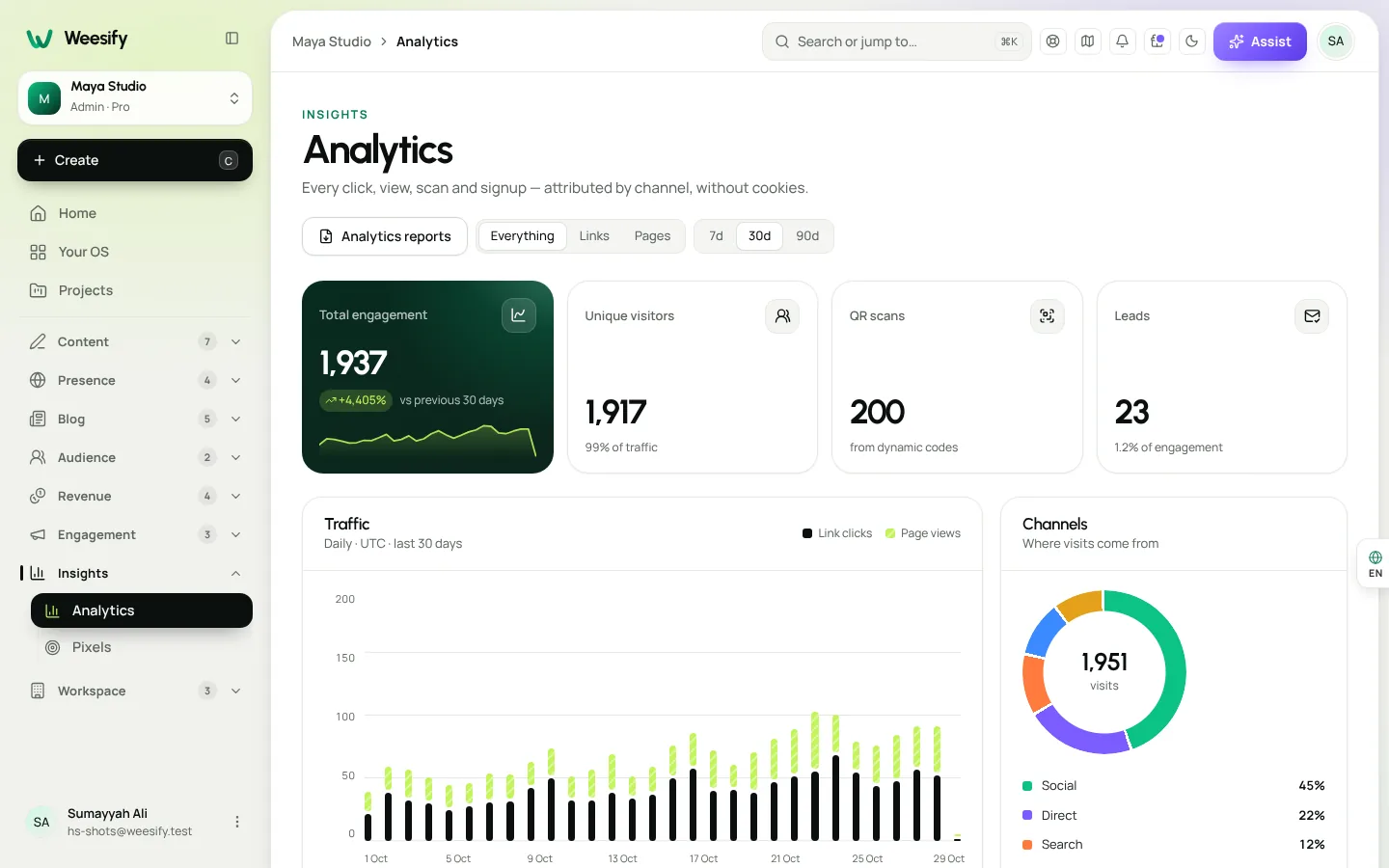
Open Insights › Analytics.
- Choose a Period: 7d, 30d or 90d.
- Use Scope to look at Everything, Links or Pages.
- Read the top numbers: Total engagement, Unique visitors, QR scans (from dynamic codes) and Leads (form and sign-up responses).
- Check Traffic for the day-by-day picture.
- Open Channels to see where visits come from.
Where your plan includes it, Compare with the previous period shows how each number moved against the period before. A short tour walks you through each part the first time you open the page.
Channels, referrers and UTM campaigns
Channels
Every visit is placed in a channel:
| Channel | What it means |
|---|---|
| Direct | Typed in, bookmarked, or opened from an app that hides where it came from |
| Social | Social networks |
| Search | Search engines |
| Your newsletters and other emails | |
| Other websites | Links from other sites, such as a partner's blog |
| QR scans | Your dynamic QR codes |
Deep insights
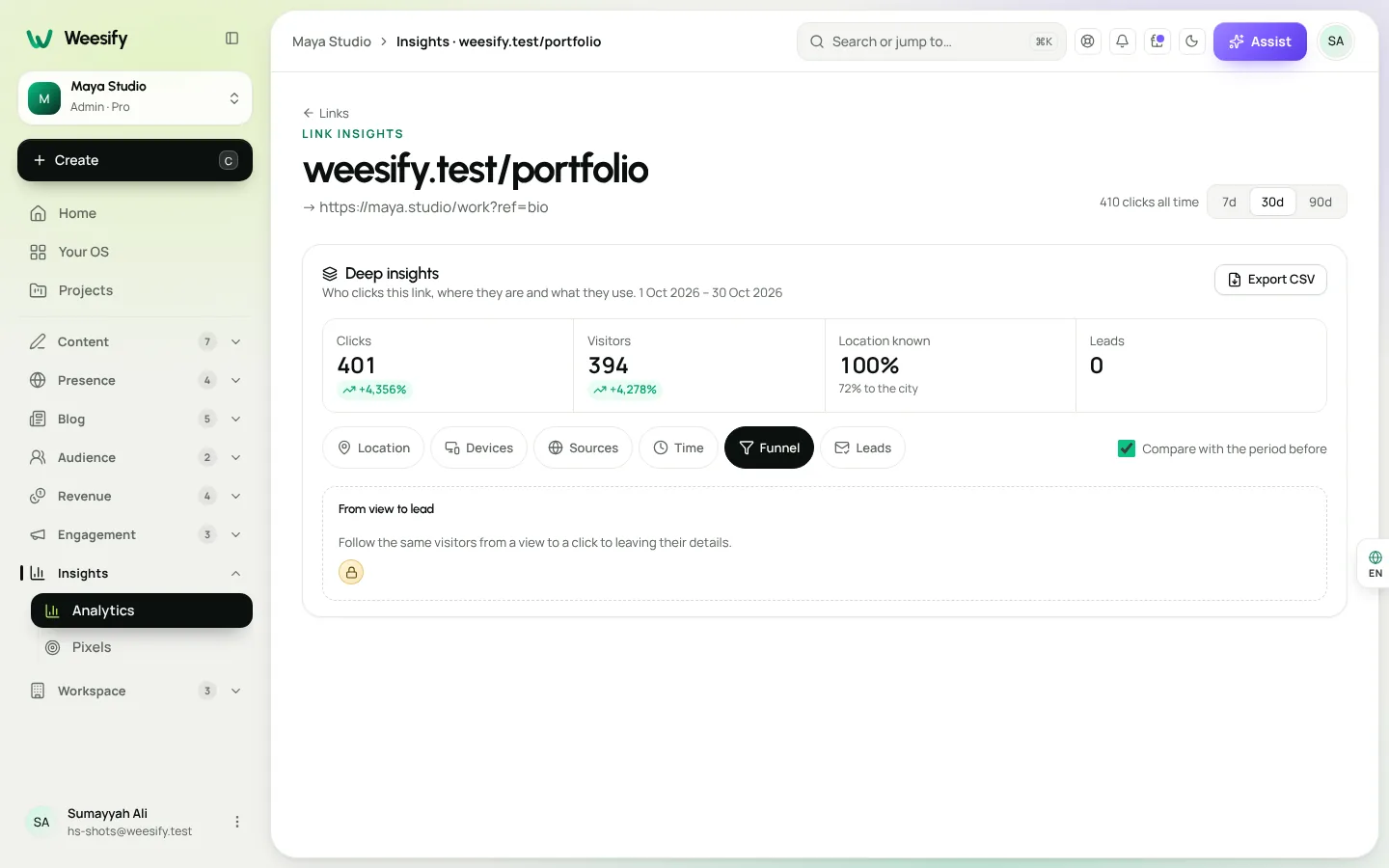
Below the overview, Deep insights lets you dig further, with tabs for Location, Devices, Sources, Time, Funnel and Leads.
The Sources tab lists Referrers, the exact sites that sent people, and your UTM sources, UTM mediums and UTM campaigns.
Use UTM tags to stop guessing
UTM tags are small labels added to the end of a link. Add ?utm_source=newsletter to a link you share in your newsletter, and "newsletter" shows up in UTM sources. Add utm_campaign=ramadan-course to every link in a campaign, and you can compare that campaign against everything else.
A simple naming habit:
- utm_source: where the link lives (newsletter, instagram, whatsapp, poster).
- utm_medium: the type of channel (email, social, print).
- utm_campaign: the campaign name (ramadan-course, spring-sale).
Weesify's short links can carry UTM tags for you, so the link you share stays short and clean. Forms can capture UTM values too, with a Hidden / UTM field, so each lead carries the campaign that brought it.
Follow visitors from a view to a lead or sale
Visits are only the start. What you really want to know is which sources bring people who sign up, book or buy.
From view to lead
The Funnel tab follows the same visitors from a view to a click to leaving their details: Visited, Clicked something, Left their details. A big drop between the first two steps suggests the page does not give people a reason to act. A big drop between the last two suggests the form asks too much. Our lead capture forms guide covers how to fix that.
Leads by source and place
The Leads tab shows which channels and countries bring the people who sign up, by channel and by country. Export leads gives you a CSV with the source and place of each lead. Names and emails stay in Audience; the export is about where leads come from, not who they are.
From visit to sale
Back on the overview, From visit to sale lets you choose a page and follow visitors step by step to a sign-up or purchase. Use it on the page where you sell a course, a product or tickets.
Timing: the best days and hours
The Time tab shows Best days and hours, a week-by-hour heat map of when your audience is active. Use it to time your posts and emails. If your visitors cluster on weekday evenings, a Saturday morning newsletter may be fighting the current.
The same tab shows First and repeat visits, so you can see whether people come back within the day.
Look at one link, page or QR code
Every link, page and QR code also has its own analytics:
- A short link: open Presence › Links, choose a link and open its analytics to see referrers, countries, devices and browsers for that link.
- A page: page analytics shows who visits, where they are, how they found it and what they tap, plus Improvements, plain suggestions based on the page's own numbers, each with one action.
- A QR code: see who scans it, where and when.
If most clicks on a link come from one country, you can write for that audience, or send visitors from certain countries or devices to a different address with link rules. For the geography side, see location analytics by country and city.
Turn numbers into next steps
Analytics is only useful if it changes what you do. A short weekly routine:
- Check Channels. Which channel grew? Which shrank?
- Check Leads by source. Which channel brings people who actually sign up, not just visit?
- Check Best days and hours. Does your posting time match when people show up?
- Pick one change. Post more where leads come from, fix the page with the biggest funnel drop, or move your newsletter send time.
Then let it run for a week or two before judging. Small numbers swing; look for patterns, not single days.
Reports for your team
Choose Reports to download your data as a CSV spreadsheet or a PDF, or save a report and have it emailed to your team every week or month. You choose the columns and dates, and only team members who can see this data can receive it.
FAQ
Does Weesify Analytics use cookies? No. Analytics counts views, clicks, scans and sign-ups without cookies. Visitors are recognised for one day only.
Why do I see so much "Direct" traffic? Some apps open links without saying where they came from. Adding UTM tags to the links you share moves those visits into named sources.
Can I see which campaign brought a sign-up? Yes. Use UTM tags on your links, and check UTM campaigns under Sources and Leads by source and place. A Hidden / UTM field on your form also saves the value with each response.
What is the difference between unique visitors and total engagement? Unique visitors counts people, recognised for one day. Total engagement counts every view, click, scan and sign-up.
Can I get analytics reports by email? Yes. In Reports, save a report and choose to have it emailed weekly or monthly.
Know what works, then do more of it
Good analytics will not write your content for you, but it will tell you where your effort pays off. Tag your links, check your channels weekly, and follow the funnel to where people sign up. Then plan your next campaign around what you learned, with a content marketing funnel that connects it all.
Start your 14-day trial and see where your visitors really come from.
Keep reading
 Guides
Content Calendar Planner: A Step-by-Step Guide
A content calendar only helps if it is honest about your time. Here is how to use Weesify's planner to map campaigns, catch clashes and keep a steady rhythm.
Guides
Content Calendar Planner: A Step-by-Step Guide
A content calendar only helps if it is honest about your time. Here is how to use Weesify's planner to map campaigns, catch clashes and keep a steady rhythm.
 Guides
Remove Pauses and Filler Words From Video Automatically
Long pauses and 'um's make good videos feel slow. Here is how Weesify Video Studio finds them for you, lets you review each one, and removes them in one tap.
Guides
Remove Pauses and Filler Words From Video Automatically
Long pauses and 'um's make good videos feel slow. Here is how Weesify Video Studio finds them for you, lets you review each one, and removes them in one tap.
 Guides
Welcome Email Sequence: Build One With Automations
The first days after someone subscribes are when they pay the most attention. Here is how to build a welcome email sequence in Weesify Automations that greets every new subscriber on time, every time.
Guides
Welcome Email Sequence: Build One With Automations
The first days after someone subscribes are when they pay the most attention. Here is how to build a welcome email sequence in Weesify Automations that greets every new subscriber on time, every time.
Comments
No comments yet. Start the conversation.