


Content Calendar Planner: A Step-by-Step Guide

A content calendar only helps if it is honest about your time. Here is how to use Weesify's planner to map campaigns, catch clashes and keep a steady rhythm.
A content calendar is supposed to make posting feel calm. Too often it does the opposite: a spreadsheet full of colour codes, three posts crammed onto one Tuesday, and a week of silence nobody noticed until it had passed. A good content calendar planner does more than show dates. It warns you before things go wrong.
That is the idea behind the Planner in Weesify's Content OS. It shows what is going out, when and on which channel, and it checks your plan for clashes, empty days and overloaded days. This guide walks you through setting it up and using it week to week.
In this guide
- Open the planner and pick a view
- Get time zones right
- Add and move posts
- Plan a campaign around a launch, event or course
- Catch conflicts, gaps and overloaded days
- Handle posts that did not go out
- A weekly planning routine
- FAQ
Step 1: Open the planner and choose a view
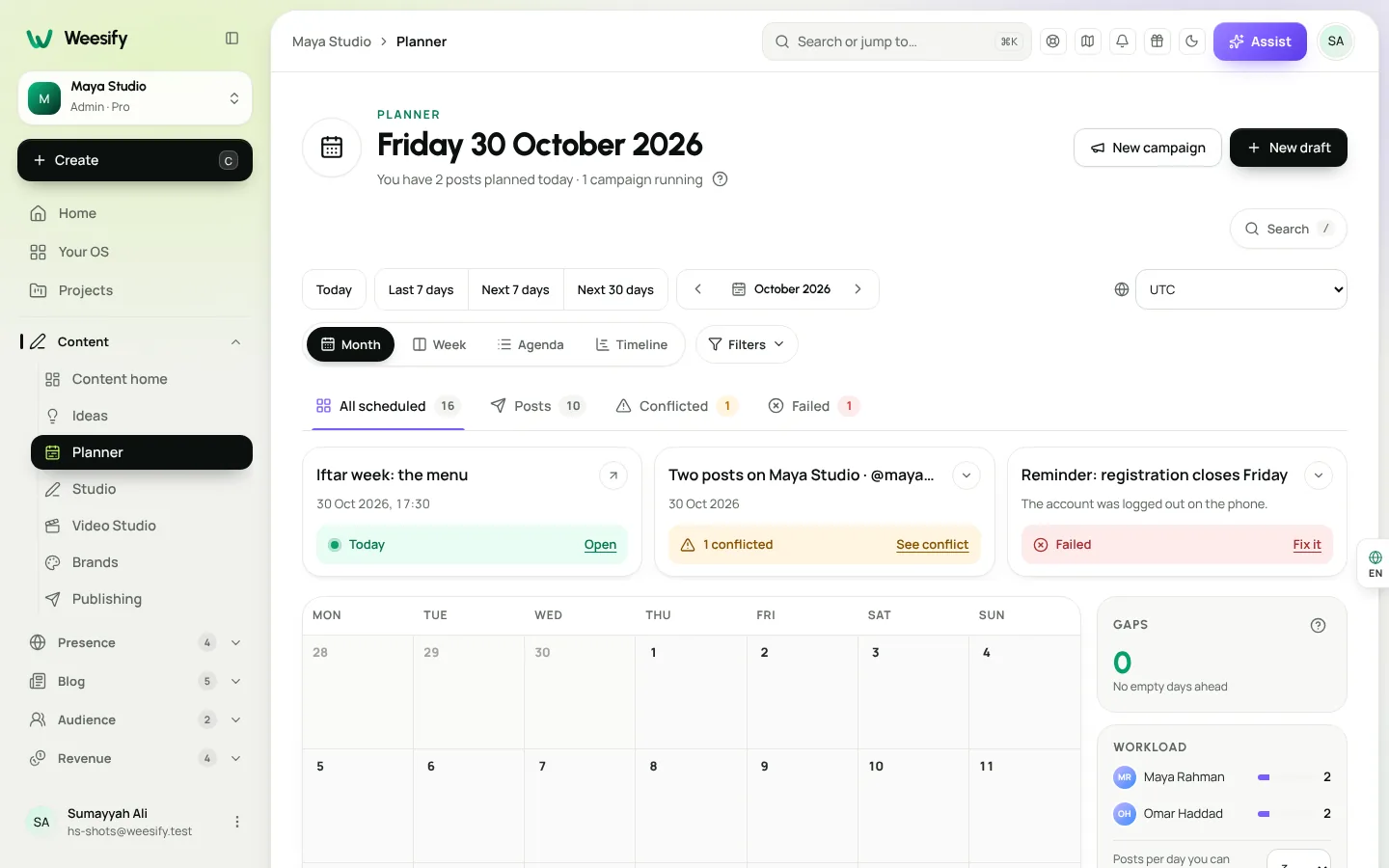
Open Content › Planner. At the top, choose a View:
| View | Best for |
|---|---|
| Month | Seeing the shape of the month and spotting empty weeks |
| Week | Day-to-day planning with times |
| Agenda | A simple list of what is next, great on a phone |
| Timeline | Campaigns as bars you can follow day by day, and who is working on what |
Quick ranges such as Next 7 days, Next 30 days and Last 7 days jump you straight to the period you care about.
Step 2: Set the time zone
Check the Time zone control. Times show in the zone you pick, and each post keeps the zone it was planned in. This matters more than it sounds. If one teammate plans a post for 9:00 in Kuala Lumpur and another views the calendar from London, both see the right moment, and the post still goes out when it was meant to.
Step 3: Add and move posts
There are three easy ways to put a post on the calendar:
- Use the + on any day in the month or week view to plan a post for that day.
- Choose New draft to start a post in the Studio and give it a date there.
- Drag an undated draft onto a day.
Drafts without a date wait below the calendar in Queue: not on the calendar yet. Drag one onto a day, or open it to pick a time.
To move a post, drag it to another day. On a phone, press and hold it first, then drag. If you prefer not to drag, open the post and choose Move post or Reschedule.
Write the post when you are ready
The planner is for timing. The writing happens in the Studio, where you can draft by hand or with AI, add per-platform versions and preview each network. If you have not set up your brand voice yet, our guide on AI content ideas in your brand voice is a good next read.
Step 4: Plan a campaign
A campaign groups posts around one goal: a launch, an event, a course or a season. It appears on the calendar as a bar, so you can see the whole run at a glance.
- Choose New campaign (or Plan a campaign).
- Enter a Name, for example "Ramadan revision course launch".
- Write a Brief: what the campaign is for, the key message and who it is for. When AI writes the campaign's posts, it reads this brief.
- Set the Objective, then the Starts and Ends dates.
- Under Promotes, choose An event, A course or A product if the campaign is about one, then pick which one.
- Choose a Colour so the bar is easy to spot, then Create campaign.
Tap a campaign bar to see who is working on it, its dates and the Conversation on its posts. Leave a comment and use @ to mention a teammate when you need help.
Campaign ideas that work well
- A course launch: a two-week run with a teaser, three value posts, an open-enrolment post and a last-call reminder.
- An event: an announcement, a speaker or topic spotlight, a reminder a week out and a "doors open" post on the day.
- A season: a Ramadan series with one short reflection a day, planned in advance so the month itself stays calm. Our sister post on a Ramadan campaign planner goes deeper.
Step 5: Catch conflicts before they happen
The planner checks the last week and the next two months for problems, and lists them under Conflicts:
- Posts too close together on one channel
- Days over your capacity
- Scheduled posts without a channel
- Posts over a network's character limit
- Planned times that have already passed
Each conflict has See conflict and Fix it, so you can jump straight to the post. When everything is fine, you see No conflicts.
Set your workload
Under Workload, set Posts per day you can handle. Be honest. If you can realistically write, check and post two things a day, set it to two. The planner then warns you about busy days before they become stressful ones.
Fill the gaps
Gaps lists upcoming days with nothing planned. As the planner itself puts it: posting steadily matters more than posting a lot. A gap is a prompt, not a failure. Drop in an evergreen post, a question for your audience or a short clip from a video you already have.
Tip: Posting queues can fill gaps for you. Set weekly slots once, and each queued post takes the next free one.
Step 6: Deal with posts that did not go out
Sometimes a post does not go out. The network was down, the assignee was ill, or a link changed. When someone marks a post as not posted, it lands under Failed with the reason, so you can Reschedule it in one step.
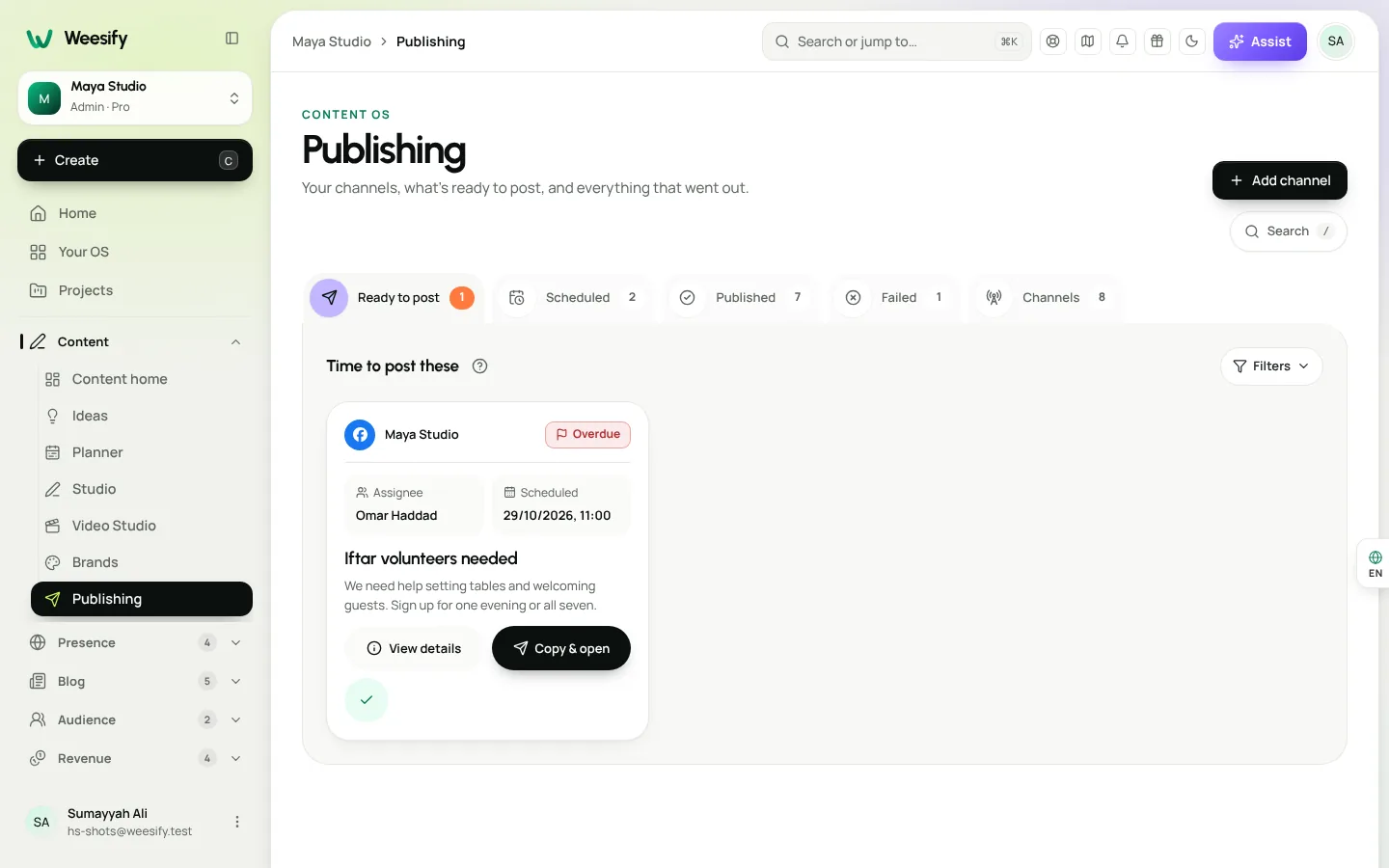
Use Show to focus the calendar on All scheduled, Conflicted or Failed posts.
A 20-minute weekly planning routine
Here is a routine many teams find easy to keep:
- Monday, 5 minutes: open Agenda, read what goes out this week, and check Conflicts.
- Monday, 5 minutes: look at Gaps for the next two weeks and drag undated drafts onto empty days.
- Midweek, 5 minutes: check Failed and reschedule anything that did not go out.
- Friday, 5 minutes: open Timeline, check campaign progress and leave notes for teammates.
If you publish through connected accounts, posts go out on their own. If you use reminders, the assignee gets the copy ready to paste at the right time. See how to publish to social networks from Weesify.
Planner vs. a spreadsheet
| Spreadsheet | Weesify planner | |
|---|---|---|
| Drag a post to a new day | Copy, paste, fix formulas | Drag, or press and hold on a phone |
| Time zones | Manual notes | Each post keeps its planned zone |
| Clash warnings | None | Conflicts list with Fix it |
| Workload limits | None | Posts per day you can handle |
| Linked to the actual post | No | Yes, opens the draft in the Studio |
| Campaign briefs for AI | No | Yes, the AI reads the brief |
Frequently asked questions
Can I use the content calendar on my phone?
Yes. The planner is designed for phones first. Use Agenda for a quick list, and press and hold a post before dragging it to a new day.
Does moving a post on the calendar change its time?
Moving a post to another day keeps its planned time and time zone. Open the post to change the time itself.
What happens to posts if I delete a campaign?
The posts are kept. Only the campaign grouping is removed.
Can the planner tell me the best time to post?
The planner shows your plan. Content › Insights has Best time to post, which looks at when people click your posts and makes a suggestion once there is enough data. See Content OS: plan, write and publish in one place.
Do I need AI to use the planner?
No. Everything in the planner works without AI. AI simply uses your campaign brief when it helps you write posts.
Plan a calmer month
A good content calendar planner protects your time as much as your schedule. Set your workload, plan one campaign, and let the planner tell you when something needs attention.
Start your 14-day trial and plan your next month in Weesify.
Sigue leyendo
 Guides
Remove Pauses and Filler Words From Video Automatically
Long pauses and 'um's make good videos feel slow. Here is how Weesify Video Studio finds them for you, lets you review each one, and removes them in one tap.
Guides
Remove Pauses and Filler Words From Video Automatically
Long pauses and 'um's make good videos feel slow. Here is how Weesify Video Studio finds them for you, lets you review each one, and removes them in one tap.
 Guides
Welcome Email Sequence: Build One With Automations
The first days after someone subscribes are when they pay the most attention. Here is how to build a welcome email sequence in Weesify Automations that greets every new subscriber on time, every time.
Guides
Welcome Email Sequence: Build One With Automations
The first days after someone subscribes are when they pay the most attention. Here is how to build a welcome email sequence in Weesify Automations that greets every new subscriber on time, every time.
 Guides
Launch an Online Course on Weesify, Step by Step
From a rough outline to a published course with quizzes, drip release and certificates. Here's how to launch an online course on Weesify without a separate course platform.
Guides
Launch an Online Course on Weesify, Step by Step
From a rough outline to a published course with quizzes, drip release and certificates. Here's how to launch an online course on Weesify without a separate course platform.
Comentarios
Aún no hay comentarios. Empieza la conversación.