


Custom Domain Setup Guide: Put Your Brand on Every Link

A step-by-step custom domain setup guide for Weesify: choose a subdomain, add the TXT and CNAME records, verify, and fix the most common DNS mistakes.
weesify.com/amina-studio is a perfectly good address. links.aminastudio.com is better, because every share, every QR code and every link in your bio now carries your name. It looks more trustworthy, it is easier to remember, and if you ever change tools, the address stays yours.
This custom domain setup guide walks you through connecting your own domain to Weesify, record by record. It covers your pages, short links, store, forms and blog through Workspace › Domains, and HTML websites through each website's Domains tab. No technical background needed, just access to the place where you bought your domain.
In this guide
- Subdomain or root domain?
- Connect a domain for pages, links and more
- Add the DNS records at your provider
- Verify and get HTTPS automatically
- Decide what your domain shows
- Connect a domain to an HTML website
- Fix the most common problems
Before you start: subdomain or root domain?
A root domain is the bare name, like aminastudio.com. A subdomain has something in front, like links.aminastudio.com or go.aminastudio.com.
Subdomain (links.yourbrand.com) |
Root domain (yourbrand.com) |
|
|---|---|---|
| Setup | Simplest: one CNAME and one TXT record | Needs ALIAS/ANAME support at your provider |
| Keeps your existing main website | Yes | No, the root now points at Weesify |
| Availability | The standard option | Depends on your plan |
| Good for | Bio pages, short links, campaign pages | A brand whose whole presence lives on Weesify |
For most people, a subdomain is the right first step. Weesify itself recommends a subdomain like links. or go. because it is simpler than using your main domain, and your existing website keeps working.
You will need:
- the domain, bought from any provider (for example GoDaddy, Namecheap, Cloudflare, Hostinger, WhoGoHost or Truehost),
- a login to that provider's DNS settings,
- about fifteen minutes, plus some waiting time for DNS.
Step 1: Connect the domain in Weesify
- Open Workspace › Domains and choose Connect domain.
- Type the domain, for example
links.aminastudio.com. - Choose what This domain serves. The options are your bio pages and sites, short links, store, courses, bookings and events, forms, community and Weesify Events, or everything you publish.
- Save. Weesify shows the records you need to add.
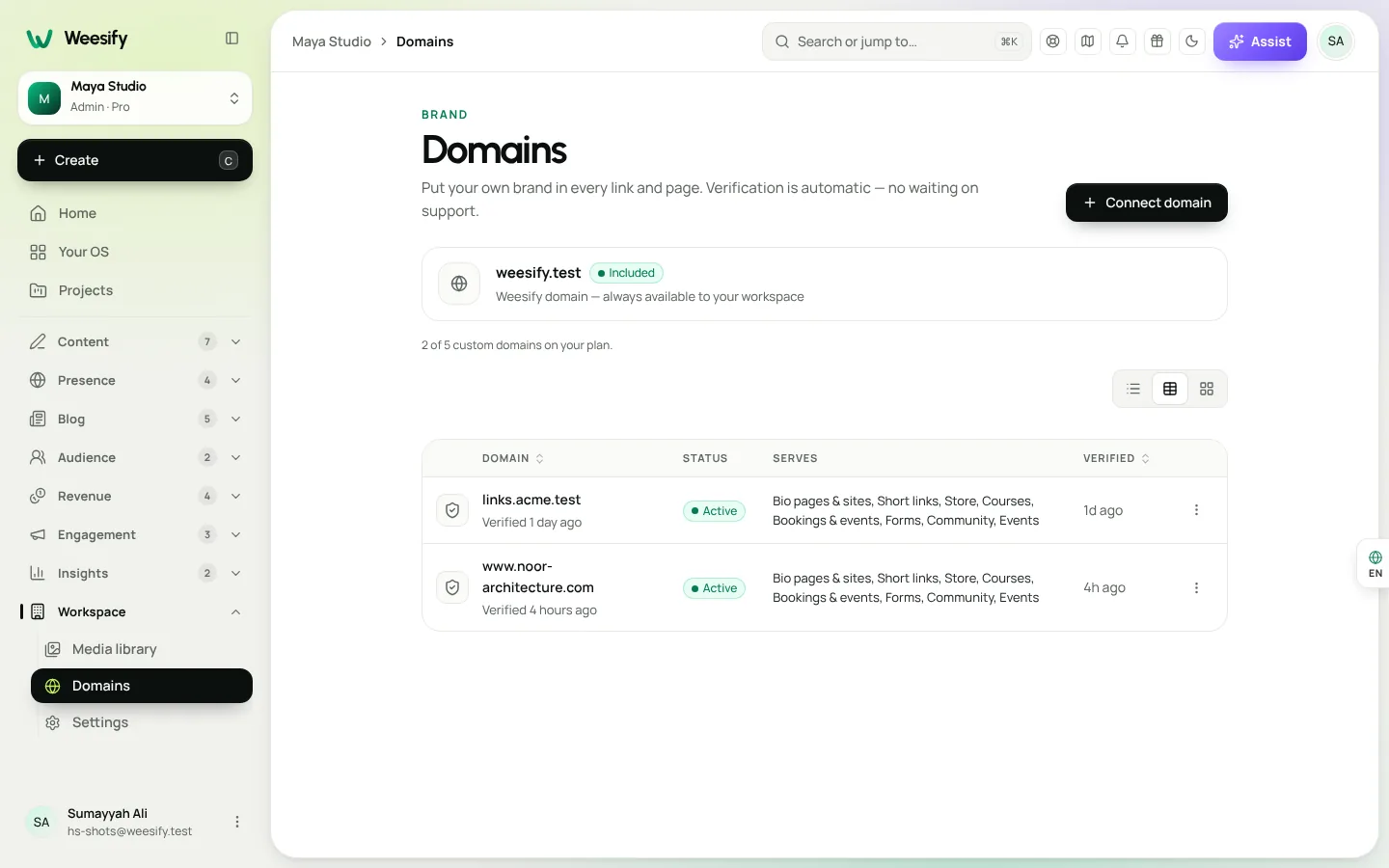
The screen also tells you how many custom domains your plan includes.
Step 2: Add the DNS records at your provider
Weesify asks for two records:
- a TXT record that proves the domain is yours, and
- a CNAME record that points the domain to Weesify.
Each one has a Type, a Name and a Value on the Domains screen. Copy each value exactly.
Weesify also looks up where your DNS is managed. If it recognises your provider, it shows a short line such as "Your DNS is managed at Namecheap" with the menu path to follow, for example Domain List → Manage → Advanced DNS → Add New Record. That saves hunting through unfamiliar settings.
The one rule that trips everyone up
Most providers add your domain to the end of the name automatically. So in the Name or Host box, type only the part before your root domain. The Domains screen spells this out: most providers want just the part before your root domain in the Name/Host box.
If you type the whole thing, you end up with something like links.aminastudio.com.aminastudio.com, and verification fails.
If you use Cloudflare
Set the record's proxy status to DNS only (the grey cloud) until the domain is active. A proxied record hides the real target, so Weesify cannot verify it or issue a certificate.
Step 3: Verify and get HTTPS
Back in Weesify, choose Verify now. The status changes from Pending (or Waiting for DNS) to Active once the records are found. New records usually appear within minutes; some providers take longer, occasionally up to 48 hours.
Every connected domain gets a security certificate automatically, so visitors see the padlock. Certificates are usually issued within an hour of the DNS being correct. If you see HTTPS certificate not issued yet, the DNS must be right first.
If something is not working, choose Check my DNS. Weesify compares what it finds with what it expects and tells you what to fix in plain words. If everything looks right, it tells you that too, and suggests waiting a few minutes before trying again.
Step 4: Decide what your domain shows
Once a domain is active, open its options to set What it serves, root & 404.
When someone visits your domain's root (for example links.aminastudio.com/ with nothing after it), choose:
- Show a page or link: show your main bio page, or send people through a short link.
- Redirect: send them to another address, such as your main website.
- Show not found.
Unknown paths redirect to: if someone types a link that does not exist, send them somewhere useful instead of an error. Leave it blank to show Weesify's not-found page.
Some of these options depend on your plan; the screen marks any that are locked.
What else your domain gives you
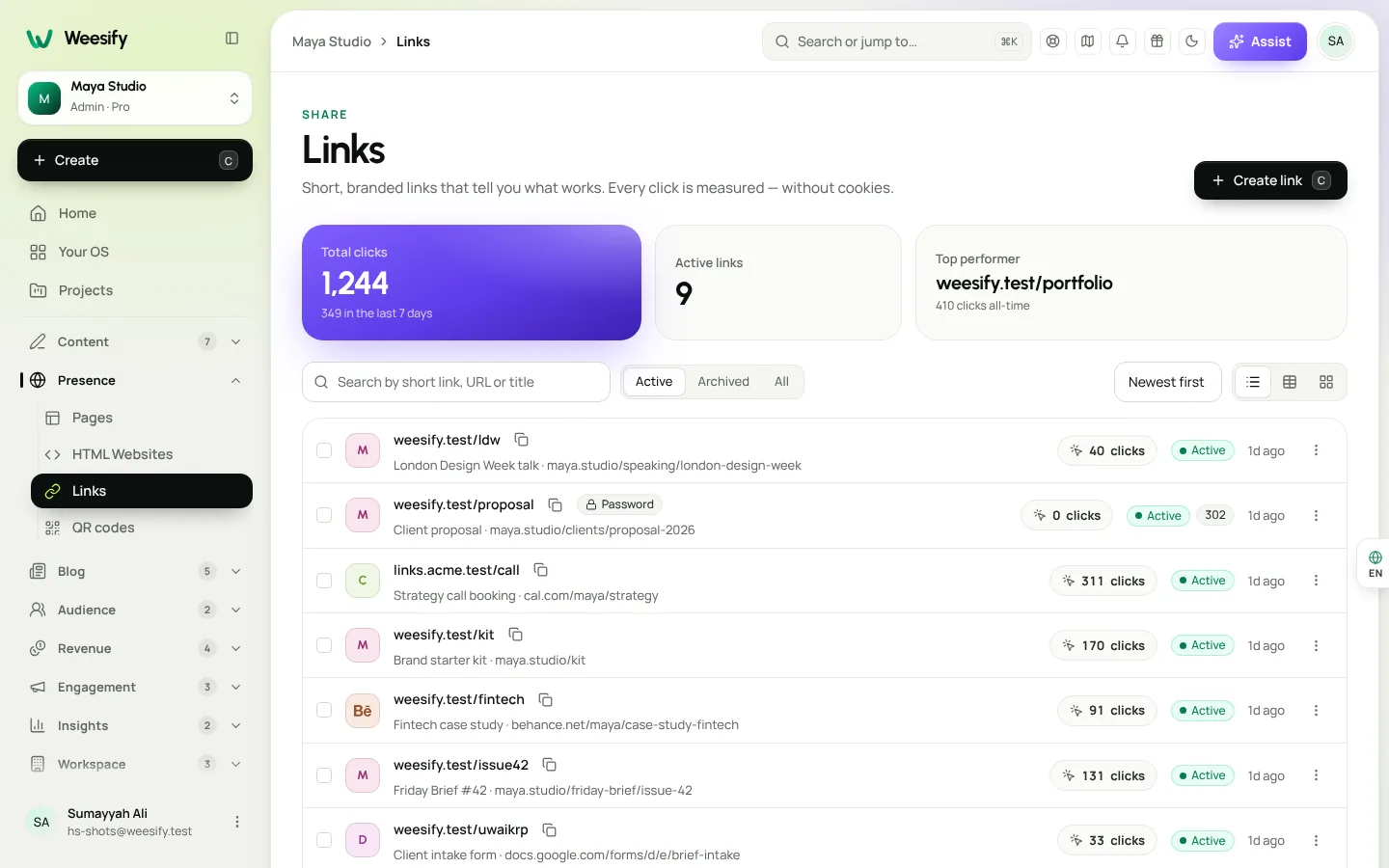
- Short links created after you connect the domain can use it instead of the Weesify address. See Branded short links: the complete guide.
- Your blog can answer at
yourdomain.com/blog, which then becomes its main address. Pick the domain in Blog settings; see Start a blog on Weesify. - A sitemap at
/sitemap.xmlon your domain lists the published pages, forms, products and shops that live there, which helps search engines find them. More in SEO basics for creators.
Connect a domain to an HTML website
HTML websites have their own domain flow, because a domain serves either a website or your pages and links, not both.
- Open the website and choose Domains › Connect domain.
- Enter your domain. A subdomain like
www.yourbrand.comis easiest. - Prove you own it: add the TXT record shown.
- Point it at Weesify: add the CNAME (or ALIAS/ANAME for a root domain).
- Choose Check now. Weesify checks the TXT record, then DNS, then HTTPS. The certificate is issued automatically and usually takes a few minutes, sometimes up to an hour.
- When all three are done, the domain shows Live.
The first domain you add is the primary. Add more as aliases: once the primary is live, aliases and the Weesify address send visitors to it, so search engines see one address. Choose Make primary to switch.
For the full website hosting picture, read Host an HTML website on Weesify.
Troubleshooting: the usual suspects
| Symptom | Likely cause | Fix |
|---|---|---|
| Stays Pending | Name typed with the domain twice | Type only the first part, such as links |
| Stays Pending | An old A or CNAME record uses the same name | Remove the old record |
| Verifies, but no padlock | Cloudflare proxy is on | Set the record to DNS only |
| Verifies, but no padlock | A CAA record blocks the certificate provider | Remove it or ask your provider to allow it |
| Works for you, not for others | DNS still spreading | Wait, then Check my DNS again |
| Domain can't be added | Another workspace has already added it | If it is yours, contact Weesify support |
Leave TTL at its default. And if browsers keep showing a certificate warning after it is fixed, try a private window; browsers cache warnings.
Frequently asked questions
How do I connect a custom domain to Weesify?
Open Workspace › Domains, choose Connect domain, enter the domain and choose what it serves. Add the TXT and CNAME records shown at your DNS provider, then choose Verify now.
Should I use a subdomain or my root domain?
A subdomain such as links.yourbrand.com is simpler and keeps your main website untouched. Use the root domain only if your plan includes it and your whole presence lives on Weesify.
How long does a custom domain take to work?
Usually minutes. Some providers take up to 48 hours to publish new records. HTTPS certificates are usually issued within an hour of the DNS being correct.
Do I need to buy an SSL certificate?
No. Weesify issues a certificate for every connected domain automatically.
Can one domain serve both my HTML website and my bio pages?
No. A domain serves either a website or your pages and links. Use two subdomains, such as www.yourbrand.com for the website and links.yourbrand.com for pages and links.
Make every link unmistakably yours
A custom domain is a small change with a big effect: your name in every link, page and printed code, and an address that stays yours.
Start your 14-day trial and connect your domain today. See how many domains each plan includes on the pricing page, or read the help article Connect your own domain.
Teruskan membaca
 Guides
Sell Digital Products Online: Set Up Your Weesify Store
Turn your ebook, template pack or coaching session into a product people can buy from your page, with instant delivery and checkout that never sends buyers elsewhere.
Guides
Sell Digital Products Online: Set Up Your Weesify Store
Turn your ebook, template pack or coaching session into a product people can buy from your page, with instant delivery and checkout that never sends buyers elsewhere.
 Guides
Lead Capture Forms That Turn Visitors Into Contacts
A form is only useful if the answers go somewhere. Here is how to build lead capture forms in Weesify that create tagged, consent-aware contacts the moment someone presses send.
Guides
Lead Capture Forms That Turn Visitors Into Contacts
A form is only useful if the answers go somewhere. Here is how to build lead capture forms in Weesify that create tagged, consent-aware contacts the moment someone presses send.
 Guides
Your Weesify 14-Day Trial: How to Get the Most Out of It
A day-by-day plan for your Weesify 14-day trial, plus exactly how the trial works: the card, the end date, and what happens if you stop.
Guides
Your Weesify 14-Day Trial: How to Get the Most Out of It
A day-by-day plan for your Weesify 14-day trial, plus exactly how the trial works: the card, the end date, and what happens if you stop.
Komen
Belum ada komen. Mulakan perbualan.