


Edit an HTML Website with AI, Safely: How Weesify Does It

AI can change a website in seconds, and break it just as fast. Here is how Weesify's website editor keeps AI edits small, visible, reversible and under your control.
Asking AI to "make the homepage better" is easy. Knowing what it actually changed is not. Many AI website tools rewrite whole files, quietly drop a script or a form, and leave you comparing two versions line by line to find out why the contact button stopped working.
Weesify took a different path. When you edit an HTML website with AI in Weesify, the AI only sees the part you selected, proposes the smallest change that does the job, shows you that exact change before anything is saved, and keeps a snapshot so one tap undoes it. Your live website does not change until you publish. This spotlight explains how it works and how to get the best from it.
In this guide
- The problem with "rewrite my page" AI
- How the visual editor works
- Asking AI for a change, step by step
- The safety rails you do not see
- Undo, versions and rollback
- Working as a team
- Good prompts and when not to use AI
The problem with "rewrite my page" AI
Hand-written websites often carry things that matter but are easy to miss: a booking script, an analytics tag, a form wired to a service, a carefully tuned stylesheet, metadata for sharing previews. When an AI regenerates a whole page, any of these can disappear without a word.
The fix is not "never use AI". It is to make AI edits targeted, visible and reversible. That is the design principle behind Weesify's editor.
How the visual editor works
Open a website from Presence › HTML Websites and choose Open editor. The editor shows your website as visitors see it.
- Click anything in the preview to select it: a heading, a button, an image, a section.
- The side panel shows its text, link, image and styles. Change them directly if you know what you want.
- Use Alt + arrow keys to move to the parent, child or neighbouring elements, or open Layers to see the page structure.
- For finer control, open CSS rules for this element or Edit HTML of this element. Only that element is replaced in the file; scripts and handlers you keep stay exactly as written.
- Switch the preview between Mobile and Desktop to check both.
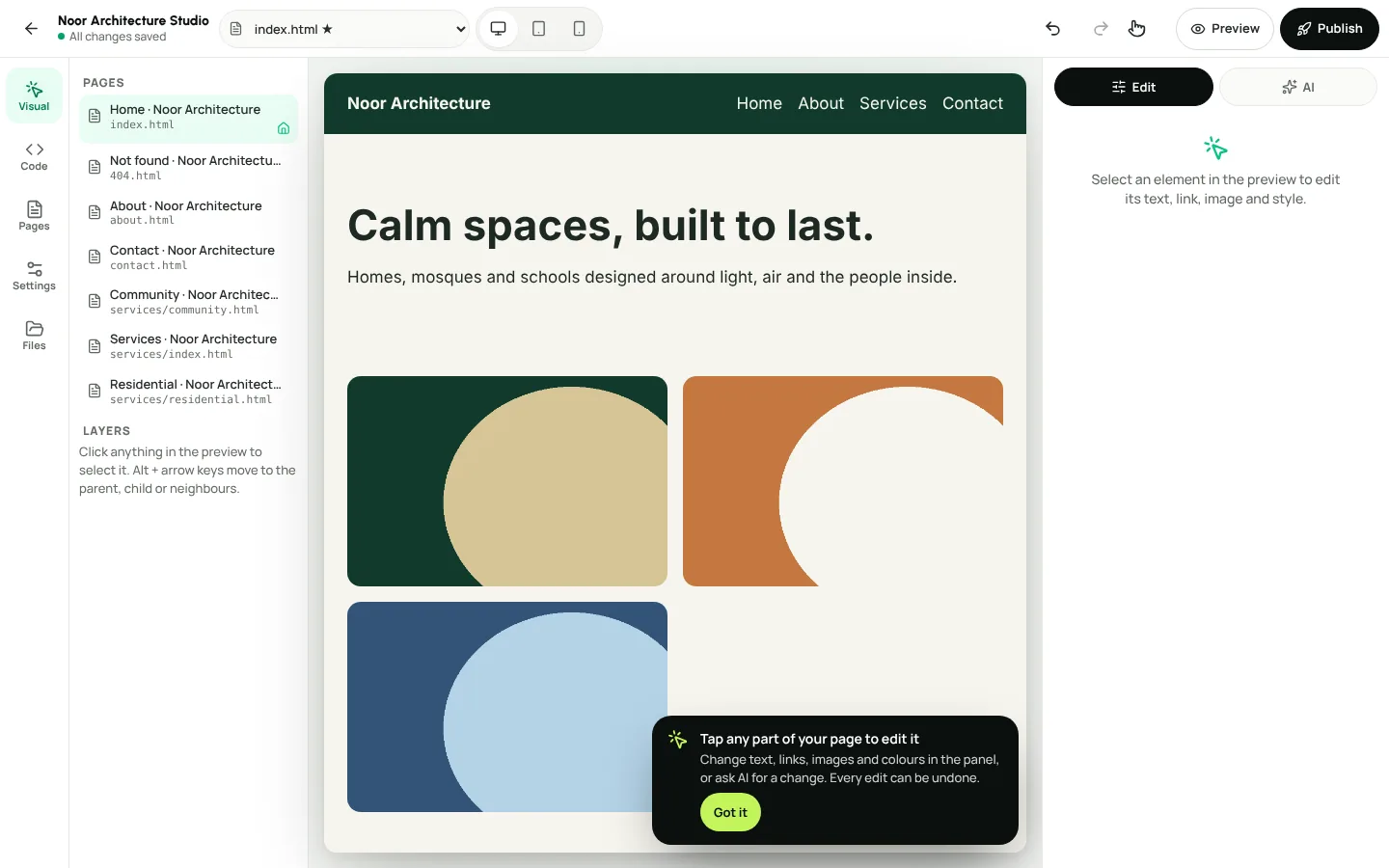
If you prefer code, the Files screen opens any file in a code editor with find and replace, and the preview refreshes as you save. Both routes edit the same draft.
Ask AI for a change, step by step
- Select the element you want to change. Selection is the most important step, because it sets the boundary for the AI.
- In Describe the change, write what you want in plain words, for example "make this heading shorter and bolder".
- Watch it work. A progress bar shows Working on it, and when it finishes you see how long it took, such as "Done in 4.8 s". You can cancel at any time and nothing is changed.
- Review the exact change. Weesify shows what will change before anything is saved.
- Choose Accept to apply it, or discard the suggestion.
When an AI change is applied you will see: AI change applied. Undo is one tap away.
When Weesify asks you to confirm
Sometimes a suggestion would remove something important, such as a script, a form, an event handler, a stylesheet or page metadata. Unless your instruction asked for exactly that, Weesify flags the risk and asks you to confirm with I understand: apply anyway. If you did not expect the removal, do not apply it. Reword your request instead.
The safety rails you do not see
Several protections work behind the scenes on every AI edit. They come straight from how the editor is built.
| Safeguard | What it means for you |
|---|---|
| Only the selection is sent | The AI gets the selected element, a little of the surrounding markup and the CSS rules that mention it, never your whole website. |
| Smallest change | It edits only the part you selected, in one file, with the smallest change that does the job. Everything else stays exactly as you wrote it. |
| Exact, checked edits | Each edit must match your existing code precisely. If it does not, or if it would break the page, nothing is applied. |
| No silent removals | Removing scripts, forms, handlers, stylesheets or metadata needs your explicit confirmation. |
| No new outside scripts | AI edits are checked so they do not add external scripts to your site. |
| Your content is not instructions | Text inside your website is treated as content, never as instructions, so a sentence on your page cannot steer the AI. |
| Your workspace only | Files from other websites or workspaces are never part of the request. |
That last-but-one point matters more than it sounds. Websites contain all kinds of text, some of it copied from elsewhere. Weesify fences your site's content off so the AI reads it as data only.
Undo, versions and rollback
There are three layers of safety net, from small to large.
Undo and Redo. Every change, by hand or by AI, is saved to your draft with a snapshot first, so Undo and Redo always work.
Versions. The Versions screen keeps automatic snapshots before every change, plus named versions you create, such as "Before homepage refresh". Compare any version with your draft, restore it, or copy a single file back.
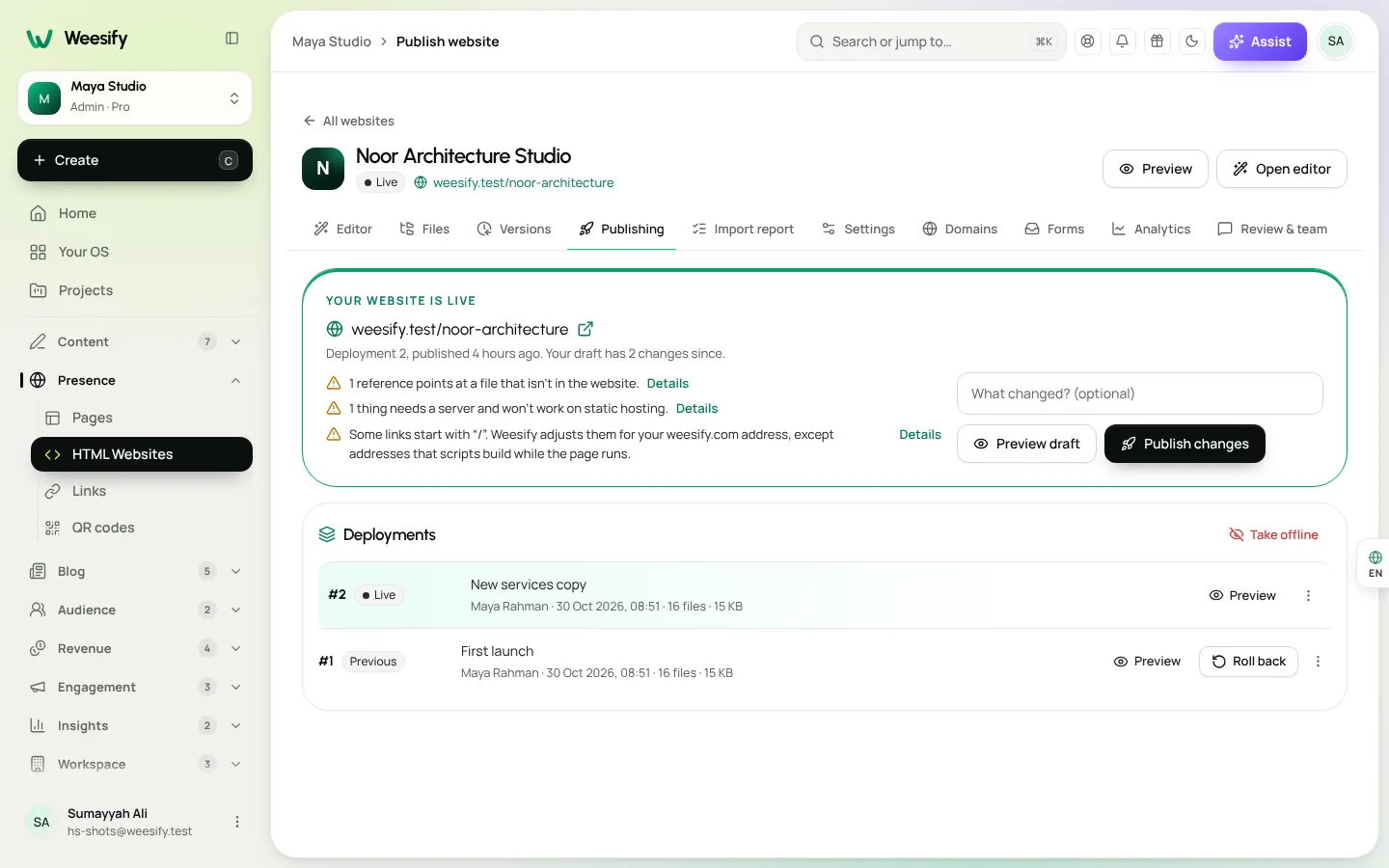
Rollback. Your live website only changes when you choose Publish. If a published change turns out wrong, open Publishing and choose Roll back next to an earlier deployment. It is live again within seconds.
Working as a team
If a teammate is already editing, you will see ":name is editing this website" and the editor opens read-only. You can look around; editing is paused until they finish. Someone who can publish can take over editing. This prevents two people overwriting each other's work.
Agencies can add one more gate: Publishing needs approval. With it on, only owners and admins can publish, unless the client approved exactly what is in the draft through a review link. Any later change, AI or manual, needs a new approval. That pairs well with AI edits, because the client signs off on the result rather than the prompt. Read more in Host an HTML website on Weesify and Weesify for agencies: client websites.
Writing good change requests
AI works best with small, concrete requests on a clear selection.
Good
- "Make this heading shorter and bolder."
- "Change this button's text to 'Book a consultation' and link it to /booking.html."
- "Increase the padding of this section on mobile."
- "Make this paragraph easier to read, keeping the meaning."
Less good
- "Make the site better." (No selection, no clear goal.)
- "Redesign everything in a modern style." (Too large for a targeted edit; do it in steps.)
If a result is not quite right, undo it and try a more specific instruction. That is faster than fixing a large, vague change by hand.
When not to use AI
- Facts and prices. AI can rephrase, but you are responsible for what the page says. Check numbers, dates and claims before you publish.
- Legal text. Edit terms and policies by hand.
- When AI is off. If AI editing is not available for your workspace, the editor says so, and every manual tool still works.
Where the AI runs
Weesify runs its AI features on its own AI engine when AI is on for your workspace. To learn more, read Weesify AI runs on our own servers.
Frequently asked questions
Can AI edit my HTML website without breaking it?
Weesify limits each AI edit to the element you selected, checks that the change matches your code and keeps the page working, and asks you to confirm any removal of scripts, forms or metadata. You review every change before it is saved, and you can undo it.
Does the AI see my whole website?
No. It receives only the selected element, a little surrounding markup and the CSS rules that mention it, never the whole site.
Will AI changes go live immediately?
No. AI changes are saved to your draft. Visitors only see them after you choose Publish, and you can roll back any deployment.
Can I edit my website without AI?
Yes. Click any element and change its text, link, image and styles in the panel, or edit the code directly in Files. Every manual tool works with AI switched off.
What happens if two people edit at once?
The second person sees who is editing and the editor opens read-only until the first person finishes, or until someone who can publish takes over.
Fast changes, without the fear
AI should save you time, not create a new job checking its work. Select, describe, review, accept, and undo whenever you like.
Start your 14-day trial and try the website editor on your own site. Compare what each plan includes on the pricing page.
Continuer la lecture
 Spotlights
Assist: Build a Page from Your Links, Then Ask About Any Screen
Paste the links you already have and Assist builds a Weesify page from what they really show. Then open Assist on any screen and ask about exactly what you are looking at.
Spotlights
Assist: Build a Page from Your Links, Then Ask About Any Screen
Paste the links you already have and Assist builds a Weesify page from what they really show. Then open Assist on any screen and ask about exactly what you are looking at.
 Spotlights
Store Templates: How to Pick the Right One for You
Weesify has ten store templates, from Minimal to Link-in-bio shop. Here's what each one does well, who it suits, and how to switch without losing a single order.
Spotlights
Store Templates: How to Pick the Right One for You
Weesify has ten store templates, from Minimal to Link-in-bio shop. Here's what each one does well, who it suits, and how to switch without losing a single order.
 Spotlights
Video Studio: Edit the Footage You Already Have
Talks, talking-head clips, screen recordings: you already have the footage. Weesify Video Studio turns it into a clean, captioned video by letting you edit the words.
Spotlights
Video Studio: Edit the Footage You Already Have
Talks, talking-head clips, screen recordings: you already have the footage. Weesify Video Studio turns it into a clean, captioned video by letting you edit the words.
Commentaires
Aucun commentaire pour l’instant. Lancez la conversation.