


Email Newsletters That Get Read: A Practical Playbook
A newsletter is the one channel no algorithm can take from you. Here is how to write, design and send email newsletters people actually open, using Weesify's broadcast editor.
Social platforms change their rules every few months. Your reach goes up, then down, then sideways, and none of it is in your hands. An email list is different. The people on it asked to hear from you, and your message reaches their inbox whether or not an algorithm approves.
But a list is only valuable if people read what you send. This playbook covers how to write email newsletters that get read: what to put in them, how to design them so they work on a phone, who to send them to, and how to read the results honestly. Every step uses the broadcast editor in Weesify.
In this guide
- Why some newsletters get opened and others get ignored
- Building a broadcast, block by block
- Sending to the right people with segments and tags
- Timing, testing and the content check
- Reading your results without fooling yourself
- FAQ
Why some newsletters get read
Ask yourself one question before you write: what's in it for them? That is also the hint text Weesify shows in the subject field, and for good reason. People open emails that promise something specific and useful, from someone they trust, at a rhythm they expect.
Newsletters that get read tend to share a few habits:
- One main idea per email. A lesson, an announcement, a story. Not five.
- A subject line that says what's inside. "This week's tajweed tip: the rule most beginners miss" beats "Newsletter #42".
- A steady rhythm. Weekly or fortnightly, on a similar day. Surprise is good for content, not for schedules.
- Plain, warm writing. Write to one person. Use their first name where it feels natural.
- One clear action. A single button does more than a row of links.
Build a broadcast, block by block
Open Engagement › Email and choose New broadcast. Pick a template from your library, or choose Start fresh for a blank email. Give it a Broadcast name; only your team sees this.
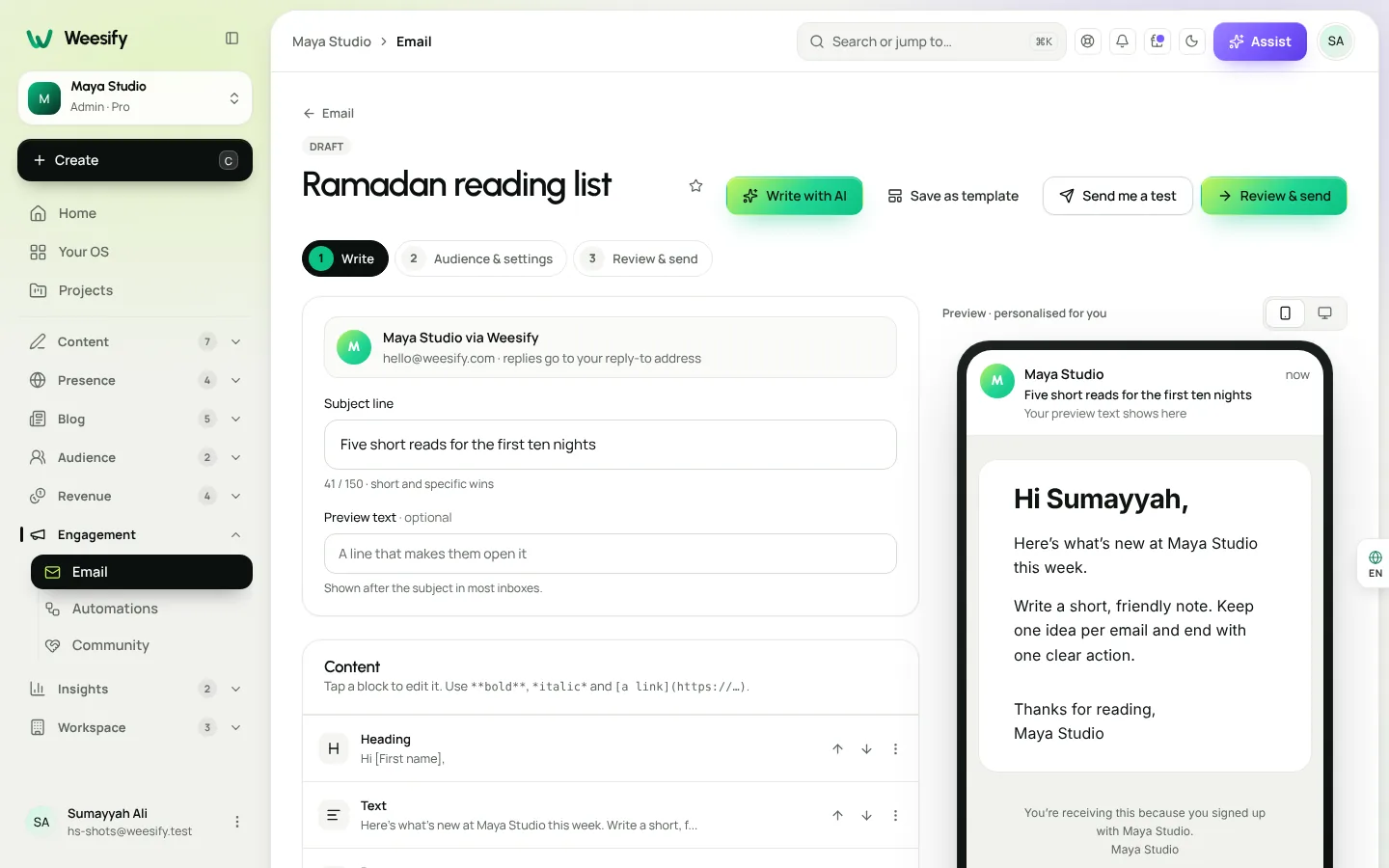
Write: subject line and preview text
In the Write step, fill in the Subject line and Preview text. The preview text is shown after the subject in most inboxes, so treat it as a second line of your pitch rather than a repeat. A counter shows how much room you have. Shorter subject lines survive phone screens better.
Stuck for a first draft? Write with AI gives you a starting point to edit in your own voice.
Content: blocks you tap to edit
Under Content, use Add to place blocks:
- Heading and Text for the body. In text you can use
**bold**,*italic*and[a link](https://…). - Button for your one clear action.
- Image, with alt text for people who can't see images.
- Product card, pulled from a product you published in your Store.
- Event card, which shows the cover, title, date in the event's time zone, the place, and a button to the event page.
- 2 columns or 3 columns, which sit side by side on wide screens and stack on phones.
- Profile links, a divider and spacers.
Insert a First name tag to personalise the greeting. The preview, marked Preview · personalised for you, shows exactly what a reader sees, and you can switch between phone and desktop with Preview size.
Look: your brand in one tap
Under Look, choose Apply your brand kit, or set the Brand colour, Background, Typeface and Logo by hand. Like the result? Save as template keeps the design and words so the next issue takes minutes, not an hour.
Send to the right people
Not every email is for everyone. Go to Audience & settings and, under Who gets it, choose:
- Everyone: all your subscribers.
- A segment: a saved filter that keeps itself up to date, such as "Students who joined this month".
- A tag: everyone with a label, such as "Quran class waiting list".
Only people who are subscribed and have an email address receive a broadcast. Unsubscribes are never emailed. Segments are built in Audience › Contacts under Segments, with conditions on tags, stage, source and your own fields. The help article on segments and tags walks through it.
Sending something narrower usually means sending something more relevant. A note about a new advanced course goes to people tagged with the beginner course, not to the whole list.
Timing, testing and the content check
Tracking and extras
Under Tracking & extras, decide whether to Count clicks, Count opens and add a "View in browser" link. Click counting passes links through Weesify so you can see what people tapped. Opens are off by default because many inboxes block the tracking image or open emails automatically, so open counts are a rough guide at best. Clicks are the number to trust.
Send yourself a test
Choose Send me a test before anything else. Read it on your phone. Tap every button. It takes one minute and saves embarrassment.
Review & send
Choose Review & send to see a summary and the Content check. Every email is checked before it goes: words that often trip spam filters, unsafe links, the balance of images to text, missing alt text, an all-caps subject and link shorteners. Some findings are advice; serious ones stop the send until you fix them.
You will also need a postal address on file. Marketing email must say where it comes from, so add it in Settings › Email sending before your first send. Every email then carries that address and a one-click unsubscribe, which keeps your emails welcome.
Send now or schedule
Choose Send now, or Schedule and pick When and a Time zone, or a quick pick such as Tomorrow 9:00. The editor offers a gentle tip: mid-morning on Tuesday to Thursday tends to get the most opens. Treat it as a starting point and learn your own audience's rhythm from Best days and hours in Analytics.
A scheduled email goes to whoever is subscribed at send time. Need to change it? Open it and choose Unschedule and edit. Sent too early? While it is sending, choose Stop, and people who haven't received it yet won't.
Read your results honestly
Open a sent broadcast and choose Results. You see Delivered, Opened (when tracked), Clicked and Unsubscribed, plus total clicks on each link.
The Email overview adds your Open rate, Click rate and a Deliverability & safety panel with bounce, complaint and unsubscribe rates and plain guidance beside each one, such as keeping complaints under 0.1%. If bounces creep up, Clean list unsubscribes and suppresses addresses that bounced twice or can't receive email.
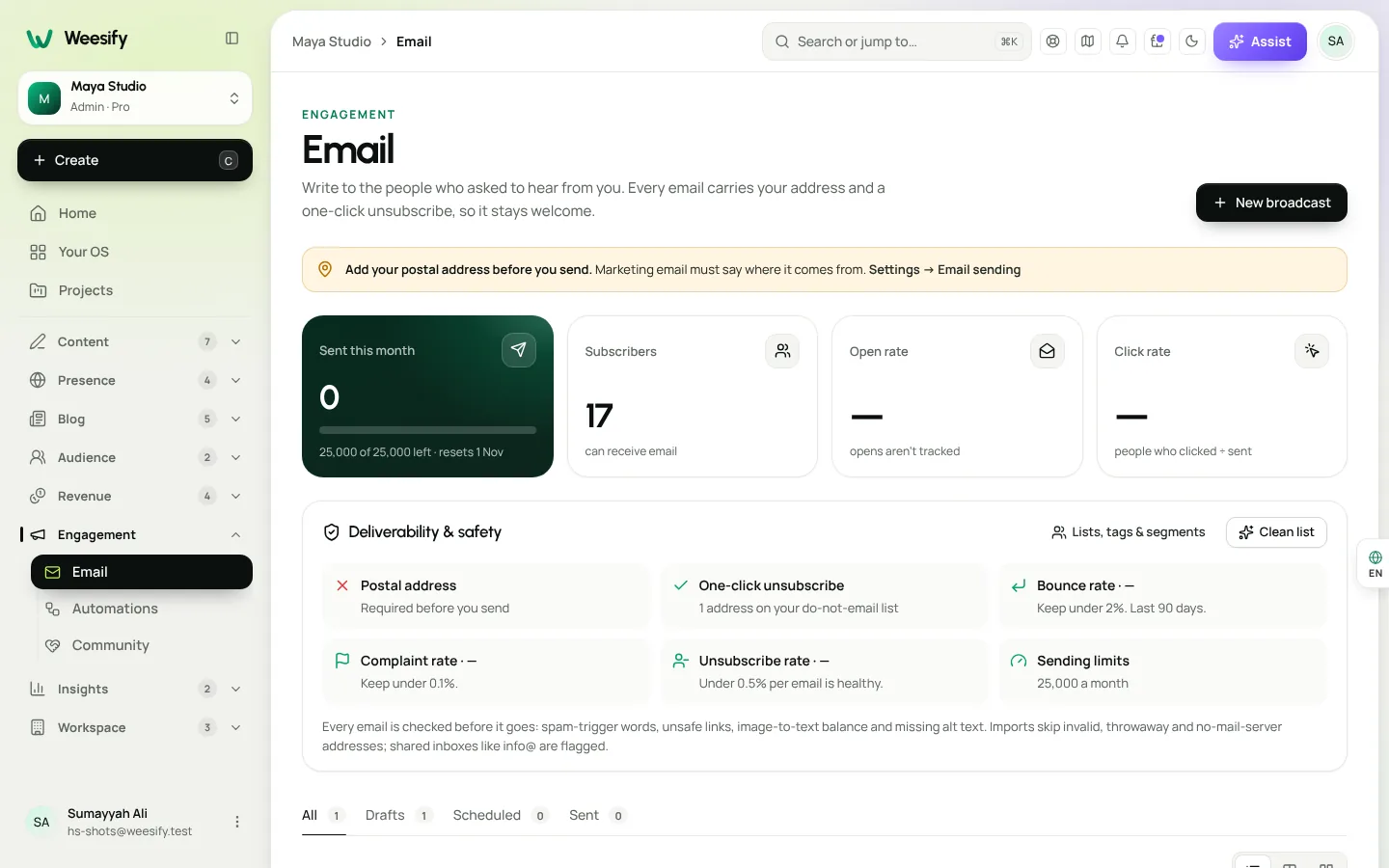
What to look for:
| Signal | What it usually means | What to try |
|---|---|---|
| Low clicks, normal unsubscribes | The email was fine but the action wasn't compelling | One button, clearer benefit |
| Unsubscribes jump after one issue | The topic or frequency didn't match expectations | Send that kind of email to a segment |
| One link gets most clicks | You found what your readers want | Lead with it next time |
| Bounces rising | Old or imported addresses | Run Clean list |
Grow the list your newsletter goes to
A newsletter is only as strong as the list behind it. Put a sign-up form on your link-in-bio page, print a form QR code for events, and welcome every new subscriber automatically with an automated welcome sequence. You can also show past issues on your pages: broadcasts can be listed in the newsletter archive on your pages, which gives new visitors a taste before they subscribe.
FAQ
How often should I send a newsletter? As often as you can send something useful, on a rhythm you can keep. For most creators that is weekly or fortnightly. Consistency matters more than volume.
Why are opens off by default? Many inboxes block the tracking image or open emails automatically, so open counts can be misleading. Clicks are a more reliable signal. You can switch Count opens on if you still want them.
Can someone on my team write a newsletter but not send it? Yes. Editors can prepare emails; sending to your audience stays with owners and admins.
Can I reuse a past newsletter? Yes. Use Duplicate in a broadcast's options, or Save as template to start new emails from a design you like.
What does the content check look for? Spam-trigger words, unsafe links, too much image and too little text, images without alt text, a shouty subject and link shorteners.
Write once, land in every inbox
A newsletter people read is built on clarity, consistency and respect for the reader's inbox. Weesify gives you the editor, the checks and the honest numbers; you bring the voice.
Start your 14-day trial and send your first broadcast this week.
Keep reading
 Growth & marketing
Link in Bio Page That Sells: Turn Profile Visits into Sales
Most link in bio pages are a list of buttons that send people away. Here is how to build a Weesify bio page where visitors can buy, book, register and subscribe without leaving.
Growth & marketing
Link in Bio Page That Sells: Turn Profile Visits into Sales
Most link in bio pages are a list of buttons that send people away. Here is how to build a Weesify bio page where visitors can buy, book, register and subscribe without leaving.
 Product news
Weesify 2.0: What's New in the Rebuilt Weesify
From a link page in 2022 to an operating system for your online presence, audience and income. Here is everything new in Weesify 2.0, in plain words.
Product news
Weesify 2.0: What's New in the Rebuilt Weesify
From a link page in 2022 to an operating system for your online presence, audience and income. Here is everything new in Weesify 2.0, in plain words.
 Features
Content OS: Plan, Write and Publish Your Content in One Place
Ideas in one app, drafts in another, the calendar in a spreadsheet. Weesify's Content OS brings ideas, writing, planning, publishing and results into one calm workspace.
Features
Content OS: Plan, Write and Publish Your Content in One Place
Ideas in one app, drafts in another, the calendar in a spreadsheet. Weesify's Content OS brings ideas, writing, planning, publishing and results into one calm workspace.
Comments
No comments yet. Start the conversation.