


Event Check-In: A Day-of Guide for Smooth Doors

Queues at the door set the mood for the whole event. Here's how to run fast, calm event check-in with Weesify: stations, phone scanning, walk-ins, badges and offline mode.
The first thing guests experience at your event isn't the speaker or the venue. It's the door. A long queue in the cold, a volunteer scrolling a spreadsheet, a guest who "definitely bought a ticket" but can't find the email. Five minutes of that, and the mood is set.
Good event check-in is mostly preparation. With Weesify Events, every ticket already carries a QR code and a ticket number, and your team checks guests in from their own phones. This day-of guide covers what to set up the week before, how to run the doors, and how to handle the awkward cases calmly.
In this guide
- The week before: stations, team and devices
- Every ticket's QR code and ticket number
- On the day: scanning at the door
- Lost tickets, walk-ins and name changes
- Badges, sessions and check-out
- Live attendance: see the room fill up
- When the Wi-Fi drops
- After the doors close
- FAQ
The week before: stations, team and devices
Create your stations
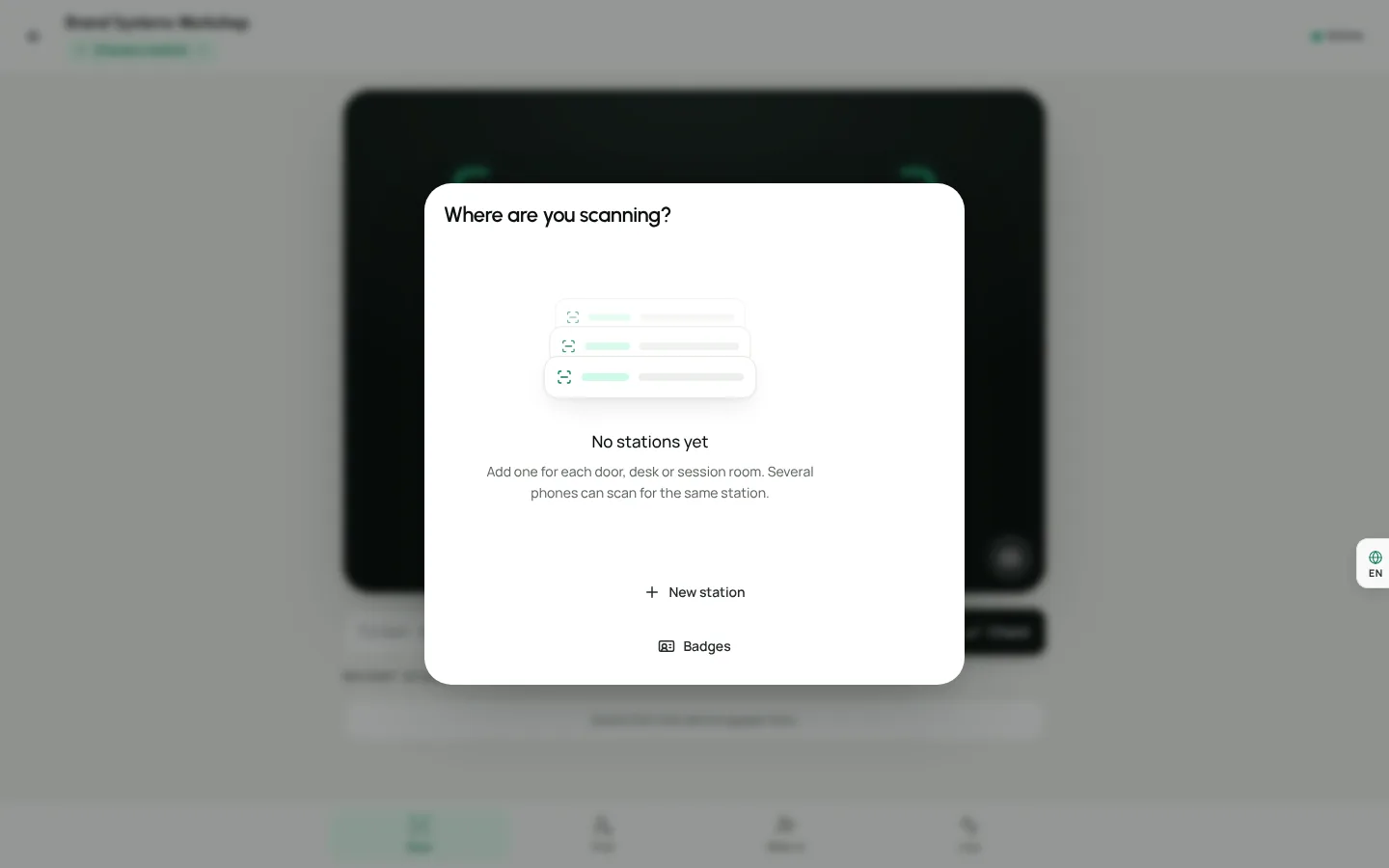
A station is a place where scanning happens: a door, a registration desk, a session room. Open your event, choose Check-in in the event menu, then choose New station. Give it a clear name like Main door, Sisters' entrance or Hall B, then Save. Several phones can scan for the same station.
If a station should only admit some tickets (say, the VIP lounge), use Admit only (optional) to choose which ones. Anyone else scanning there sees Not admitted here.
Give your team the right access
Your check-in volunteers don't need access to your whole workspace. Weesify Events has per-event roles, including check-in staff and volunteers, so people can scan without seeing your finances. Walk-ins and on-site sales need the Run check-in permission, so give that only to your desk leads.
Test on real devices
A day or two before, ask each volunteer to:
- Open Check-in on their phone and answer Where are you scanning? by choosing a station.
- Choose Start camera and allow camera access.
- Scan a test ticket.
If the browser blocks the camera, they'll see "Camera access was blocked. Allow it in the browser's site settings, or type the ticket number." Better to find that out on Tuesday than at the door on Saturday.
Every ticket's QR code and ticket number
Guests get a Confirmation & ticket email right after registering, with a QR code for every ticket, a calendar file and the receipt. Each ticket also has a human-readable number, such as WSY-7KQ2-M9XD, so it can be typed in when a camera isn't an option.
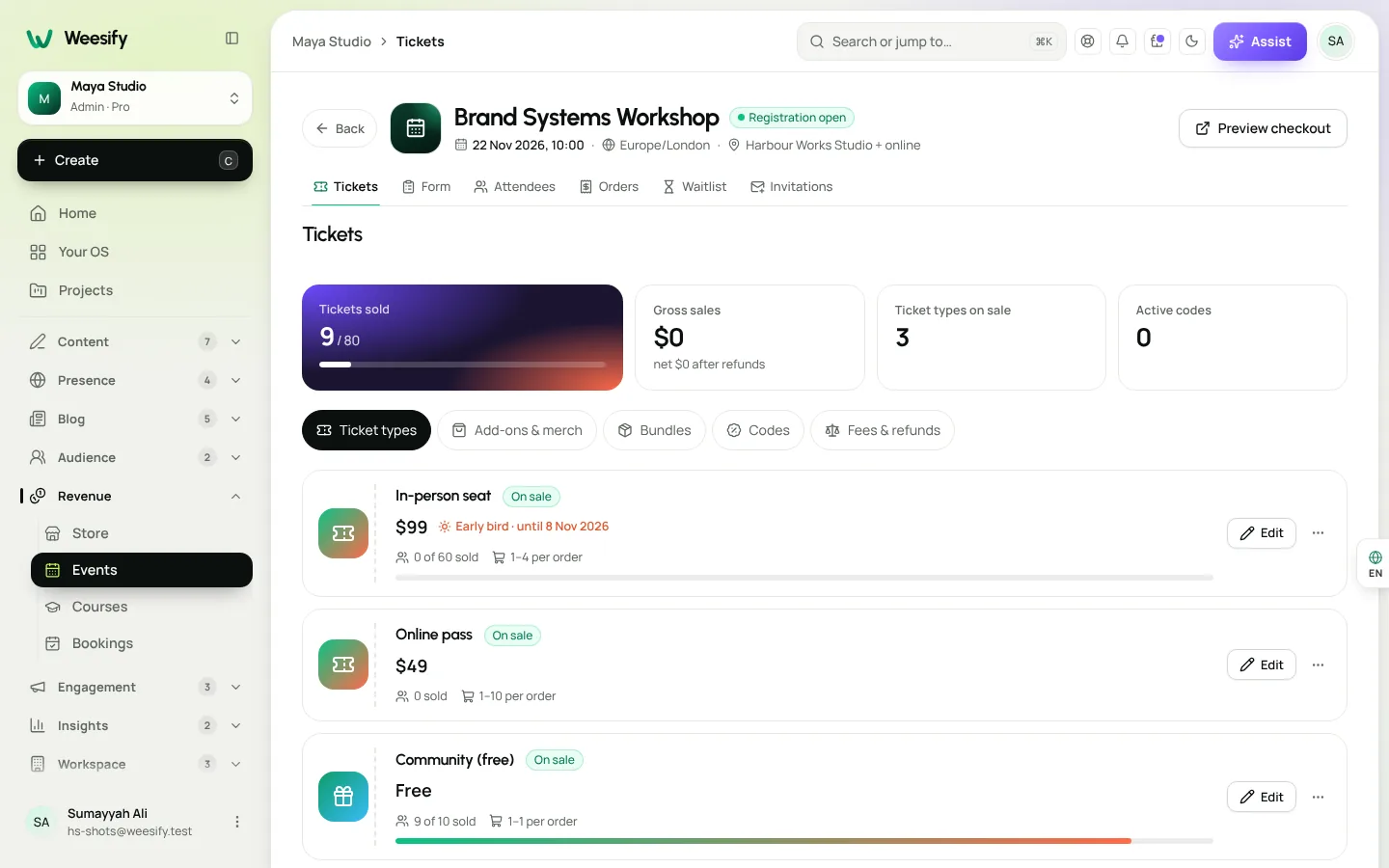
Remind guests the day before to have their ticket ready. Weesify's default reminders go out a day and an hour before the event; add a line to the reminder like "Have your QR code open when you arrive." (Setting up tickets for the first time? Start with how to host and sell event tickets.)
On the day: scanning at the door
- Each volunteer opens Check-in and joins their station.
- On the Scan tab, choose Start camera and point it at the guest's QR code. In a dim hall, tap Torch.
- Weesify shows the result straight away, with optional Sounds and Vibration so volunteers don't need to stare at the screen.
- No camera? Type the number into Ticket number or code and choose Check. A handheld barcode reader works too.
Every scan is recorded, accepted or not. That's what makes the common problems easy to spot:
| What the volunteer sees | What it means |
|---|---|
| Checked in | All good, welcome them in |
| Already checked in | This ticket was already scanned (a shared screenshot, perhaps) |
| Ticket cancelled | The ticket was cancelled or refunded |
| Ticket for another date | Right event, different date of a repeating event |
| Not admitted here | Their ticket type isn't allowed at this station |
| Check-in hasn't opened yet | Too early |
| This ticket was replaced | An older version of a re-issued ticket |
Brief your volunteers on this table. Most door problems become a ten-second conversation when the screen already explains them.
Lost tickets, walk-ins and name changes
"I can't find my ticket"
Use Find an attendee and search by name, email, company, ticket or order number. Type at least two letters. Lost tickets, name changes and VIP arrivals all start here. You can check them in from the result, or Reprint ticket if you have a printer at the desk.
Walk-ins
For someone without a ticket, choose Register a walk-in. Enter their name and email, pick the ticket type and quantity, and register them. For paid tickets, Weesify shows a Scan to pay code. The buyer scans it with their own phone and pays securely; tickets are issued the moment payment is confirmed. Cash isn't recorded here, so decide your cash policy in advance.
Walk-ins are also good for your list: every walk-in becomes an attendee with an email address you can follow up with later.
Badges, sessions and check-out
- Badges: turn on Offer badge printing after each check-in to print a name badge at the desk. Add a Company (for the badge) for business events.
- Sessions: for conferences with parallel tracks, create a station per session room and scan at the door to see who attended which session.
- Check out: switch the Direction to Check out at exits if you need to know who's still inside, for example for venue capacity or safety.
Live attendance: see the room fill up
Live attendance shows three numbers that matter on the day: Inside now, Not arrived and Arrivals, last hour, plus the percentage arrived and arrivals per 5 minutes. A Problems count flags failed scans in the last hour.
Use it to make calls in real time:
- Arrivals spiking at one door? Move a volunteer from the quiet one.
- Most guests still Not arrived at start time? Hold the opening talk five minutes.
- A burst of Already checked in results? Someone may be sharing ticket screenshots.
When the Wi-Fi drops
Venue Wi-Fi fails at the worst moment. When a device loses its connection, scanning carries on Offline. Those scans show "Checked offline — verified when the device syncs." Once the connection is back, the device syncs, and anything that doesn't pass is flagged so a lead can follow up. A counter shows how many scans are waiting to sync, then All synced.
Still, plan for it: ask volunteers to arrive with charged phones and mobile data as a backup.
After the doors close
- Choose Sign out devices on each station so volunteers' phones no longer scan for it. Close station when you're done; its scans stay in the log.
- Look back at Live attendance and your event's analytics to see how arrivals went, and note what to change next time.
- Follow up while it's fresh: send thanks, slides or a request for feedback from Messages, and point people to your next event. Our guide to email newsletters that get read can help.
Your day-of checklist
- Stations created and named for every door, desk and room
- Volunteers added with the right event role
- Every volunteer has scanned a test ticket on their own phone
- Reminder email tells guests to have their QR code ready
- Desk lead has Run check-in for walk-ins
- Badge printer tested (if you're printing badges)
- Phones charged, mobile data on as backup
- Posters with a QR code to the event page for latecomers (QR codes for events and print)
FAQ
Do I need special scanners for event check-in?
No. Any phone with a camera and a browser works. A handheld barcode reader also works, and tickets can be typed in by number.
Can several volunteers scan at the same door?
Yes. Several phones can scan for the same station. Create one station per door or desk.
What happens if someone shares a screenshot of their ticket?
The first scan checks them in. Any later scan of the same ticket shows Already checked in, so it can't be used twice.
Can I check people in without internet?
Yes. If the connection drops, scanning continues offline, and those scans are verified when the device syncs.
Can walk-ins pay at the door?
Yes. Register a walk-in and, for paid tickets, the buyer scans a payment code with their own phone. Tickets are issued once payment is confirmed.
A calm door, a good event
When the door works, nobody notices it, and that's the point. A little preparation turns check-in from a queue into a welcome. See everything Weesify Events can do on the Events feature page.
Start your 14-day trial and run your next event's check-in from your phone.
تابع القراءة
 Use cases
Weesify for Islamic Educators: Courses, Classes and Community
A practical look at how an Islamic educator can run courses, live classes, one-to-one sessions and a student community from one Weesify workspace.
Use cases
Weesify for Islamic Educators: Courses, Classes and Community
A practical look at how an Islamic educator can run courses, live classes, one-to-one sessions and a student community from one Weesify workspace.
 Use cases
Booking Page for Consultants: Fill Your Calendar Calmly
Stop the back-and-forth emails. A Weesify booking page lets clients pick a free time, pay up front and get a calendar invite and a private meeting room.
Use cases
Booking Page for Consultants: Fill Your Calendar Calmly
Stop the back-and-forth emails. A Weesify booking page lets clients pick a free time, pay up front and get a calendar invite and a private meeting room.
 Use cases
Build a Paid Community on Your Own Page, Step by Step
A paid community gives your most engaged people a home and gives you income that does not depend on a feed. Here is how to plan, price and launch one with Weesify Community.
Use cases
Build a Paid Community on Your Own Page, Step by Step
A paid community gives your most engaged people a home and gives you income that does not depend on a feed. Here is how to plan, price and launch one with Weesify Community.
التعليقات
لا توجد تعليقات بعد. ابدأ المحادثة.