


Faster Imports You Can Watch, From Linktree to Jira

Moving to Weesify from another service or from Jira now shows live progress with friendly updates, finishes much faster and never ends on an error screen.
Moving your work from one place to another should feel exciting: everything you built, arriving in its new home. Too often it feels like the opposite. You press Import, a spinner turns, nothing seems to happen, and after a long wait you either get your things or an error page that tells you nothing useful. On a big page with dozens of pictures, or a project with hundreds of tasks, that wait could be long.
This release changes all of that. Imports into Weesify now show you what is happening as it happens, they finish much faster, and they never end on an error screen. It works the same whether you are bringing a bio page from Linktree, Beacons, Stan Store, Taplink or Carrd, short links from Bitly, customers from Gumroad, Teachable, Eventbrite or Calendly, or your team's work from Jira.
In this guide
- See it happen: progress and live updates
- Much faster, especially on heavy pages
- You can leave the page
- No error screens
- Everything you bring comes with you
- Bringing your work from Jira
- What comes across
- Getting started
See it happen: progress and live updates
When you press Import, a progress card opens over the page. A ring fills up with the percentage, and under it a single line says in plain words what Weesify is doing right now: "Reading your links…", "Saving your pictures to your library (24 of 60)…", "Matching your colours, fonts and background…", "Saving your new page…".
In the bottom corner, a small Live updates feed shows each step as it lands: how many links and pictures were found, every ten pictures saved, the moment your look is matched, the moment your page is ready. The newest update is the brightest, older ones fade back, and on a phone only the last two show, so the feed never covers what you are doing.
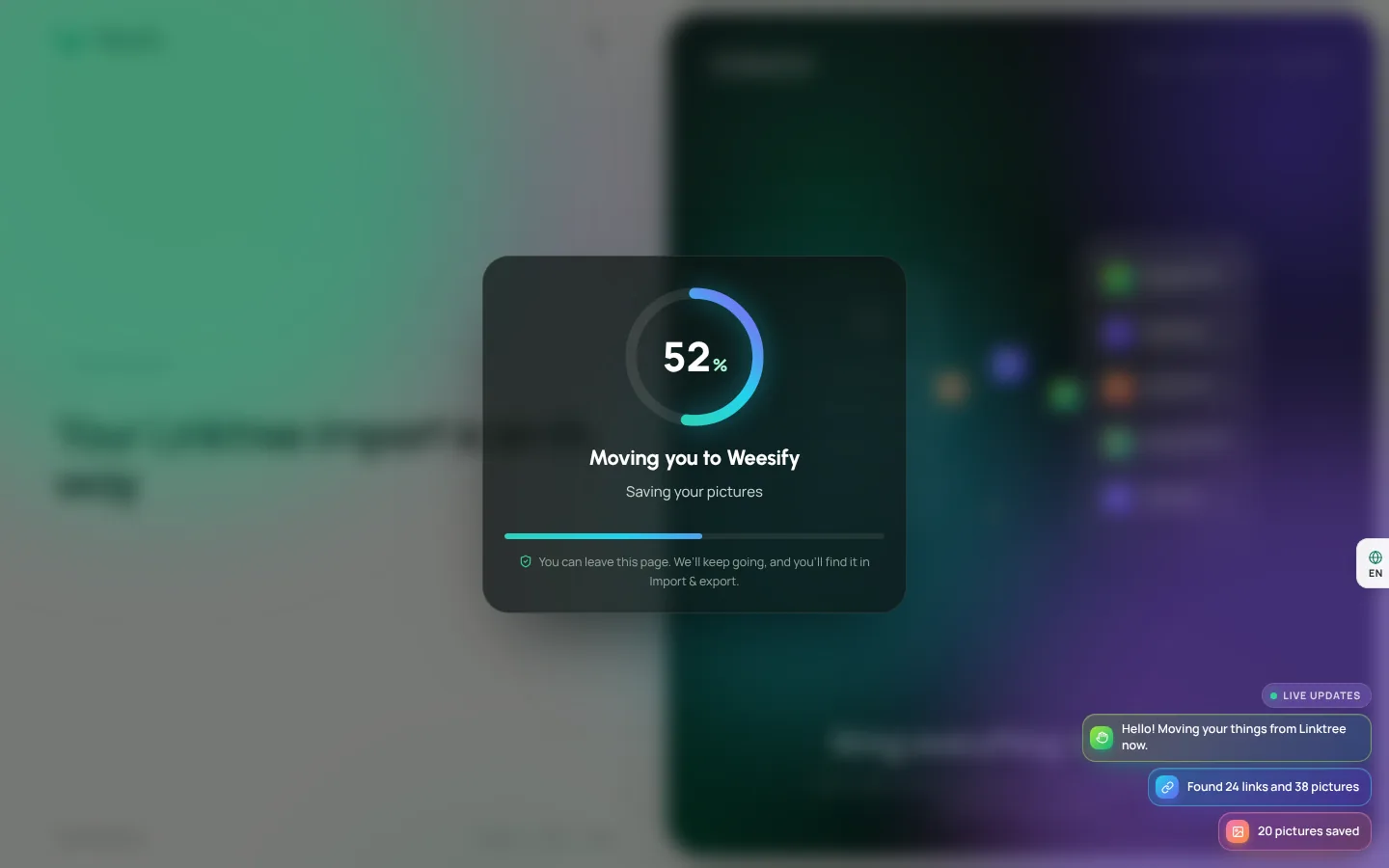
When it finishes, the ring turns into a tick and Weesify takes you straight to what was made.
Much faster, especially on heavy pages
Most of the time in an import goes into one thing: downloading pictures. A creator's page can easily have a profile photo, a thumbnail for every link, product images, gallery pictures and a few clips. Before, Weesify fetched them one at a time.
Now pictures and clips download side by side, ten pictures and four clips at a time, with exactly the same safety checks as before: secure addresses only, no private networks, the right kind of file and a sensible size. A picture that fails for a temporary reason gets a second try, so a slow server doesn't cost you an image.
The rest got faster too. Contacts and short links are checked against what you already have once, instead of once per row, and saved in batches of hundreds. Tags are added to a whole batch at a time. Large lists that used to take minutes now arrive in moments.
You can leave the page
The import now runs on Weesify's servers after the page answers, so it doesn't depend on your browser staying open. Close the tab, lose your connection, put your phone away: the import keeps going. Come back to Import & export (or All projects for Jira) and you will find it either still running, with the progress card picking up where it is, or finished.
If an import goes quiet for a long time, the card says "This is taking longer than usual" and offers a Refresh button, and anything already brought over is safe.
No error screens
We heard from people who pressed Import twice on a slow connection and got a page saying "409 Conflict". That should never happen, so it no longer can.
- Pressing Import twice, or sending the page again, simply shows where the import stands.
- If something stops part-way, everything that already came over is kept, the screen says so in plain words, and you can undo the import from the same place.
- Every error page Weesify shows now explains what happened and what to do next, instead of a server message.
Everything you bring comes with you
Your page is yours, so it should arrive whole. Long names, titles and link labels come across in full, groups and shop rows hold up to 100 items, and a page with hundreds of links keeps every one of them, in your order. If one small part of a page can't come over, only that part is left out, the done screen lists it with the reason, and your new page is still made with everything else.
Bringing your work from Jira
If your team runs its work in Jira today, you can bring it into Weesify Work in two ways from Work › Projects › Import from Jira:
- Upload a CSV export. In Jira, open Filters, search for the issues you want, and choose Export › Export Excel CSV (all fields). Upload the file in Weesify.
- Connect Jira Cloud. Enter your Jira address, the project key, your email and an API token. The token is used once for the import and never kept.
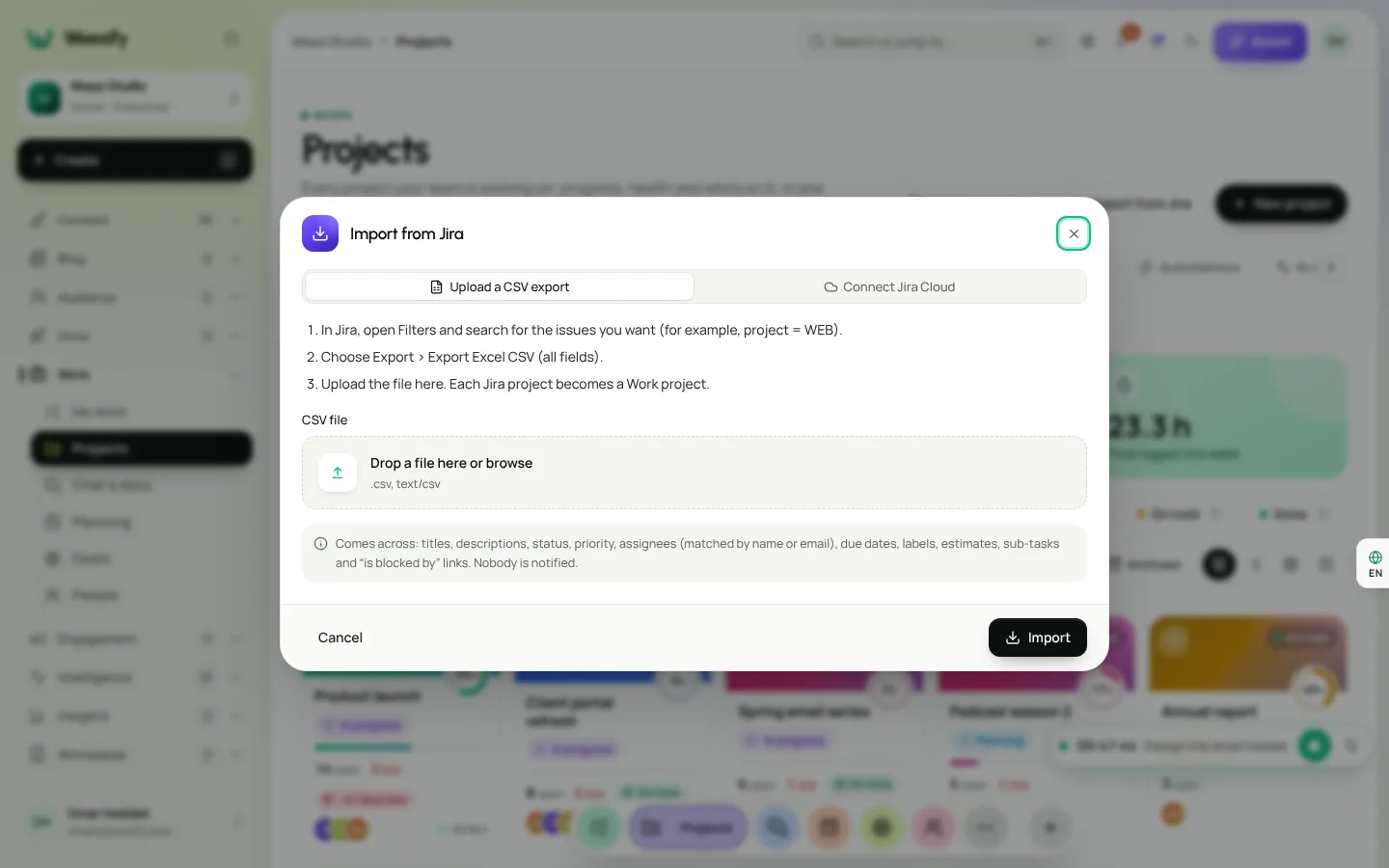
The same progress card and live updates show the Jira import as it runs: issues found, the project being created, tasks added in batches, "blocked by" links kept. Each Jira project becomes a Work project, and when it's done you land on it.
What comes across
From Jira, Weesify brings titles, descriptions, statuses, priorities, assignees (matched to your team by name or email), due dates, labels, estimates, sub-tasks and "blocked by" links. Nobody is notified while the import runs, so your team doesn't get a flood of messages.
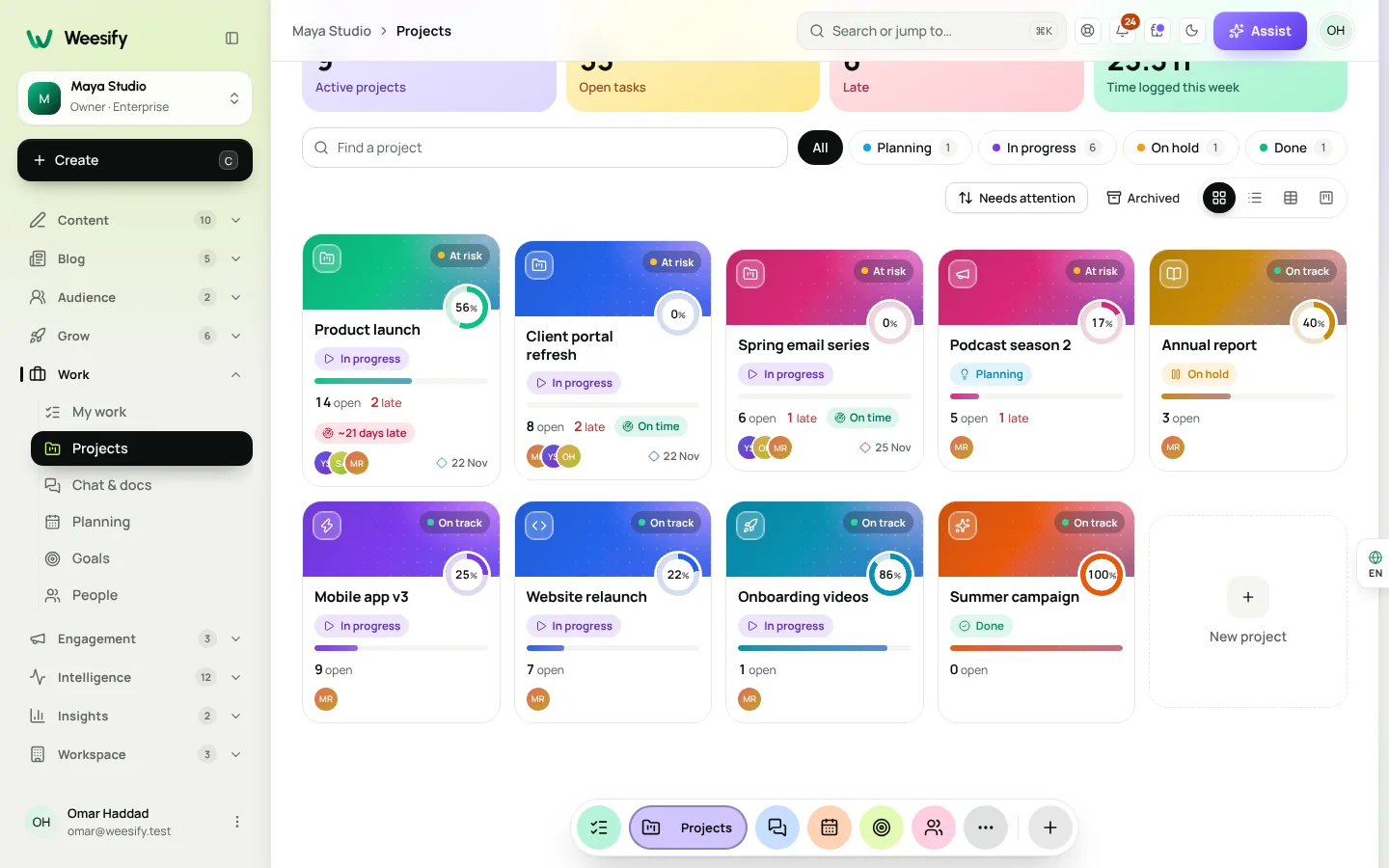
From the other services, Weesify brings what each one holds: your name, picture, bio, links (in your order), social icons, products, galleries, videos and your colours, fonts and background for a bio page; destinations, back-halves and titles for short links; and customers or attendees as contacts, with a note that no email consent was recorded, so they stay unsubscribed until they opt in.
Why we built it this way
An import is often the very first thing someone does in Weesify. It is their first impression of what working here feels like. A silent spinner says "we're not sure either", and an error page says "this might not work for you". We wanted the opposite: a calm card that shows real progress, honest words about what is happening, and the freedom to walk away and come back.
Speed matters for the same reason. A page with sixty pictures should not take minutes because of how we happen to download them, so we changed how we download them. And because every safety check still runs on every file, faster never means less careful: nothing is fetched from a private network, nothing of the wrong kind is saved, and nothing too large gets through.
Getting started
- To move from another service, go to Import & export, choose where you are coming from, and follow the steps. You review what will come over before anything is made.
- To bring work from Jira, go to Work › Projects and press Import from Jira.
If Weesify Work is new to you, Meet Weesify Work shows what your team can do once the projects have arrived.
Get new posts by email
New articles from Weesify Blog, straight to your inbox. No spam, unsubscribe any time.
By subscribing you agree to get emails from Weesify Blog. Unsubscribe any time.
 Product news
Meet Weesify Work: Team and Task Management, Built In
Weesify Work brings projects, tasks, time, client portals and an AI co-pilot into the same workspace as your pages, store, bookings and emails. Here is what it does and how to start.
7 min read
 Product news
Weesify Forms for WordPress: Leads, Stages and Emails
The Weesify Forms plugin now calls what arrives by its real name, moves each one from New to Won, keeps private notes and sends your own branded emails, right inside WordPress.
8 min read
 Product news
The Weesify API and CLI: A Developer's Guide
Scoped tokens, a documented REST API, signed webhooks and a one-file CLI that deploys websites from your laptop or build pipeline. Here is how they fit together.
7 min read
Comments
No comments yet. Start the conversation.