


Lead Capture Forms That Turn Visitors Into Contacts

A form is only useful if the answers go somewhere. Here is how to build lead capture forms in Weesify that create tagged, consent-aware contacts the moment someone presses send.
Most forms on the web are dead ends. Someone fills in their name and email, a notification lands in an inbox, and then the answer sits there until somebody remembers to copy it into a spreadsheet. By the time you follow up, the moment has passed. Good lead capture forms work differently: the answer becomes a contact, the contact gets a label, and your follow-up starts on its own.
That is how forms work in Weesify. Every answer lands in Contacts, tagged and ready, with email permission recorded the way the person chose. This guide walks through building a form that does that well, from the first question to the first follow-up email.
In this guide
- What makes a lead capture form work
- Building your form, step by step
- Consent, double opt-in and staying welcome
- Sharing the form where people already are
- Following up automatically
- A pre-launch checklist and FAQ
What makes a lead capture form work
A lead form has two jobs. The first is to be easy enough that people finish it. The second is to hand you something you can act on. Most tools are decent at the first job and leave the second to you.
A form that captures leads well has:
- An email question, because that is how a visitor becomes a contact you can reach.
- Only the questions you will use. Every extra field is a reason to stop.
- A clear promise in the title and intro: what they get and when.
- A label on every answer, so you know where the person came from.
- A next step, ideally one that happens without you.
Weesify handles the plumbing for the last two. You focus on the questions.
Build your form, step by step
1. Start from a template, or from scratch
Open Audience › Forms and choose New form. Enter a Form name and pick an address, or choose Start from a template. The template gallery is grouped into categories such as Business & sales, Events & bookings, Feedback & surveys, Community & education and Marketing & growth, and you can search it. A Quote request template, for example, already asks for a name, email, service, project description, budget and timeline.
Already have a contact form on another site? Use Copy fields from your site, paste your Contact page address, and Assist rebuilds that form in Weesify, field by field. You can change anything afterwards. There is more on that in building pages and forms from your links.
2. Add the questions that matter
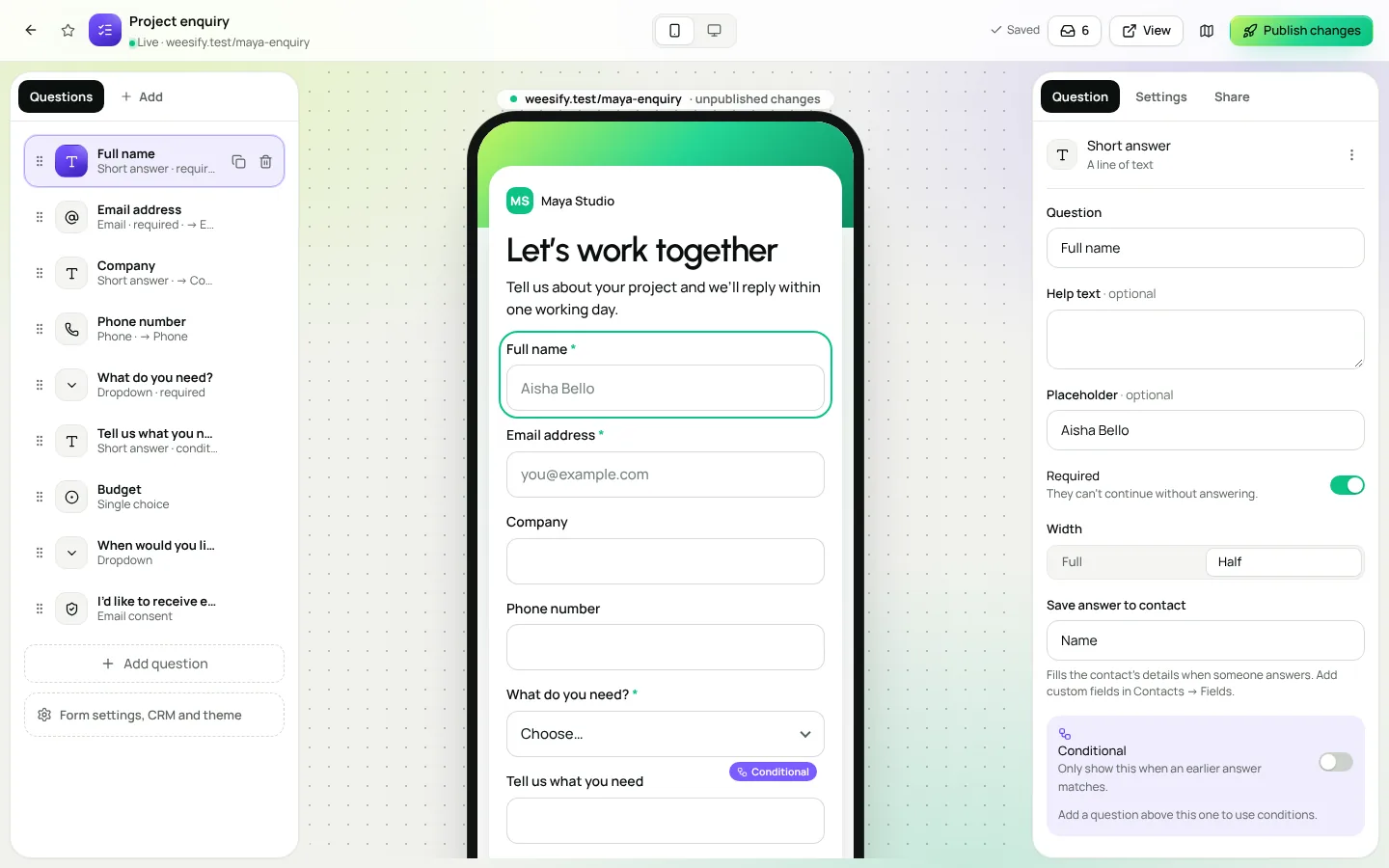
Choose Add question and pick from the block library. The groups are Contact details, Questions, Choices, Ratings & scales, Consent & legal, Layout & content and Advanced. A few that are especially useful for leads:
| Block | Why it helps a lead form |
|---|---|
| Saved as the contact's email. Without it, no contact is created. | |
| Full name / Phone with country code | Fill the contact's name and phone straight away. |
| Dropdown or Single choice | "Which service?" answers that are easy to filter later. |
| Hidden / UTM | Captures a link parameter such as utm_source, so you know which post or newsletter sent them. |
| Appointment link | A button to your booking page for people ready to talk now. |
| New step | Splits a long form into short steps. |
Some advanced blocks, such as file uploads, signatures, payments, multi-step forms and scores, depend on your plan. The builder shows you which ones are available.
3. Make every answer fill the contact
Select a question and look for Save answer to contact. The Email block is always saved as the contact's email. For the others, choose what they fill: name, phone, company, or one of your own custom fields. Add custom fields such as "City" or "Membership tier" in Contacts › Fields, and your forms, segments, imports and exports all pick them up.
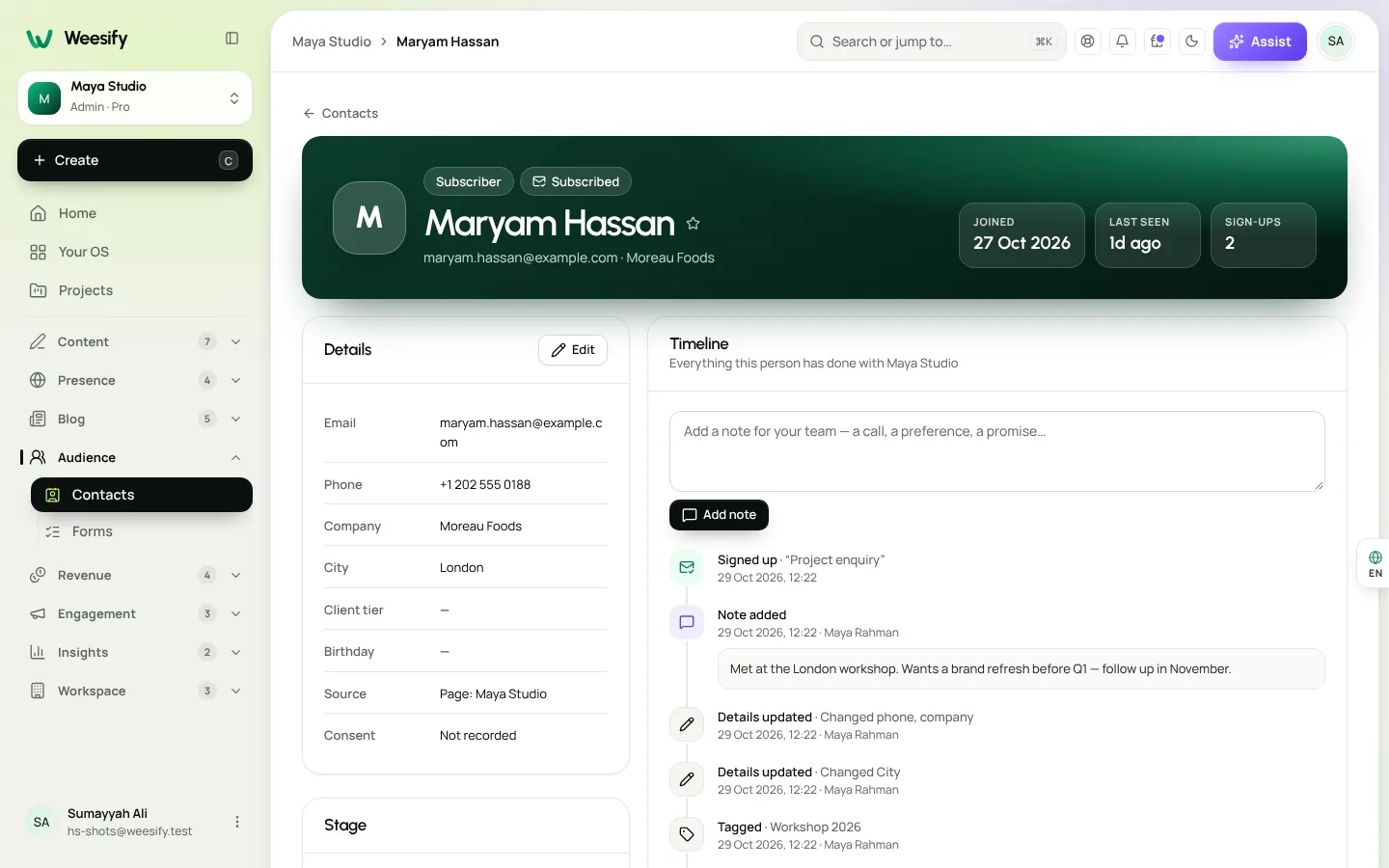
This is the step most people skip in other tools, and it is the one that saves the most time later. When Yusuf Rahman fills in your quote form, his record in Contacts already shows his company, phone and the service he asked about.
4. Ask fewer questions with conditional logic
Use Conditional on any question to show it only when an earlier answer matches. Someone who picks "Consulting" sees a question about team size. Someone who picks "Maintenance" does not. The form feels shorter because, for each person, it is.
5. Tag and stage everyone who answers
Open the form settings and set:
- Tag everyone who answers, for example "Quote 2026".
- Move new people to stage, for example Lead. Only people still at Subscriber are moved, so a paying customer is never pushed back to lead.
Weesify's stages are Subscriber, Lead, Customer, Student and Member. Tags and stages are what let you email the right people later and start automations.
6. Decide what happens after they submit
Under After they submit, write a Thank-you title and Thank-you message, or use Or send them to a page to redirect to any https address. A thank-you message that tells people exactly when to expect a reply ("within one working day") does more for trust than any design choice.
7. Publish
Choose Publish to start accepting answers. Later edits wait as unpublished changes until you choose Publish changes, so you can rework a live form without breaking it mid-campaign.
Consent, double opt-in and staying welcome
Collecting an email is not the same as permission to send marketing email. Weesify keeps the two apart.
Add an Email consent question to your form. Leave it optional; the builder reminds you that consent must be optional. People are subscribed to your emails only if they tick that box. Everyone else still becomes a contact, so you can reply to their enquiry, but they are saved without subscribing.
For extra certainty, switch on Double opt-in under Consent and double opt-in. People who tick the consent box then confirm by email before they are subscribed. Each contact's profile shows how they joined, for example Through a form and Confirmed by email, so you always know where permission came from.
Share the form where people already are
A form only captures leads if people see it. You have three easy options:
- Its own hosted page. Copy the link from Share and post it anywhere: a bio, a message, a post.
- Inside a page. Open any of your pages, add the Form block and choose your form. Your link-in-bio page is a natural home for it.
- On paper. Every form has a one-click QR code for posters, tables and flyers. We cover that in one-click QR codes for forms.
If you change a form's address later, the old address keeps working, so printed material and old posts never break.
Follow up automatically
The fastest follow-up is the one you do not have to remember. Open Engagement › Automations, choose New automation, and pick the Follow up form leads recipe, or start from scratch with the trigger A form is submitted and choose Which form.
A simple lead flow:
- Add a tag "Warm".
- Notify your team, so the owner and admins get an email with a link to the person.
- Wait one day.
- Send an email with a helpful next step, such as a link to book a call.
We walk through building flows like this in the welcome sequence guide.
Read the results
Open Responses on any form to read the answers and download them as a CSV. The forms list shows Views, Responses and Conversion (responses divided by hosted views), so you can tell whether a change to the title or questions helped.
For the bigger picture, Insights › Analytics has a From view to lead funnel and Leads by source and place, showing which channels and countries bring the people who sign up. See how to know where your visitors come from.
Pre-launch checklist
- The form has an Email question.
- An optional Email consent question is included.
- Key questions use Save answer to contact.
- Tag everyone who answers is set.
- Move new people to stage is set if this is a lead form.
- The thank-you message says what happens next and when.
- You checked the form in Mobile preview.
- A follow-up automation is switched on.
FAQ
Why aren't my form answers showing up as contacts? The form needs an Email question. That is how a person becomes a contact. Add one, publish the change, and new answers will create contacts.
Are people who fill in my form automatically subscribed to my emails? No. They are subscribed only if they tick your Email consent question, and, with Double opt-in on, confirm by email. Everyone else is saved as a contact without a subscription.
Can I put the same form on several pages? Yes. Add the Form block to any page and choose the form. All answers go to the same Responses list and the same contacts.
What happens if I change the form's address? The old address keeps working, so links you already shared and QR codes you already printed still open the form.
Can I export the answers? Yes. Open Responses and download them as a CSV.
Start capturing leads today
A good form is short, clear and connected. Build one in a few minutes, link it to an automation, and let every answer start a relationship instead of sitting in an inbox. Pair it with a newsletter people actually read and you have the start of a real audience.
Start your 14-day trial and publish your first lead form today.
Sigue leyendo
 Guides
Sell Digital Products Online: Set Up Your Weesify Store
Turn your ebook, template pack or coaching session into a product people can buy from your page, with instant delivery and checkout that never sends buyers elsewhere.
Guides
Sell Digital Products Online: Set Up Your Weesify Store
Turn your ebook, template pack or coaching session into a product people can buy from your page, with instant delivery and checkout that never sends buyers elsewhere.
 Guides
Your Weesify 14-Day Trial: How to Get the Most Out of It
A day-by-day plan for your Weesify 14-day trial, plus exactly how the trial works: the card, the end date, and what happens if you stop.
Guides
Your Weesify 14-Day Trial: How to Get the Most Out of It
A day-by-day plan for your Weesify 14-day trial, plus exactly how the trial works: the card, the end date, and what happens if you stop.
 Guides
Custom Domain Setup Guide: Put Your Brand on Every Link
A step-by-step custom domain setup guide for Weesify: choose a subdomain, add the TXT and CNAME records, verify, and fix the most common DNS mistakes.
Guides
Custom Domain Setup Guide: Put Your Brand on Every Link
A step-by-step custom domain setup guide for Weesify: choose a subdomain, add the TXT and CNAME records, verify, and fix the most common DNS mistakes.
Comentarios
Aún no hay comentarios. Empieza la conversación.