


How to Host and Sell Event Tickets on Weesify

Create an event page, add ticket types with early bird prices, sell add-ons and bundles, and send reminders, all from one event in Weesify Events.
Running an event used to mean a form for registrations, a payment link for tickets, a spreadsheet for the guest list and a separate app for the door. Every handover between tools is a place where a guest falls through the cracks.
Weesify Events treats your event as one thing. The page, tickets, payments, reminders, check-in and follow-up all hang off the same event. This guide shows how to host and sell event tickets on Weesify, from a one-minute quick event to a full conference with early bird pricing and access codes.
In this guide
- Start fast or start thorough
- Design an event page people want to share
- Add ticket types, prices and capacity
- Early bird phases, bundles and add-ons
- Discount codes and access codes
- Fees, refunds and reminders
- Get the word out
- FAQ
Start fast or start thorough
Open Events in your workspace and choose New event. You have four ways in:
| Option | Best for |
|---|---|
| Quick event | A talk, meetup or class: name, time, place, free or paid. Publish straight away. |
| Guided set-up | Bigger events. Eight steps with a live preview. |
| From a template | Reusing a set-up you saved, or one of Weesify's. |
| Duplicate an event | Running the same event again. Choose What to copy. |
A quick event in about a minute
- Choose Quick event and enter the Event name, Date, Starts, Ends and Time zone.
- Under Format, choose In person (add the Address), Online (choose a Platform and paste the Join link) or Hybrid.
- Under Price, choose Free or Paid, and under Places enter a number or leave it Unlimited.
- Choose Add a cover.
- Turn on Publish and open registration now, then Create & publish. Or leave it off and choose Create draft.
The guided set-up
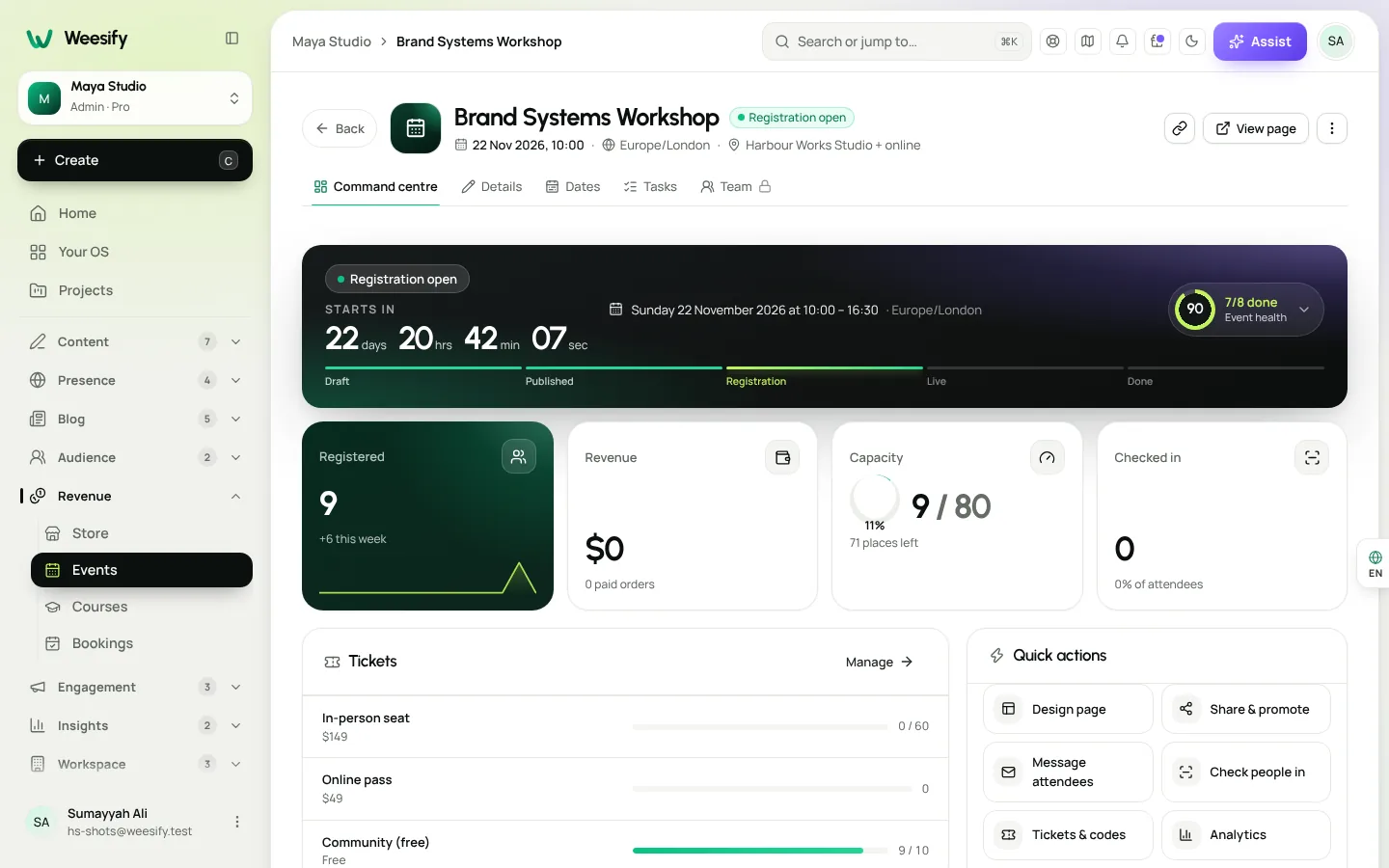
For anything bigger, the Guided set-up walks through Basics, Date & time, Location, Registration, Tickets, Experience, Communication and Publish. Use Save draft at any point. When the event is created, its Command centre opens: your home for everything about this event.
Design an event page people want to share
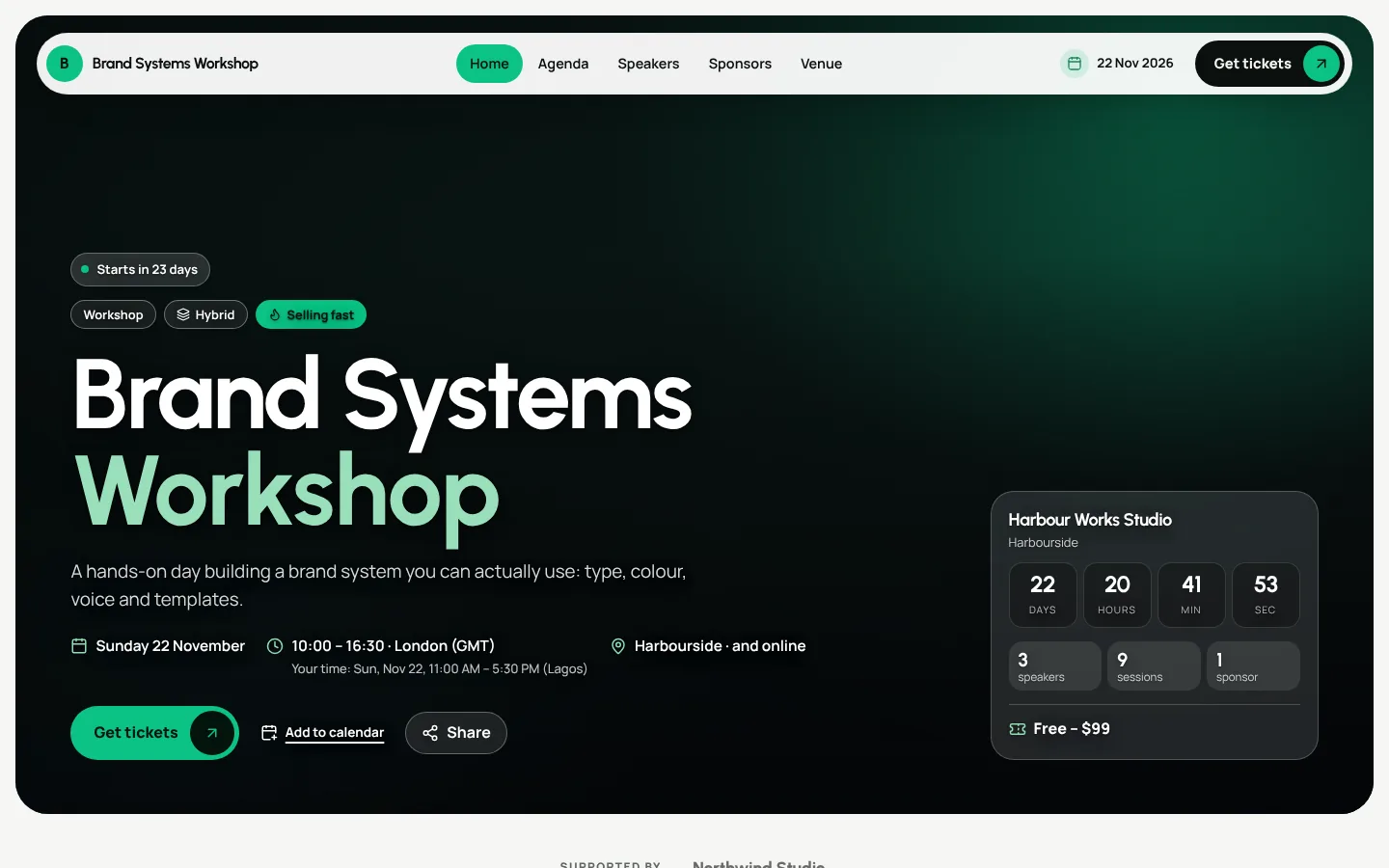
Every event gets its own page. Open Event page in the event menu, then the Design tab. Under Design direction, pick a style such as Spotlight, Editorial, Aurora, Noir, Minimal, Festival or Sunrise, with more directions including Conference, Workshop, Education, Community, Nonprofit and Faith & gathering. A Suggested badge marks the one that fits your event type best.
Fine-tune with Light & dark, Accent colour and Headings. On the Pages tab, add, hide or reorder sections, and turn on the sticky Get tickets bar for phones. Changes save as a draft until you choose Publish changes.
Add ticket types, prices and capacity
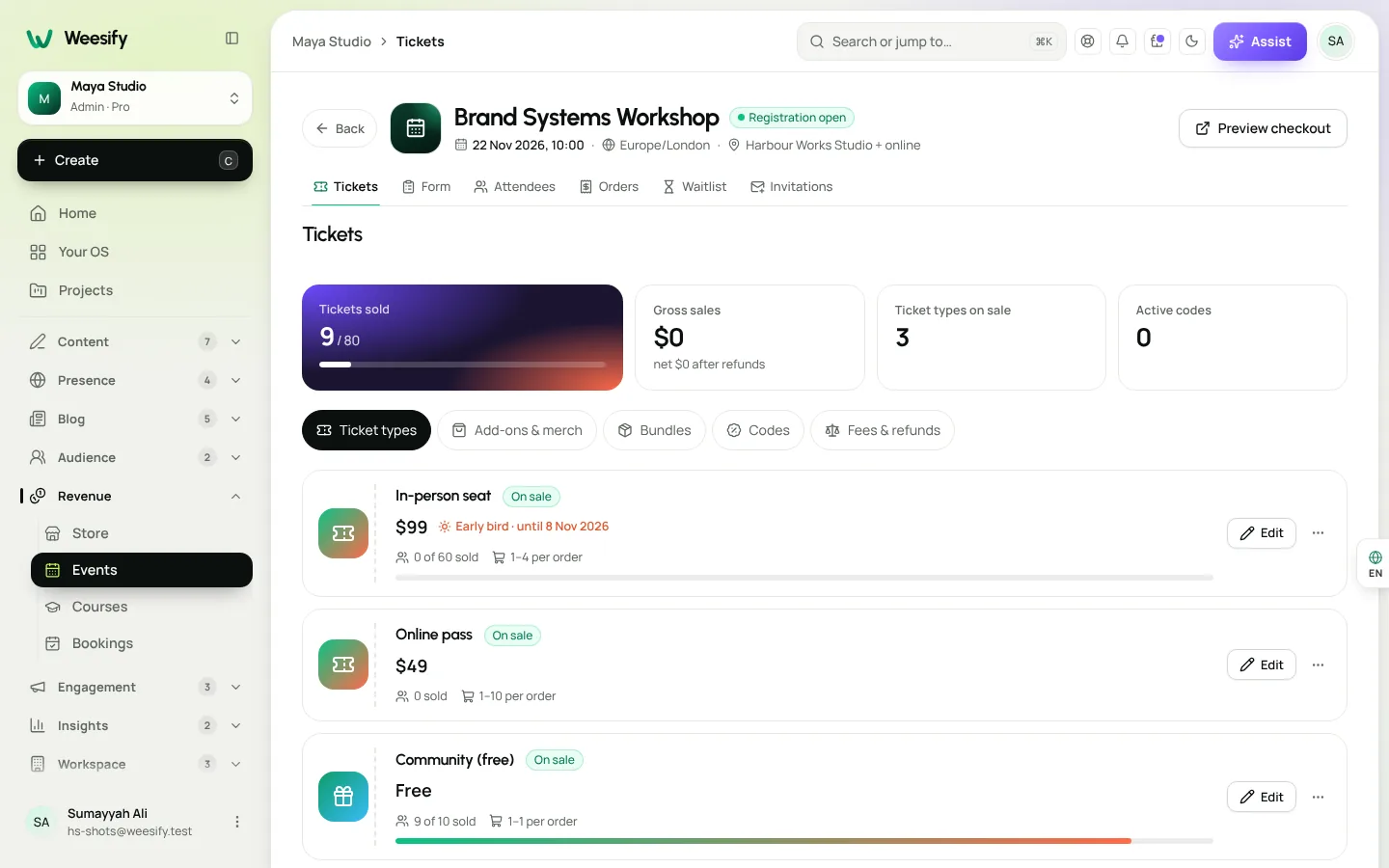
Open Tickets in the event menu. On the Ticket types tab, choose Add ticket. Start from a preset (General admission, Free, Early bird, VIP, Student, Group, Member, Partner, Donation, Complimentary, Invitation, Hidden or Late / door) and edit anything.
For each ticket:
- Enter the Name, Description and Price. A Donation ticket lets buyers pay what they want above a minimum.
- Set a Quantity to cap this ticket. Leave it empty and only the event's overall capacity limits it.
- Use Sales start and Sales end to schedule when it's on sale.
- Under Limits & who can buy, set Most per order, Most per customer or a Minimum quantity. Eligibility can limit a ticket to certain Email domains or Contact tags, which is handy for member-only or staff tickets.
- Under Visibility, choose Public, Hidden — access code or Invitation only.
- Choose Save ticket.
Need to stop selling one ticket for a while? Pause sales stops it without deleting it.
Early bird phases, bundles and add-ons
Early bird and scheduled prices
Under Early bird & scheduled prices, choose Add a price phase. Name the phase and choose when it ends: Until a date, or for the First N tickets. The first phase that applies sets the price; after that, the regular price applies. "First 50 tickets" phases create honest urgency, because the limit is real.
Bundles
Bundles sell several tickets at one price, for example "Duo: 2 tickets for 40". The saving shows at checkout. Bundles help groups and friends buy together.
Add-ons and merch
The Add-ons & merch tab sells extras on the same order and receipt: a Workshop, Meal, Parking, Accommodation or Merchandise. Turn on Offer add-ons at checkout and add what fits your event.
Discount codes and access codes
Event codes live with the event's tickets, on the Codes tab. There are two kinds:
- Discount codes take money off (Percent off or Amount off).
- Access codes unlock hidden and partner tickets.
Set Total uses, Uses per email and, for repeating events, Valid on dates. Set How many codes above one to create a batch of single-use codes with an optional Prefix, then Copy all. Turn on Valid for all my events for a code that works everywhere. Preview checkout lets you test a code the way buyers will.
We cover discount strategy (and how event codes differ from store discounts) in discount codes and offers that actually convert.
Fees, refunds and reminders
Fees and refunds
On the Fees & refunds tab:
- Who pays the service fee: You absorb fees (buyers pay the ticket price, nothing more) or Buyers pay a service fee, with a Service fee % and an optional amount per ticket.
- Refund policy: No refunds (unless the event is cancelled), Refunds any time before the event or Refunds until a time before the event.
- You can let attendees cancel themselves from their confirmation email, refunded automatically within the policy.
The same tab shows Weesify's platform fee on tickets for your workspace. Tax follows your store tax settings and is shown at checkout. For plan details, see Pricing.
Confirmations and reminders
After registering, guests get a Confirmation & ticket email with every ticket's QR code, a calendar file and the receipt. The event page shows Add to calendar for Google Calendar and Apple / Outlook. By default, events include a Reminder · 1 day before and a Reminder · 1 hour before; change them under Messages in the event menu.
Sold out? A waitlist lets you offer freed-up places to the next person in line.
Get the word out
- Events directory. In Event page › Discovery & access, turn on List this event in the public Weesify events directory and add tags. Only public events can be listed. Browse it at weesify.com/events.
- Your bio page and links. Add the event to your link-in-bio page.
- Print. Put a QR code on posters and flyers; see QR codes for events and print.
- Email. Announce it to your list with a newsletter that gets read.
- Seasonal campaigns. Planning an Eid gathering or Ramadan series? See the Ramadan campaign planner.
On the day, read our event check-in guide to get everyone through the door smoothly. For more on Weesify Events, visit the Events feature page.
FAQ
Can I host free and paid tickets at the same event?
Yes. Each ticket type has its own price, so you can offer a Free ticket next to General admission and VIP.
How do early bird tickets end?
A price phase ends on a date you choose (Until) or after the First N tickets. When it ends, the next phase or the regular price applies automatically.
Can I sell tickets only to members or a partner organisation?
Yes. Use Eligibility to limit a ticket to certain email domains or contact tags, or make it Hidden — access code and send partners an access code.
Who pays the service fee?
You choose on the Fees & refunds tab: You absorb fees or Buyers pay a service fee.
Can I sell event tickets from my bio page?
Yes. Add the event to your bio page, and buyers go to the event page to choose tickets and pay.
Your next event, in one place
Whether it's a twenty-seat workshop or a weekend conference, one event in Weesify holds everything: the page, the tickets, the money and the guest list.
Start your 14-day trial and publish your first event today.
Continuer la lecture
 Guides
Sell Digital Products Online: Set Up Your Weesify Store
Turn your ebook, template pack or coaching session into a product people can buy from your page, with instant delivery and checkout that never sends buyers elsewhere.
Guides
Sell Digital Products Online: Set Up Your Weesify Store
Turn your ebook, template pack or coaching session into a product people can buy from your page, with instant delivery and checkout that never sends buyers elsewhere.
 Guides
Lead Capture Forms That Turn Visitors Into Contacts
A form is only useful if the answers go somewhere. Here is how to build lead capture forms in Weesify that create tagged, consent-aware contacts the moment someone presses send.
Guides
Lead Capture Forms That Turn Visitors Into Contacts
A form is only useful if the answers go somewhere. Here is how to build lead capture forms in Weesify that create tagged, consent-aware contacts the moment someone presses send.
 Guides
Your Weesify 14-Day Trial: How to Get the Most Out of It
A day-by-day plan for your Weesify 14-day trial, plus exactly how the trial works: the card, the end date, and what happens if you stop.
Guides
Your Weesify 14-Day Trial: How to Get the Most Out of It
A day-by-day plan for your Weesify 14-day trial, plus exactly how the trial works: the card, the end date, and what happens if you stop.
Commentaires
Aucun commentaire pour l’instant. Lancez la conversation.