


Launch an Online Course on Weesify, Step by Step

From a rough outline to a published course with quizzes, drip release and certificates. Here's how to launch an online course on Weesify without a separate course platform.
Most people who want to teach online never get past the outline. The topic is clear in their head, but the course platform feels like a second job: logins for students, video hosting, payment set-up, certificates, emails. So the idea waits another year.
If you want to launch an online course without that overhead, Weesify Courses keeps everything in one place. You build lessons, set a price, choose a page design and publish. Students get a private link, so they never need a password, and they pay on your page. This guide shows the full path, from a blank page to your first enrolment.
In this guide
- Plan the course before you build it
- Create the course and add lessons
- Add quizzes and assignments that check understanding
- Release lessons over time with drip
- Price, design and publish the course page
- Students, progress and certificates
- FAQ
Plan the course before you build it
A good course promises one clear change. "Learn Arabic" is a wish. "Read and write every letter in its joined forms in four weeks" is a course.
Before you open the builder, write down:
- Who it's for. Complete beginners? People who already know the basics?
- The outcome. What can a student do at the end that they couldn't do before?
- The steps. Five to ten lessons, each one moving the student a little closer.
If you're stuck, Weesify can help. In the course builder, choose Plan with AI to draft an outline for your course, then edit it into your own words. It's a starting point, not a finished course.
Create the course and add lessons
- Open Courses under Revenue in the sidebar. On your first visit choose Create your first course; after that, use New course.
- Under Name your course, type a Course name and continue. The course opens in its builder as a Draft, so nothing is public yet.
- On the Curriculum tab, under Lessons, pick a Kind (Lesson, Quiz or Assignment), type a New lesson title and choose Add.
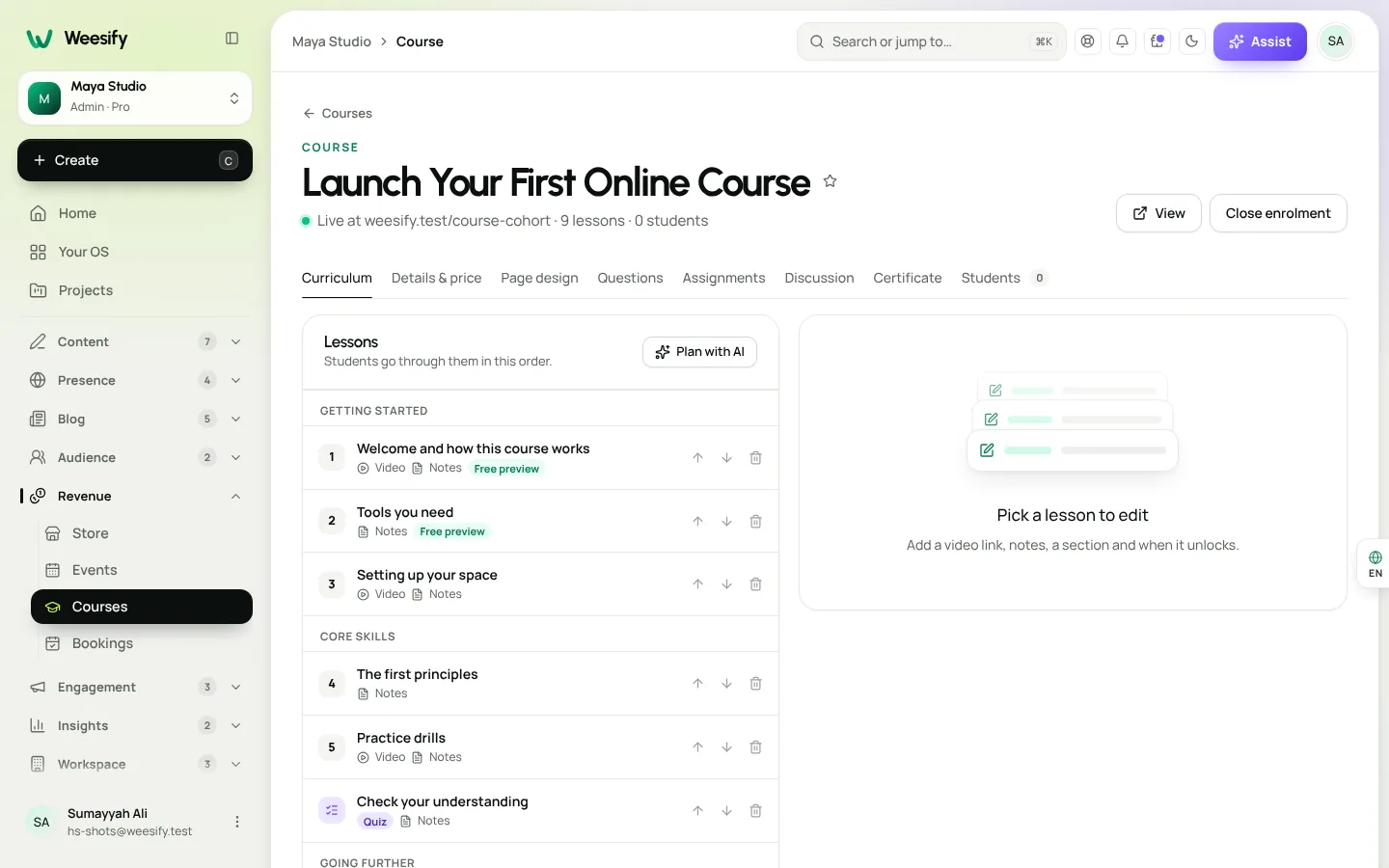
Select any lesson to edit it:
- Title and an optional Section. Lessons with the same section are grouped together, such as "Getting started" or "Week 2".
- Video: a YouTube or Vimeo link. Set the video to unlisted so only your students find it.
- Notes: written content with simple formatting:
## Heading,**bold**,*italic*, links and lists. - Length (minutes), so students know what they're committing to.
- Free preview: anyone can watch this lesson from the course page before buying.
Use Move up and Move down to set the order. Changes save as you type; watch for Saving… next to the course summary.
Add quizzes and assignments that check understanding
Watching isn't learning. Quizzes and assignments turn a playlist into a course.
Quizzes
For a Quiz, add questions from your Question bank, then set a Pass mark and Tries (leave Tries empty for unlimited). Students must pass to move on. Answers are marked on the server and never sent to the student's page, so nobody can peek at the source to find them. Switch on Show the answers if you want students to see them after they pass or run out of tries.
Assignments
For an Assignment, put the brief in the notes and choose what They hand in: Text or a file, Text only or A file only. With You review it on, the assignment only counts as done when you approve it. Review hand-ins on the Assignments tab.
Say Yusuf teaches photography for small businesses. Lesson 4 could end with an assignment: "Upload three photos of one product, each with different light." He reviews them, approves the ones that meet the brief, and replies with notes.
Release lessons over time with drip
Giving everything on day one can overwhelm students. Drip release keeps a steady rhythm.
- On the Curriculum tab, select a lesson.
- In Unlocks after, enter the number of days after a student enrols that the lesson opens. Use 0 for straight away; you can go up to 365 days.
- For a weekly course, use 0, 7, 14, 21 and so on.
Drip is counted from each student's own enrolment date, so someone who joins a month late still gets lessons at the same pace. Quizzes add a second gate: a student can't skip ahead past a quiz they haven't passed.
To stop new people joining (for example, between cohorts), choose Close enrolment. Current students keep access, and Publish reopens it.
Price, design and publish the course page
Set the price
Open the Details & price tab. Under The course page, check the Name, write One line about it, add a Description and a Cover image. Under Price, choose a Currency and enter a Price, or leave it empty for a free course. Change the Button text if "Enrol now" doesn't fit.
Paid courses need payments set up first. If you haven't done that, the builder reminds you to set up how you get paid in Store. Our guide to selling digital products online explains the wallet and fees.
Choose a page design
On the Page design tab, browse the designs: Academy, Minimal, Cohort, Cinematic, Workbook and Community. Preview shows each one with your real lessons, price and content, and you can switch between Computer and Phone. Choose Use this design when you're happy.
| Design | A good fit when… |
|---|---|
| Academy | You want a classic, structured course page |
| Cohort | Students start together on a set date |
| Cinematic | Video is the star (it's always dark) |
| Workbook | The course is hands-on and exercise-led |
| Community | Discussion matters as much as the lessons |
| Minimal | You want the content to speak for itself |
Under Brand, pick your own colour or leave Design default, and set heading and text fonts. Under Page content, fill in What students will learn (one outcome per line, starting with a verb), Requirements, Who it's for, Level, Next group starts and Schedule. Add your own Questions and answers; yours appear first.
Publish
Choose Publish. A course needs at least one lesson first. Then use Copy link under Share your course, or add the course to your bio page with a Product block.
Students, progress and certificates
Everyone who enrols appears on the Students tab with when they enrolled, when they were last seen and a progress bar. When they finish, it shows Done.
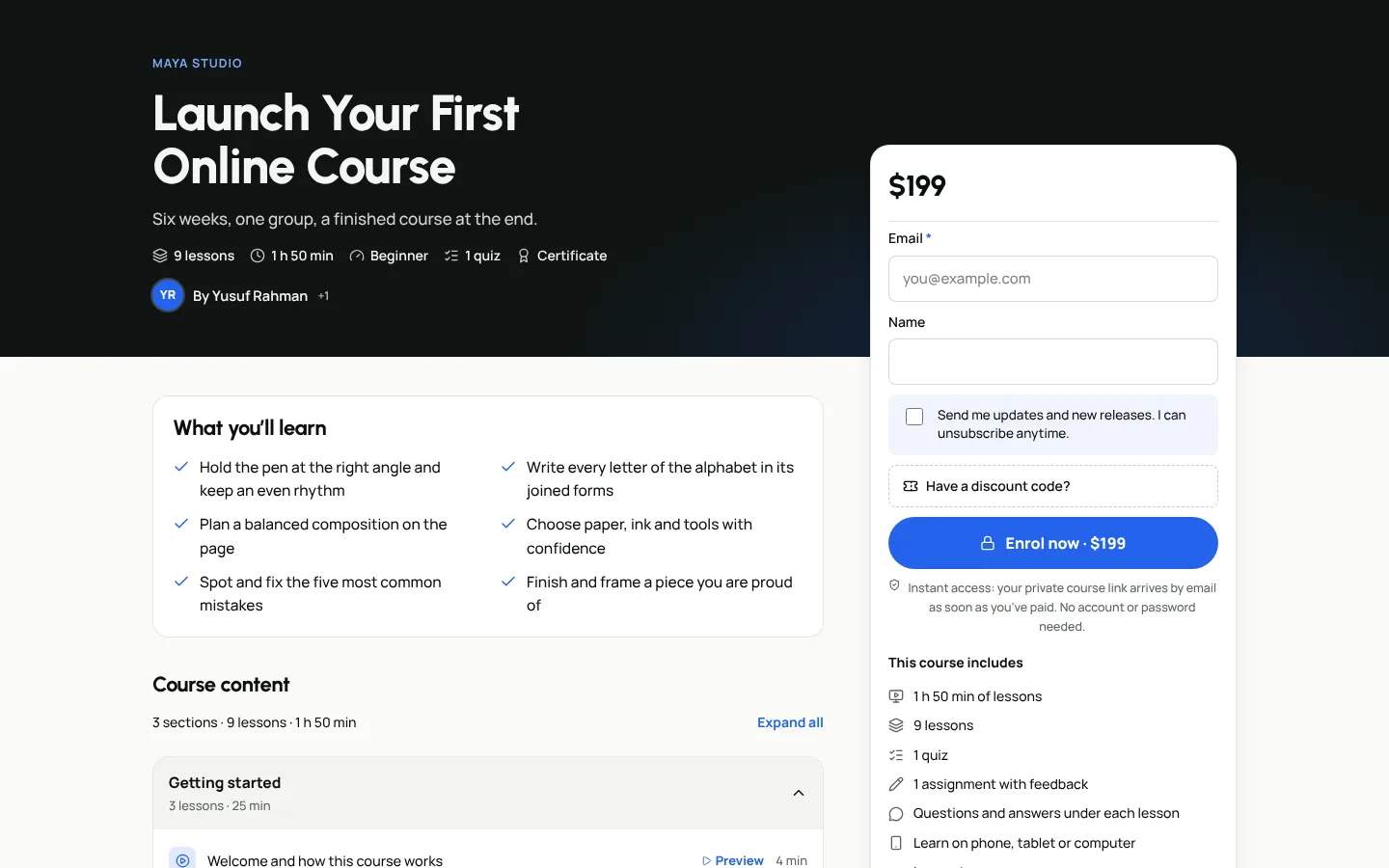
Students learn in a clean area of their own. They see progress, resume where they stopped, keep private notes on lessons, download lesson resources, ask questions in the lesson Q&A and switch between light and dark. On a phone it has a lesson drawer and a bottom bar, and it works right to left too. A My learning dashboard brings all their courses together, with a streak for days in a row they learn.
Turn on certificates
- On Details & price, under When they finish, switch on Certificate.
- Optionally write a Message when they finish.
- On the Certificate tab, choose a Style (Classic, Modern or Minimal), an Accent, the Heading and who it's Signed by. Your logo comes from your brand kit.
- Use Preview with a sample name to check it.
Students get a certificate in their name with a link anyone can check, plus a PDF to print.
Add students yourself
Running a class for an organisation that already paid? On the Students tab, enter an email under Add a student and choose Add and email link. Use Student actions to Resend link, Remove access or Restore access.
Your launch checklist
- One clear outcome written in a sentence
- Lessons added, ordered and grouped into sections
- At least one Free preview lesson
- Quizzes or assignments where understanding matters
- Unlocks after set if you want a weekly rhythm
- Price set and payments ready
- Page design chosen and Page content filled in
- Certificate switched on and previewed
- Course published and link shared
Grow it after launch
Students come from places you already show up. Put the course on your link-in-bio page, collect interest early with a form that captures leads, and run a launch week with discount codes and offers. If you teach Islamic studies, Qur'an or Arabic, see Weesify for Islamic educators. Want a space where students talk between lessons? Pair the course with a paid community.
FAQ
Can I upload videos directly to a Weesify course?
Lesson videos are YouTube or Vimeo links, embedded in the lesson. Set them to unlisted so only your students find them. You can also add written notes and downloadable lesson resources.
Do students need an account or password?
No. Students get a private link to the course by email. If they lose it, you can Resend link from the Students tab.
Can I launch an online course for free and charge later?
Yes. Leave the price empty to publish a free course, and add a price later on Details & price when you're ready to sell it.
How do drip lessons work for late joiners?
Drip timing counts from each student's own enrolment date. Someone who joins later still gets lessons in the same rhythm as everyone else.
Can I give certificates only to students who pass?
Certificates are given when a student completes the course. Because quizzes must be passed to move on, and reviewed assignments only count once approved, completion reflects real work.
Teach what you know
Your first course doesn't need to be your biggest. A short, focused course that changes one thing for one kind of student is easier to build, easier to sell and easier to improve.
Start your 14-day trial and publish your first lesson this week.
Sigue leyendo
 Guides
Content Calendar Planner: A Step-by-Step Guide
A content calendar only helps if it is honest about your time. Here is how to use Weesify's planner to map campaigns, catch clashes and keep a steady rhythm.
Guides
Content Calendar Planner: A Step-by-Step Guide
A content calendar only helps if it is honest about your time. Here is how to use Weesify's planner to map campaigns, catch clashes and keep a steady rhythm.
 Guides
Remove Pauses and Filler Words From Video Automatically
Long pauses and 'um's make good videos feel slow. Here is how Weesify Video Studio finds them for you, lets you review each one, and removes them in one tap.
Guides
Remove Pauses and Filler Words From Video Automatically
Long pauses and 'um's make good videos feel slow. Here is how Weesify Video Studio finds them for you, lets you review each one, and removes them in one tap.
 Guides
Welcome Email Sequence: Build One With Automations
The first days after someone subscribes are when they pay the most attention. Here is how to build a welcome email sequence in Weesify Automations that greets every new subscriber on time, every time.
Guides
Welcome Email Sequence: Build One With Automations
The first days after someone subscribes are when they pay the most attention. Here is how to build a welcome email sequence in Weesify Automations that greets every new subscriber on time, every time.
Comentarios
Aún no hay comentarios. Empieza la conversación.