


Link in Bio Page That Sells: Turn Profile Visits into Sales

Most link in bio pages are a list of buttons that send people away. Here is how to build a Weesify bio page where visitors can buy, book, register and subscribe without leaving.
Your profile gets the visit. Your link in bio page decides what happens next. For many creators and small businesses that page is a stack of identical buttons: website, shop, latest video, contact. Each one sends the visitor somewhere else, to load another site, find the right product and start again. Every extra step loses people.
A link in bio page that sells works differently. It puts the thing you want people to do at the top, lets them do it right there, and catches the people who are not ready yet. This guide shows how to build that kind of page on Weesify, block by block, and how to keep improving it with real numbers rather than guesses.
In this guide
- Why most bio pages leak visitors
- Pick one main action
- Blocks that sell without sending people away
- Catch the visitors who are not ready to buy
- Design that builds trust
- Measure, then move what works to the top
- A checklist before you publish
Why most link in bio pages leak visitors
A visitor who taps the link in your profile is curious, but busy. They arrived from a feed, they are on a phone, and they will give your page a few seconds. If the first thing they see is six equal buttons, they have to work out what matters. If the button they choose opens a different site with a different look, they have to work out whether it is still you.
There are three common leaks:
- No clear first step. Everything looks equally important, so nothing is.
- Hand-offs. A "Shop" button that opens a separate store, a "Book" button that opens another calendar tool, a "Newsletter" button that opens a third form.
- No second chance. People who are not ready to buy today leave with nothing, and you have no way to reach them again.
Weesify bio pages are built to close all three, because your products, bookings, events, courses and forms live in the same workspace as your page.
Start with one main action
Before you touch the editor, finish this sentence: "Most visitors should..." Book a consultation. Buy the new e-book. Register for the Saturday workshop. Join the waitlist. Pick one.
That action goes at the top of the page, right after your profile. Everything else supports it. Our help article on blocks says it plainly: lead with your most important action, such as a booking, a product or your newest video.
If you are starting from nothing, open Presence › Pages and choose New page. Pick a template, or let Assist draft a first version from the links you already have (we cover that in Build a page from your links with Assist). Choose an address like weesify.com/amina-studio and you have a page to work on.
Blocks that sell without sending people away
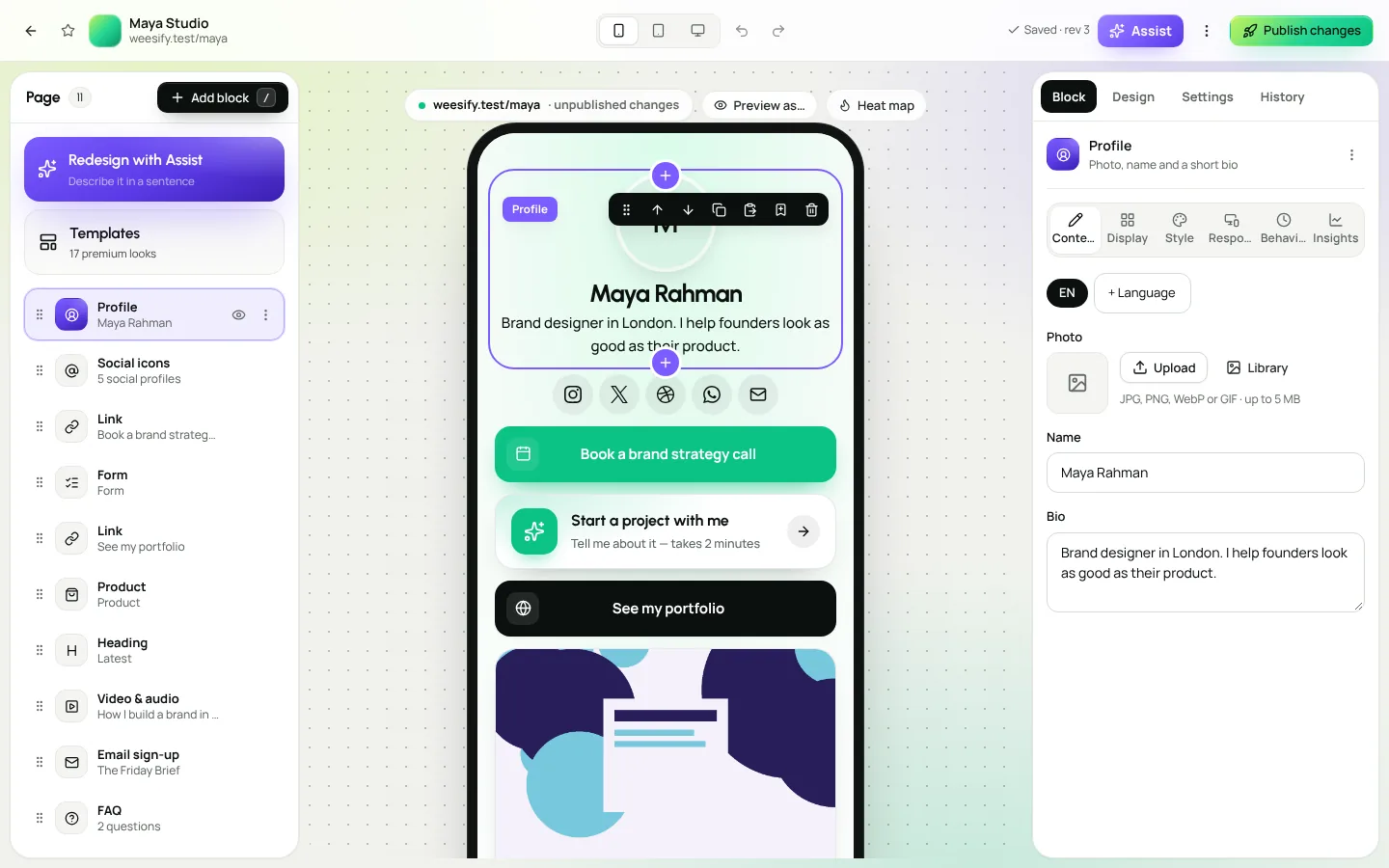
Every Weesify page is made of blocks. Choose Add where you want a block, pick it from the library (the search box finds it quickly), fill in its settings, and watch the preview update as you type. The blocks that matter most for selling are the ones that use your own Weesify data, so the visitor can act on the page itself.
Sell a product
- Product and Featured product show one item with its price and a buy button.
- Product collection and Storefront show several items at once.
- Digital download is made for files such as guides, templates and audio packs.
- Pay me / invoice works for custom amounts, such as a deposit.
Because these blocks read straight from your Weesify store, the price on your page is always the price at checkout. Change it once, and it changes everywhere. For setting up the products themselves, see Sell digital products from your own online store.
Get booked
- Service and Services menu list what you offer.
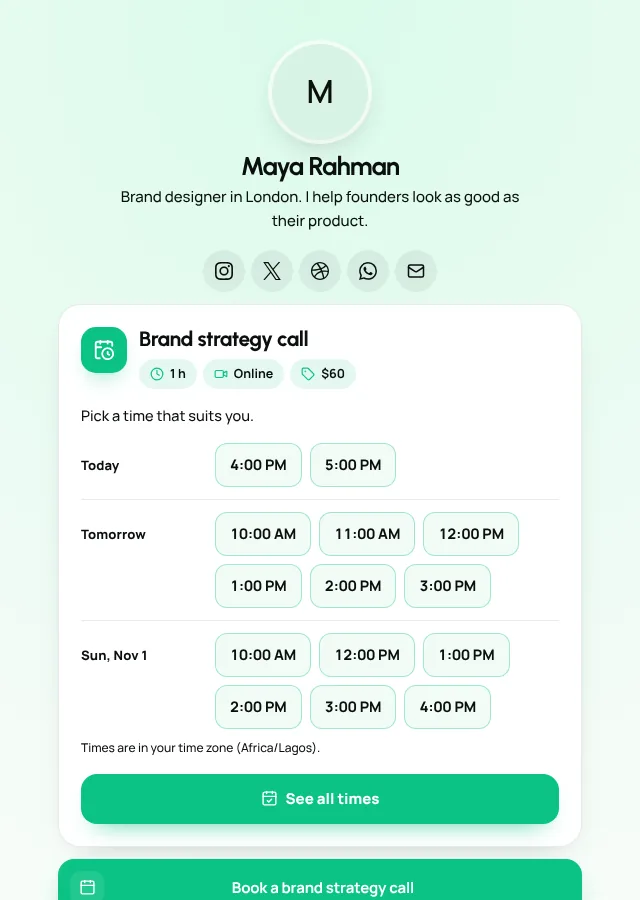
- Next available times shows the next open slots, so visitors see that you are actually available this week.
- Booking calendar lets them pick a time without leaving.
- Request a call suits work that needs a conversation first.
Consultants, tutors and coaches usually do best with Next available times near the top. Our booking page guide for consultants goes deeper.
Fill an event or a course
- Event, Events and Countdown promote what is coming up, and RSVP collects replies.
- Course, Curriculum preview and Free preview lesson let people taste a course before buying.
- Next cohort shows when the next group starts.
See Host and sell event tickets and Launch an online course for the full set-up.
Accept support
Nonprofits, teachers and creators who rely on support can use Donate, Fundraising goal, Tip jar and Supporter perks.
Catch the visitors who are not ready yet
Most visitors will not buy on their first visit. That is normal. The goal is to leave with a way to reach them again.
Weesify's capture blocks connect to your audience, so a sign-up becomes a contact you can email later:
| Block | Use it when |
|---|---|
| Email sign-up | You send a newsletter or updates |
| Free download for email | You have a short guide or checklist to offer in return for an email |
| Waitlist / notify me | A product or cohort is not open yet |
| SMS / WhatsApp sign-up | Your audience prefers messages to email |
| Contact form or Form | You need details before quoting |
| Poll or Short survey | You want to learn what to make next |
Put one capture block lower on the page, after your main offer. People who scrolled that far are interested but undecided, which is exactly who you want on your list. From there, a welcome sequence can do the follow-up for you; see Set up an automated welcome sequence and Forms that capture leads.
Design that builds trust
A page that looks careful feels safer to buy from. A few choices make a big difference.
Use your brand colour. In the design panel, set the Brand colour to your logo colour so buttons match your packaging, posters and social posts.
Choose a theme that fits the content. Themes control colours, fonts, buttons and background, and you can switch theme without losing any content. Hero photo themes place a large image at the top; choose the focus point so nothing important is cropped on phones.
Keep text readable. Light text on a busy image is hard to read. Choose a darker image or a theme with an overlay.
Show proof you can stand behind. Blocks such as Testimonial, Verified reviews, Logos / as seen in and Portfolio help, but only use real words from real clients. Never invent them.
Make contact easy. Contact buttons, Save my contact, Map / location and Opening hours help local businesses get found and called.
Write labels that tell people what happens
"Click here" and "Shop" tell visitors very little. Specific labels do the selling for you:
- "Book a 30-minute call" instead of "Book"
- "Get the Ramadan planner (PDF)" instead of "Download"
- "Reserve your seat for Saturday" instead of "Event"
Keep labels short enough to read on one line on a phone.
Measure, then move what works to the top
Every page has analytics. Open Analytics from the sidebar, or open a page and go to its analytics, then choose a date range. You will see visits, unique visitors, clicks and click rate, plus the top links and blocks, sources, countries and devices.
Use them like this:
- Check which block gets the most clicks. If it is not at the top, try moving it there.
- Compare two weeks before and after a change, as our help article suggests.
- Look at sources. If most visits come from one network, write your profile call to action for that audience.
Weesify counts visits without cookies, so there is no consent banner to add, and your own visits while signed in are not counted. For a deeper look, read Analytics: know where your visitors come from.
Publish with confidence
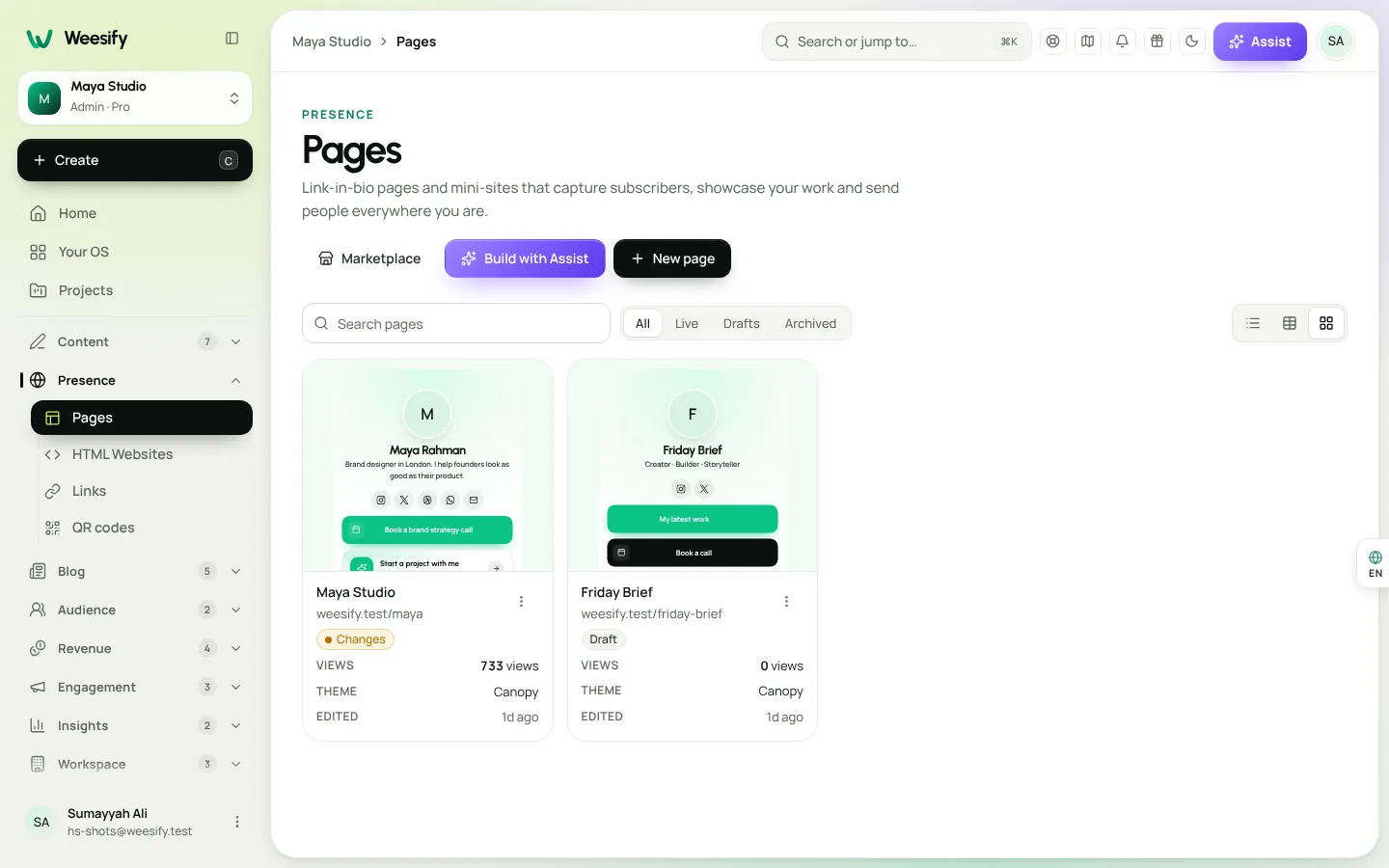
Choose Publish when you are happy. Visitors only see changes after you publish, so you can rearrange the whole page without anyone seeing half-finished work. The History tab keeps every published version if you ever want to go back.
Hidden blocks stay in the editor but do not appear on the live page. That is handy for seasonal offers: build your Eid or back-to-school block once, hide it, and switch it on next year.
When you are ready to look fully professional, connect your own domain so your page lives at something like links.yourbrand.com. Our custom domain setup guide walks through it.
Your pre-publish checklist
- One main action, placed right after your profile
- Product, booking or event blocks instead of plain links where possible
- One capture block lower on the page
- Brand colour set, text readable on the background
- Specific button labels
- Only real testimonials and reviews
- SEO title, description and sharing image filled in (see SEO basics for creators)
- Tested on your own phone
Frequently asked questions
What is a link in bio page?
It is a single web page you link from your social profiles. Instead of one link to one place, it gives visitors everything you offer in one spot. On Weesify it can also sell, take bookings, register guests and collect sign-ups directly.
Can people pay on my bio page without visiting another site?
Yes. Product, storefront, digital download and booking blocks use your Weesify store and bookings, so visitors can buy or book from the page itself.
How many links should a bio page have?
There is no fixed number, but fewer, clearer choices usually work better. Lead with one main action, add a few supporting blocks, and hide anything seasonal until it is needed.
Will changes show up straight away?
Only after you choose Publish. Drafts are private. If a change still is not showing, reload in a private window, and see the help article on pages that are not updating.
Can I use my own domain for my bio page?
Yes. Connect a domain in Workspace › Domains and choose that it serves your pages. Your bio page then lives at your own address.
Start selling from your bio
A bio page that sells is not about more buttons. It is about one clear action, fewer hand-offs and a second chance for everyone who is not ready yet. Weesify gives you the blocks, the store, the bookings and the analytics in one place.
Start your 14-day trial and publish your first selling bio page today. Compare plans on the pricing page or explore everything on the features page.
تابع القراءة
 Growth & marketing
Email Newsletters That Get Read: A Practical Playbook
A newsletter is the one channel no algorithm can take from you. Here is how to write, design and send email newsletters people actually open, using Weesify's broadcast editor.
Growth & marketing
Email Newsletters That Get Read: A Practical Playbook
A newsletter is the one channel no algorithm can take from you. Here is how to write, design and send email newsletters people actually open, using Weesify's broadcast editor.
 Features
Content OS: Plan, Write and Publish Your Content in One Place
Ideas in one app, drafts in another, the calendar in a spreadsheet. Weesify's Content OS brings ideas, writing, planning, publishing and results into one calm workspace.
Features
Content OS: Plan, Write and Publish Your Content in One Place
Ideas in one app, drafts in another, the calendar in a spreadsheet. Weesify's Content OS brings ideas, writing, planning, publishing and results into one calm workspace.
 Guides
Sell Digital Products Online: Set Up Your Weesify Store
Turn your ebook, template pack or coaching session into a product people can buy from your page, with instant delivery and checkout that never sends buyers elsewhere.
Guides
Sell Digital Products Online: Set Up Your Weesify Store
Turn your ebook, template pack or coaching session into a product people can buy from your page, with instant delivery and checkout that never sends buyers elsewhere.
التعليقات
لا توجد تعليقات بعد. ابدأ المحادثة.