


Assist: Build a Page from Your Links, Then Ask About Any Screen

Paste the links you already have and Assist builds a Weesify page from what they really show. Then open Assist on any screen and ask about exactly what you are looking at.
You already described your work once: on your website, your Instagram bio, your YouTube channel, your podcast page. Doing it all again on a blank page builder is the part that makes people put off launching. Assist removes that step. Paste the links you already have, and Assist builds a page from what they really show, ready to edit and publish.
Then, once you are inside Weesify, Assist stays with you. Open it on any screen and it already knows which page, post, form or event you are looking at, so you can ask your question in plain words without explaining where you are.
This spotlight covers both sides: building a page from your links and page-aware help wherever you work.
In this guide
- What Assist is
- Build a page from your links, step by step
- How Assist reads your links (and what it never does)
- Borrow a look, not the words
- Build forms, bookings and events from a link
- Page-aware help on every screen
- What Assist can and cannot see
- Tips for better results
What Assist is
Assist is Weesify's built-in helper. It shows up in two places:
- In Presence › Pages, as Build with Assist, where it turns your links or a short description into a page.
- In the top bar, as Assist, where it answers questions about the screen you are on.
Everything Assist makes is a normal page. You can edit any block afterwards.
Build a page from your links
- Open Presence › Pages.
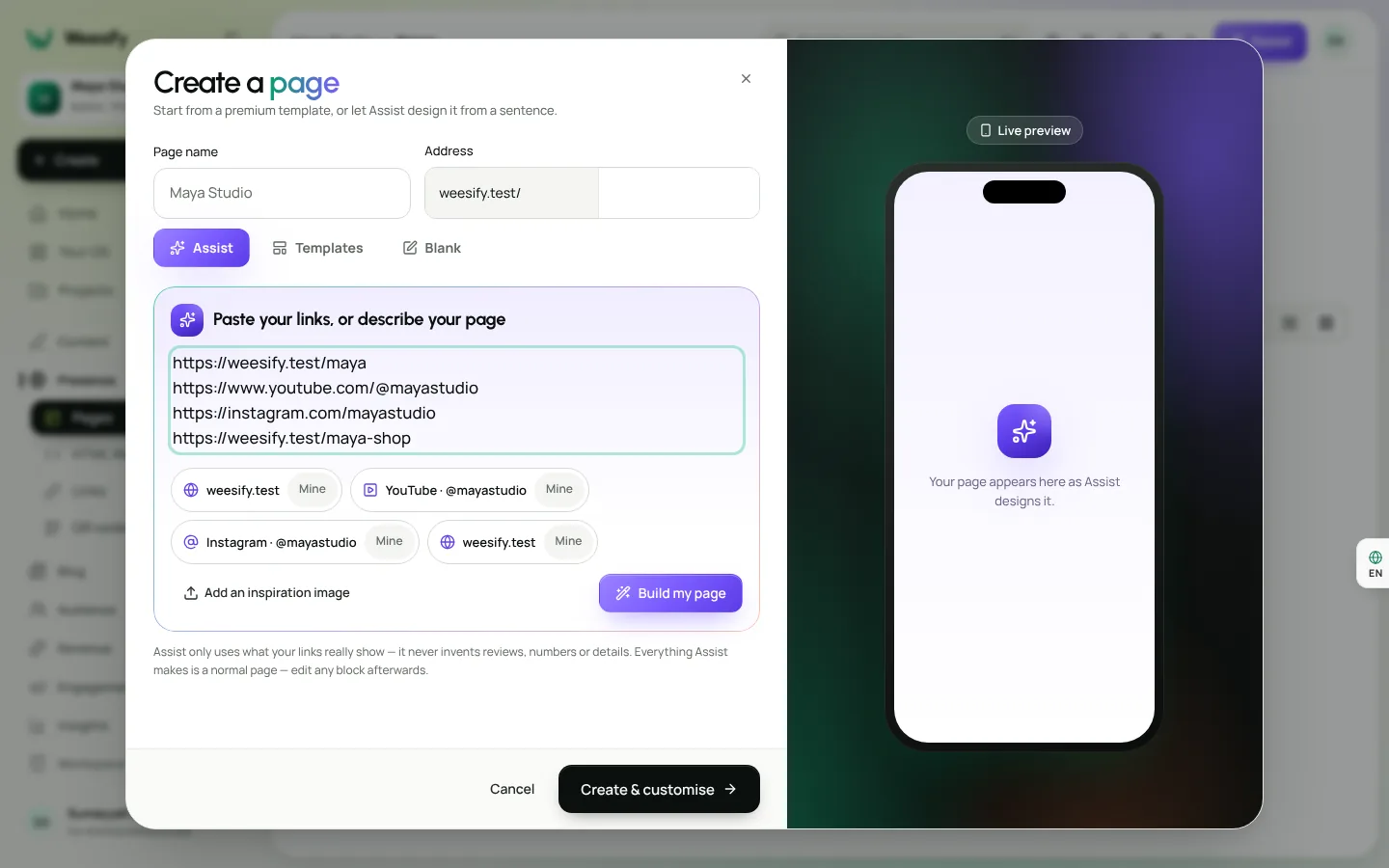
- In Build with Assist, paste your links in the box. Your website, Instagram, TikTok, YouTube or podcast links all work, one or many. Bare addresses like
amina.studiowork too, one per line or mixed into a sentence. - Or choose Describe my page and write a sentence instead, such as "Calm page for our mosque: donations, events, newsletter" or "Coaching page with bookings and testimonials".
- Check Links found. Assist shows a chip for each link it spotted and what kind of link it is.
- Choose Build my page.
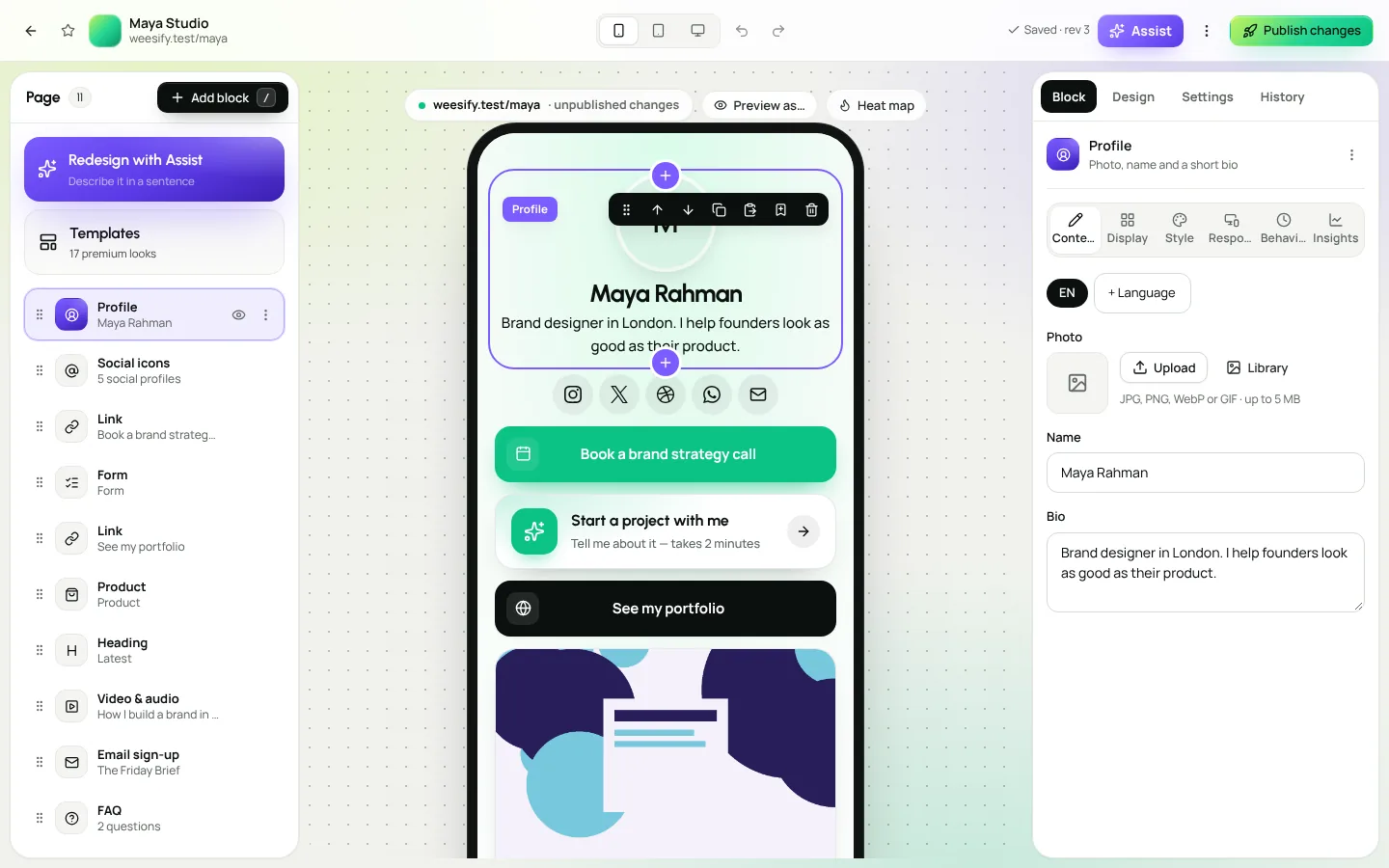
- Open the page in the builder, change anything, and publish.
After the build
- Look at Also found on your links for extra things Assist spotted that you may want to add, such as another channel or a contact detail.
- If something important could not be found, Assist asks you to add it once rather than guessing.
- Choose Rebuild if you change the links or want another take.
From there, the page is yours. Move blocks, swap themes, add products or bookings. Our guide to a link in bio page that sells shows what to do next.
How Assist reads your links
Assist only uses what your links really show. As the Pages screen puts it: Assist only uses what your links really show — it never invents reviews, numbers or details.
That rule shapes everything:
- No invented testimonials. If your site has no reviews, your page will not either.
- No made-up numbers. Follower counts, years of experience and client totals only appear if your links state them.
- No guessed prices. Prices are only filled in when a page states them.
If a link is private or blocked, Assist cannot read it, and it tells you. Add a public link instead.
Borrow a look, not the words
Sometimes you like the feel of a site that is not yours. Assist understands that. Words just before a link such as "like", "inspired by" or "vibe of" mark it as inspiration. You can also switch any chip between your own link and a site you like the look of.
For inspiration links, Assist borrows the look, never the words. It reads signals like the brand colour, whether the design is light or dark, corner roundness and spacing, then maps them onto Weesify's own themes: the nearest built-in theme, your brand colour as the accent where it stays readable, and matching button shapes and spacing. It never invents a new theme and never copies another site's content.
You can also use Add an inspiration image, for example a screenshot of your printed flyer, to guide the look.
Build forms, bookings and events from a link
The same idea works across Weesify:
| You have | Paste it in | Assist builds |
|---|---|---|
| A contact page | Audience › Forms | The same form, field by field |
| A services or pricing page | Revenue › Bookings | Your bookable services; prices only where the page states them |
| An event page | Revenue › Events › Create › From a link | Title, date, venue and image, only what the page shows |
Always check dates, times and prices before publishing. See Forms that capture leads, Booking page for consultants and Host and sell event tickets for what to do next.
Page-aware help on every screen
Building is only the start. The questions come later: How do I schedule this post? Why is this form not showing on my page? What does this number mean?
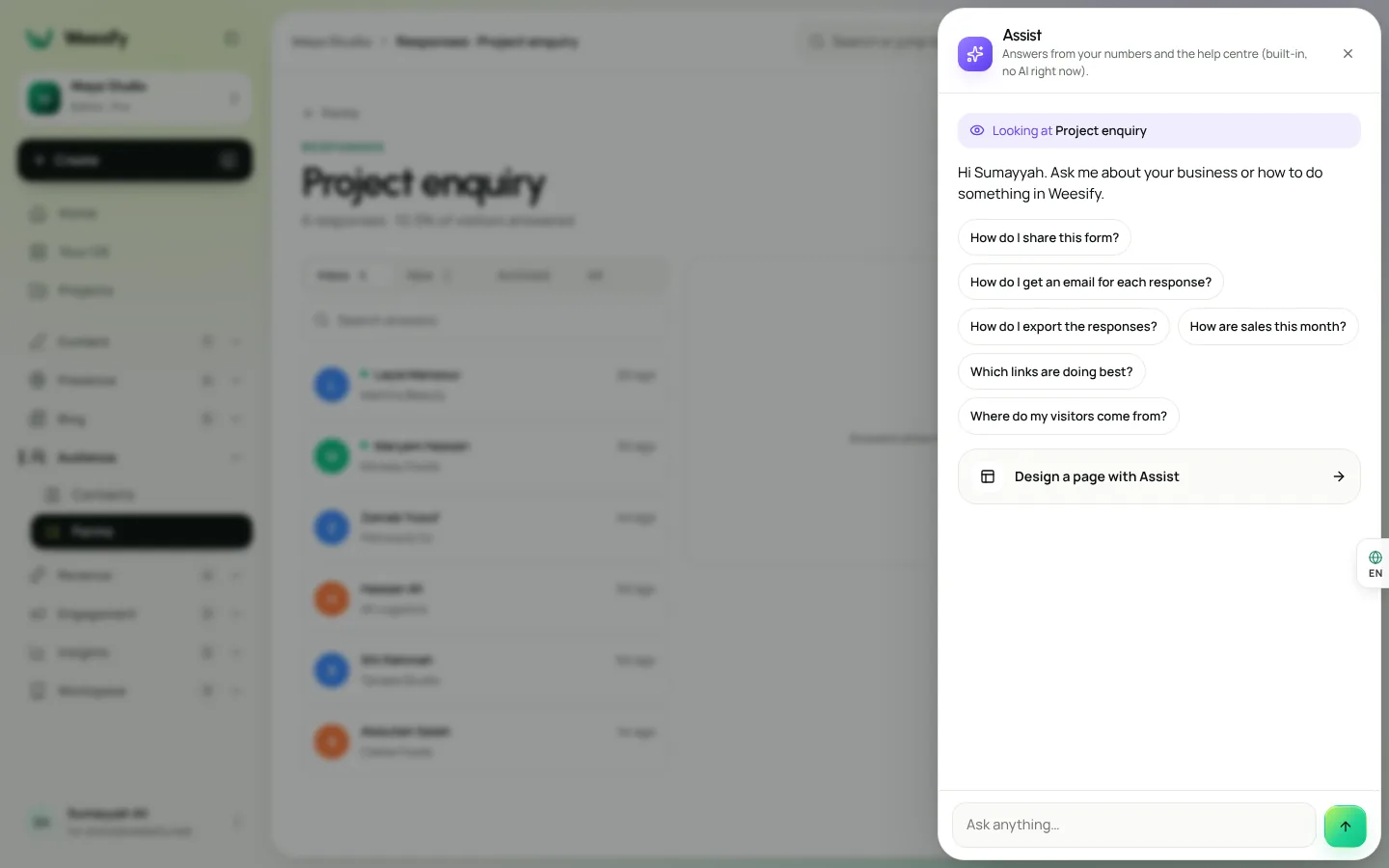
- Open the screen you want help with, for example a post in the Studio, a form, an event or your Analytics.
- Choose Assist in the top bar, or Ask Assist in your account menu.
- At the top of the panel, Looking at shows the page or item Assist is using, such as the name of your form or post.
- Tap one of the suggested questions, or type your own.
- Use the links under an answer to jump straight to the right screen or guide.
Shortcuts at the top of the panel (such as Open this post or Planner) take you to related screens in one tap. Choose New conversation to start fresh, and rate answers with the thumbs so the team can improve them.
Watch it work
When Assist uses AI, a progress bar shows Working on it and text streams in as it is written. Choose Cancel if it is going the wrong way; nothing is changed. When it finishes, it tells you how long it took.
What Assist can and cannot see
Page-aware does not mean all-seeing. Assist sees:
- Only where you are: the screen, the item you opened and the filters you chose. It does not read the rest of the page.
- Only what your role can open. If you cannot see something in Weesify, Assist cannot see it either.
- Only your own workspace. Nothing from another workspace is ever used.
When AI is off for your workspace, Assist still answers from your numbers and the Help Centre. Weesify runs its AI features on its own AI engine; read Weesify AI runs on our own servers for how that works.
Tips for better results
- Give Assist your best public links. A full website usually gives it more to work with than a single social profile.
- Mix links and a sentence. "A warm page for my family bakery with WhatsApp orders, like bakery-example.com" tells Assist both what you need and the look you like.
- Check the details. Assist is careful, but you know your business. Read every block before publishing.
- Ask about the screen, not the product. "What can I do on this screen?" is a great first question anywhere.
- Pair it with a domain. Once the page looks right, put it on your own address with the custom domain setup guide.
Frequently asked questions
Can Weesify build a bio page from my existing links?
Yes. Paste your website and social links into Build with Assist on the Pages screen and choose Build my page. Assist builds an editable page from what your links show.
Will Assist make up reviews or numbers?
No. Assist only uses what your links really show. It never invents reviews, numbers or details, and prices are only filled in when a page states them.
Can I copy the design of a site I like?
You can use it as inspiration. Assist borrows look signals such as colour, light or dark, roundness and spacing, and maps them onto Weesify's own themes. It never copies another site's words.
What does page-aware mean?
When you open Assist from the top bar, it already knows the screen and item you are on, shown under Looking at, so you can ask about it directly.
Does Assist work when AI is off?
Yes. With AI off for your workspace, Assist still answers from your numbers and the Help Centre.
From links to launch
You have already done the hard part: describing your work. Let Assist turn it into a page, then keep it beside you as you grow.
Start your 14-day trial and build your first page from your links today. Read more in the help article Build a page from your links.
Continuer la lecture
 Spotlights
Edit an HTML Website with AI, Safely: How Weesify Does It
AI can change a website in seconds, and break it just as fast. Here is how Weesify's website editor keeps AI edits small, visible, reversible and under your control.
Spotlights
Edit an HTML Website with AI, Safely: How Weesify Does It
AI can change a website in seconds, and break it just as fast. Here is how Weesify's website editor keeps AI edits small, visible, reversible and under your control.
 Spotlights
Store Templates: How to Pick the Right One for You
Weesify has ten store templates, from Minimal to Link-in-bio shop. Here's what each one does well, who it suits, and how to switch without losing a single order.
Spotlights
Store Templates: How to Pick the Right One for You
Weesify has ten store templates, from Minimal to Link-in-bio shop. Here's what each one does well, who it suits, and how to switch without losing a single order.
 Spotlights
Video Studio: Edit the Footage You Already Have
Talks, talking-head clips, screen recordings: you already have the footage. Weesify Video Studio turns it into a clean, captioned video by letting you edit the words.
Spotlights
Video Studio: Edit the Footage You Already Have
Talks, talking-head clips, screen recordings: you already have the footage. Weesify Video Studio turns it into a clean, captioned video by letting you edit the words.
Commentaires
Aucun commentaire pour l’instant. Lancez la conversation.