


How to Publish to Social Networks from Weesify

Schedule once and let Weesify post for you, or get a reminder with the copy ready to paste. Here is how publishing, queues and evergreen posts work.
Writing a good post is half the job. The other half is getting it out at the right time, on the right account, with the right wording for that network, and knowing for certain that it went out. This guide shows you how to publish to social networks from Weesify's Content OS: connecting accounts, scheduling posts, using reminders when a network is not connected, and setting up queues so good posts keep working.
In this guide
- Two ways a post goes out
- Connect your social accounts
- Add channels and schedule a post
- Publish with reminders
- Posting queues and evergreen posts
- Automation rules that save clicks
- Edit a post after it is live
- FAQ
Two honest ways a post goes out
Weesify has one firm rule about publishing: it never says a post went out unless it did. Every scheduled post is published in one of two ways.
- Automatically. The account is connected in Content › Accounts and Post automatically is switched on for the channel. At the scheduled time, Weesify posts it for you.
- With a reminder. The channel is not connected (or the network cannot accept that kind of post). At the scheduled time, the assignee gets a reminder in Weesify and by email, with the copy ready to paste.
Both paths end in the same place: the post is marked published, with a link to the live post, and its history is kept.
Step 1: Connect your social accounts
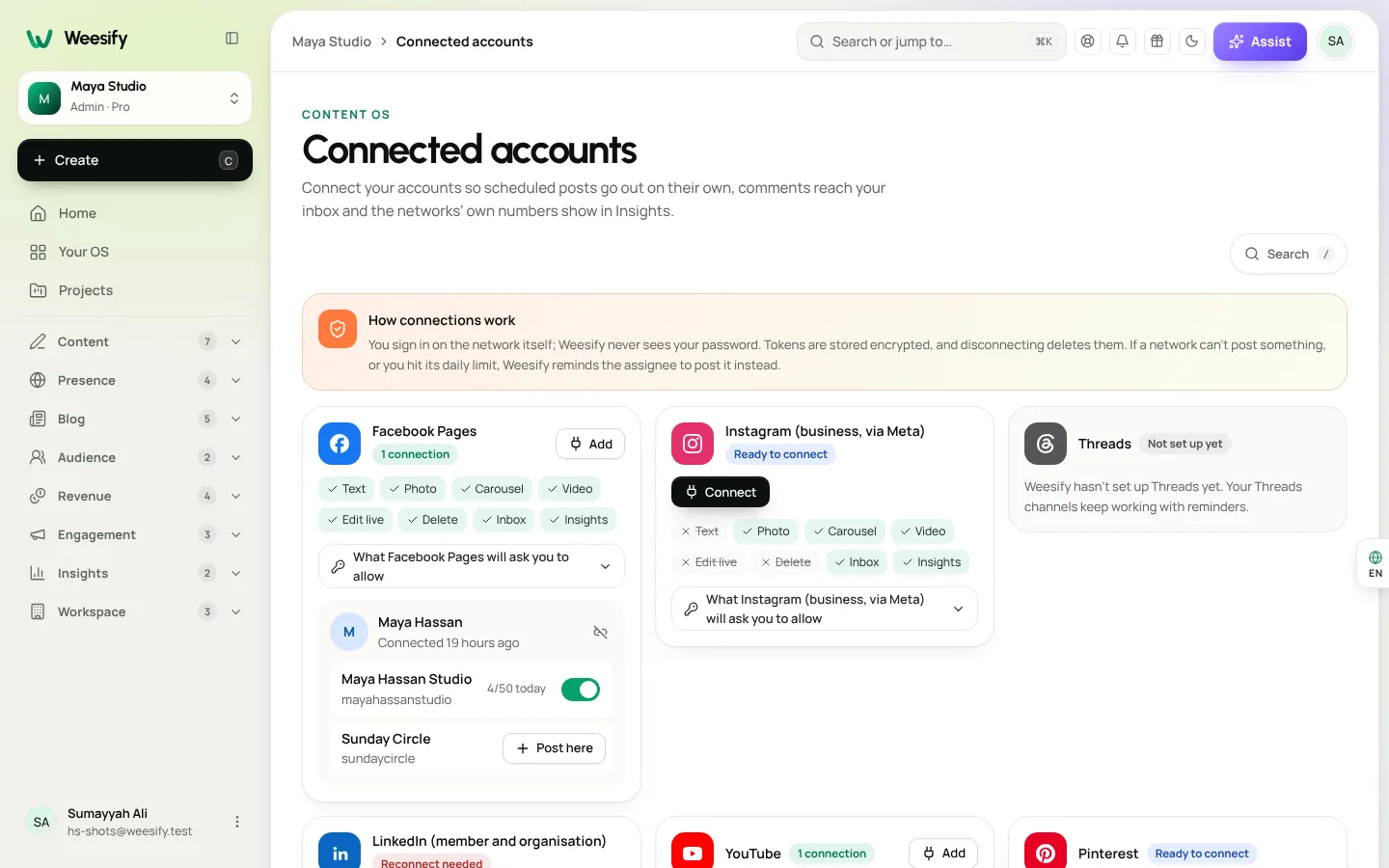
Open Content › Accounts. Only workspace owners and admins can connect accounts.
- Find the network and choose Connect.
- Sign in on the network itself and allow what it asks. The screen lists, in plain words, what each permission is for. Weesify never sees your password.
- Back in Weesify, choose the account you want to use. If none are found, check that you allowed the Page or business account on the network.
- Switch on Post automatically for the channel.
What each network supports
Weesify has connections for these networks. Each one shows what it can post: Text, Photo, Carousel and Video.
| Network | Notes |
|---|---|
| Facebook Pages | Text, photos, carousels and video |
| A business or creator account linked to a Facebook Page; photos, carousels and video | |
| Threads | Text, photos, carousels and video |
| Your profile or Pages you administer | |
| YouTube | Video uploads |
| Pins to the board you choose | |
| TikTok | You choose who can see each post and confirm TikTok's terms first |
| X | Appears only if your Weesify's owner switched it on, because X charges for every post made through its API |
A network that shows Not set up yet has not been switched on for your Weesify yet. Your channels keep working with reminders until then. Networks also set daily limits; the screen shows your usage, for example "3 / 25 today". If a limit is reached or a network cannot post something, Weesify reminds the assignee to post it instead.
Step 2: Add a channel
A channel is an account you post to. In Content › Publishing, choose Add channel, pick the Platform, then enter the Account or handle, a Display name and the Profile link. Choose Save channel.
Each channel knows its network's character limit, so the editor can warn you before a post is too long.
Step 3: Schedule a post
- Open the draft in Content › Studio.
- Choose the Channel.
- Choose an Assignee. They get the reminder when it is time to post. Leave it on Nobody (the team is told) if the whole team shares the job.
- Under Plan a date, pick the Date, Time and Time zone.
- Choose Schedule (approves it).
Scheduling also approves the post, so make sure it has been reviewed if your team uses reviews. Before you schedule, open Per-platform versions: the version for the post's channel is what gets posted. Check Live preview to see where the text folds behind "more".
The scheduled post appears on your content calendar planner, where you can drag it to another day.
Step 4: Publish with reminders
When a channel is not connected, the reminder flow keeps you on time.
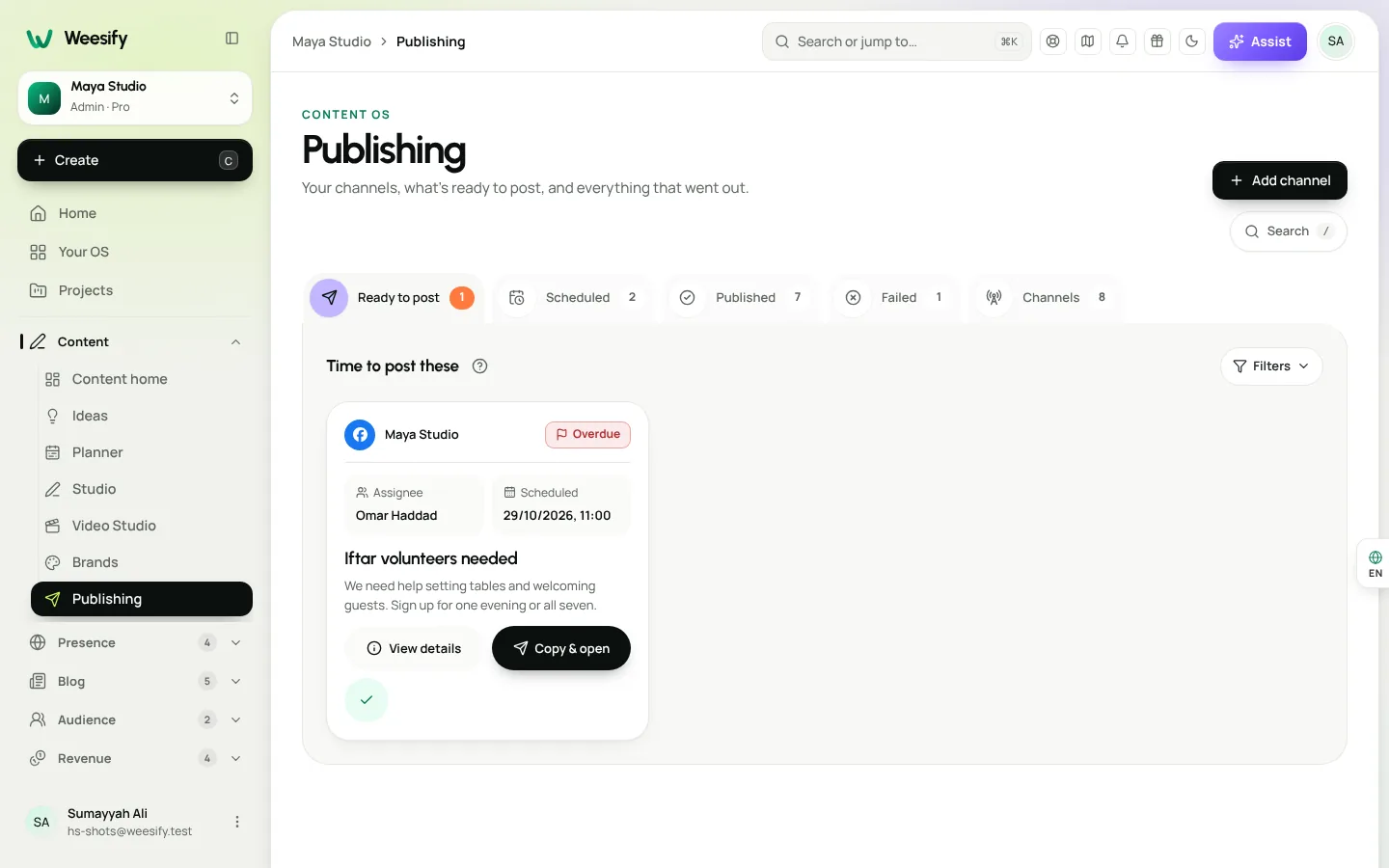
- Open Content › Publishing. Posts that are due appear under Time to post these.
- Choose Copy & open to copy the text and open the network.
- Post it there. Media travels with the post and is ready to download.
- Come back and choose I've posted it. Add the Link to the live post if you like.
If it could not go out, choose Couldn't post it?, add a Reason and choose Mark not posted. The post waits under Failed so you can reschedule it.
The post list marks posts as Overdue, Due now or Within 24h, so you can see at a glance what needs you first.
Step 5: Set up a posting queue
Picking a time for every post gets tiring. A queue is a set of weekly slots, for example Monday, Wednesday and Friday at 09:00. Add posts and each one takes the next free slot.
- Open Content › Queues and choose Make your first queue (or New queue).
- Enter a Name, for example "Weekday mornings".
- Choose a Channel, or leave it on Any channel, and a Time zone.
- Under Weekly time slots, choose a Day and a Time, then Add slot. Repeat for each slot.
- Choose Save queue.
The queue shows the Next 10 slots. To fill it, open the queue and choose Add next to any draft or approved post without a date. Someone who can approve confirms the schedule.
Evergreen posts
Some posts are worth repeating, such as a reminder about your weekly class or a link to your booking page. Switch on Evergreen queue, set the Minimum gap (days) and, if you want, Maximum repeats. Mark a post Make evergreen, and after it publishes it comes back as a new post after the gap you chose. Every time a post went out stays in its history.
Step 6: Let small rules do the clicking
In Content › Automations, rules watch for one thing and do one thing. For example:
- When a post is approved, add it to the "Weekday mornings" queue.
- When an idea is tagged "urgent", tell your editor.
Each rule acts once per post or idea, within about a minute, and every run is logged under Recent runs as Done, Failed, Skipped or Running.
Step 7: Fix a post after it is live
Spotted a typo? In Content › Publishing, find the post under Published and choose Edit live post. Change the Live post text and choose Save edit. It is saved as a new version, and the history keeps what actually went out.
Some networks do not let apps change a post once it is live. Weesify tells you so and offers Post a corrected version or Delete and repost.
After publishing: replies and results
Once you publish through a connected account, comments from Facebook Pages, Instagram, YouTube and LinkedIn Page posts arrive in your Inbox. Learn more in reply to social comments faster with one inbox.
Posts with a link get a tracked short link, so Content › Insights can show clicks, top posts and the best time to post. For connected networks, Reported by the networks shows their own views, reach and likes, kept separate from Weesify's click counts.
Publishing checklist
- Connect the accounts you can, and switch on Post automatically
- Add channels for the rest, so reminders reach the right person
- Write per-platform versions for each channel
- Check Live preview and the character limit
- Schedule with a clear Assignee
- Set up one queue and one evergreen post
- Check Failed once a week
Frequently asked questions
Does Weesify post for me automatically?
Yes, when the account is connected and Post automatically is on. Otherwise, the assignee gets a reminder with the copy ready to paste, and marks the post published when it is live.
What happens if an automatic post fails?
If a daily limit is reached or the network cannot accept that kind of post, Weesify reminds the assignee to post it instead. Posts marked not posted wait under Failed with the reason.
Does Weesify see my social media passwords?
No. You sign in on the network itself. Disconnect deletes the saved tokens, and the channels go back to reminders.
Can I post the same content with different wording on each network?
Yes. Per-platform versions let each network have its own wording, written by hand or with AI.
Can I repost my best content without copying it each time?
Yes. Use an Evergreen queue and mark posts Make evergreen. They come back after the gap you set. For turning one piece into many new posts, see repurpose one video into many posts.
Publish with confidence
When every post has a channel, a person and an honest status, nothing slips through. Start with the Content OS overview in plan, write and publish in one place, or jump straight in.
Start your 14-day trial and schedule your first week of posts.
Continuer la lecture
 Guides
Content Calendar Planner: A Step-by-Step Guide
A content calendar only helps if it is honest about your time. Here is how to use Weesify's planner to map campaigns, catch clashes and keep a steady rhythm.
Guides
Content Calendar Planner: A Step-by-Step Guide
A content calendar only helps if it is honest about your time. Here is how to use Weesify's planner to map campaigns, catch clashes and keep a steady rhythm.
 Guides
Remove Pauses and Filler Words From Video Automatically
Long pauses and 'um's make good videos feel slow. Here is how Weesify Video Studio finds them for you, lets you review each one, and removes them in one tap.
Guides
Remove Pauses and Filler Words From Video Automatically
Long pauses and 'um's make good videos feel slow. Here is how Weesify Video Studio finds them for you, lets you review each one, and removes them in one tap.
 Guides
Welcome Email Sequence: Build One With Automations
The first days after someone subscribes are when they pay the most attention. Here is how to build a welcome email sequence in Weesify Automations that greets every new subscriber on time, every time.
Guides
Welcome Email Sequence: Build One With Automations
The first days after someone subscribes are when they pay the most attention. Here is how to build a welcome email sequence in Weesify Automations that greets every new subscriber on time, every time.
Commentaires
Aucun commentaire pour l’instant. Lancez la conversation.