


QR Codes for Events and Print: A Practical Playbook

Posters, flyers, stalls, tickets and table cards: a step-by-step playbook for planning, designing, printing and measuring QR codes for events and print with Weesify.
A good event lives on paper as much as on screens. There is the poster in the masjid foyer, the flyer at the university stall, the banner by the door, the table card with the Wi-Fi, the programme in every seat. QR codes for events and print connect all of that paper to the things you want people to do: register, find the venue, join the WhatsApp group, give feedback, buy the recording.
Done well, they also tell you which poster worked. This playbook walks through planning, designing, printing and measuring QR codes for an event or a print campaign with Weesify's QR studio.
In this guide
- Plan one code per job and per placement
- Choose the right code type for each job
- Design for real-world scanning
- Group codes into a campaign and print a sheet
- On the day: venue codes that remove friction
- After the event: compare placements and reuse codes
- A print checklist
Step 1: Plan one code per job and per placement
Before designing anything, list the jobs paper needs to do. For a weekend seminar, that might be:
| Where | What the visitor should do | Code type |
|---|---|---|
| Posters around town | Register for the seminar | Link or page (dynamic) |
| Flyers at stalls | Register for the seminar | Link or page (dynamic) |
| Venue entrance | Find the hall on the map | Location |
| Tables | Join the guest Wi-Fi | Wi-Fi |
| Programme booklet | Save the session times to the calendar | Event |
| Exit banner | Leave feedback | Link or page pointing at a form |
| Organiser's badge | Message the team |
Notice that posters and flyers share a job but not a placement. Give each placement its own code, even if both point to the same registration page. That one habit is what lets you compare them later.
Step 2: Choose the right code type
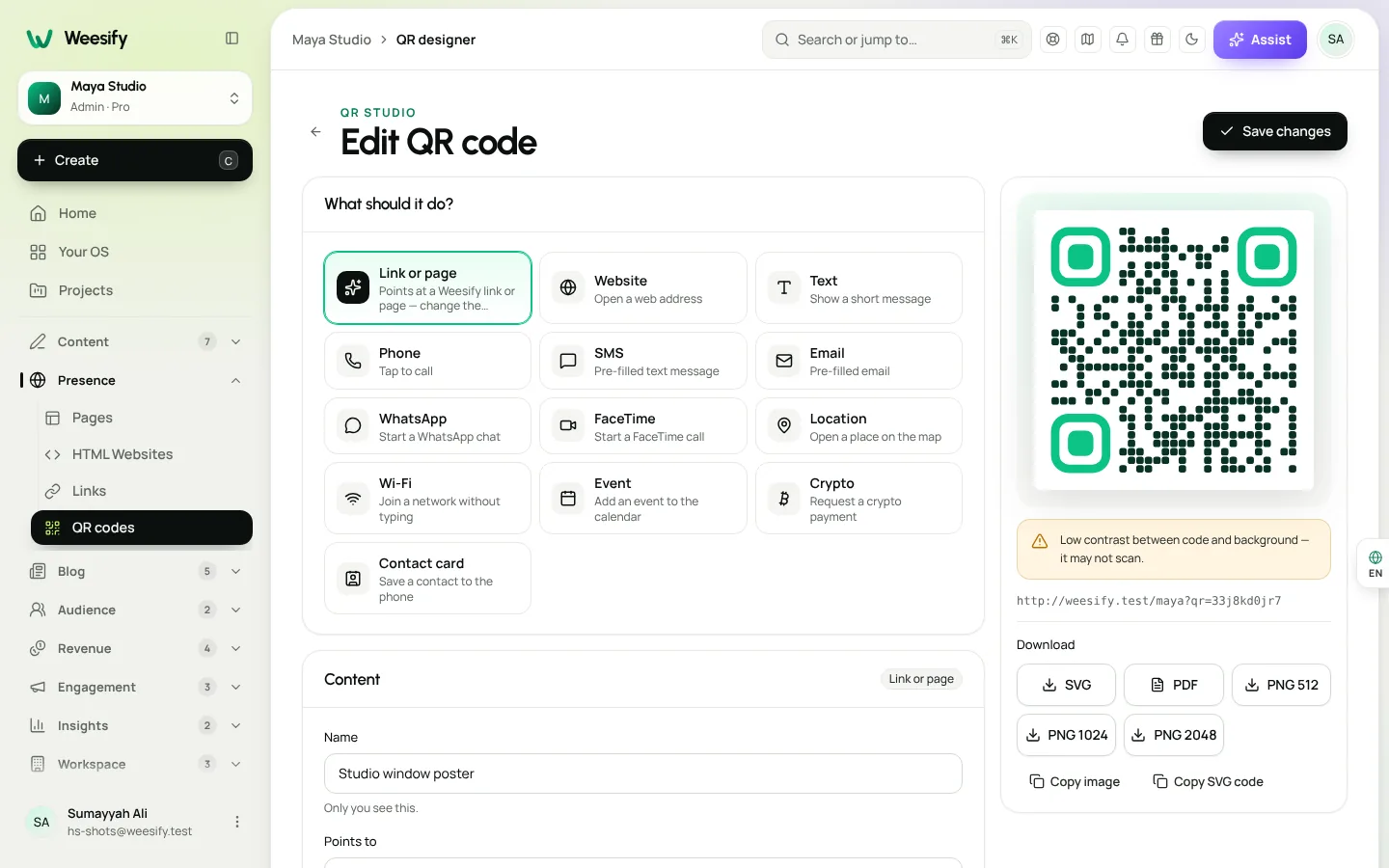
Open Presence › QR codes and choose Create QR code. Under What should it do?, pick the type.
- Link or page points at a Weesify link or page and lets you change the destination anytime. Use it for anything you might update: registration, schedules, the recording page after the event. We explain why in Dynamic QR codes explained.
- Location opens a place on the map. Search by address or enter coordinates, and choose whether to open Google Maps instead of the phone's own map app.
- Wi-Fi joins a network without typing. Enter the Network name (SSID), password and Security type.
- Event adds an event to the calendar with title, start, end, location and description.
- WhatsApp starts a chat, with a Pre-filled message so you know which poster someone scanned.
- Contact card saves the organiser's details to the phone.
Website, WhatsApp and Location codes can be tracked: Weesify routes them through a managed short link so scans are counted and the destination stays editable.
Step 3: Design for real-world scanning
Posters get photographed at an angle, flyers get folded and banners hang in poor light. Design for that.
Contrast first. Dark code on a light background scans most reliably. The studio warns you about low contrast, and reminds you that light-on-dark codes are not supported by every scanner.
Use a frame with a call to action. A frame label of up to 30 characters tells people why to scan: "Scan to register", "Scan for Wi-Fi", "Scan for directions". Without it, many people simply walk past.
Keep the quiet zone. The empty border around the code matters. Leave 2 or more modules of quiet space.
Choose error correction for the surface. Higher levels survive damage and logos but make denser codes. A clean indoor poster can use Medium; a banner that will be folded and reused can go to Quartile or High.
Logos are optional. Where your plan includes logos, the studio raises error correction to High automatically and keeps the logo small enough to scan. If a test scan struggles, remove the logo first.
Match your brand. Start from a design under Templates, then set colours, dot shapes and corner shapes to match the poster. Your content, logo and frame words stay when you switch template.
Step 4: Group codes into a campaign
In each code's details, fill in:
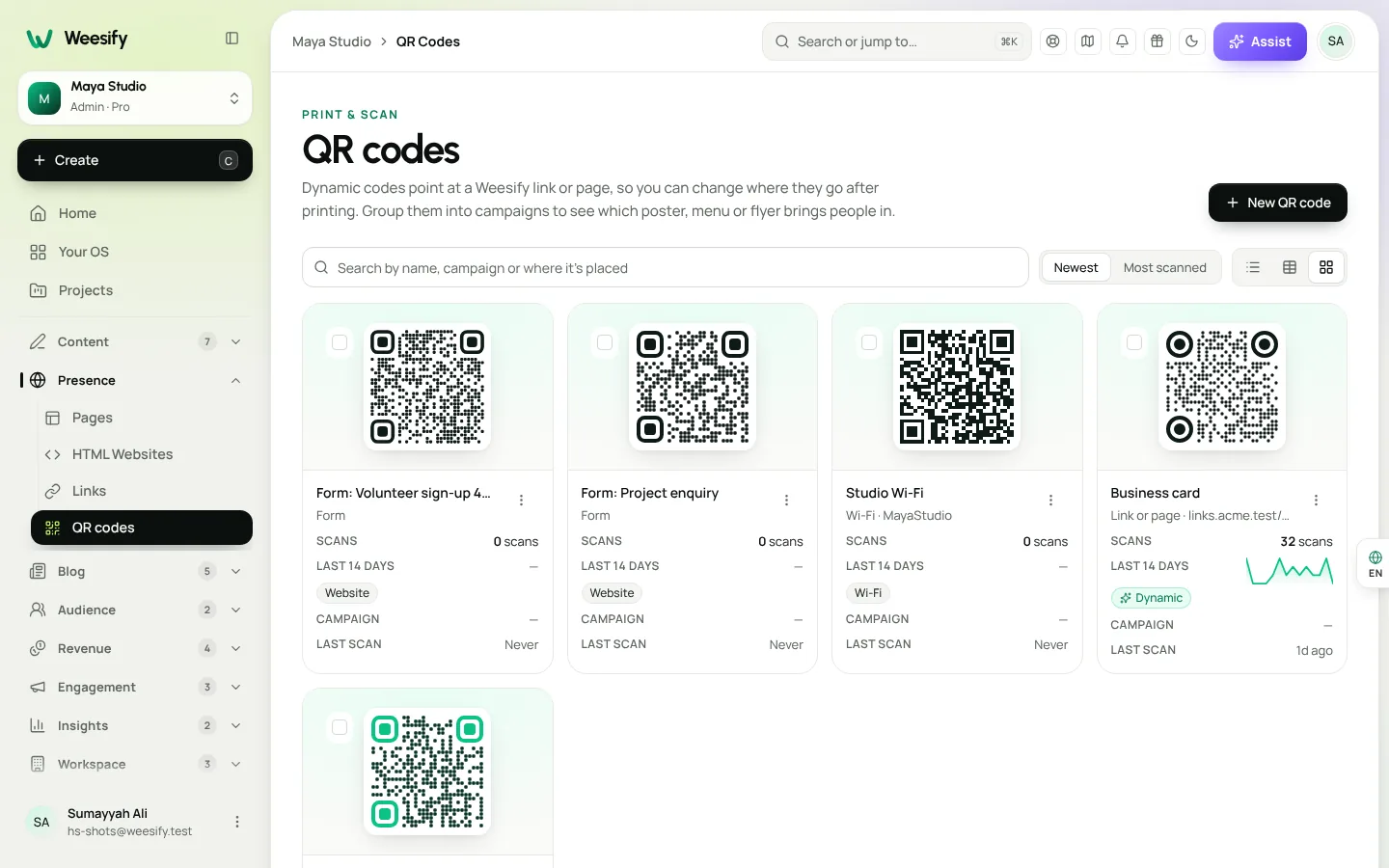
- Campaign: the same name for every code in the event, such as "Autumn Seminar".
- Where it's placed: so you know which print is which, such as "Poster, Central Library" or "Flyer, Freshers' Fair".
- Name: something you will recognise in a list.
The QR codes list then groups codes by campaign and shows scans for each, so you can see which spot works best. You can also select several codes and use Move to campaign… to group codes you already made.
Step 5: Download and print
For each code, choose Preview and download:
- SVG or the print-ready PDF for the designer or print shop, so the code stays sharp at any size.
- PNG at 2048 px for slides, screens and documents.
For a set of codes, open the campaign and choose Print sheet. Each campaign prints as an A4 sheet of labelled codes, ready to cut out. That is perfect for table cards, stickers and volunteer badges.
Print sizes
Our help centre's rule is simple: print at least 2 × 2 cm, and larger if people will scan from a distance. A poster across a corridor needs a much bigger code than a business card in someone's hand. Whatever the size, test with two different phones before you print hundreds.
On the day: venue codes that remove friction
The best day-of codes save people from asking a volunteer.
- Wi-Fi on every table, so nobody reads out a password twelve times.
- Location on the outside banner and in the confirmation materials, so late arrivals find the right entrance.
- Event in the programme, so each session lands in guests' calendars.
- WhatsApp on organiser badges, with a pre-filled message such as "Hi, I'm at the seminar and need help with…".
If you sell tickets through Weesify Events, guests also carry their own ticket codes for check-in. That is a different job from marketing codes; read Event check-in: a day-of guide and Host and sell event tickets for that side.
Collect feedback while people are still in the room
Make a short feedback form and put its code on the exit banner or the last slide. Forms have their own share panel with a QR code, so this takes one click; see Form QR codes in one click.
After the event: measure and reuse
Compare placements
Open a code to see Scans over time, Countries, Devices and Last scan, with times shown in the scanner's local time. Look at the campaign as a whole and ask:
- Which placement brought the most scans?
- Did scans arrive mostly before the event or on the day?
- Which flyer locations produced nothing at all?
Next time, put more posters where people scanned and fewer where they did not.
Point the same codes somewhere new
Because your registration codes are dynamic, you do not have to throw the posters away. After the event, change the destination to the recording, a summary page or next month's event. Anyone who scans an old poster still lands somewhere useful.
If the code points at a short link, you can even schedule the change: set the link's Expires time and use After expiry, send visitors to for the next page. See Branded short links: the complete guide.
Print checklist
- One code per placement, all in one campaign
- Dynamic codes for anything that might change
- Frame with a clear call to action
- Dark code, light background, quiet zone kept
- At least 2 × 2 cm, bigger for distance
- Tested on two different phones, from the real distance
- SVG or PDF sent to the printer
- Wi-Fi, location and event codes ready for the venue
Frequently asked questions
Should every poster have its own QR code?
If you want to know which placement worked, yes. Each code is counted separately, so give every placement its own code and group them under one campaign.
Can I change where an event QR code goes after printing?
Yes, if it is a dynamic code (Link or page) or a tracked Website, WhatsApp or Location code. Change the destination and every printed copy follows.
What is the best QR code type for venue Wi-Fi?
Use the Wi-Fi type. Phones join the network directly without typing the password. It is a static code, so it works even before the guest is online.
How do I print many QR codes at once?
Put the codes in the same campaign and choose Print sheet. Weesify lays them out on an A4 sheet with labels, ready to cut.
Are ticket QR codes the same as marketing QR codes?
No. Ticket codes identify one guest for check-in. Marketing codes send many people to a page. Weesify Events handles ticket codes for you.
Make your paper work harder
Every printed code is a small doorway into your event. Plan them by placement, design them to scan, and let the numbers guide your next print run.
Start your 14-day trial and build your first QR campaign today. See how events, tickets and check-in fit together on the Weesify Events page.
Continuer la lecture
 Guides
Content Calendar Planner: A Step-by-Step Guide
A content calendar only helps if it is honest about your time. Here is how to use Weesify's planner to map campaigns, catch clashes and keep a steady rhythm.
Guides
Content Calendar Planner: A Step-by-Step Guide
A content calendar only helps if it is honest about your time. Here is how to use Weesify's planner to map campaigns, catch clashes and keep a steady rhythm.
 Guides
Remove Pauses and Filler Words From Video Automatically
Long pauses and 'um's make good videos feel slow. Here is how Weesify Video Studio finds them for you, lets you review each one, and removes them in one tap.
Guides
Remove Pauses and Filler Words From Video Automatically
Long pauses and 'um's make good videos feel slow. Here is how Weesify Video Studio finds them for you, lets you review each one, and removes them in one tap.
 Guides
Welcome Email Sequence: Build One With Automations
The first days after someone subscribes are when they pay the most attention. Here is how to build a welcome email sequence in Weesify Automations that greets every new subscriber on time, every time.
Guides
Welcome Email Sequence: Build One With Automations
The first days after someone subscribes are when they pay the most attention. Here is how to build a welcome email sequence in Weesify Automations that greets every new subscriber on time, every time.
Commentaires
Aucun commentaire pour l’instant. Lancez la conversation.