


Repurpose One Video Into Many Posts: A Practical Workflow

One recorded talk can become a caption, a thread, a LinkedIn-style post, a newsletter section, a carousel and short clips. Here is how to repurpose content in Weesify without losing your voice.
Making content is slow. Recording a talk, a lesson or a conversation takes real effort, and then it gets posted once, watched for a day or two, and forgotten. Meanwhile your channels still need something new every week.
Repurposing content fixes the imbalance. Instead of starting each post from a blank page, you take one strong piece and turn it into several smaller ones, each shaped for a different place. Weesify's Content OS has a dedicated Repurpose tool for exactly this, and it connects directly to Video Studio. This article walks through the workflow, and shows how it looks for three different kinds of creators.
In this guide
- What Repurpose makes from one piece
- Step-by-step: from video to a bundle of drafts
- Other starting points: drafts, ideas, links and text
- Three repurposing workflows
- From drafts to a scheduled week
- FAQ
What Repurpose makes
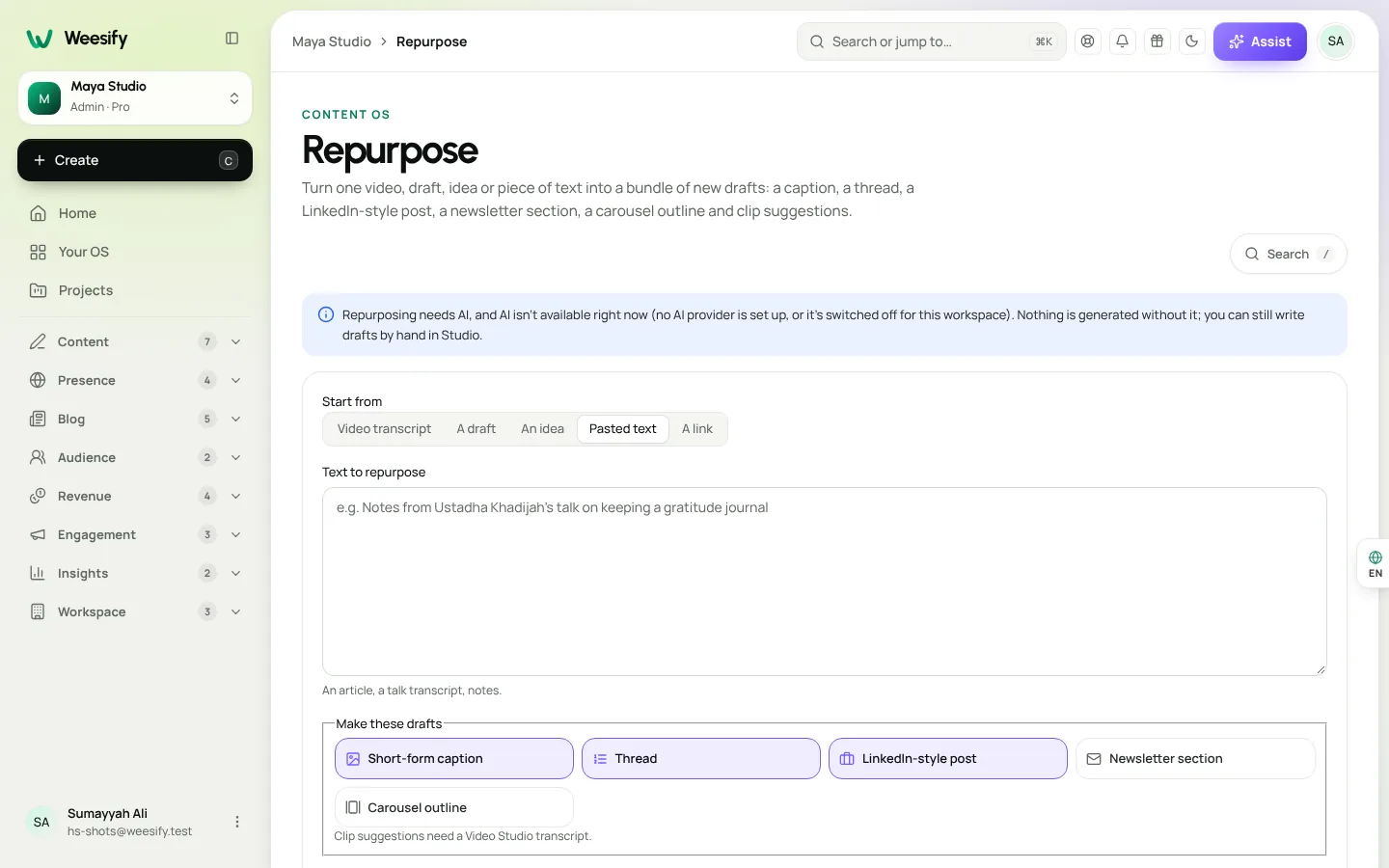
Give Repurpose one piece of content, and it makes a bundle of new drafts:
| Draft | What it is |
|---|---|
| Short-form caption | A punchy first line, one idea, a call to action and at most three hashtags |
| Thread | Five to eight numbered posts, each standing alone, the first a hook and the last a call to action |
| LinkedIn-style post | A one-line hook, short paragraphs, one practical takeaway and a closing question |
| Newsletter section | A heading, two or three short paragraphs and one call to action |
| Carousel outline | Six to ten slides, one line each, ending with a call to action |
| Clip suggestions | The strongest moments of a video for short clips, with times, titles and hooks |
Each draft lands in the Studio, where you edit, review and schedule it like any other post. Clip suggestions need a Video Studio transcript, because they point to exact moments.
Step-by-step: from video to a bundle of drafts
1. Finish the video in Video Studio
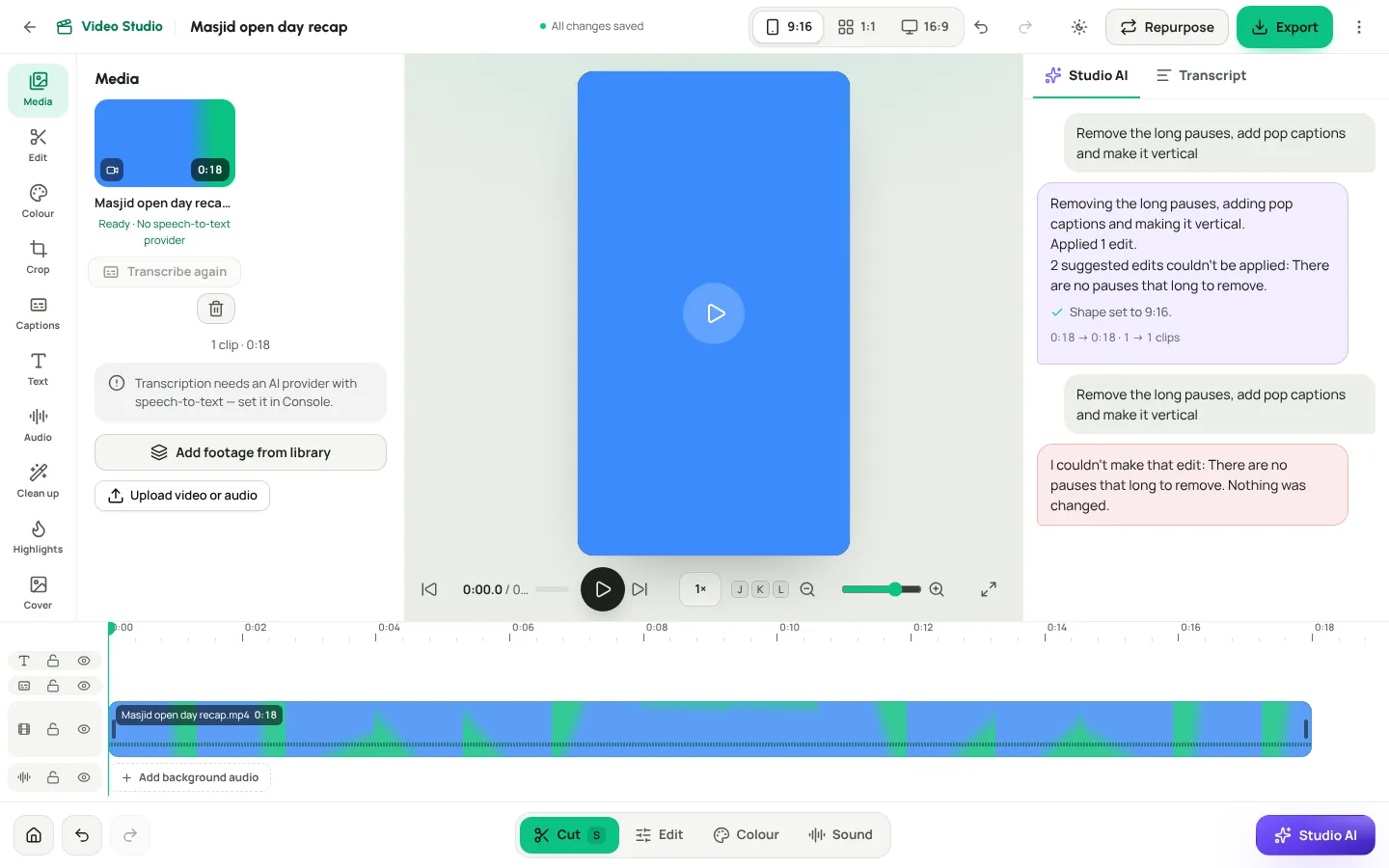
Edit your footage in Video Studio first. Remove pauses and filler words, correct names in the transcript and add captions. If you are new to the editor, start with our Video Studio spotlight.
Repurpose uses the transcript as it plays after your edits. So anything you cut, such as a retake or an off-topic tangent, will not end up in your posts.
2. Send it to Repurpose
In the video editor, choose Repurpose. It sends the project straight to Content › Repurpose with the video already chosen as the source.
You can also open Content › Repurpose directly, choose Video Studio project under Start from, and pick the project.
3. Choose a brand
Choose a Brand, or leave it on Default. The drafts use that brand profile's voice, audiences and calls to action. If you have not set one up yet, read AI content ideas in your brand voice: a clear brand profile means less editing later.
4. Make the drafts
Choose Make these drafts. You can watch the progress while the AI works. When it is done, the new drafts appear under New drafts. Open any of them to edit it in the Studio.
5. Read every draft
Repurposed drafts are starting points. Read each one. Check facts, names and quotations against the original. Make the opening line sound like you. Remove anything the speaker did not actually say.
Other starting points
Repurpose is not only for video. Under Start from, you can also choose:
- Draft: turn a post you already wrote into versions for other formats.
- Idea: expand an idea from your inbox into a bundle.
- Link: keep a link as the source, and paste its text below. Weesify does not fetch other sites' content, so you paste what you want used.
- Text to repurpose: paste an article, a talk transcript or notes, for example "Notes from Ustadha Khadijah's talk on keeping a gratitude journal".
Three repurposing workflows
These are example workflows to show how the pieces fit. They are not customer stories.
The weekly class
A teacher records a weekly 30-minute class.
- In Video Studio, clean up the recording and transcribe it.
- Open Highlights, choose Find highlights, and Make a clip from the best two moments. See captions, highlights and short clips.
- Choose Repurpose on the full class. The thread summarises the lesson, the newsletter section goes into the weekly email, and the carousel outline becomes a set of revision slides.
- Schedule the clips midweek and the thread on Friday.
One class becomes a week of content, all pointing back to the next class.
The event talk
An organisation records a guest talk at its annual event.
- Edit the talk and correct speaker names in the transcript.
- Repurpose it with the organisation's brand profile.
- Use the LinkedIn-style post to thank attendees and share the key takeaway, the short-form caption with a highlight clip, and the newsletter section in the post-event email.
- Plan everything as a campaign on the content calendar planner, promoting next year's event.
For more on events, see host and sell event tickets.
The written article
A writer publishes a long blog post.
- Open Content › Repurpose and choose Text to repurpose, then paste the article.
- The thread breaks the argument into steps, the carousel outline becomes a visual summary, and the caption drives readers to the full piece.
- Add the article's link to each post in the Studio, so Weesify creates a tracked short link and Insights can count the clicks.
From drafts to a scheduled week
Once the drafts look right:
- Give each draft a channel. Open Per-platform versions if you want different wording for each network.
- Send for review if your team uses approvals.
- Schedule each post, or add them to a queue so each one takes the next free slot.
- Publish automatically through connected accounts, or with reminders. See how to publish to social networks from Weesify.
- Measure in Content › Insights: clicks, top posts and the best time to post.
Repurposing checklist
- Start from your strongest recent piece
- Clean up and transcribe video first
- Choose the right brand profile
- Read every draft and check it against the source
- Spread the posts over one to two weeks, not one day
- Link back to the original where it helps
- Note which format brought the most clicks, and make more of it
Frequently asked questions
Does Repurpose need AI?
Yes. Repurposing needs AI switched on for your workspace. If it is not available, Repurpose tells you, and you can still write drafts by hand in the Studio.
Why are there no clip suggestions?
Clip suggestions need a Video Studio transcript. Choose Transcribe in the video editor's Media tool, wait for Transcript ready, then repurpose again.
Can Repurpose read a web page from a link?
No. Weesify does not fetch other sites' content. Choose Link to keep the source, and paste the text you want to use.
Will the drafts sound like me?
They use the brand profile you choose, including your tone, words you like and words you never say. Always read and edit before scheduling.
Where does the AI run?
When AI is on, Weesify can run it on its own engine, on its own servers. See Weesify AI runs on our own servers.
Make your best work go further
You have already done the hard part: you made something worth sharing. Repurposing makes sure it reaches people wherever they are. Explore the whole workflow in Content OS: plan, write and publish in one place.
Start your 14-day trial and repurpose your first video this week.
تابع القراءة
 Use cases
Weesify for Islamic Educators: Courses, Classes and Community
A practical look at how an Islamic educator can run courses, live classes, one-to-one sessions and a student community from one Weesify workspace.
Use cases
Weesify for Islamic Educators: Courses, Classes and Community
A practical look at how an Islamic educator can run courses, live classes, one-to-one sessions and a student community from one Weesify workspace.
 Use cases
Booking Page for Consultants: Fill Your Calendar Calmly
Stop the back-and-forth emails. A Weesify booking page lets clients pick a free time, pay up front and get a calendar invite and a private meeting room.
Use cases
Booking Page for Consultants: Fill Your Calendar Calmly
Stop the back-and-forth emails. A Weesify booking page lets clients pick a free time, pay up front and get a calendar invite and a private meeting room.
 Use cases
Build a Paid Community on Your Own Page, Step by Step
A paid community gives your most engaged people a home and gives you income that does not depend on a feed. Here is how to plan, price and launch one with Weesify Community.
Use cases
Build a Paid Community on Your Own Page, Step by Step
A paid community gives your most engaged people a home and gives you income that does not depend on a feed. Here is how to plan, price and launch one with Weesify Community.
التعليقات
لا توجد تعليقات بعد. ابدأ المحادثة.