


Self-Hosted Video Meetings: Meet Clients Inside Weesify

Weesify Meetings gives every online booking its own private video room, hosted on Weesify's own servers. No outside meeting links, no app for your guests.
Booking a client call usually means juggling two tools: one to schedule, another to meet. You copy a video link from one app, paste it into another, hope the client finds it, and then wait while they download an app five minutes after the start time.
Weesify Meetings joins those two halves. When someone books an online session with you, Weesify makes a private room, emails them the link and starts it for you. These are self-hosted video meetings: the audio and video run on Weesify's own servers, not through Zoom, Google Meet or any outside video service. Guests join in the browser, with no app and no account.
This post explains how it works, what you and your guests see, and how to set it up.
In this guide
- Why self-hosted video meetings matter
- How a meeting is created
- What guests see when they join
- Host controls in the room
- After the meeting: the review page
- Set it up in five minutes
- FAQ
Why self-hosted video meetings matter
Most scheduling tools hand the meeting off to someone else. That has costs you don't always see:
- Another account. Your guest may need to sign in or install something.
- Another link to manage. Links get lost, reused or shared.
- Another company in the room. The call is carried by a third party's infrastructure.
Weesify Meetings carries audio and video with the Weesify Media Engine, which runs on Weesify's own servers. If video isn't available for some reason, the room says so plainly. Nothing else is quietly used instead. For the same reason, the transcripts and AI summaries from recorded meetings are made on Weesify's own servers too. We explain that in meeting recordings, transcripts and summaries, and the wider approach in Weesify AI runs on our own servers.
How a meeting is created
You don't create meetings by hand. They come from your booking pages.
- Make an online booking page in Bookings. (New to bookings? Start with our booking page guide for consultants.)
- In the page's Scheduling rules, under Meeting room, choose Weesify meeting room. Each confirmed booking gets its own private room.
- When someone books and pays (if it's paid), Weesify prepares the room and emails them their private join link.
- The room opens a few minutes before the start. You can set how early with Guests can join early (minutes).
Your Meetings home shows what's coming up, what's live now and what's already happened.
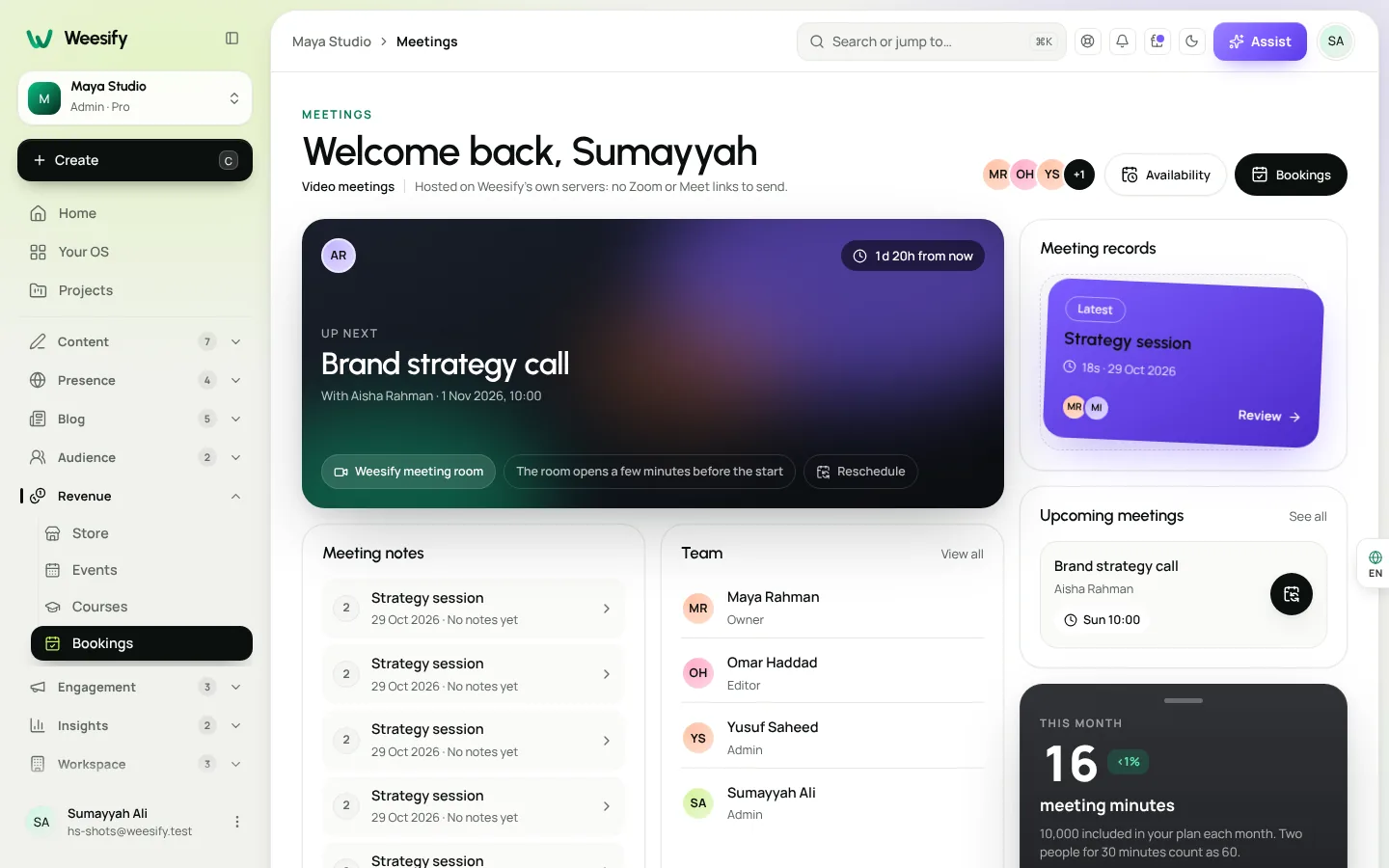
At the top you'll see Up next and Upcoming meetings, with Start meeting on each one. Further down are Past meetings, Meeting notes, and your meeting minutes for the month. Minutes are counted per person: two people for 30 minutes count as 60. How many minutes, how many people per meeting and how long one meeting can last all depend on your plan; the Meetings home shows yours.
What guests see when they join
Your guest opens the join button in their booking email. The room is private: only people invited to that booking can enter.
- Ready to join? They check their camera and microphone first. Nothing is shared until they join.
- If a camera or microphone is missing or blocked, the room tells them in plain words, for example "No camera found. You can still join with audio."
- If you've turned the waiting room on, they see Waiting for the host to let you in, and you see that they're waiting.
- They choose Join now.
If their connection drops, the room shows Connection lost. Reconnecting… and brings them back. A connection indicator shows Excellent connection, Good connection or Weak connection, so nobody wonders why a picture froze.
Weekly series show where the guest is in the run, like "Part of a weekly series (3 of 6)". See weekly series for paid sessions.
Host controls in the room
As the host, you start the meeting from Weesify, and you're in charge of who's in the room and what happens there.
| Control | What it does |
|---|---|
| Admit / Deny | Let a waiting guest in, or turn them away |
| Mute / Turn camera off | Control your own audio and video |
| Share screen | Present slides, a spreadsheet or a document |
| Chat | Message everyone, or privately; chat is only for this meeting and isn't saved |
| Make co-host | Give someone else host controls |
| Lock meeting | Stop anyone else joining |
| Remove | Remove someone from the meeting |
| Record | Record the meeting, with everyone told |
| End for everyone | Close the room for all |
Recording is off by default. When you switch Allow recording on in Meetings and then tap Record, everyone in the room is told and sees a recording badge. The recording is made in the host's browser, so keep that tab open until you stop. Screen sharing works in Chrome, Edge, Firefox or Safari on a computer; recording needs Chrome, Edge or Firefox on a computer.
After the meeting: the review page
Every meeting gets a review page. Open it from Past meetings with Review.
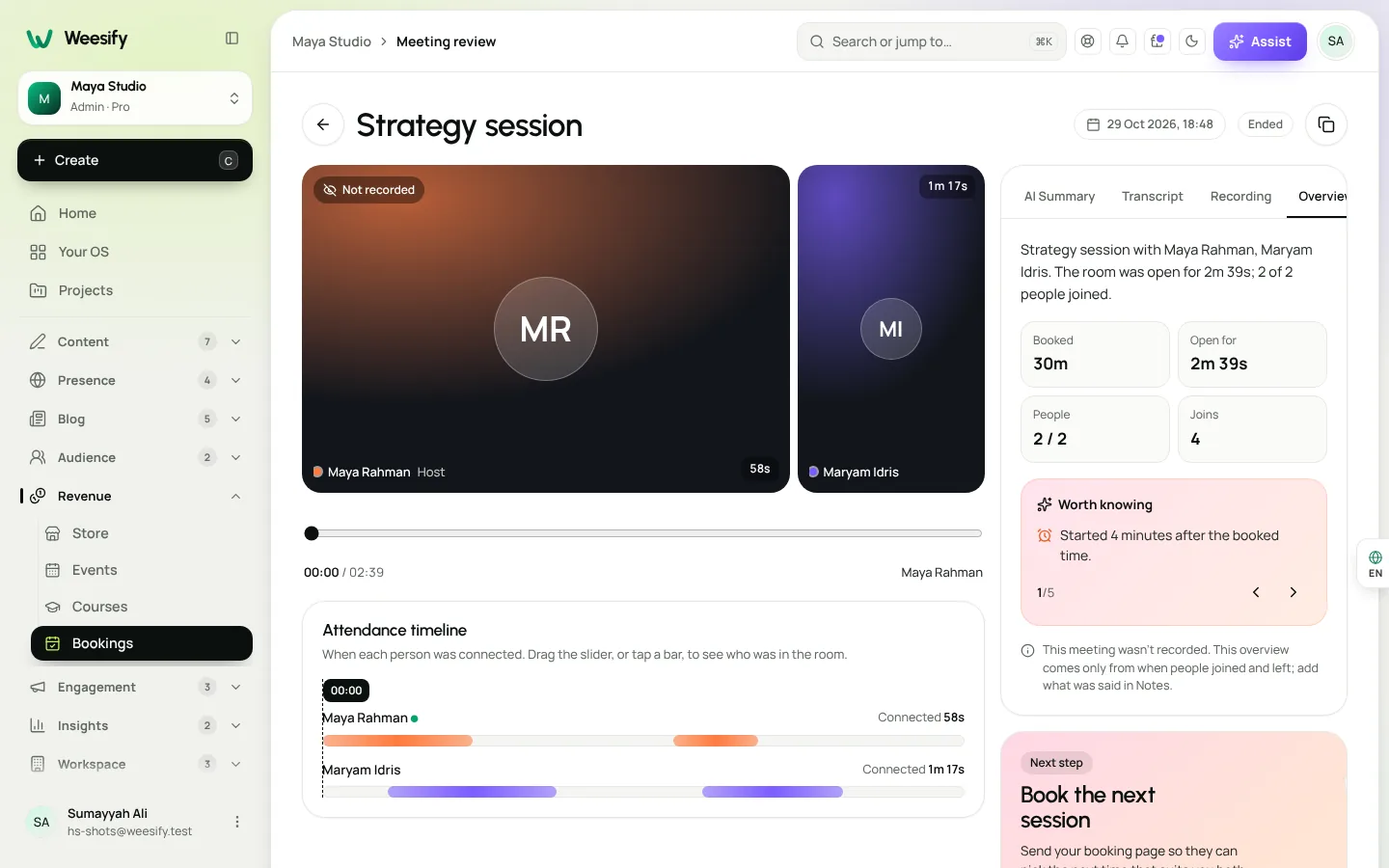
You'll see:
- Overview: how long the room was open and how many people joined.
- Attendance timeline: when each person was connected. Drag the slider, or tap a bar, to see who was in the room at that moment.
- Activity: who joined, who left, who was let in or turned away.
- Notes: your own notes, for decisions and next steps. Only your team sees these.
- Recording, Transcript and AI summary, if the meeting was recorded.
There's also a Next step prompt: Copy booking link and send your booking page so the client can pick the next time that suits you both.
Set it up in five minutes
- Open Bookings and create (or open) an online booking page.
- Open its Scheduling rules.
- Under Meeting room, choose Weesify meeting room.
- Decide on the Waiting room: on means you let each guest in; off means they join directly.
- Set Guests can join early (minutes).
- In Meetings, decide whether to Allow recording and how long to Keep recordings for.
- Book a test session with yourself and join from a second device.
A good habit: join once from a phone on mobile data and once from a laptop on office Wi-Fi before your first client call. You'll know exactly what your guest sees.
Who it's for
- Consultants and coaches who want paid calls without a separate video subscription.
- Teachers and tutors running one-to-one or small-group sessions, including Islamic educators teaching Qur'an or Arabic online.
- Small teams sharing one booking page with round robin hosts.
- Anyone who'd rather their client conversations didn't pass through another platform.
FAQ
Are Weesify Meetings really self-hosted?
Yes. Audio and video are carried by the Weesify Media Engine on Weesify's own servers. No Zoom, Google Meet or outside video service is used, and if video is unavailable, nothing else is swapped in.
Do guests need to install an app or create an account?
No. Guests join from the private link in their booking email, in their browser. They check their camera and microphone, then join.
How many people can join one meeting?
It depends on your plan. Your Meetings home shows the limit, along with your monthly meeting minutes.
Can I record a meeting?
Yes, if recording is allowed for your workspace and your plan includes recordings storage. Everyone in the room is told and sees a recording badge. Recordings are used to make a transcript and an AI summary.
Is meeting chat saved?
No. Chat is only for that meeting and isn't saved. Put anything you want to keep in the meeting's Notes.
Meet where you book
When booking and meeting live in one place, there's nothing to copy, paste or chase. Your client books, gets a link, and joins. You get an agenda, a room and a record of what happened.
Start your 14-day trial and run your first Weesify meeting this week.
Keep reading
 Features
Dynamic QR Codes Explained: Print Once, Update Forever
A dynamic QR code points at a link you control, so you can change where it goes and count every scan without reprinting. Here is how they work in Weesify.
Features
Dynamic QR Codes Explained: Print Once, Update Forever
A dynamic QR code points at a link you control, so you can change where it goes and count every scan without reprinting. Here is how they work in Weesify.
 Features
How to Make Quiet Audio Louder in a Video (Without Distortion)
A quiet recording can sink a good video. Weesify Video Studio measures your footage, warns you when it is too quiet, and makes it louder to the level social platforms expect, with a limiter so it never distorts.
Features
How to Make Quiet Audio Louder in a Video (Without Distortion)
A quiet recording can sink a good video. Weesify Video Studio measures your footage, warns you when it is too quiet, and makes it louder to the level social platforms expect, with a limiter so it never distorts.
 Features
Host an HTML Website on Weesify: Upload, Publish, Roll Back
Already have a hand-coded website? Weesify HTML Websites hosts it exactly as written, with HTTPS, one-click publishing, instant rollback, forms and analytics.
Features
Host an HTML Website on Weesify: Upload, Publish, Roll Back
Already have a hand-coded website? Weesify HTML Websites hosts it exactly as written, with HTTPS, one-click publishing, instant rollback, forms and analytics.
Comments
No comments yet. Start the conversation.