


How to Make Quiet Audio Louder in a Video (Without Distortion)

A quiet recording can sink a good video. Weesify Video Studio measures your footage, warns you when it is too quiet, and makes it louder to the level social platforms expect, with a limiter so it never distorts.
You can forgive a video a lot: a plain background, a slightly shaky frame, simple captions. What is hard to forgive is sound you cannot hear. If your recording is quiet, viewers turn up their volume, then get blasted by the next video in the feed, and many simply scroll on.
Quiet recordings are common. A phone placed too far away, a lapel mic set low, a recorded talk captured from the back of a hall. The good news is that you can usually make quiet audio louder after the fact, if you do it the right way. Turning up the volume alone often makes things worse: the loud parts clip and crackle, and the background hiss rises with the voice.
This article explains how Weesify Video Studio handles loudness, and how to get clear, even sound in a few clicks.
In this guide
- Why "just turn it up" does not work
- How Video Studio spots quiet footage
- Make it louder with a loudness target
- Even out a voice and clean up noise
- Mix levels, clip levels and background audio
- Ask in plain words with Studio AI
- FAQ
Why "just turn it up" does not work
Two terms are worth knowing:
- Loudness is how loud audio feels over time. It is measured in LUFS (loudness units relative to full scale). Platforms such as TikTok, Instagram Reels and YouTube play videos at a broadly similar loudness, which is commonly given as around -14 LUFS.
- Peaks are the loudest instants, such as a laugh or a "p" sound. If peaks go above the maximum, the sound clips and distorts.
Simply adding gain raises both. A recording that is too quiet overall may still have a few loud peaks, and those peaks clip long before the rest is loud enough. The fix is to normalise to a loudness target and use a limiter that catches the peaks. That is what Video Studio does.
How Video Studio spots quiet footage
When your footage is prepared, Video Studio measures its loudness. If a clip is very quiet, the Audio tool (on a phone, Sound) shows a warning: This clip is very quiet, or a count of how many clips are very quiet.
Next to the warning is Boost it. Boost lifts the clip up to +30 dB, then a limiter keeps it clean. For most quiet recordings, that one tap is all you need.
Make it louder with a loudness target
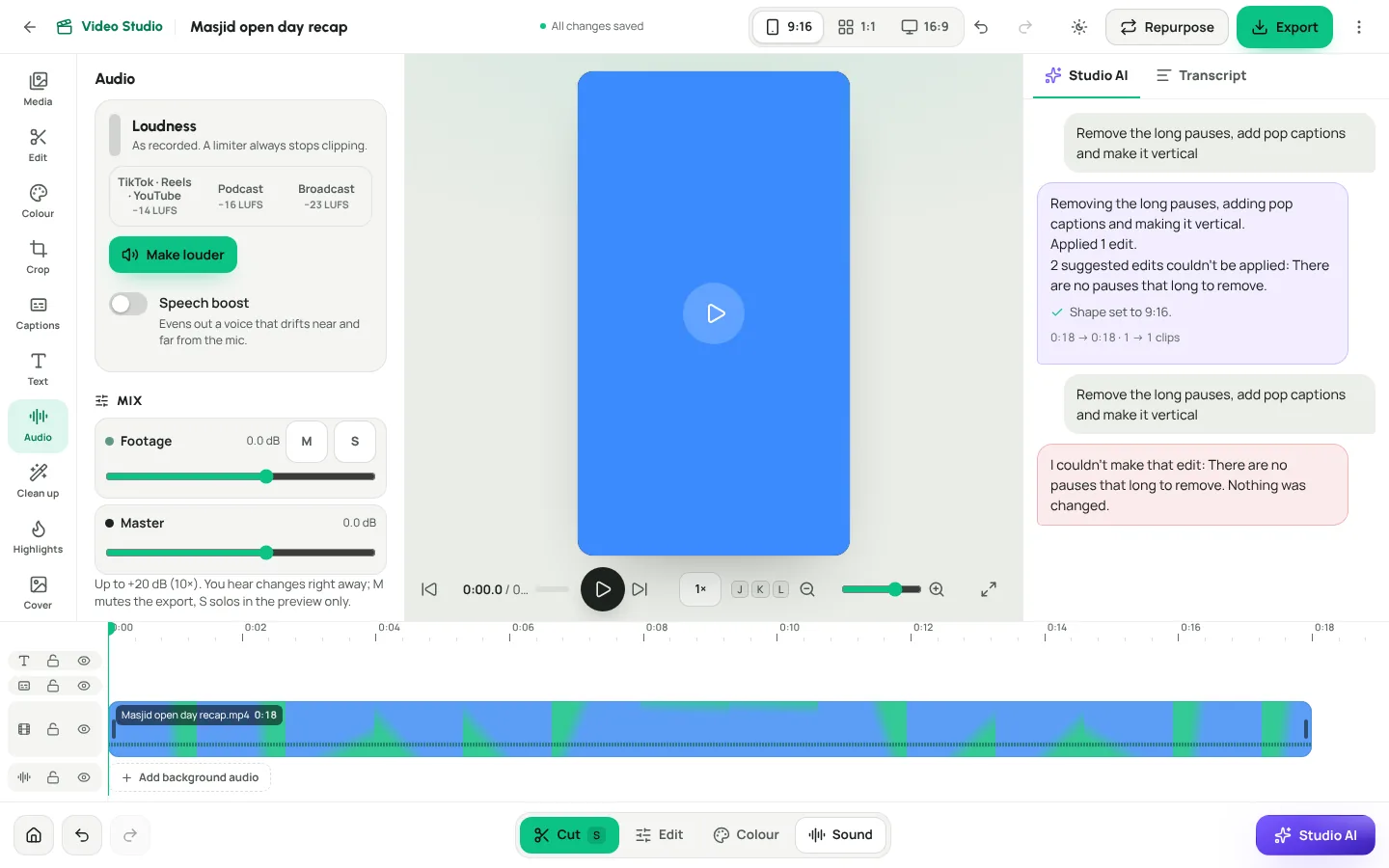
Under Loudness, choose a Loudness target:
| Target | Best for | Normalises to |
|---|---|---|
| TikTok · Reels · YouTube | Short and long social video | -14 LUFS |
| Podcast | Audio-first content and long talks | -16 LUFS |
| Broadcast | Content that must meet broadcast norms | -23 LUFS |
Then choose Make louder. Video Studio normalises the whole video to that target with a limiter, so it never distorts. The panel shows what it did: normalised to the target, with the true peak.
Prefer the original level? Choose As recorded. Even then, a limiter always stops clipping.
Speech boost for voices that drift
Some recordings are not quiet everywhere. They are uneven: loud when the speaker leans in, faint when they turn away from the mic. Switch on Speech boost. It evens out a voice that drifts near and far from the mic, so every sentence sits at a similar level.
Clean up the voice
Louder audio also means louder background noise. Under Voice clean-up, you have tools that a sound engineer would reach for, in plain words:
- Reduce background noise softens hum, fans and room hiss behind the voice. Choose a Noise reduction strength of Light or Strong.
- Cut rumble (a high-pass filter) removes low traffic or air-conditioning rumble.
- Soften "s" (a de-esser) tames harsh "s" sounds that get sharper when you boost.
- Even out (a compressor) narrows the gap between loud and soft words.
- Cut hiss (a low-pass filter) trims high, thin hiss.
- EQ choices: Voice clarity, Warm, Bass boost or Treble.
A good order for a quiet, noisy recording: Reduce background noise (Light), Cut rumble, Speech boost, then Make louder at the TikTok · Reels · YouTube target. Listen after each step.
Mix levels, clip levels and background audio
The Mix
The Mix shows each track with a Level, Mute (M) and Solo in the preview (S). Levels go up to +20 dB. You hear changes right away. Muting a track removes it from the export; solo affects the preview only, and the export keeps every track.
An Output level meter shows how loud the result is as it plays, and flags clipping.
One clip at a time
Tap a clip on the timeline to change its own level. Under Selected clip you can set the Clip level, Fade in, Fade out, a Crossfade with the next clip, and Pitch. Use Boost this clip when only one clip in a multi-clip project is quiet, for example a question from the audience recorded on a different mic.
Background audio that steps aside
Under Background audio, choose Add audio from library to place a voice-over, ambience or a sound you have the rights to under your video. Set its Level, choose Use this part with a Start and End, add Fade in and Fade out, or switch on Loop to the video's length.
Then switch on Lower it while someone speaks. It follows the transcript, so speech always stays clear. Keep background audio quiet. The voice should always lead.
Ask in plain words with Studio AI
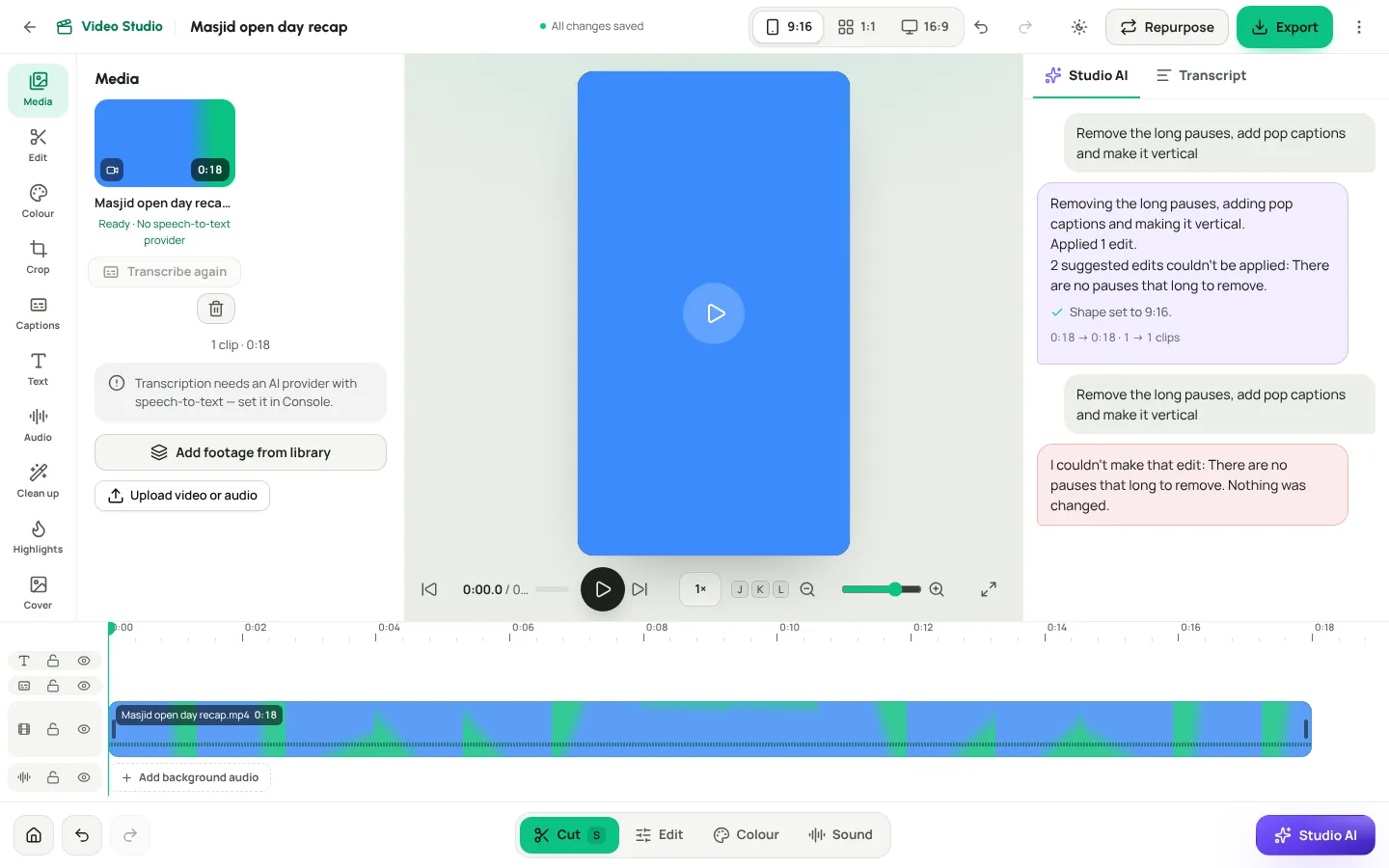
If you would rather describe the result, open Studio AI and type it:
- "Make it louder"
- "Reduce the background noise"
- "Normalise for podcast"
- "Make the voice clearer"
- "Lower the background audio when I speak"
- "Fade the sound out at the end"
Studio AI replies with what it did, for example "This video is very quiet: boosting it to -14 LUFS, limited so it never distorts." Each request is a single step you can undo with Undo this.
Export with the sound you heard
Exports use exactly the levels and clean-up you set. If you only need the sound, for a podcast feed or a voice note, Extract audio gives you the finished audio with every level and clean-up applied: M4A is small, MP3 plays everywhere, and WAV is lossless.
Recording tips for next time
Fixing audio after the fact works well, but a few habits help even more:
- Keep the mic or phone close to the speaker
- Record somewhere soft: curtains and cushions absorb echo
- Switch off fans and air conditioning while recording, if you can
- Do a ten-second test and listen back on headphones
- Record each speaker on their own mic when possible
Frequently asked questions
How loud should a video be for social media?
Social platforms play video at a broadly similar loudness, commonly given as around -14 LUFS. Choose the TikTok · Reels · YouTube target and Make louder, and Video Studio normalises to that level.
Will making audio louder cause distortion?
Not in Video Studio. Every loudness change goes through a limiter, so peaks never clip. Even As recorded keeps the limiter on.
Can I make just one part of the video louder?
Yes. Tap the clip on the timeline and set its Clip level, or use Boost this clip.
Does louder audio make background noise louder too?
It can. Use Reduce background noise and Cut rumble first, then make it louder.
Can I use any audio track as background audio?
Only use audio you made or have the rights to use. Upload it to your library and choose Add audio from library.
Clear sound, every time
A quiet recording does not have to be a lost one. Measure it, clean it, and bring it to the level people expect.
Read more about the full editor in our Video Studio spotlight, tighten your pacing with automatic pause and filler-word removal, or see the tour at /features/studio.
Start your 14-day trial and fix your first quiet video today.
Keep reading
 Features
Dynamic QR Codes Explained: Print Once, Update Forever
A dynamic QR code points at a link you control, so you can change where it goes and count every scan without reprinting. Here is how they work in Weesify.
Features
Dynamic QR Codes Explained: Print Once, Update Forever
A dynamic QR code points at a link you control, so you can change where it goes and count every scan without reprinting. Here is how they work in Weesify.
 Features
Self-Hosted Video Meetings: Meet Clients Inside Weesify
Weesify Meetings gives every online booking its own private video room, hosted on Weesify's own servers. No outside meeting links, no app for your guests.
Features
Self-Hosted Video Meetings: Meet Clients Inside Weesify
Weesify Meetings gives every online booking its own private video room, hosted on Weesify's own servers. No outside meeting links, no app for your guests.
 Features
Host an HTML Website on Weesify: Upload, Publish, Roll Back
Already have a hand-coded website? Weesify HTML Websites hosts it exactly as written, with HTTPS, one-click publishing, instant rollback, forms and analytics.
Features
Host an HTML Website on Weesify: Upload, Publish, Roll Back
Already have a hand-coded website? Weesify HTML Websites hosts it exactly as written, with HTTPS, one-click publishing, instant rollback, forms and analytics.
Comments
No comments yet. Start the conversation.