


Sell Digital Products Online: Set Up Your Weesify Store

Turn your ebook, template pack or coaching session into a product people can buy from your page, with instant delivery and checkout that never sends buyers elsewhere.
You already make things people want: a workbook, a set of design templates, a recorded workshop, a one-hour review of someone's portfolio. The hard part has never been the making. It's the plumbing around it. Where do people pay? How do they get the file? What happens when someone loses their download email at midnight?
If you want to sell digital products online without stitching five tools together, the Weesify Store handles that plumbing for you. Buyers pay on your own page, files are delivered straight after payment, and every buyer lands in your audience as a contact. This guide walks you from an empty store to your first sale.
In this guide
- What you can sell in a Weesify Store
- Create your first digital product
- Deliver files and access links automatically
- Get paid: wallet, payment methods and fees
- Manage orders, receipts and refunds
- Put your product in front of people
- FAQ
What you can sell in a Weesify Store
When you choose New product in Store, you pick a type. Each one has a checkout built for it:
| Product type | What it's for | Good example |
|---|---|---|
| Digital product | Files or an access link, delivered instantly | A PDF planner, a preset pack, a ZIP of templates |
| Service | A session, audit or custom work | A brand audit, a CV review |
| Donation | Supporters choose the amount | An appeal, a tip jar, a gift |
| Gift card | A code worth its price, emailed to them | A gift for a friend's first course |
| Paid question | People pay to ask; you answer by email | "Ask me anything about freelancing" |
Courses, bookings, events and communities are sold from their own sections of Weesify, but they use the same checkout and wallet. One thing to know up front: Weesify doesn't currently offer physical products with shipping. The Store is built for digital goods and services.
Create your first digital product
Say you're Aisha, a calligraphy teacher, and you want to sell a 40-page practice workbook. Here's the whole set-up.
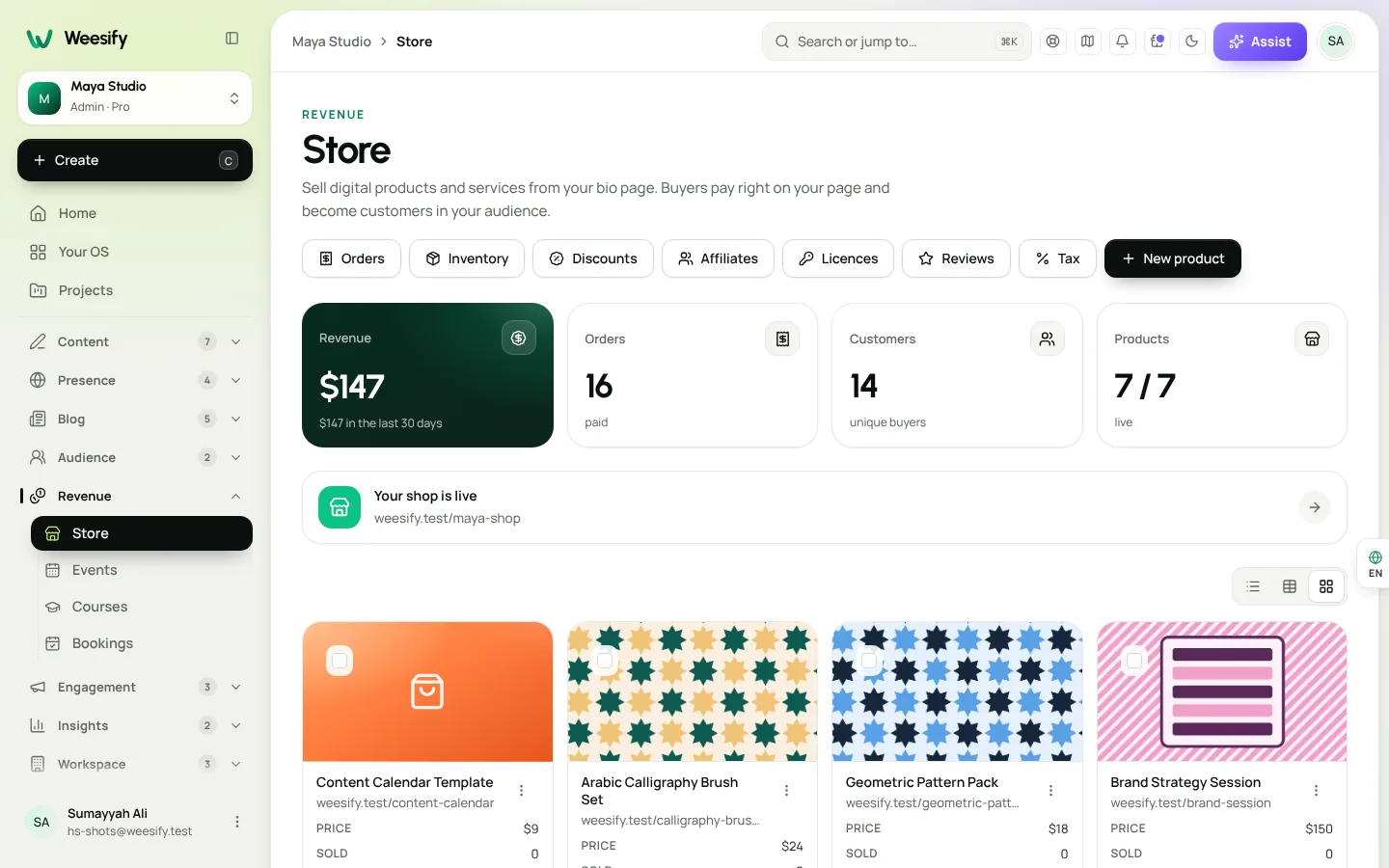
- Open Store (under Revenue in the sidebar) and choose New product.
- Enter a Name, such as "Thuluth Practice Workbook", and choose Digital product.
- Choose a Currency and enter a Price. Leave the price empty if you want to give it away as a lead magnet. Then choose Create product.
- In the product editor, fill in Basics: a One-line pitch, a Description, a few Highlights (these show as a checklist on the product and in checkout) and a Cover image.
- Under Pricing, add a Was (optional) price if you want to show a reduction, or switch on Pay what you want with an optional Minimum.
- Select Save, then Publish when you're ready to sell.
Sell versions of the same product
If your workbook comes as a printable PDF and a tablet-friendly version, open Options and select Add option. Name it "Format", list the Choices, and select Save options. Each combination can have its own price, Was price, SKU and Stock. An empty price falls back to the Default price, and empty stock means unlimited.
Two small rules worth knowing: options aren't available while Pay what you want is on, and options depend on your plan.
Limit how many you sell
Running a founding-member offer of 100 copies? Enter a number under Stock and set Warn me when stock falls to for an early alert. Store › Inventory shows what's left and keeps a history of every change. Paid sales take stock away and refunds put it back.
Deliver files and access links automatically
This is where selling digital products online usually breaks: the delivery. In Weesify, it's part of the product.
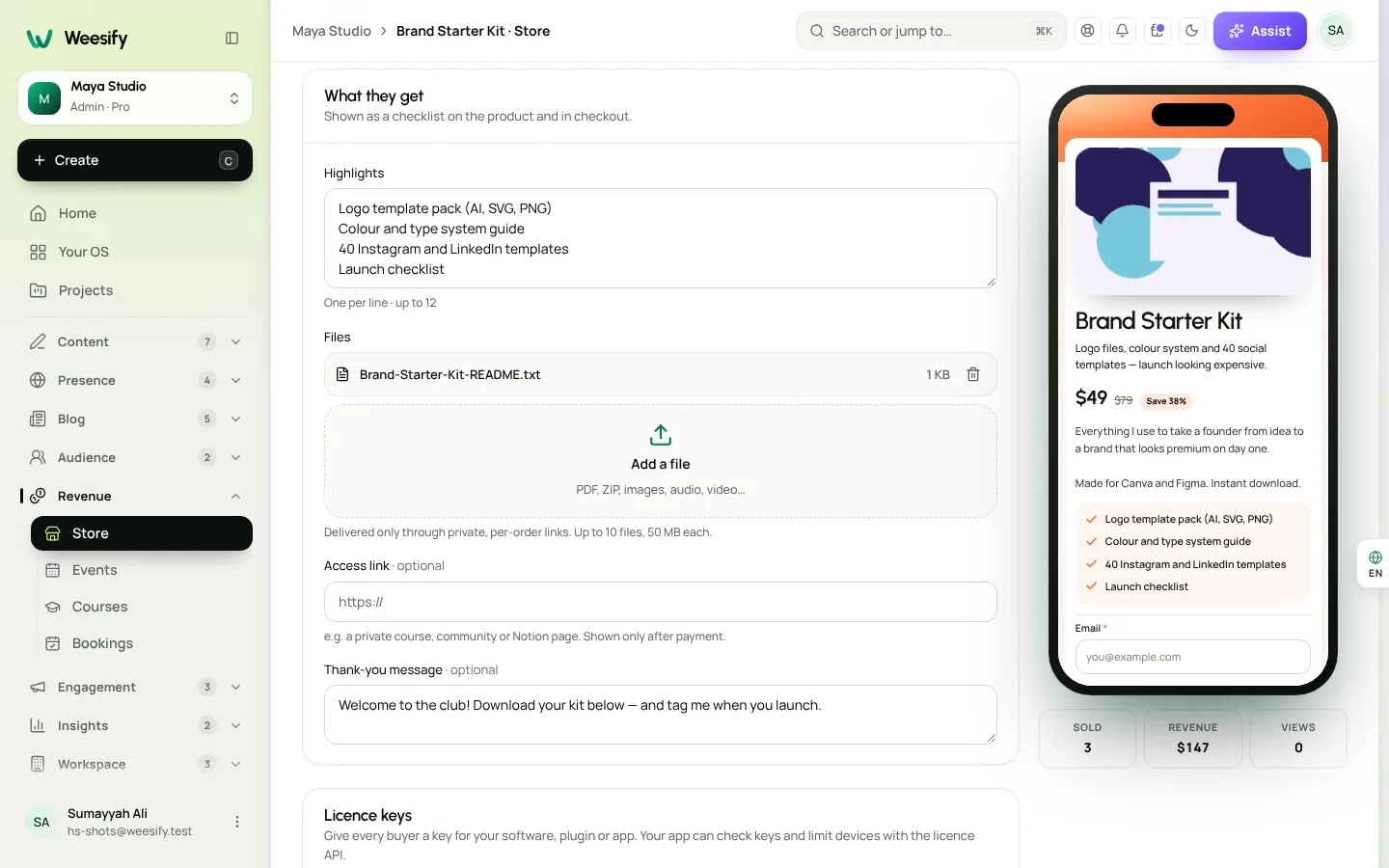
- Open your product and find What they get.
- Under Files, select Add a file. PDFs, ZIPs, images, audio, video and more are accepted. You can add up to 10 files per product, up to 50 MB each.
- To deliver a link instead (or as well), paste it into Access link. It's only shown after payment. This suits a private video, a shared folder or a community.
- Write a short Thank-you message.
- Select Save.
After payment, buyers download each file from their order through private, per-order links. Downloads only work while the order is paid, and each order has a download allowance, so a single link can't be passed around endlessly.
Tips that save support emails
- To update a file, use Replace rather than removing it. Past buyers then download the new version.
- Selling software or plugins? Switch on Licence keys so every buyer gets their own key. Weesify can make keys for you or hand out keys you upload.
- If a buyer loses their email, they can visit Find my orders, enter the email they paid with, and get a link to every order made with it.
Get paid: wallet, payment methods and fees
Before people can pay, set up how you get paid. Open Wallet (also under Revenue). Depending on how Weesify is set up where you are, you'll see one of three models:
- Straight to your bank: buyers pay inside Weesify and your share settles to your bank after each sale.
- Your Weesify wallet: earnings build up in your wallet and you withdraw when you like.
- Your own payment account: buyers pay into your own Stripe, Paystack, Flutterwave or PayPal account.
You can add your bank details and start selling straight away, then finish verifying your identity later. Free products work before any of this is set up.
How buyers pay
Checkout happens on your page, not on a third-party site. Buyers see the methods that work where they are: cards (including Apple Pay and Google Pay on devices that support them), PayPal, and local methods such as bank transfer or mobile money where Paystack or Flutterwave offer them. Returning buyers with a Weesify Pass can pay in one tap.
What it costs
Weesify's commission on sales depends on your plan, as set out in the help article Fees and the fee cap:
| Plan | Weesify commission |
|---|---|
| Pro | 2% |
| Business | 0% |
| Enterprise and Custom | 0% |
The payment provider also charges its usual processing fee. There's also a fee cap: you never pay more in Weesify fees in a month than the next plan up would cost. See Pricing for plan details.
Tax
If you need to charge VAT or GST, select Tax at the top of the Store, tick Charge tax on what I sell, enter a Name and Rate, and choose My prices include it or Add it at checkout. Your business details for receipts come from Settings › Billing.
Manage orders, receipts and refunds
Every purchase appears in Store › Orders the moment it's paid, whether it came from your bio page, a product link, your storefront or a QR code.
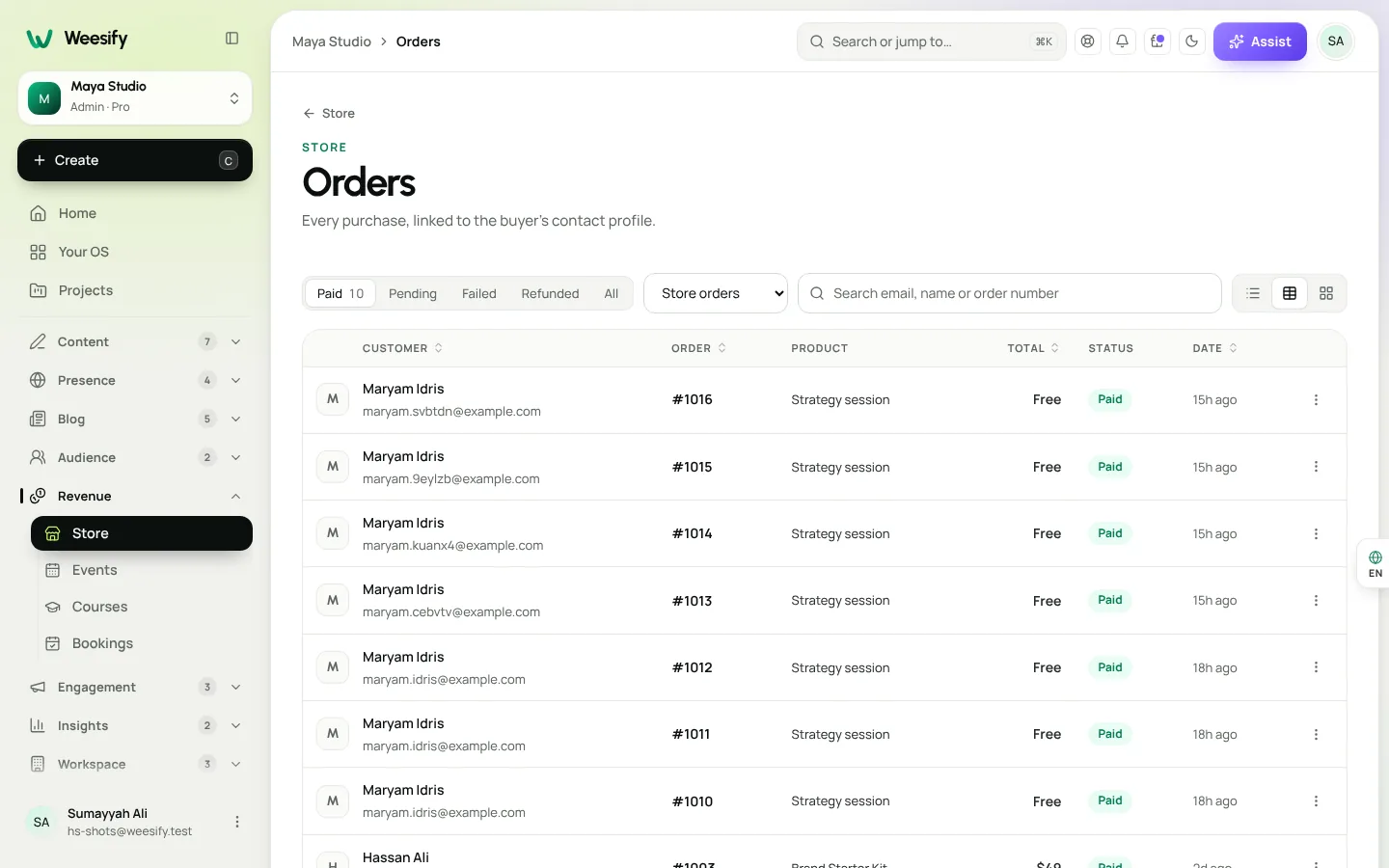
- Use Search orders to find an order by email, name or order number, and filter by Paid, Pending, Failed or Refunded.
- Open order to Resend receipt, download a PDF receipt, Reply by email or open the Customer profile.
- Refund returns the money on the method the buyer used, and switches their downloads off. Buyers can also request a refund from their order page, and you approve or decline it.
Because each buyer becomes a contact, you can follow up later. Only buyers who opted in at checkout should get marketing emails. Pair the store with an email newsletter people actually read and a welcome automation for new customers.
Put your product in front of people
A product page on its own is a quiet shop on a back street. Put it where your audience already is:
- Your bio page. Add the product as a block on a link-in-bio page that sells. It shows as a card that opens checkout.
- Your storefront. Open Store › Storefront and choose Set up my shop to show every product on one page with search and a cart. We compare the designs in how to pick the right store template.
- A launch offer. Create a code like LAUNCH20 or a weekend sale. See discount codes and offers that actually convert.
- Print. A QR code on a flyer or workshop handout can point straight to the product. Our guide to QR codes for events and print covers placement.
When you're ready to raise the average order, Store › Earn more has optional tools that are all off until you switch them on: an Order bump, a One-click upsell, Abandoned checkout recovery, Instalment plans and Tips.
A quick launch checklist
- Product created, with a clear pitch, highlights and cover image
- Files or access link added under What they get
- Thank-you message written
- Wallet set up so buyers can pay
- Tax settings checked, if you need them
- Product published and added to your bio page or storefront
- A test purchase made at a low price, then refunded
FAQ
Can I sell digital products online without a website?
Yes. Each product has its own page and checkout, and you can add it to your Weesify bio page or storefront. You don't need a separate website or a separate payment page.
Where do buyers pay?
On your page. Weesify processes the checkout itself, so buyers aren't redirected to another site to finish paying. The methods shown depend on where the buyer is and how payments are set up for your workspace.
What file types and sizes can I deliver?
PDF, ZIP, images, audio, video and more. Each digital product can have up to 10 files, up to 50 MB each. For bigger content, combine files into a ZIP or deliver an access link.
Can I sell in more than one currency?
Each product has one price in one currency. To serve buyers in different currencies, create a version of the product in each currency and add a Currency switcher block to your page so visitors only see the prices they want.
What happens to downloads if I refund an order?
The refund switches the order's downloads off, and any licence key on it is switched off too.
Start selling this week
You don't need a big launch to start. One product, one honest description and one link in your bio is enough for your first sale. Everything else (storefront, discounts, upsells) can come later.
Start your 14-day trial and publish your first product today.
تابع القراءة
 Guides
Lead Capture Forms That Turn Visitors Into Contacts
A form is only useful if the answers go somewhere. Here is how to build lead capture forms in Weesify that create tagged, consent-aware contacts the moment someone presses send.
Guides
Lead Capture Forms That Turn Visitors Into Contacts
A form is only useful if the answers go somewhere. Here is how to build lead capture forms in Weesify that create tagged, consent-aware contacts the moment someone presses send.
 Guides
Your Weesify 14-Day Trial: How to Get the Most Out of It
A day-by-day plan for your Weesify 14-day trial, plus exactly how the trial works: the card, the end date, and what happens if you stop.
Guides
Your Weesify 14-Day Trial: How to Get the Most Out of It
A day-by-day plan for your Weesify 14-day trial, plus exactly how the trial works: the card, the end date, and what happens if you stop.
 Guides
Custom Domain Setup Guide: Put Your Brand on Every Link
A step-by-step custom domain setup guide for Weesify: choose a subdomain, add the TXT and CNAME records, verify, and fix the most common DNS mistakes.
Guides
Custom Domain Setup Guide: Put Your Brand on Every Link
A step-by-step custom domain setup guide for Weesify: choose a subdomain, add the TXT and CNAME records, verify, and fix the most common DNS mistakes.
التعليقات
لا توجد تعليقات بعد. ابدأ المحادثة.