


Store Templates: How to Pick the Right One for You

Weesify has ten store templates, from Minimal to Link-in-bio shop. Here's what each one does well, who it suits, and how to switch without losing a single order.
Your storefront's design does a quiet job. It tells buyers what kind of shop this is before they read a word. A dense grid says "lots to browse." A single product on stage says "this is the one." Soft tints and rounded cards say "handmade, friendly, personal."
Weesify's storefront comes with ten store templates. Every one shows the same catalogue and uses the same cart and checkout, so you can switch at any time without losing products, prices, carts or orders. This spotlight walks through each template, who it suits, and how to choose.
In this guide
- What a store template changes (and what it doesn't)
- The ten templates at a glance
- Match a template to what you sell
- Honest by design: what templates never invent
- How to switch templates
- Make any template work harder
- FAQ
What a store template changes (and what it doesn't)
A template sets the presentation: the hero at the top, whether products show as a grid or a list, how the first product is featured, and the overall look. It also dresses your product pages for digital products and services, so a buyer moving from shop to product feels they're in the same place.
What it doesn't touch:
- Your products, prices and options
- Carts and orders
- Checkout and payment methods
- Your brand colours and logo, which are applied on top of every template
Some products keep their own standard page whatever the template, because their checkout carries its own flow: bookings and events (which need a time), donations, paid questions and gift cards.
The ten templates at a glance
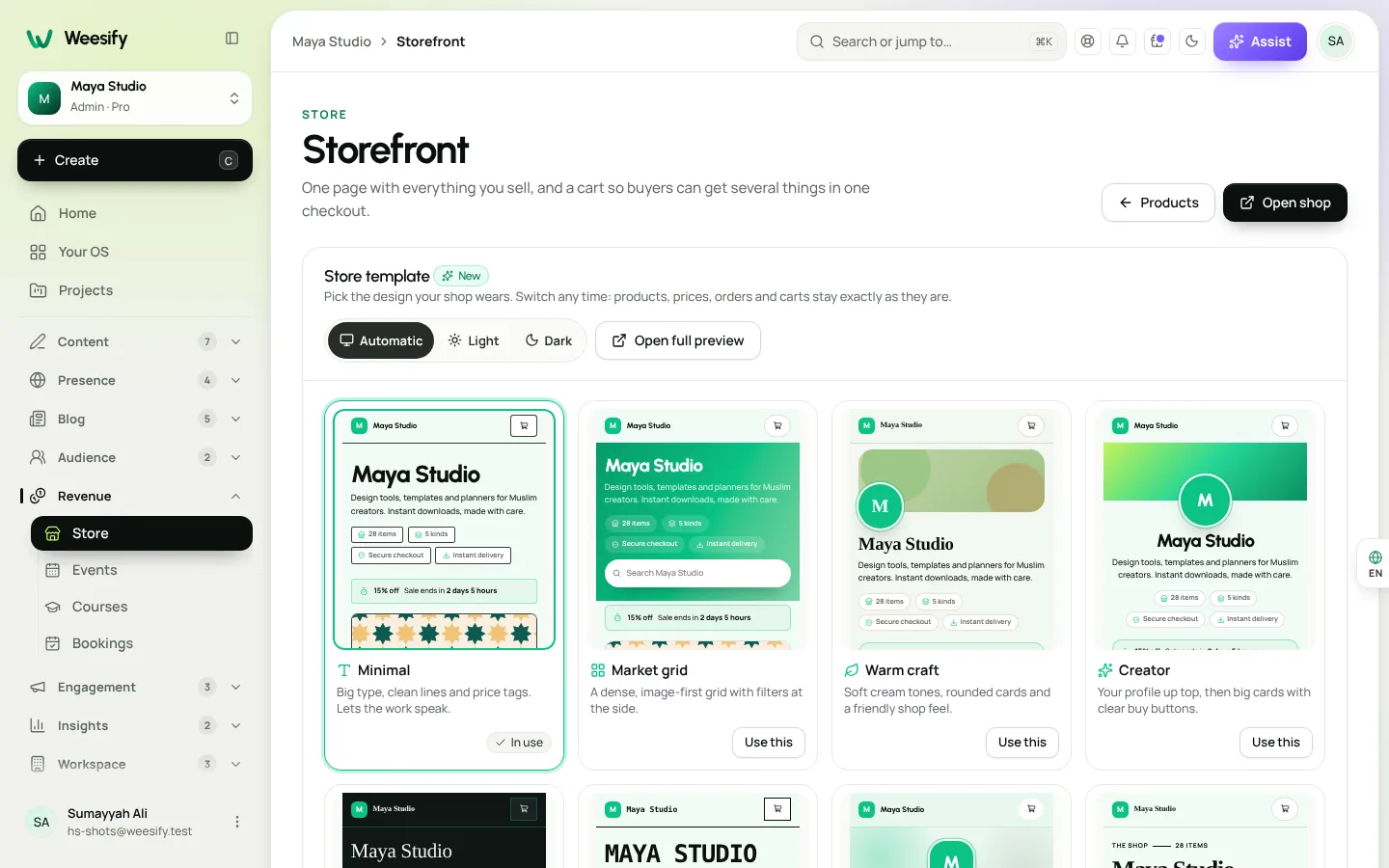
| Template | In one line | Layout | Feels like |
|---|---|---|---|
| Minimal | Big type, clean lines and price tags. Lets the work speak. | Grid, first product shown wide | A design studio |
| Market grid | A dense, image-first grid with filters at the side. | Grid with banner | A busy marketplace |
| Warm craft | Soft cream tones, rounded cards and a friendly shop feel. | Grid with cover | A local craft shop |
| Creator | Your profile up top, then big cards with clear buy buttons. | Grid with profile | Your personal shop |
| Dark luxe | Deep tones, fine lines and elegant type. | Grid with split hero | A boutique |
| Bold brutalist | Thick borders, hard shadows and loud type. | Grid, first product wide | An indie zine |
| Soft pastel | Gentle tints, round shapes and calm spacing. | Grid with cover | A calm stationery shop |
| Magazine | A cover story, then your catalogue as an editorial list. | List, first product as hero | A print magazine |
| Product launch | One product takes the stage; the rest follow below. | Grid, first product as hero | A launch page |
| Link-in-bio shop | A compact, phone-sized shop like a bio page. | Compact list | Your bio page |
Minimal is the default. Every template has a Light or dark setting (Auto, Light or Dark). Dark luxe is designed dark, so on Auto it stays dark.
Match a template to what you sell
You sell many products
Market grid is built for browsing: a dense, image-first grid with filters at the side. If you have dozens of templates, presets or printables, buyers need to filter and scan. Say Khadijah sells forty planner and journal templates; Market grid lets buyers filter and search instead of scrolling endlessly.
You are the brand
Creator puts your profile first, then big cards with clear buy buttons. It suits coaches, teachers and personalities whose audience buys because of who they are. It pairs naturally with your link-in-bio page.
You have one hero product
Product launch puts one product on stage, with the rest below. Use it for a book launch, a new course or a flagship toolkit. Combine it with a time-limited sale (see discount codes and offers), and the page shows the sale because it's real.
Your audience is mostly on phones
Link-in-bio shop is a compact, phone-sized shop. If most of your traffic comes from social apps, this keeps everything one thumb away. On every template, product pages on a phone also get a sticky buy bar so the button stays in reach.
Your work is premium or handmade
- Dark luxe for high-end digital goods, fine-art prints as files, or premium consultations.
- Warm craft and Soft pastel for friendly, personal shops: craft patterns, children's learning sheets, stationery.
You write as much as you sell
Magazine opens with a cover story, then lists your catalogue editorially. Writers, educators and researchers selling guides and papers will feel at home. It pairs well with starting a blog on Weesify.
You want to stand out
Bold brutalist is loud on purpose: thick borders, hard shadows, big type. Great for designers and indie makers with a strong voice.
Honest by design: what templates never invent
Many shop themes show "Only 3 left!", star ratings and countdown timers whether or not they're true. Weesify templates don't. They're built only from what really exists:
- Reviews appear only when a product has approved reviews.
- Sale badges and "Save" labels appear only for a running sale or a real Was price.
- Countdowns appear only when a running sale genuinely ends soon.
- "What's included" shows the real file types and sizes of a digital product (never the private file names).
- Payment methods shown are the ones you can actually take, and the refund note reflects the real refund window.
That honesty protects your reputation, and it means you never have to remember to switch off a fake timer.
How to switch templates
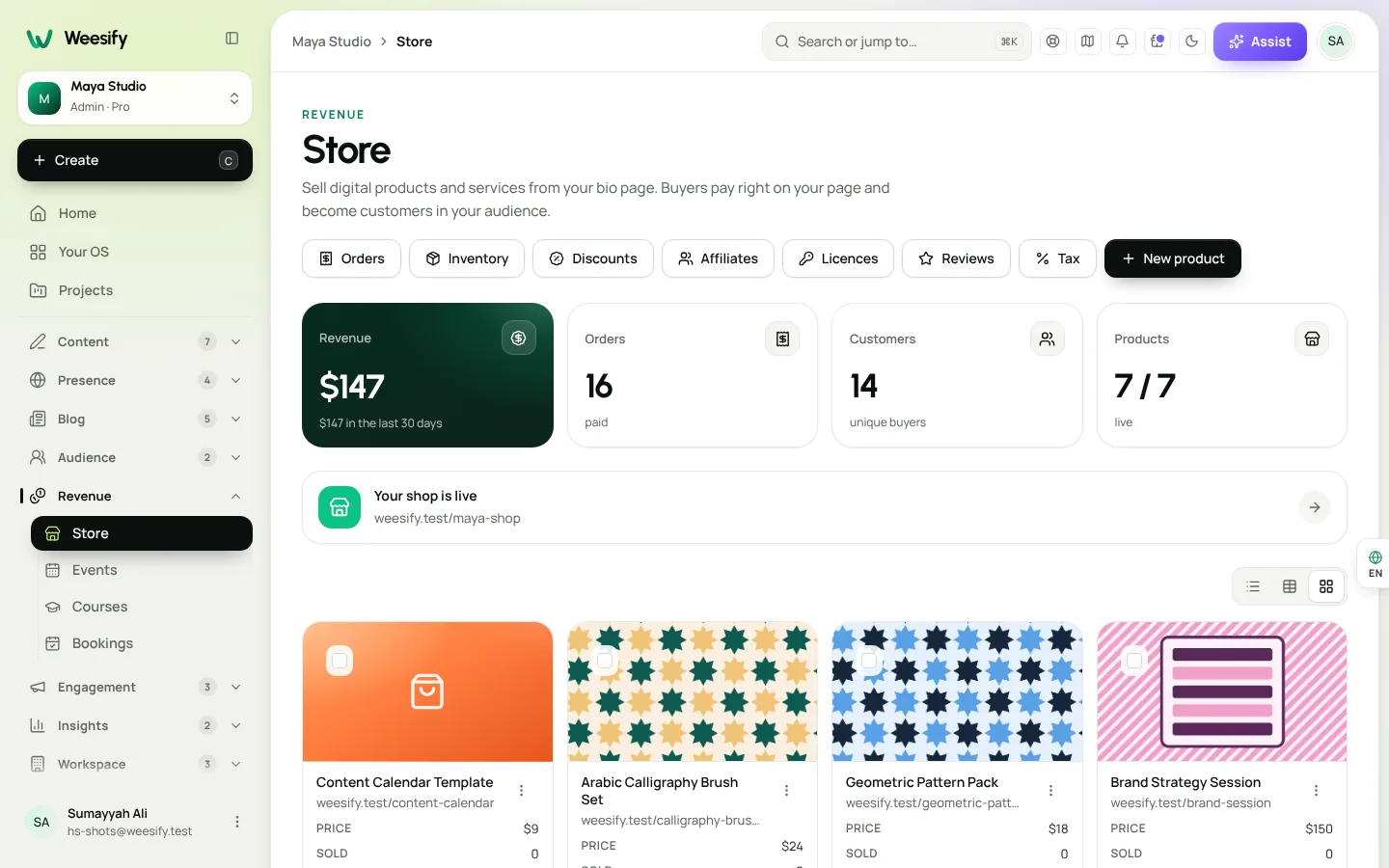
- Open Store, then Storefront. (First time? Choose Set up my shop, add a Shop name and Introduction.)
- Find Store template.
- Browse the designs and use Preview to see each one with your real products, colours and logo. Switch between Desktop and Phone. Buttons are switched off in the preview.
- Choose Light or dark.
- Choose Use this on the one you like. It shows In use, and your shop updates straight away.
Switching back and forth is safe. Carts and orders are never affected.
Make any template work harder
A template can't fix a weak catalogue. Before you switch designs, check:
- Product names say what the thing is. "Arabic Alphabet Tracing Pack (PDF, 28 pages)" beats "Pack 1".
- Cover images are consistent in shape and style. Templates look best when every card matches.
- Order matters. Under Products, arrange the order and choose what's shown. The first product is often featured, so put your best seller there.
- Your domain. In Domains, you can set your domain's home page to show your storefront. See the custom domain setup guide.
- Shoppers' tools work on every template: filter, sort, search, Quick view and a cart to buy several things at once.
New to the Store? Start with selling digital products online.
FAQ
Will changing my store template affect orders or carts?
No. Every template shows the same catalogue and uses the same cart and checkout. Products, prices, carts and orders stay exactly as they are.
Can I use my own colours and logo with a store template?
Yes. Your brand colours and logo are applied on top of whichever template you choose.
Which store template is best for selling on mobile?
Link-in-bio shop is the most compact. That said, every template works on phones, and product pages get a sticky buy bar on small screens.
Why don't I see a countdown or reviews on my shop?
Templates only show them when they're true: a running sale that ends soon, or approved reviews. Add a time-limited sale or collect reviews and they'll appear.
Can I preview a template before using it?
Yes. Preview shows each template with your real products, colours and logo, on desktop and phone, before you choose Use this.
Pick one, then improve the products
The right template makes your shop feel like you. Pick the one that matches what you sell, then put your energy into great products and clear descriptions. You can always switch later.
Start your 14-day trial and open your storefront today.
Teruskan membaca
 Spotlights
Edit an HTML Website with AI, Safely: How Weesify Does It
AI can change a website in seconds, and break it just as fast. Here is how Weesify's website editor keeps AI edits small, visible, reversible and under your control.
Spotlights
Edit an HTML Website with AI, Safely: How Weesify Does It
AI can change a website in seconds, and break it just as fast. Here is how Weesify's website editor keeps AI edits small, visible, reversible and under your control.
 Spotlights
Assist: Build a Page from Your Links, Then Ask About Any Screen
Paste the links you already have and Assist builds a Weesify page from what they really show. Then open Assist on any screen and ask about exactly what you are looking at.
Spotlights
Assist: Build a Page from Your Links, Then Ask About Any Screen
Paste the links you already have and Assist builds a Weesify page from what they really show. Then open Assist on any screen and ask about exactly what you are looking at.
 Spotlights
Video Studio: Edit the Footage You Already Have
Talks, talking-head clips, screen recordings: you already have the footage. Weesify Video Studio turns it into a clean, captioned video by letting you edit the words.
Spotlights
Video Studio: Edit the Footage You Already Have
Talks, talking-head clips, screen recordings: you already have the footage. Weesify Video Studio turns it into a clean, captioned video by letting you edit the words.
Komen
Belum ada komen. Mulakan perbualan.