


Client Portals, Proofing and Approvals in Weesify Work

Give every client a private portal where they follow progress, approve files with pinned notes, pay invoices and vote on ideas, without a login or a paid seat.
If you work for clients, you know the pattern. You finish a design and email it over. The client replies with a screenshot covered in red circles. Someone else on their side replies to an older email with different feedback. A week later you send an invoice as a PDF attachment and wait. Then the client asks, "Where are we with the project?" and you write the same update you wrote last Friday.
Weesify Work replaces that whole loop with one private page per project. Your client opens it, sees where things stand, approves the work that is waiting for them, pays what they owe and tells you what they would like next. Your team sees every answer the moment it arrives, in the same project where the work happens.
In this guide
- What a client portal shows
- Approvals without the email chain
- Proofing: notes pinned on the work itself
- Review anything, not only task files
- Invoices clients can pay on the spot
- Ideas and requests, with votes
- What stays private
- Setting it up
What a client portal shows
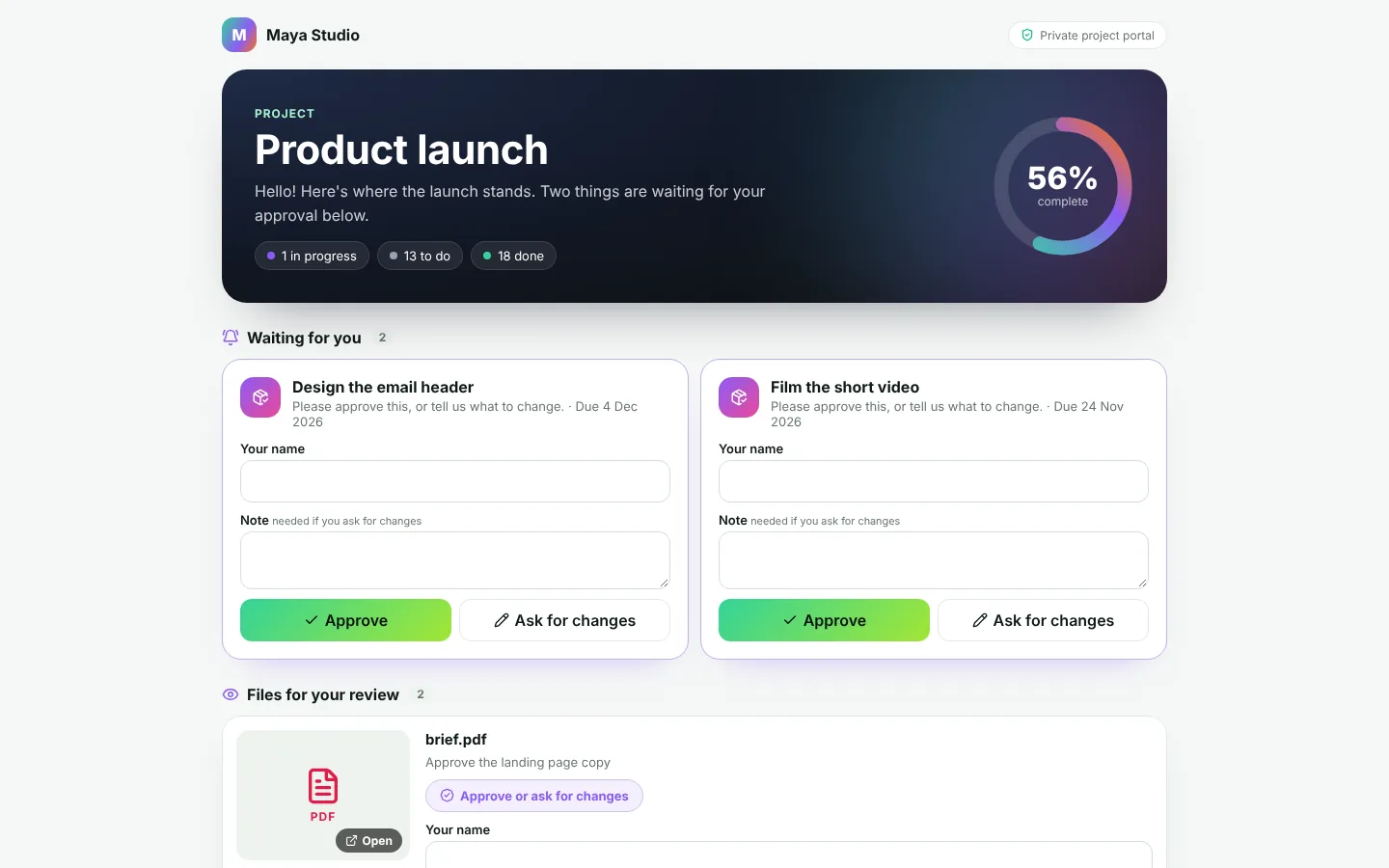
Every Work project can have one client portal. It is a private link (with an optional passcode) that opens a clean page in your brand: the project's name, a short welcome you write, a progress ring and the tasks you have chosen to share, grouped by what is in progress, what is next and what is done.
At the top sits Waiting for you: the things that need your client's answer right now, each with an Approve button and an Ask for changes button. Clients write their name and, if they want changes, a short note. That is all. There is no account to create and nothing to install.
Approvals without the email chain
When your client approves a task in the portal, the task is marked approved, the decision is saved with their name and the time, and everyone following the task hears about it. When they ask for changes, their note lands on the task as a comment your team can reply to. Nothing gets lost in an inbox, and nobody has to forward anything.
Because the answer lives on the task, the history stays together. Six months later, when someone asks who signed off the homepage, you open the task and see exactly who approved which version, and when.
Proofing: notes pinned on the work itself
The most useful feedback points at something. "Make it bigger" means nothing until you know which part. Proofing in Weesify Work lets anyone reviewing an image or a PDF click on the spot they mean and leave a note pinned right there.
- Pinned notes are numbered on the file and listed beside it, so the conversation and the picture stay side by side.
- Replies keep each note's discussion together, and notes can be resolved when they are done.
- PDFs open page by page, with notes on the page they belong to.
- Approve or request changes sits under the notes, with an optional message.
- Versions: upload a new version and a fresh round of review starts, with the earlier versions and their notes kept.
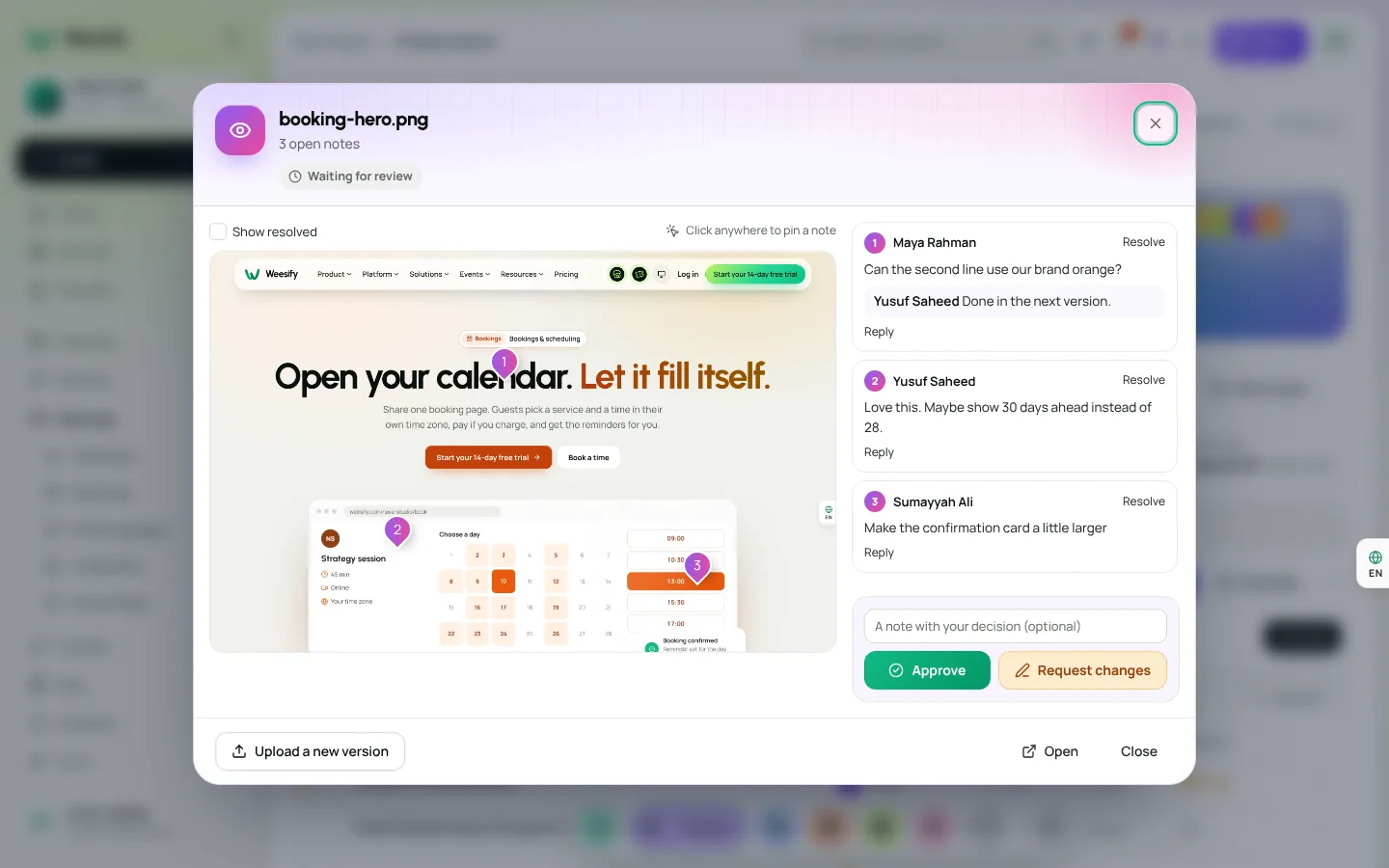
Your team uses the same review window inside Weesify, and clients get it in their portal for the files you share with them.
Review anything, not only task files
Work is not the only place in Weesify where things need a second pair of eyes. That is why Send for review now appears in other places too: on a file in your media library, on a post's pictures in the Content OS, or on any image or PDF you upload. Pick the reviewers, set a date and add a note. Weesify makes a review task for it (in a Reviews project it creates the first time), and reviewers pin notes and approve in the same window they use for task files.
Invoices clients can pay on the spot
If you invoice from Weesify, the portal can show the project's invoices once they are sent, with a Pay button and the PDF. Clients pay through Weesify Checkout without leaving the page, and the invoice is marked paid for you. Drafts never appear, and paid invoices stay listed so your client has their own record.
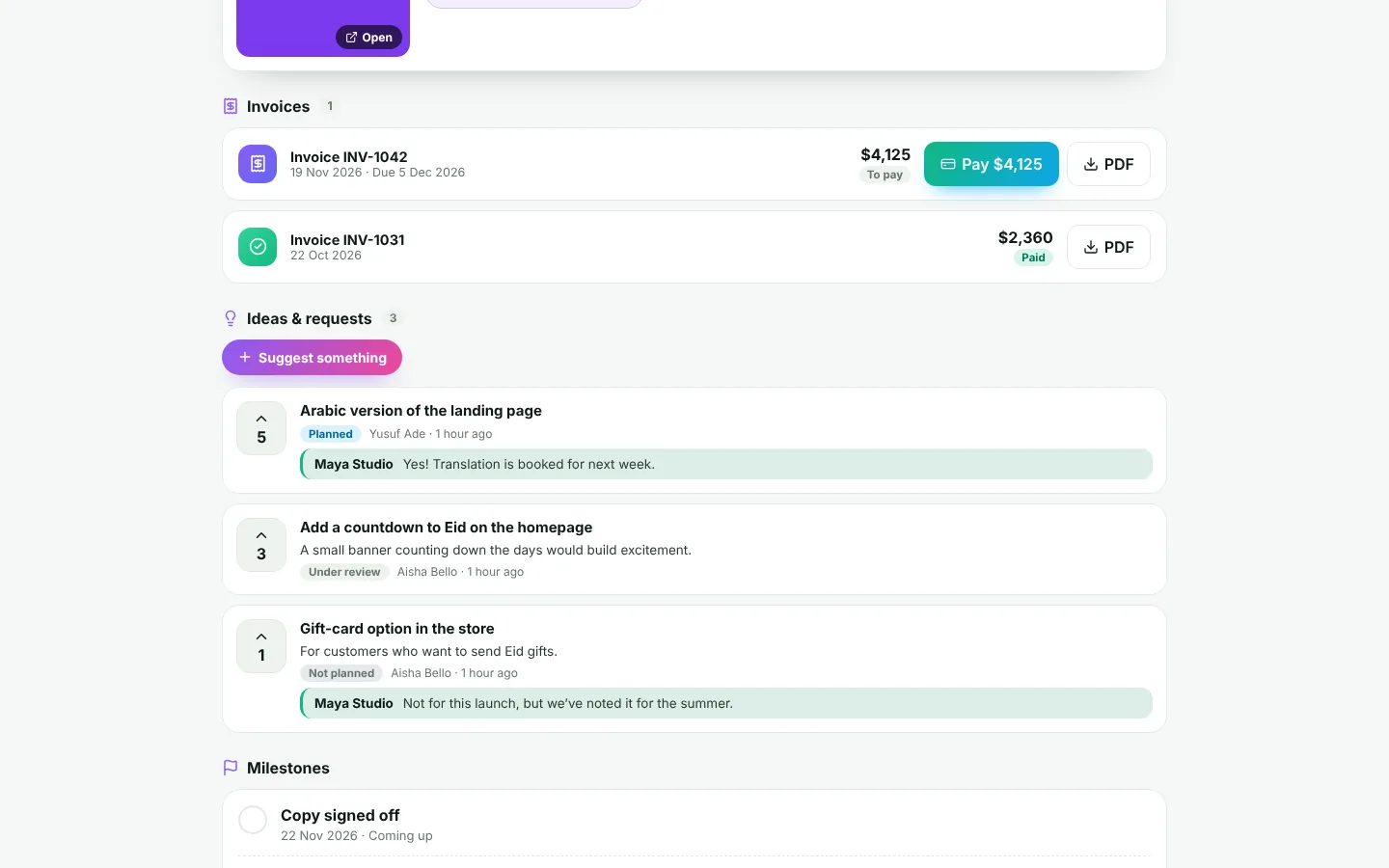
Your team sees the same numbers inside Work. A project's invoiced and paid amounts appear in the profitability report, which we describe in Time tracking, profitability and forecasts.
Ideas and requests, with votes
Clients often have ideas halfway through a project, and those ideas usually arrive at the worst moment, by phone, with no record. The portal's Ideas & requests board gives them a proper place.
- Clients suggest something in a few words, with more detail if they like.
- Other people on their side can vote, once per browser, so you see what matters most to them.
- Your team answers, sets where each idea stands (under review, planned, in progress, done or not planned) or hides spam.
- With one click an idea becomes a task, and from then on the client sees that task's real progress next to their idea.
The board is off until you turn it on, and nobody needs an account to use it.
What stays private
A portal shows only what you choose.
- Tasks are shared one by one, or you can share all of a project's tasks; private tasks never reach a portal, whatever you choose.
- Your team's comments, time entries, rates and margins are never shown.
- Files appear only when you turn on file reviews, and only the latest version of each.
- You can add a passcode, turn the portal off at any time, or make a new link if one has been passed around.
Every client decision is recorded with the name the client gave, and portal answers are kept in the project's activity like any other change.
A week with a portal
Here is how it tends to go. On Monday you share the homepage design and the brochure with your client and send them the portal link once. On Tuesday they open it on their phone, pin two notes on the design and approve the brochure. Your designer sees the notes on the task, uploads a new version on Wednesday, and the client approves it that evening. On Friday you send the invoice from Weesify; it appears in the portal with a Pay button, and the client pays it before the weekend. Nobody wrote a status email, and every decision is on the record.
Setting it up
- Open a project in Work › Projects.
- Go to Client portals and turn on the portal for that project.
- Choose what it shows: shared tasks, file reviews, invoices, and the ideas board.
- Write a short welcome, add a passcode if you like, and copy the link to send to your client.
Client portals are included from the first plan (Pro includes three portals), and clients never take a paid seat. To see how portals fit with the rest of Weesify Work, start with Meet Weesify Work.
احصل على المقالات الجديدة بالبريد
مقالات جديدة من مدوّنة Weesify، مباشرة إلى بريدك. بلا إزعاج، وبإمكانك إلغاء الاشتراك في أي وقت.
باشتراكك فإنك توافق على تلقي رسائل بريدية من مدوّنة Weesify. يمكنك إلغاء الاشتراك في أي وقت.
 الميزات
A Co-pilot in Every Project: Stand-ups, Risks and Notes to Tasks
The Weesify Work co-pilot writes your stand-up, spots what might slip this week, balances the load across your team and turns notes, meetings and events into tasks.
قراءة في 6 دقائق
 الميزات
إشعارات النماذج التي تصل إلى الأشخاص المناسبين
أرسل ردود كل نموذج إلى صندوق البريد المناسب: إلى الجميع، أو فقط عندما تطابق إجابة ما. كلماتك، وكل الإجابات، وزر إلى الرد، والردود تذهب مباشرة إلى الشخص.
قراءة في 6 دقائق
 الميزات
شرح رموز QR الديناميكية: اطبع مرة واحدة وحدّث إلى الأبد
يشير رمز QR الديناميكي إلى رابط تتحكم فيه، فيمكنك تغيير وجهته واحتساب كل عملية مسح دون إعادة الطباعة. إليك كيف تعمل هذه الرموز في Weesify.
قراءة في 7 دقائق
التعليقات
لا توجد تعليقات بعد. ابدأ المحادثة.