


Time Tracking, Profitability and Forecasts in Weesify Work

Timers that follow you between devices, rates per person, retainers that warn you early, a margin for every project and an honest forecast of when each one will finish.
There are two questions every team that sells its time has to answer, and most tools make both of them hard. The first is "Are we making money on this project?" The second is "Will we finish on time?" Usually the answers live in a spreadsheet someone updates on Friday afternoon, if they remember, and by the time the spreadsheet says something is wrong it is already too late to fix.
Weesify Work answers both questions from the work itself. The time you log, the rates you set and the tasks you finish are already there, so the numbers update as the work happens. This guide walks through each piece: timers, rates, retainers, the profitability report and forecasts.
In this guide
- Timers that follow you
- Logging time by hand
- Bill rates and cost rates
- Retainers that warn you early
- The profitability report
- Forecasts you can trust
- The table view for quick fixes
- Which plan includes what
Timers that follow you
Press play on any task and a small timer pill appears in the corner of every Weesify screen, showing the time and the task. The timer lives on the server, not in your browser, so you can start it on your phone on the way in and stop it on your laptop at your desk. Only you see your timer.
A few rules keep the numbers honest without any effort from you:
- One timer per person. Starting a timer on another task logs the first one.
- Automatic timers (if you turn them on) start when you move your own task to Doing, and log the time when you mark it done or move it back to To do.
- Overnight safety. A timer left running for more than ten hours is stopped, at most a working day is logged, and you are told, so you can correct the entry.
- Under a minute is not logged, so a mistaken click leaves nothing behind.
Logging time by hand
Not everything happens in front of a timer. On any task you can log time by hand: how long, which day (up to a year back, never in the future), an optional note, and whether it is billable. Only the person who logged an entry, or someone who manages the project, can change it. On the Business plan, people can submit their week as a timesheet for a manager to approve.
Bill rates and cost rates
Open Rates from the Work reports and give each person two numbers.
- A bill rate: what an hour of their time is billed at.
- A cost rate: what an hour of their time costs you.
A person's bill rate takes the place of the project's own rate on projects in the same currency, and you can leave either number empty. Rates are only ever visible to people who manage billing; everyone else sees their tasks and their time, never the money.
Retainers that warn you early
Many client relationships are monthly: a set number of hours for a set fee. Give a project a retainer with its monthly hours, its monthly fee and the day the month starts. The project's overview then shows the month's burn (hours used against hours included, and the days left), and the people running the project hear about it at 80% and again at 100%. No more discovering on the last day of the month that the hours ran out two weeks ago.
The profitability report
Work › Reports has a profitability section that brings it all together, project by project:
- Hours, and how much of them were billable.
- Value: billable hours at each person's bill rate (or the project's rate). For a retainer, the monthly fee counts instead.
- Cost: all hours at each person's cost rate.
- Margin, in money and as a percentage.
- Invoiced and paid, from the invoices you sent from Weesify.
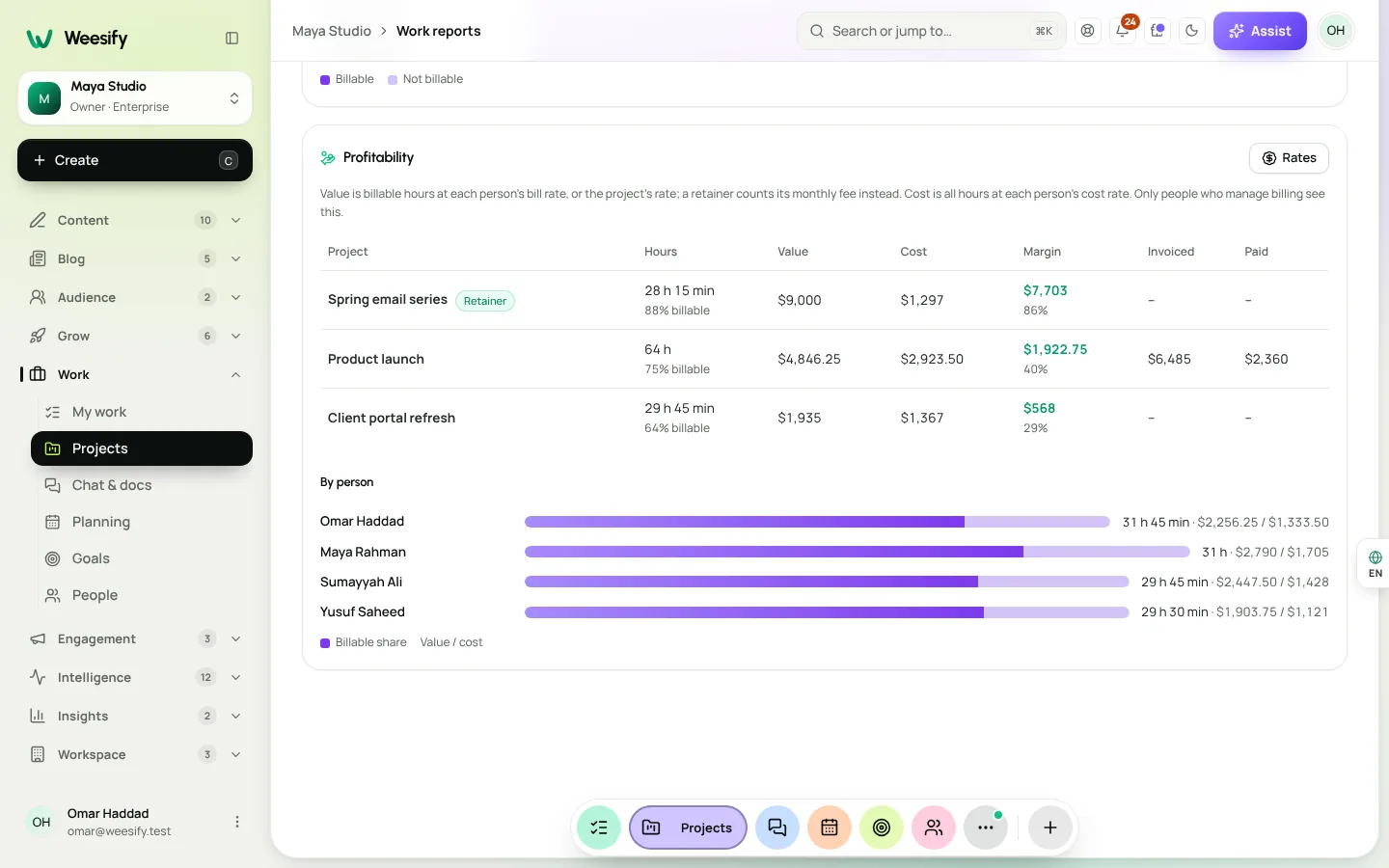
Below the projects, a by person view shows each person's hours, billable share, value and cost, so you can see where the time goes without turning it into a ranking.
Forecasts you can trust
A project's due date is a wish. A forecast is what will probably happen. Every Work project now shows one, on its overview and on the All projects page.
The forecast is worked out from your team's real pace, not from a formula you have to tune:
- It counts how many tasks the project finished in each of the last six weeks.
- When most of the open work has estimates, it uses hours instead, which is more precise.
- It notices scope growth: if work is being added faster than it is finished, it says so.
- It gives a range (from the faster and slower weeks), a confidence level, and the pace needed to land on time.
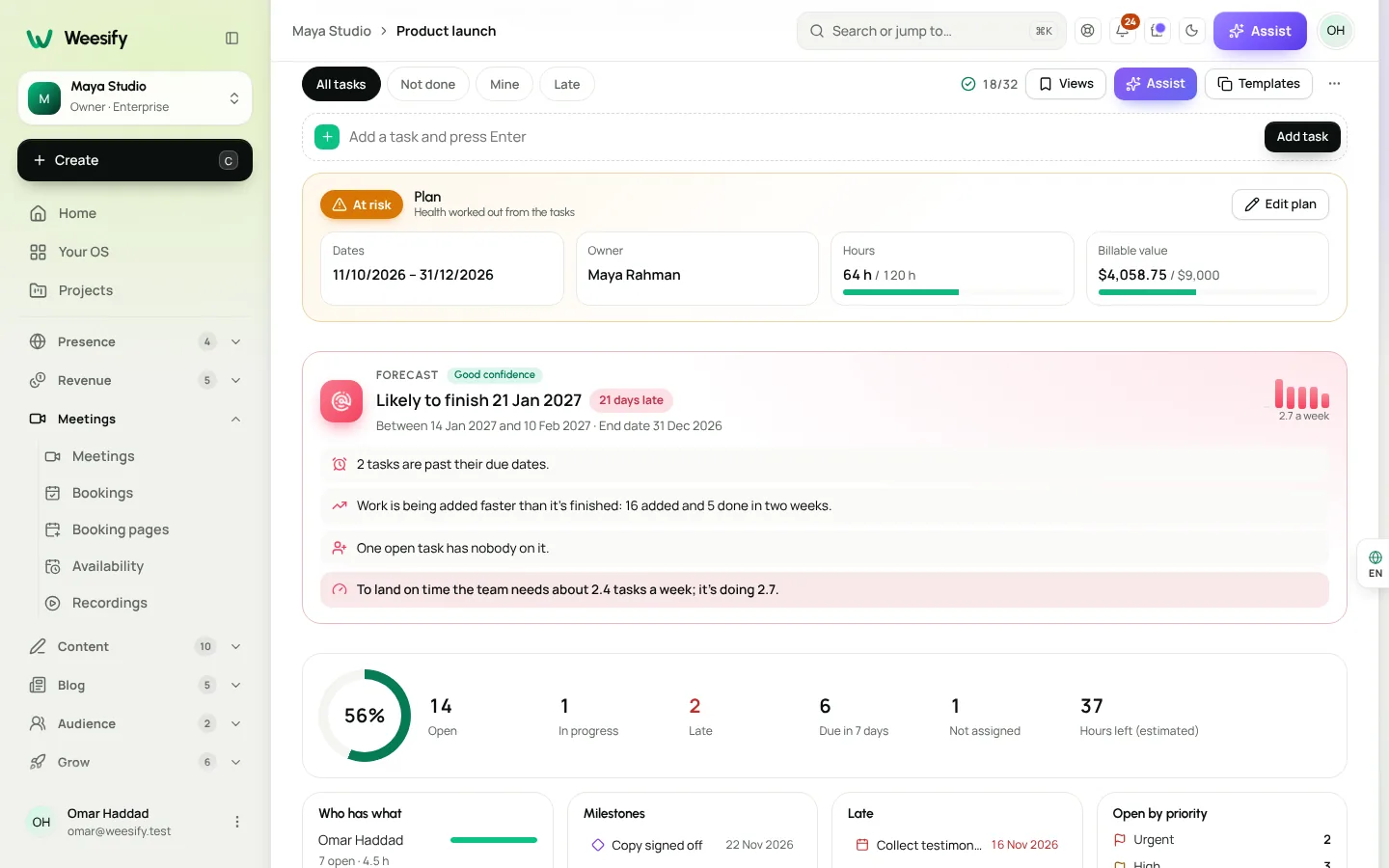
Under the date you get the reasons, in plain words: tasks past their due dates, open work with nobody on it, the pace dropping, or the end date already passed with work still open. When a project is likely to finish three or more days late, the people running it are told, and told again only if it gets a week worse, so the alert stays meaningful.
The table view for quick fixes
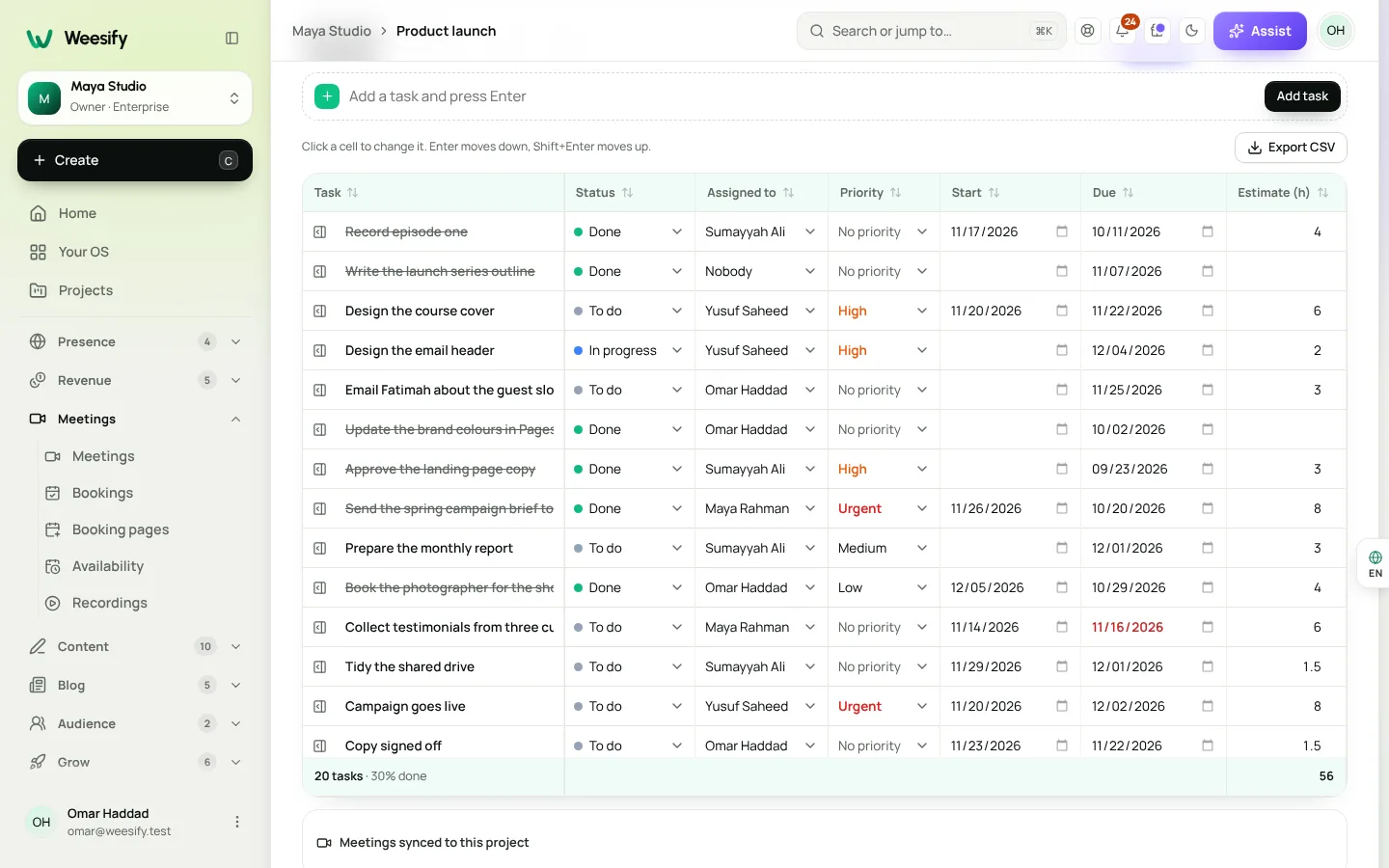
When the forecast or the report points at a problem, the fastest place to fix it is often the Table view. It is a spreadsheet of the project's tasks where every cell can be edited: status, assignee, priority, start and due dates, estimates and your own custom fields. Enter moves down a row, Shift and Enter move up, every column sorts, and the totals at the bottom add up your estimates. Download it as a CSV whenever you need it elsewhere.
A simple weekly routine
You don’t need a finance team to use any of this. A short weekly routine is enough:
- Monday: open All projects and look at the forecast chips. Anything showing days late gets a look first.
- During the week: press play on the task you're working on. If you forget, log the time at the end of the day.
- Friday: open Work › Reports, check each project's margin and each retainer's burn, and send any invoices that are due.
Ten minutes a week, and the two questions at the top of this guide answer themselves.
Which plan includes what
- From the first plan (Pro): timers, manual time, billable hours, the table view, workload and forecasts.
- Business adds: timesheet approval, rates, retainers, the profitability report, project budgets and invoices from billable time, and capacity planning with time off and holidays.
Everything here works together with the rest of Weesify Work. If you are new to it, start with Meet Weesify Work, and to see how your clients pay the invoices that feed the profitability report, read Client portals, proofing and approvals.
Get new posts by email
New articles from Weesify Blog, straight to your inbox. No spam, unsubscribe any time.
By subscribing you agree to get emails from Weesify Blog. Unsubscribe any time.
 Guides
Receive Form Submissions on Next.js, Node.js or Python
Keep a signed copy of every form submission in your own app. Ready-made receivers for Next.js, Node.js, Python, Laravel and PHP, and the four rules if you write your own.
6 min read
 Guides
Content Calendar Planner: A Step-by-Step Guide
A content calendar only helps if it is honest about your time. Here is how to use Weesify's planner to map campaigns, catch clashes and keep a steady rhythm.
7 min read
 Guides
Remove Pauses and Filler Words From Video Automatically
Long pauses and 'um's make good videos feel slow. Here is how Weesify Video Studio finds them for you, lets you review each one, and removes them in one tap.
6 min read
Comments
No comments yet. Start the conversation.