


Content OS: Plan, Write and Publish Your Content in One Place

Ideas in one app, drafts in another, the calendar in a spreadsheet. Weesify's Content OS brings ideas, writing, planning, publishing and results into one calm workspace.
Most content does not fail because the idea was weak. It fails somewhere in between: the idea sat in a notes app, the draft lived in a chat thread, the calendar was a spreadsheet nobody updated, and the post went out late or not at all. Weesify's Content OS was built to close those gaps. It is one workspace where you plan, write and publish your content, from the first spark of an idea to the moment a post goes live, and then see what it brought back.
This article walks through what is inside the Content OS, how the pieces connect, and how to get your first week of content moving.
In this guide
- What the Content OS is (and what it replaces)
- The four-step setup on Content home
- How an idea becomes a published post
- Teamwork, reviews and approvals
- Measuring what worked
- FAQ
What is the Content OS?
The Content OS is the content area of your Weesify workspace. You find it in the sidebar under Content. It brings together the things a creator, a small team or an organisation needs to keep posting steadily:
| Area | What it does |
|---|---|
| Ideas | An inbox for anything worth posting, with collections, pillars and tags |
| Planner | Your content calendar, with campaigns, conflicts, gaps and workload |
| Studio | The board where every post moves from draft to ready |
| Brands | Your voice, audiences and pillars, described once and used by every draft |
| Publishing, Queues, Automations | Get posts out on time, on repeat if you want |
| Repurpose | Turn one piece of content into a bundle of new drafts |
| Inbox and Accounts | Connect social accounts and answer comments |
| Insights | See clicks, top posts and the best time to post |
| Video Studio | Edit the footage you already have |
Because everything sits in one place, each part knows about the others. A campaign on the planner can promote one of your Weesify events, courses or products. A draft started from an event uses that event's real details and links to it. A video edited in Video Studio can be repurposed into posts with one click.
Start on Content home
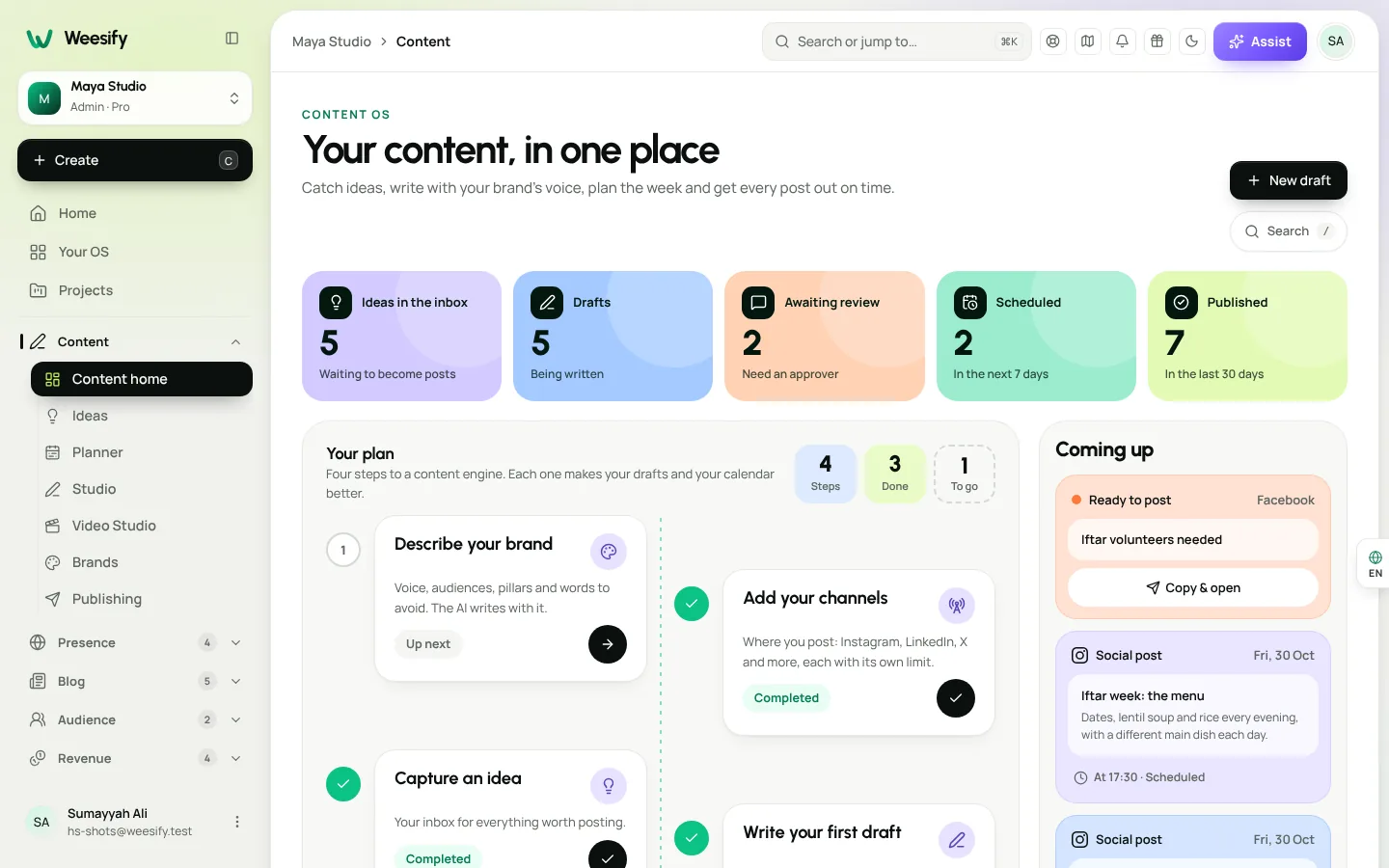
Open Content › Content home. The first thing you see is Your plan: four steps to a content engine. Each one makes your drafts and calendar better.
- Describe your brand. Voice, audiences, pillars and words to avoid. The AI writes with it.
- Add your channels. Where you post: Instagram, LinkedIn, X and more, each with its own character limit.
- Capture an idea. Your inbox for everything worth posting.
- Write your first draft. From a prompt, an idea, or your own event.
Below the checklist, At a glance shows how many ideas are waiting, how many drafts are being written or awaiting review, and what is scheduled in the next 7 days. Coming up shows the posts that already have a date, so you always know what is next. There is also a quick capture box: type an idea, press Enter, and it lands in your inbox.
A small but useful detail: press / on any Content OS screen to search your content.
From idea to published post
Here is the path most posts take.
1. Capture the idea
Ideas arrive at odd moments: a question after a class, a lesson from the week, a link worth reacting to. In Content › Ideas, choose Capture idea, write it in a line (for example "Ramadan prep for busy parents"), and add notes, a source link, a pillar and tags if you like. Group ideas into Collections, and switch the Layout between Board and Grid.
If you want a push, Ideas with AI suggests specific ideas on a topic in your brand's voice. We cover this in depth in how to get AI content ideas that sound like your brand.
2. Turn it into a draft
When an idea is ready, choose Make draft. It becomes a post in the Studio with your notes and source attached. You can also start a draft from Blank, A prompt, Pasted text, A link, or one of your own Event, Course or Product records.
In the editor you can write straight into the draft, or type a brief under Tell the AI what to write and choose Write it. Select text to Rewrite, Shorten, Expand, change the Tone or Translate. Open Per-platform versions to give each network its own wording, and check Live preview to see roughly where the text folds behind "more" and how close you are to the character limit.
3. Put it on the calendar
Every post with a date appears on the Planner. Switch between Month, Week, Agenda and Timeline views, drag posts between days, and group posts into campaigns. The planner warns you about conflicts, empty days and days that are busier than your team can handle. Our content calendar planner guide covers it step by step.
4. Publish it
In the draft, choose a Channel, an Assignee, and a Date, Time and Time zone under Plan a date, then choose Schedule (approves it).
There are two honest ways a post goes out:
- Automatically, when the channel's account is connected in Content › Accounts and Post automatically is switched on.
- With a reminder, when it is not. At the scheduled time, the assignee gets the copy ready to paste. They choose Copy & open, post it on the network, and then mark it with I've posted it.
Weesify never says a post went out unless it did. Read how to publish to your social networks from Weesify for the full picture, including queues and evergreen posts.
Teamwork without the chaos
The Content OS is built for one person or a whole team.
- Reviews and approvals. Under Next step, pick a Reviewer (or Any approver), add a Note for the reviewer and choose Send for review. Reviewers choose Approve, or write Review notes and choose Ask for changes.
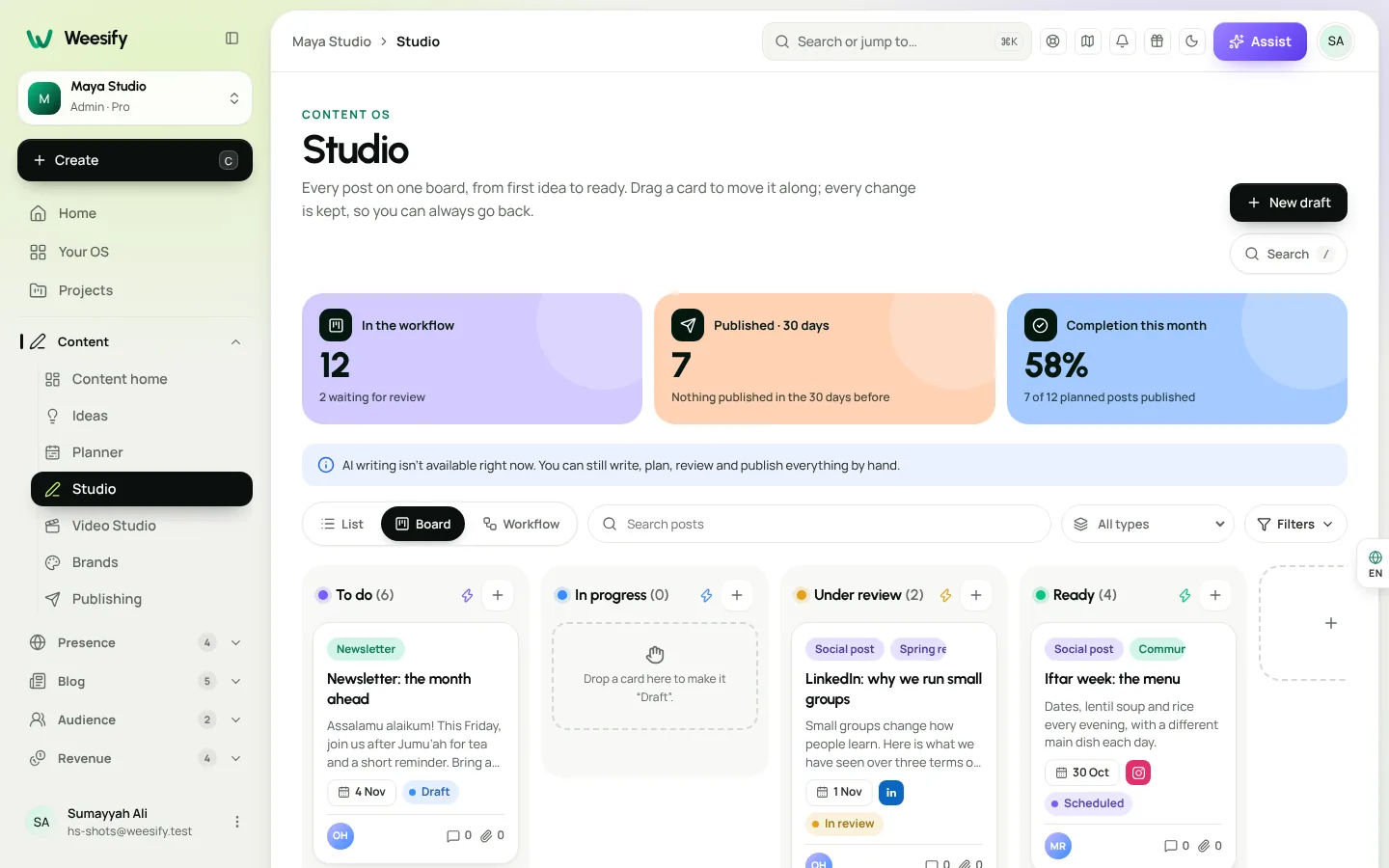
- A board that matches how you work. In the Studio, switch Layout between List, Board and Workflow. Drag a card to Under review to ask for approval, or to Ready to approve it. Add your own stages, such as "Design" or "Translation", with Add a stage.
- Comments and @mentions. Settle small questions on a post without sending it back.
- Every change is kept. Drafts keep their versions, so you can always go back. Published posts are archived instead of deleted, so their history stays.
Your brand's voice, built in
In Content › Brands, a brand profile describes your positioning, audiences, content pillars, tone, words you like to use and words you never say. Drafts, rewrites and per-platform versions all use it, so you edit less. At the bottom, What the AI sees shows the exact text sent with every AI request for that brand. Nothing else is assumed.
You can keep more than one profile, for example one for a school and one for a charity drive.
AI writing is optional. If it is switched off for your workspace, Content home says so, and you can still write, plan and publish by hand.
Measure what came back
Weesify adds a tracked short link to each post that has a link, and counts the clicks. In Content › Insights, pick a Period and read Posts published, Clicks from posts, Unique visitors and Posts with clicks. Compare By channel, By campaign and By brand, and check Best time to post once your posts have enough clicks.
When accounts are connected, a separate section, Reported by the networks, shows the views, reach, likes and comments those networks report, clearly labelled by source.
Where Video Studio fits
Video is part of the same workspace. Video Studio edits the footage you already have: cut by deleting words in the transcript, remove pauses and filler words, add captions and background audio, then export for Reels, TikTok or YouTube. When you are done, Repurpose turns the video into a caption, a thread and more. Start with our Video Studio spotlight or see the tour at /features/studio.
A simple first week with the Content OS
If you are starting from zero, this checklist gets you moving:
- Create one brand profile with three to five content pillars
- Add the two channels you post to most
- Capture ten ideas, ideally questions people have asked you
- Turn three of them into drafts and schedule them across the week
- Set Posts per day you can handle on the planner
- Make a queue for one evergreen reminder, such as your weekly class
- Check Insights at the end of the week
Frequently asked questions
Do I need AI to use the Content OS?
No. Ideas, the Studio, the planner, publishing, queues and insights all work by hand. AI helps with suggestions, drafts, rewrites and repurposing when it is switched on for your workspace.
Which social networks can I publish to?
Weesify has connections for Facebook Pages, Instagram business accounts, Threads, LinkedIn, YouTube, Pinterest, TikTok and X. Each network shows which post types it supports. A network your Weesify has not switched on yet shows Not set up yet, and your channels keep working with reminders until then.
Can my team review posts before they go out?
Yes. Send a draft for review, assign a reviewer, and they approve it or ask for changes with notes. Roles control who can approve.
Is the Content OS included in every plan?
Weesify's plans are Pro, Business, Enterprise and Custom, and each starts with a 14-day trial. See pricing for what each plan includes. If your plan does not include the Content OS, the screen tells you and points you to Settings › Plan & billing.
Where can I learn more?
The help centre has step-by-step articles, starting with Content OS at a glance.
Bring your content into one place
Scattered tools cost you posts. The Content OS gives every idea a home, every draft a reviewer, every post a date and every result a number you can trust.
Start your 14-day trial and plan your first week today.
Teruskan membaca
 Growth & marketing
Link in Bio Page That Sells: Turn Profile Visits into Sales
Most link in bio pages are a list of buttons that send people away. Here is how to build a Weesify bio page where visitors can buy, book, register and subscribe without leaving.
Growth & marketing
Link in Bio Page That Sells: Turn Profile Visits into Sales
Most link in bio pages are a list of buttons that send people away. Here is how to build a Weesify bio page where visitors can buy, book, register and subscribe without leaving.
 Guides
Sell Digital Products Online: Set Up Your Weesify Store
Turn your ebook, template pack or coaching session into a product people can buy from your page, with instant delivery and checkout that never sends buyers elsewhere.
Guides
Sell Digital Products Online: Set Up Your Weesify Store
Turn your ebook, template pack or coaching session into a product people can buy from your page, with instant delivery and checkout that never sends buyers elsewhere.
 Spotlights
Video Studio: Edit the Footage You Already Have
Talks, talking-head clips, screen recordings: you already have the footage. Weesify Video Studio turns it into a clean, captioned video by letting you edit the words.
Spotlights
Video Studio: Edit the Footage You Already Have
Talks, talking-head clips, screen recordings: you already have the footage. Weesify Video Studio turns it into a clean, captioned video by letting you edit the words.
Komen
Belum ada komen. Mulakan perbualan.