


Dynamic QR Codes Explained: Print Once, Update Forever

A dynamic QR code points at a link you control, so you can change where it goes and count every scan without reprinting. Here is how they work in Weesify.
You print five hundred flyers. A week later the event moves to a bigger hall, or the menu changes, or the page address gets updated. If the QR code on those flyers points straight at the old address, they are now recycling. If it is a dynamic QR code, you change one setting and every flyer you already handed out sends people to the right place.
That is the core idea behind dynamic QR codes, and it is why Weesify's QR studio makes them the default for anything that opens a web page. This article explains what dynamic codes are, how they differ from static ones, and how to design, track and update them.
In this guide
- Static vs dynamic QR codes in plain words
- What you can make in the Weesify QR studio
- Designing a code that still scans
- Tracking scans without cookies
- Updating a printed code
- When a static code is the better choice
What is a dynamic QR code?
A QR code is just data drawn as squares. A phone camera reads that data and acts on it: open a web address, start a call, join Wi-Fi.
- A static QR code contains the final content itself. If it holds a web address, the address is baked into the pattern. To change it, you need a new code and a new print.
- A dynamic QR code contains a short link you control. The phone opens the short link, and the short link sends the visitor to the destination. Change the destination, and the printed code follows.
Because every scan of a dynamic code passes through Weesify, each scan can also be counted. The QR studio says it in one line: Static codes go straight to their content, so scans can't be counted. Use a Dynamic code to track them.
| Static code | Dynamic code | |
|---|---|---|
| Can change destination after printing | No | Yes |
| Counts scans | No | Yes |
| Works without the internet hop | Yes | No, it opens a short link first |
| Best for | Wi-Fi, contact cards, plain text | Pages, links, menus, posters, packaging |
What you can make in the QR studio
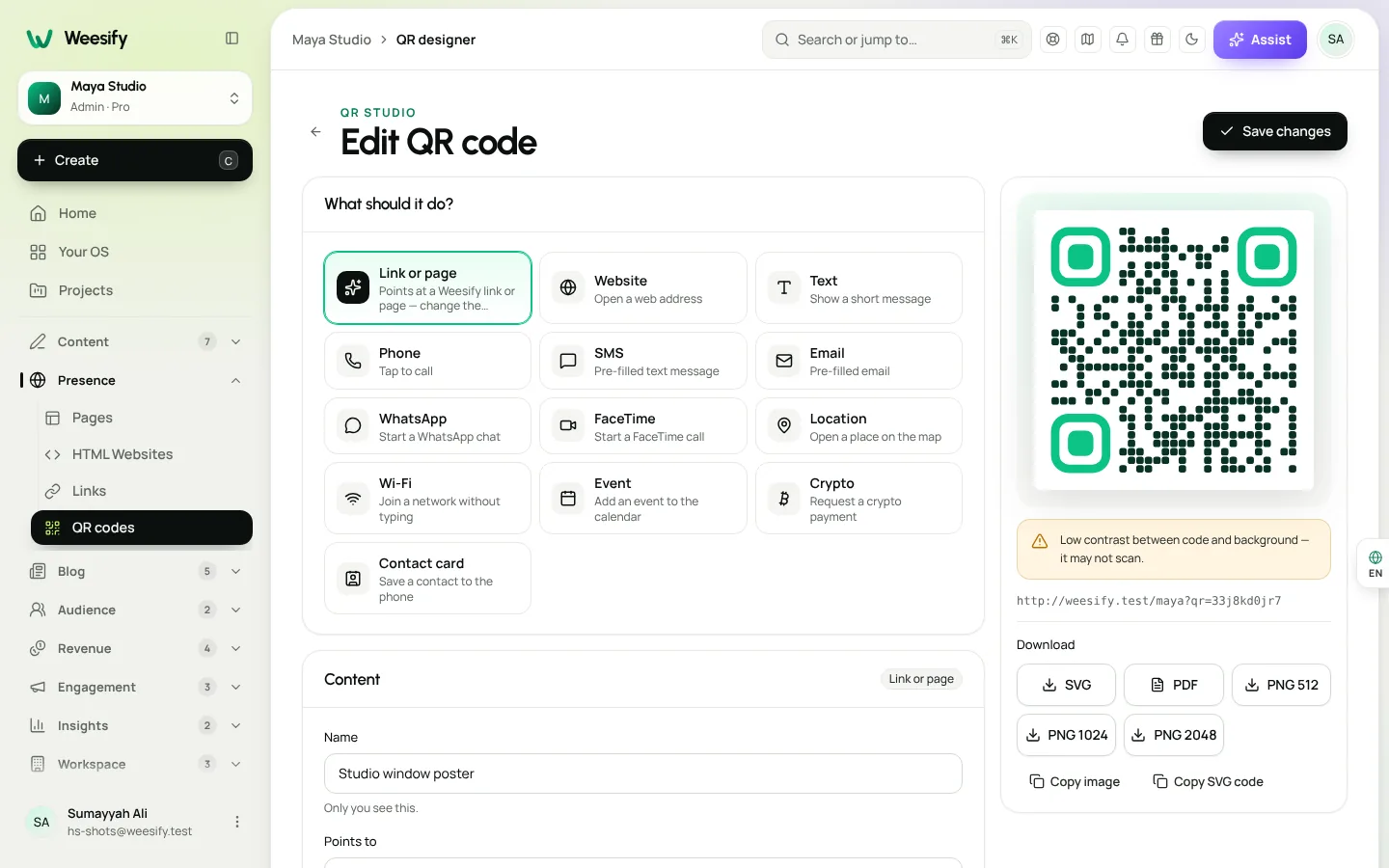
Open Presence › QR codes and choose Create QR code. The first question is What should it do? The options are:
- Link or page: points at a Weesify link or page, so you can change the destination anytime. This is the dynamic option.
- Website: open any web address.
- WhatsApp: start a WhatsApp chat, optionally with a Pre-filled message such as "Hi! I saw your poster…".
- Location: open a place on the map, by address or coordinates.
- Phone, SMS, Email and FaceTime: tap to call, text or write.
- Wi-Fi: join a network without typing the password.
- Event: add an event to the calendar.
- Contact card: save a contact to the phone.
- Text: show a short message.
Website, WhatsApp and Location codes can also be tracked. Weesify routes them through a managed short link, so they become editable and countable too.
Design a QR code that still scans
A branded code looks better on a poster than a plain black square. The QR studio lets you style almost everything, while warning you before you break it.
Start from a template
Under Templates, start from a design, then make it yours. Your content, logo and frame words stay when you switch between them.
Colours and shapes
- Code colour, Background colour and an optional gradient with Gradient start, Gradient end and Gradient angle.
- Dots, Corner squares and Corner dots shapes, each with its own colour.
- Transparent background, for placing on a light design of your own.
The studio checks contrast as you go. If you see Low contrast between code and background — it may not scan, take the hint. And remember that light-on-dark codes are not supported by every scanner.
Logo
Add your logo in the centre where your plan includes it. Weesify raises Error correction to High automatically while a logo is present and keeps the logo small enough to scan. Large logos can still stop a code scanning, so test before printing.
Frame and call to action
A code on its own does not say why anyone should scan it. Add a Frame with a Call to action of up to 30 characters, like "Scan for the menu" or "Scan to book".
Quiet zone and error correction
The Quiet zone is the empty border scanners need; 2 or more is safest. Error correction ranges from Low (7%) to High (30%). Higher levels survive damage and logos but make denser codes. For a clean indoor poster, Medium is usually fine; for packaging that gets scuffed, go higher.
Download for screen and print
Choose Preview and download to get:
- SVG for designers and large print, because it stays sharp at any size,
- PNG at 2048 px for screens and documents,
- PDF that is print-ready.
You can also Copy SVG code or Copy image to paste straight into a design tool. Downloading saves your changes first, so you never print an old version by accident.
Track scans without cookies
Every dynamic code has its own scan report. Choose a code to see Scans over time, Countries, Devices and the Last scan, and open Cities, hours and more for the deeper view. Times are shown in the scanner's local time, which makes it easy to see when people actually look at your poster.
Like Weesify short links, scans are counted without cookies or trackers.
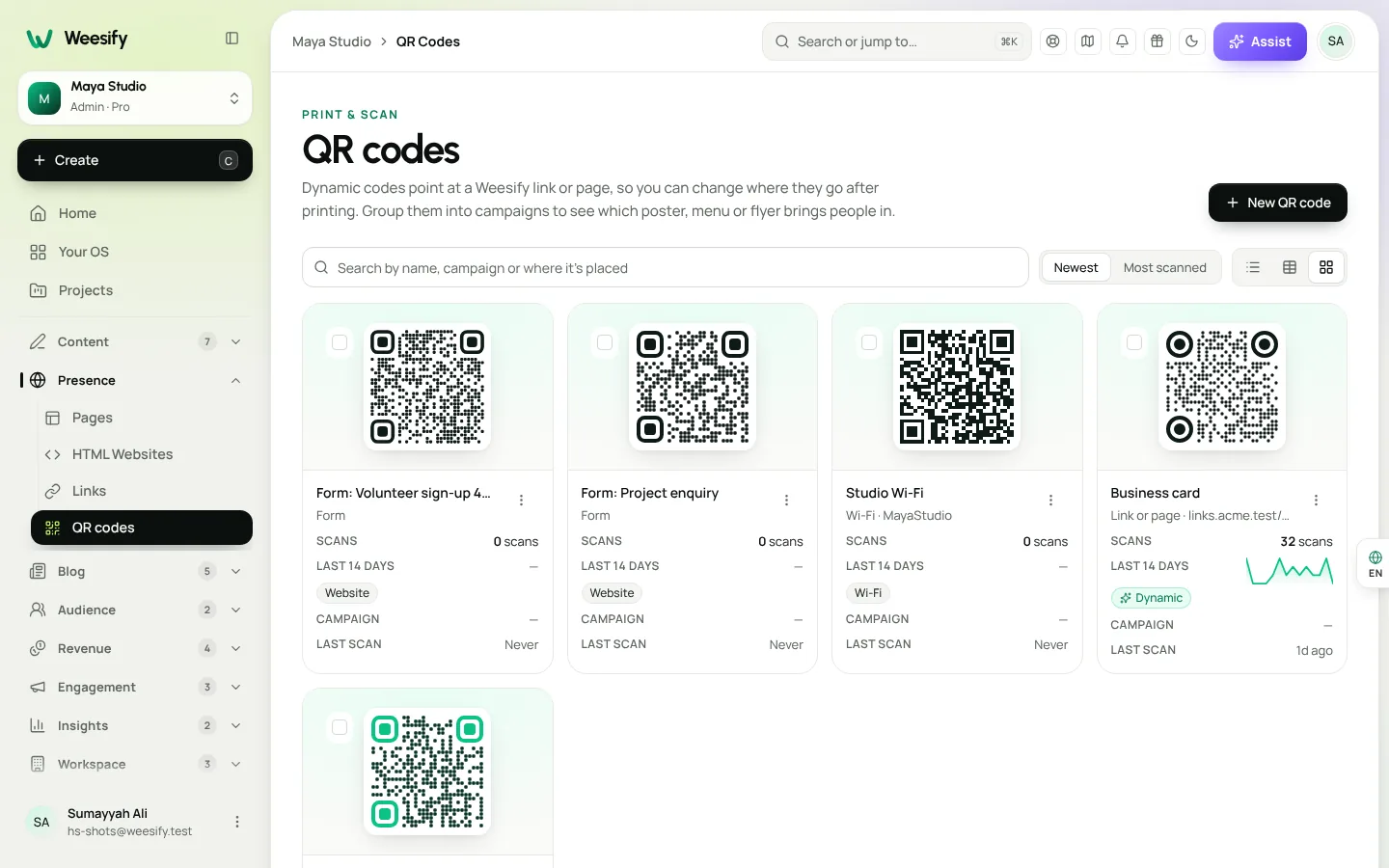
To compare placements, give codes a Campaign and fill in Where it's placed, such as "Poster, City Centre Mall". The QR codes list groups codes by campaign so you can see which spot works best. We cover that workflow in QR codes for events and print.
Update a printed code
This is where dynamic codes earn their keep.
- Open QR codes and find the code.
- Choose Edit and change what it points to. If it points at a Weesify short link, you can edit the link's destination instead.
- Save.
The pattern on the printed code does not change, so every flyer, sticker and banner keeps working. As the designer puts it: Change the link's destination anytime — the printed code stays the same.
A related tip from our help centre: point codes at a short link rather than straight at a page. Then you can also add scheduling, an expiry fallback or country targeting to the link. See Branded short links: the complete guide.
What if I delete a code?
Printed copies of dynamic codes keep working as long as the link or page they point to exists. Deleting the QR code in Weesify removes it from your list; it does not break the link underneath.
When a static code is the better choice
Dynamic is not always right. Use static when:
- Wi-Fi at your shop or venue: the phone needs the network details directly.
- Contact card on a business card: it saves the contact even without signal.
- Text for a short message that never changes.
Use dynamic QR codes across Weesify
QR codes also appear in other places:
- Every short link has Make QR code right on the links list.
- Forms have a share panel with a code, so you can collect sign-ups from a printed sheet; see Form QR codes in one click.
- Events use QR codes on tickets for fast check-in; see Event check-in: a day-of guide.
Frequently asked questions
What is the difference between a static and a dynamic QR code?
A static code stores the final content in the pattern, so it cannot change and scans cannot be counted. A dynamic code stores a short link you control, so you can change the destination and track scans.
Do dynamic QR codes expire?
A Weesify dynamic code keeps working as long as the link or page it points to exists. If you set an expiry on the short link, you can also choose where visitors go after it expires.
Can I put my logo in a QR code?
Yes, where your plan includes logos. Weesify raises error correction to High automatically and keeps the logo small enough to scan. Always test with two different phones before printing.
What file format should I use for print?
Use SVG or the print-ready PDF for print, because they stay sharp at any size. Use PNG for screens and documents.
How big should a printed QR code be?
Our help centre recommends at least 2 × 2 cm, and larger if people will scan from a distance.
Print once, update forever
Dynamic QR codes turn paper into something you can manage like a web page. Design them to match your brand, track every scan, and change the destination whenever plans change.
Start your 14-day trial and create your first dynamic QR code today. Explore the rest of Weesify's links and QR tools on the features page.
تابع القراءة
 Features
How to Make Quiet Audio Louder in a Video (Without Distortion)
A quiet recording can sink a good video. Weesify Video Studio measures your footage, warns you when it is too quiet, and makes it louder to the level social platforms expect, with a limiter so it never distorts.
Features
How to Make Quiet Audio Louder in a Video (Without Distortion)
A quiet recording can sink a good video. Weesify Video Studio measures your footage, warns you when it is too quiet, and makes it louder to the level social platforms expect, with a limiter so it never distorts.
 Features
Self-Hosted Video Meetings: Meet Clients Inside Weesify
Weesify Meetings gives every online booking its own private video room, hosted on Weesify's own servers. No outside meeting links, no app for your guests.
Features
Self-Hosted Video Meetings: Meet Clients Inside Weesify
Weesify Meetings gives every online booking its own private video room, hosted on Weesify's own servers. No outside meeting links, no app for your guests.
 Features
Host an HTML Website on Weesify: Upload, Publish, Roll Back
Already have a hand-coded website? Weesify HTML Websites hosts it exactly as written, with HTTPS, one-click publishing, instant rollback, forms and analytics.
Features
Host an HTML Website on Weesify: Upload, Publish, Roll Back
Already have a hand-coded website? Weesify HTML Websites hosts it exactly as written, with HTTPS, one-click publishing, instant rollback, forms and analytics.
التعليقات
لا توجد تعليقات بعد. ابدأ المحادثة.