


Host an HTML Website on Weesify: Upload, Publish, Roll Back

Already have a hand-coded website? Weesify HTML Websites hosts it exactly as written, with HTTPS, one-click publishing, instant rollback, forms and analytics.
Some websites are best built by hand. A designer's portfolio, a landing page from a freelancer, a mosque's events site that a volunteer coded years ago, an agency's client microsite. They are HTML, CSS, JavaScript and images, and they deserve proper hosting without a server to babysit.
HTML Websites on Weesify is made for exactly that. You bring a complete website; Weesify keeps your code exactly as it is and publishes it at an address like weesify.com/noor-studio/, with HTTPS and nothing to set up. You get drafts, one-click publishing, instant rollback, version history, form handling, privacy-friendly analytics and custom domains, all in the same workspace as your pages, links and store.
In this guide
- What HTML Websites is (and is not)
- Six ways to import a website
- Reading the import report
- Publishing and your website's address
- Rolling back and restoring versions
- Forms, analytics and custom domains
- Working with clients and developers
What HTML Websites is
HTML Websites hosts static websites: HTML pages and the files they use, such as stylesheets, scripts, images, fonts, audio and video. Every HTML file is a page.
What it does not do is run server code. PHP files, scripts and programs are never stored or run, and the import report lists each file it left out. If your old site sent email through a server script, Weesify's Website forms replaces that part (more below).
Weesify also has a visual bio page builder under Presence › Pages. Use the builder when you want to design with blocks. Use HTML Websites when you, your team or your developer already have the code. Many workspaces use both: a bio page for social profiles and an HTML website for the full brand site.
Six ways to bring your website in
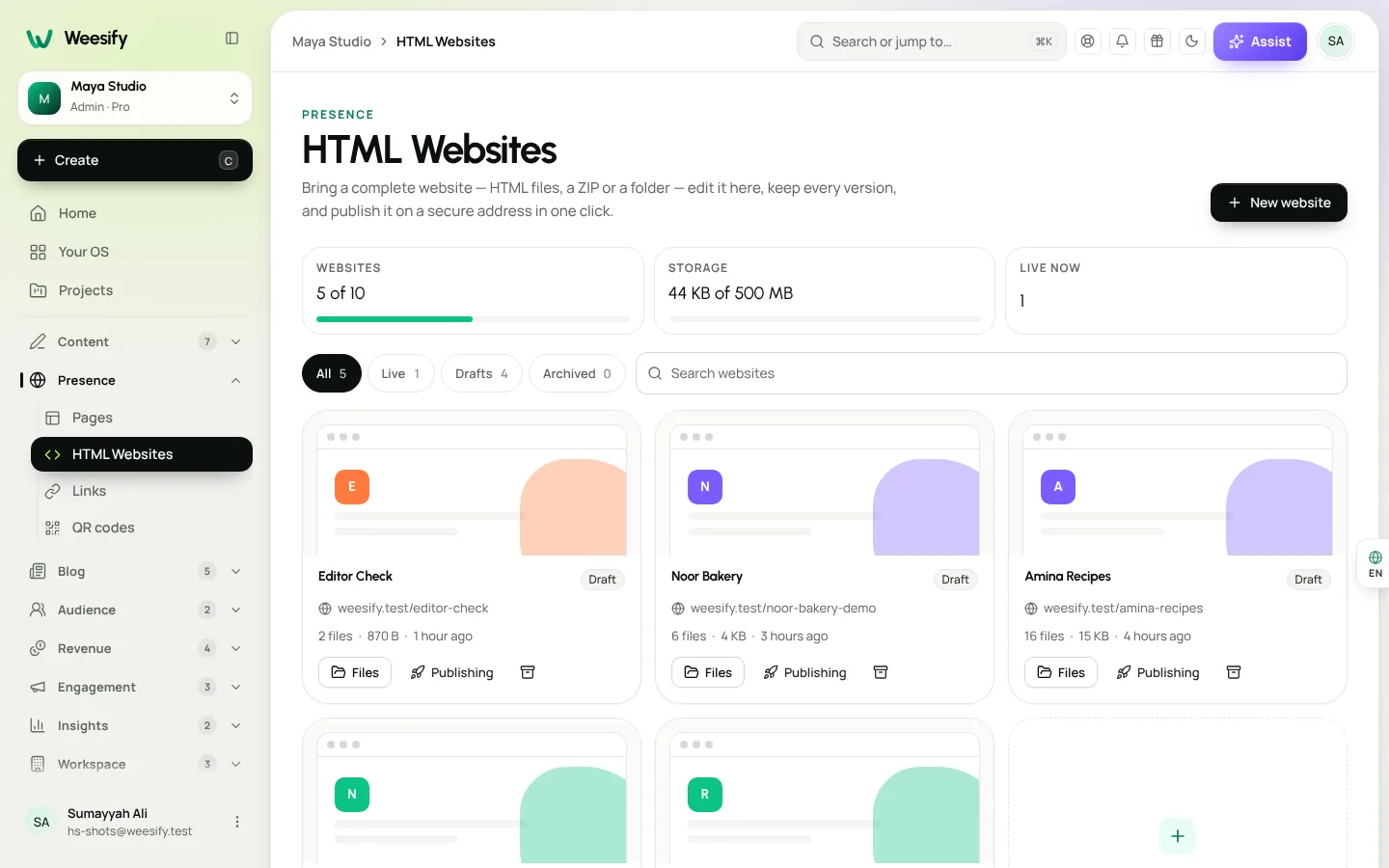
Open HTML Websites in the Presence section of the menu and choose New website. Name it; the name also suggests the address, which you can change. Then choose how to start:
| Option | Best for |
|---|---|
| Upload files | One or more pages and their assets |
| Upload a folder | A website on your computer, keeping every subfolder as it is |
| Upload a ZIP | A whole website in one archive; the fastest way for large sites |
| Paste HTML | A single page, such as a landing page |
| Copy a public page | A page you own or have permission to copy |
| Blank starter | A clean starter page and stylesheet |
Copying a public page asks you to confirm that you own the website or have permission to copy its content.
Tips for a clean import
- Keep the original folder structure, so links like
css/site.csskeep working. - The page named
index.htmlbecomes the homepage. You can choose another in the website's settings. - Prefer relative links (
css/site.css) over root links (/css/site.css). Links starting with "/" in your pages and stylesheets are pointed inside your website automatically, but addresses your scripts build while the page runs are not.
Read the import report
After the upload, Weesify shows an import report: what was imported, the homepage it found, broken links, and anything that was not imported. Read it once. It is the quickest way to spot a missing image folder or a link to a page that never existed.
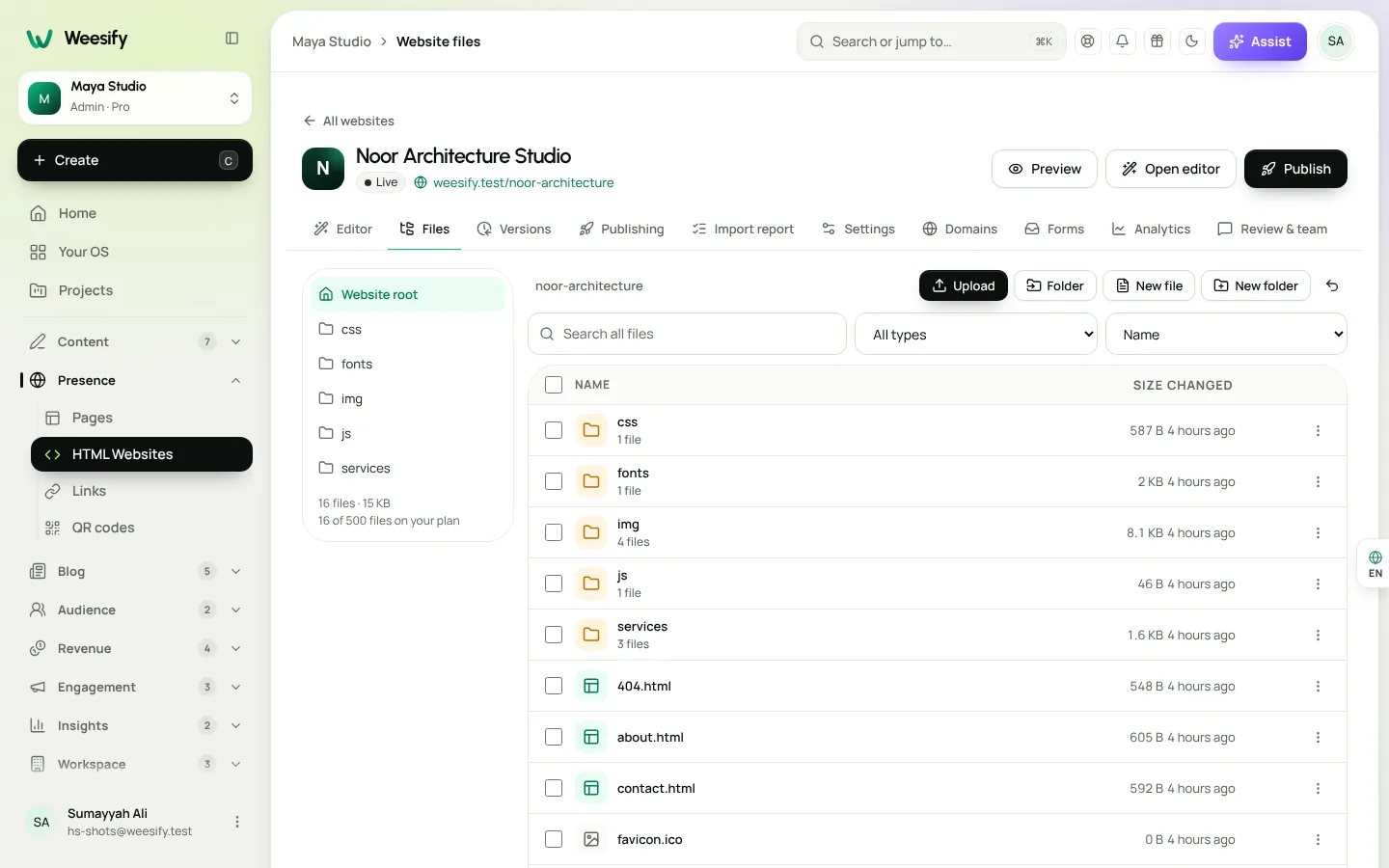
Then choose Go to files to check everything. The Files screen lists every file; open one to edit its code, and the preview refreshes as you save. You can also Find and replace across the code.
Publish, and your website's address
Your website has a draft (what you edit) and a live version (what visitors see).
- Open the website and choose Publish.
- Weesify checks the draft first: it needs at least one file and a homepage. Warnings, such as a broken link, do not stop you.
- Add a short note if you like, such as "New menu", and confirm.
The new version goes live all at once. If anything goes wrong while publishing, the previous version simply stays live, so visitors never see a half-published site.
A published website lives at weesify.com/ followed by its address. Pages, short links and websites share these addresses, so each one belongs to one thing only. If you change the address in Settings, the old one keeps sending visitors to the new one.
For speed, stylesheets, scripts, images, fonts, audio and video are served straight by the web server with long caching.
A note on security
Websites at the Weesify address run locked down, so a website's code can never reach your members' accounts or anyone else's data. The one limit is that a website's own scripts cannot keep cookies or browser storage there. Most brochure sites, portfolios and landing pages never notice.
Roll back in seconds
Mistakes happen, usually five minutes after you publish.
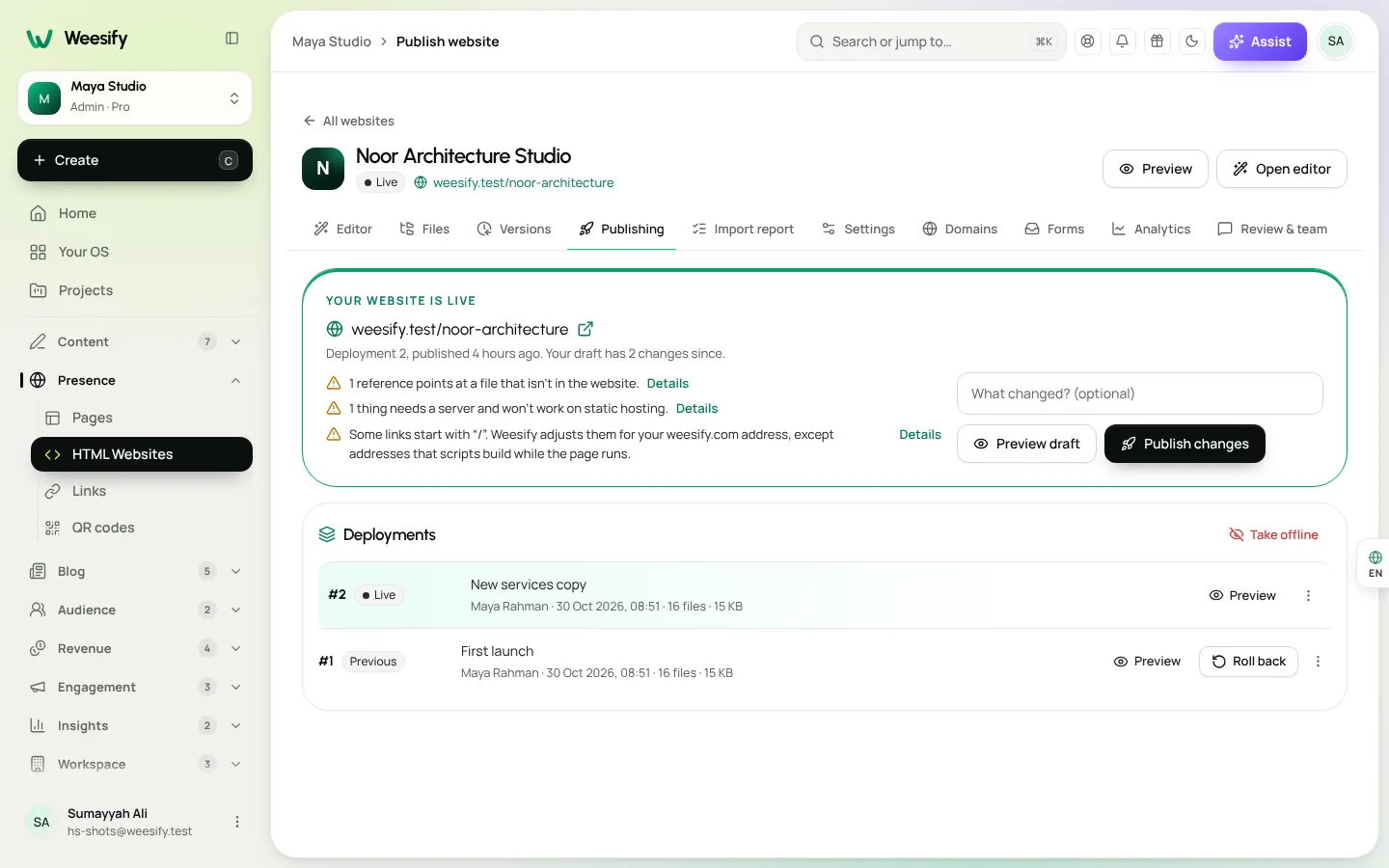
- Open Publishing (the deployments list). Every deployment shows who published it and when.
- Choose Roll back next to the one you want. It is live again within seconds.
Separately, Versions keeps snapshots of your draft: automatic ones before every change and named ones you make yourself. Compare any version with your draft, restore it, or copy a single file back.
Edit visually, with or without AI
You do not have to edit code to fix a typo. Choose Open editor, click any element in the preview, and change its text, link, image or styles in the panel. You can also describe a change and let AI propose it, then accept or reject the exact edit. Every change can be undone. We cover this in detail in Edit an HTML website with AI, safely.
Forms without a server
Contact forms on static sites usually need a backend. On Weesify, add one attribute to your form:
<form data-weesify-form="Contact">
  <input name="name" required>
  <input type="email" name="email" required>
  <textarea name="message"></textarea>
  <button type="submit">Send</button>
</form>
Publish, and responses appear under the website's Forms tab. Fields named email, name, phone and company fill in a contact in your audience. Weesify adds spam protection (a hidden trap field, a timing check, rate limits and scoring), can email you each response, and exports to CSV. For more on what to do with those leads, see Forms that capture leads.
Analytics without a tracking script
Each website has an Analytics tab showing page views per day, top pages, countries and devices. Visits are counted by Weesify as pages are served: no cookies, no tracking script, nothing personal kept.
Your own domain
Every website already has a Weesify address with HTTPS. To use www.yourbrand.com, open the website's Domains tab and choose Connect domain. Weesify checks ownership (a TXT record), DNS and HTTPS before the domain goes live, and issues the certificate automatically. Read the custom domain setup guide for the full steps.
For agencies and developers
- Client review: share a private preview link, collect comments and an Approve or Request changes, and optionally require approval before anyone but owners and admins can publish.
- Transfer website: hand a finished site to a client's workspace with its files, versions, deployments and analytics.
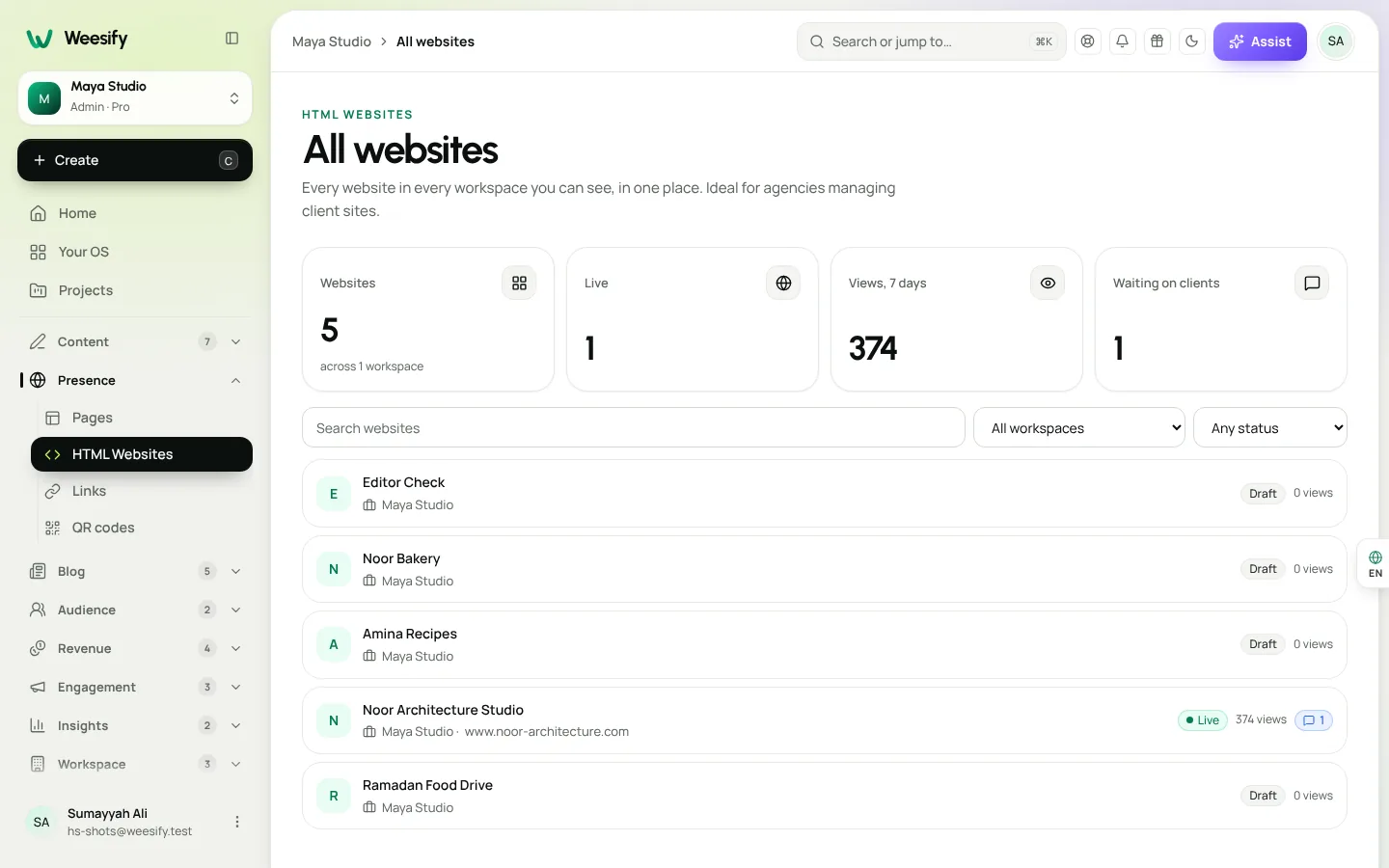
- All websites: see every website across every workspace you belong to.
- Weesify CLI and API: deploy a folder from your computer or a build pipeline with one command, pull it back, and roll back. See the CLI page and Weesify API and CLI for developers.
Agencies managing many clients may also like Weesify for agencies: client websites.
Frequently asked questions
Can I host a static HTML website on Weesify?
Yes. Upload files, a folder, a ZIP or pasted HTML, and publish. Your site goes live at weesify.com/your-site/ with HTTPS, and you can add your own domain.
Does Weesify run PHP or other server code?
No. HTML Websites hosts static files only. Server code is never stored or run, and the import report lists anything left out. Use Website forms instead of server-side form scripts.
Will Weesify change my code?
No. Weesify keeps your code exactly as it is. The visual editor and AI only change what you select and accept, and every change is saved with a snapshot first.
How do I undo a bad publish?
Open Publishing and choose Roll back next to an earlier deployment. It is live again within seconds.
Is HTML website hosting included in every plan?
HTML Websites, its limits and extras such as forms, client review and the API depend on your plan. Check the pricing page for details.
Give your website a calmer home
Your code, exactly as you wrote it, with drafts, rollbacks, forms and analytics around it. No server to patch.
Start your 14-day trial and publish your first HTML website today.
Sigue leyendo
 Features
Dynamic QR Codes Explained: Print Once, Update Forever
A dynamic QR code points at a link you control, so you can change where it goes and count every scan without reprinting. Here is how they work in Weesify.
Features
Dynamic QR Codes Explained: Print Once, Update Forever
A dynamic QR code points at a link you control, so you can change where it goes and count every scan without reprinting. Here is how they work in Weesify.
 Features
How to Make Quiet Audio Louder in a Video (Without Distortion)
A quiet recording can sink a good video. Weesify Video Studio measures your footage, warns you when it is too quiet, and makes it louder to the level social platforms expect, with a limiter so it never distorts.
Features
How to Make Quiet Audio Louder in a Video (Without Distortion)
A quiet recording can sink a good video. Weesify Video Studio measures your footage, warns you when it is too quiet, and makes it louder to the level social platforms expect, with a limiter so it never distorts.
 Features
Self-Hosted Video Meetings: Meet Clients Inside Weesify
Weesify Meetings gives every online booking its own private video room, hosted on Weesify's own servers. No outside meeting links, no app for your guests.
Features
Self-Hosted Video Meetings: Meet Clients Inside Weesify
Weesify Meetings gives every online booking its own private video room, hosted on Weesify's own servers. No outside meeting links, no app for your guests.
Comentarios
Aún no hay comentarios. Empieza la conversación.