


Remove Pauses and Filler Words From Video Automatically

Long pauses and 'um's make good videos feel slow. Here is how Weesify Video Studio finds them for you, lets you review each one, and removes them in one tap.
You recorded a great explanation. The content is strong, the light is fine, the sound is clear. But when you play it back, it drags: a two-second pause while you remembered the next point, an "um" before every sentence, a long breath before the conclusion. None of it is a mistake. It is just how people talk. On a short video feed, though, those moments are where viewers drift away.
Removing them by hand means scrubbing through the timeline, finding each gap, splitting the clip twice and deleting the middle. For a ten-minute talk, that can take longer than the recording. This guide shows you how to remove pauses and filler words automatically in Weesify Video Studio, while keeping full control over what goes.
In this guide
- How Video Studio finds pauses and filler words
- Step-by-step: the Clean up tool
- Doing it with a goal or Studio AI instead
- Cut anything else by editing words
- How much to remove (and what to keep)
- FAQ
How Video Studio finds pauses and filler words
Video Studio looks for two things, at two different moments:
- Long pauses are found when your footage is prepared, by analysing where the sound drops away.
- Filler words appear once the video is transcribed, because they are found in the transcript.
Filler words come in two kinds. Sounds that carry no meaning, such as "um", "uh", "erm" and "hmm", are clear fillers. Words that are often filler but sometimes carry meaning, such as "like", "basically", "you know" or "I mean", are shown more quietly as suggestions, and only when they stand alone with a comma or a short pause around them. They are never removed automatically, because "I like this approach" is not a filler.
Nothing is removed until you tap.
Step-by-step: remove pauses and filler words
1. Start a project and transcribe
Open Content › Video Studio, choose New video, add your footage and choose Start a video. Our Video Studio spotlight covers this in detail.
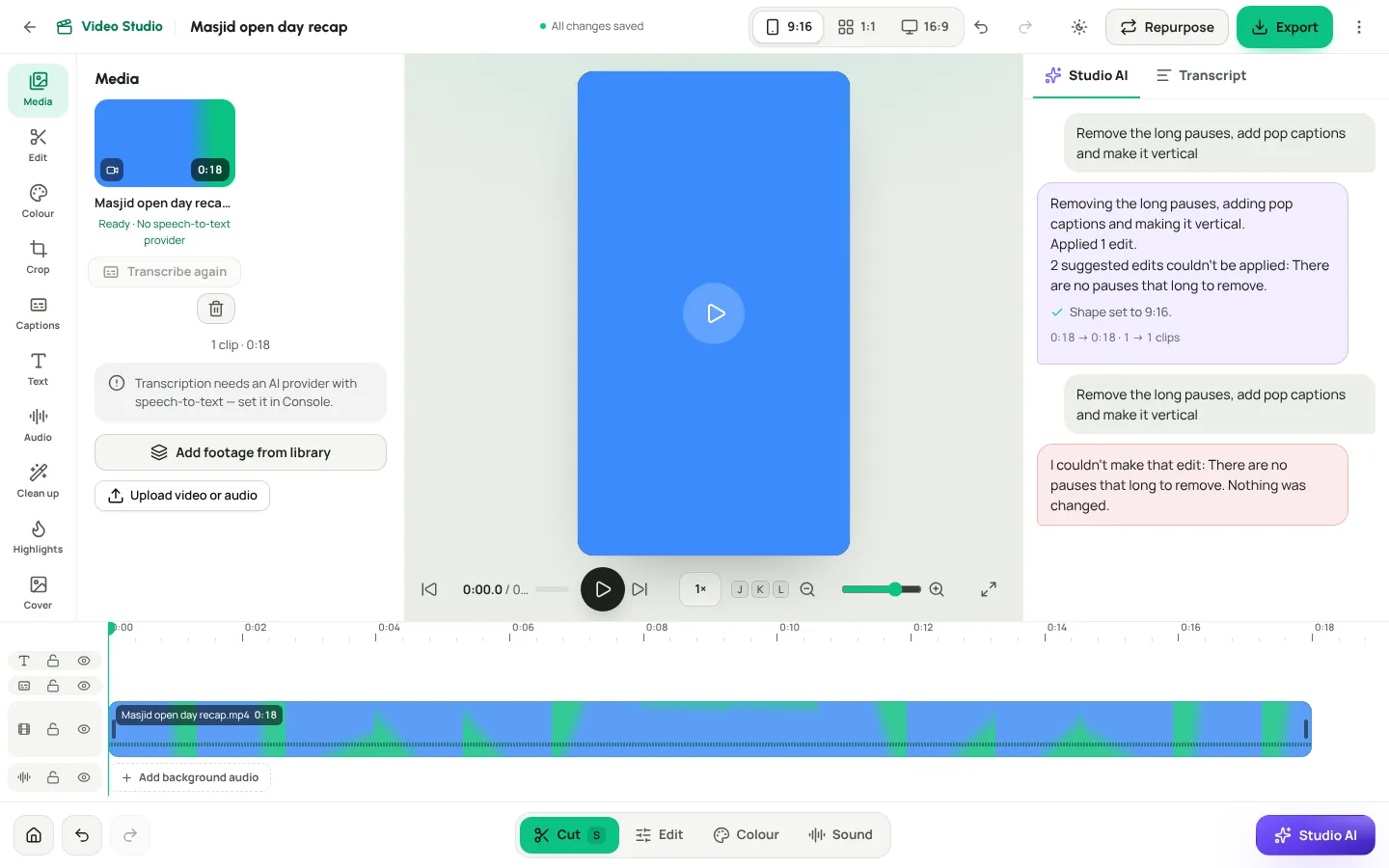
When the project is ready, open the Media tool and choose Transcribe. Wait for Transcript ready. Pauses will already be found; filler words appear once the transcript is done.
2. Open the Clean up tool
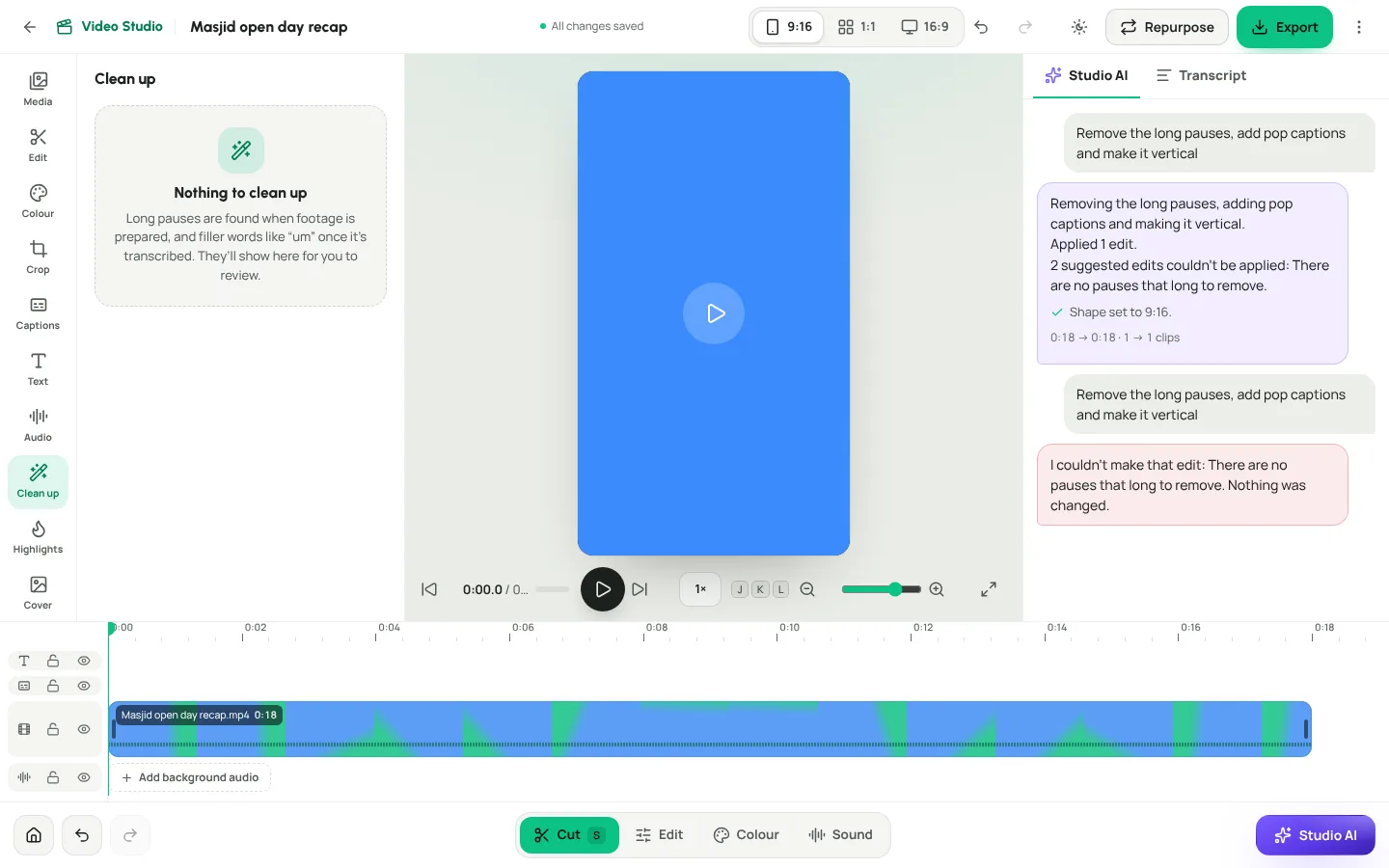
Open Clean up. You will see a list of long pauses and filler words with their times. Clear "um"s and pauses over 1.5 seconds are ticked for you.
3. Review before you remove
Tap a time to hear it first. This matters. Some pauses are deliberate: a moment of silence after an important point, or a breath before a verse or quote. Untick anything you want to keep.
4. Remove ticked
Choose Remove ticked. The pauses and fillers are cut from the video in one step. Press Play to check the result.
Changed your mind? Choose Undo. If there is nothing left to find, the tool says Nothing to clean up.
Other ways to clean up
Start from a goal
When you create a project, the Clean up a talking-head video goal prepares a first cut for you. It suggests three steps:
- Shorten pauses longer than 0.8 s. It keeps a natural breath before and after each pause, so the result does not sound clipped.
- Remove clear filler sounds. Only "um", "uh" and "erm". Words like "like" are left for you to review.
- Add clean captions, word-timed from the transcript.
You see each step with a tick in Your first cut. Untick what you do not want and choose Apply the ticked steps. It is applied as one change you can undo.
Other goals tighten pauses differently. Turn a podcast into short clips shortens pauses over 0.6 seconds, because conversation feels faster on short video. Add captions and polish only removes gaps over 1.2 seconds.
Ask Studio AI
Open Studio AI (on a phone, the AI quick tool) and type "Remove the long pauses". Studio AI sees your clips, transcript and pauses, and applies the edit as a single step. If you do not like it, choose Undo this.
You can combine requests, for example "Remove the pauses and add pop captions", though asking for one thing at a time gives you the most control.
| Method | Best for | Control |
|---|---|---|
| Clean up tool | Reviewing every pause and filler | Highest: tick and untick each one |
| Clean up a talking-head video goal | A fast first cut on new footage | High: untick whole steps |
| Studio AI | Quick edits in plain words | One undoable step |
| Transcript editing | Removing whole sentences or retakes | Word by word |
Cut anything else by editing words
Clean up handles pauses and fillers. For everything else, edit the transcript directly:
- Open the Transcript (on a phone, the Words quick tool).
- Select the words you do not want: a false start, a repeated sentence, a retake.
- Delete them. They are cut from the video.
- Use Search the transcript to jump straight to a phrase.
A common pattern: you said a sentence, stumbled, and said it again. Find the first attempt in the transcript, select it and delete it. Done.
For precise cuts that are not about words, select a clip on the timeline and choose Split at playhead.
How much should you remove?
Removing every pause can make a video feel breathless and robotic. A few guidelines:
- Keep short pauses. If you are not sure, keep it. A little breathing room sounds natural.
- Keep meaningful silence. After a question, a key point or a quotation, a pause gives the viewer time to think.
- Remove filler sounds freely. "Um" and "uh" almost never add anything.
- Review "maybe" fillers. "So" at the start of a sentence can be a filler or a connector. Listen first.
- Check the joins. Play the edited video once from start to finish. If a cut feels abrupt, undo it.
A quick clean-up checklist
- Transcribe the footage
- Open Clean up and listen to the longest pauses first
- Untick deliberate silences
- Choose Remove ticked
- Delete retakes and false starts in the transcript
- Play it through once, start to finish
- Save a named version before you add captions and audio
What to do next
Once the pacing is right, finish the video:
- Add captions that people can read on mute. See captions, highlights and short clips.
- Even out the voice and fix quiet recordings. See make quiet audio louder in your video.
- Export for Reels and TikTok, YouTube or a square feed, then repurpose one video into many posts.
Frequently asked questions
Will removing pauses change my original video file?
No. Your originals are never changed. Every edit is a step you can undo, and you can save named versions to return to.
Which filler words does Video Studio detect?
Clear filler sounds such as "um", "uh", "erm", "ah" and "hmm" are flagged and can be removed in one go. Words like "like", "basically", "actually", "you know" and "I mean" are shown as suggestions only when they stand alone, and are never removed without your review.
Why aren't filler words showing yet?
Filler words are found in the transcript. Choose Transcribe in the Media tool and wait for Transcript ready. Long pauses are found earlier, when footage is prepared.
Does it work for languages other than English?
Long-pause detection works on any footage, because it listens for silence. Filler detection looks for the common English filler sounds and words listed above, so for other languages, use the pause removal and edit the transcript by hand.
Can I undo a removal?
Yes. Choose Undo, or open History to see every change you made.
Faster videos, same voice
Removing pauses and filler words is not about sounding perfect. It is about respecting your viewer's time while still sounding like you.
Start your 14-day trial and clean up your first video today.
تابع القراءة
 Guides
Content Calendar Planner: A Step-by-Step Guide
A content calendar only helps if it is honest about your time. Here is how to use Weesify's planner to map campaigns, catch clashes and keep a steady rhythm.
Guides
Content Calendar Planner: A Step-by-Step Guide
A content calendar only helps if it is honest about your time. Here is how to use Weesify's planner to map campaigns, catch clashes and keep a steady rhythm.
 Guides
Welcome Email Sequence: Build One With Automations
The first days after someone subscribes are when they pay the most attention. Here is how to build a welcome email sequence in Weesify Automations that greets every new subscriber on time, every time.
Guides
Welcome Email Sequence: Build One With Automations
The first days after someone subscribes are when they pay the most attention. Here is how to build a welcome email sequence in Weesify Automations that greets every new subscriber on time, every time.
 Guides
Launch an Online Course on Weesify, Step by Step
From a rough outline to a published course with quizzes, drip release and certificates. Here's how to launch an online course on Weesify without a separate course platform.
Guides
Launch an Online Course on Weesify, Step by Step
From a rough outline to a published course with quizzes, drip release and certificates. Here's how to launch an online course on Weesify without a separate course platform.
التعليقات
لا توجد تعليقات بعد. ابدأ المحادثة.