


A Co-pilot in Every Project: Stand-ups, Risks and Notes to Tasks

The Weesify Work co-pilot writes your stand-up, spots what might slip this week, balances the load across your team and turns notes, meetings and events into tasks.
Project tools are good at holding work. They are less good at noticing things. A task that nobody has started, due in two days, with six hours of work in it, looks exactly like every other task on the board. A teammate with three late tasks and a full week ahead looks the same as one with room to spare. The person leading the project has to notice all of this, every day, by reading everything.
The co-pilot in Weesify Work does that reading for you. Open any project, press Assist, and it tells you in plain words what changed, what is at risk and what you could do about it. It also takes the most tedious job in project work, turning notes and conversations into tasks, and does it in seconds.
In this guide
- Where the co-pilot lives
- The stand-up, written for you
- What might slip this week
- Balancing the load
- Notes to tasks
- Meetings that become tasks by themselves
- Work that starts itself
- Privacy and control
Where the co-pilot lives
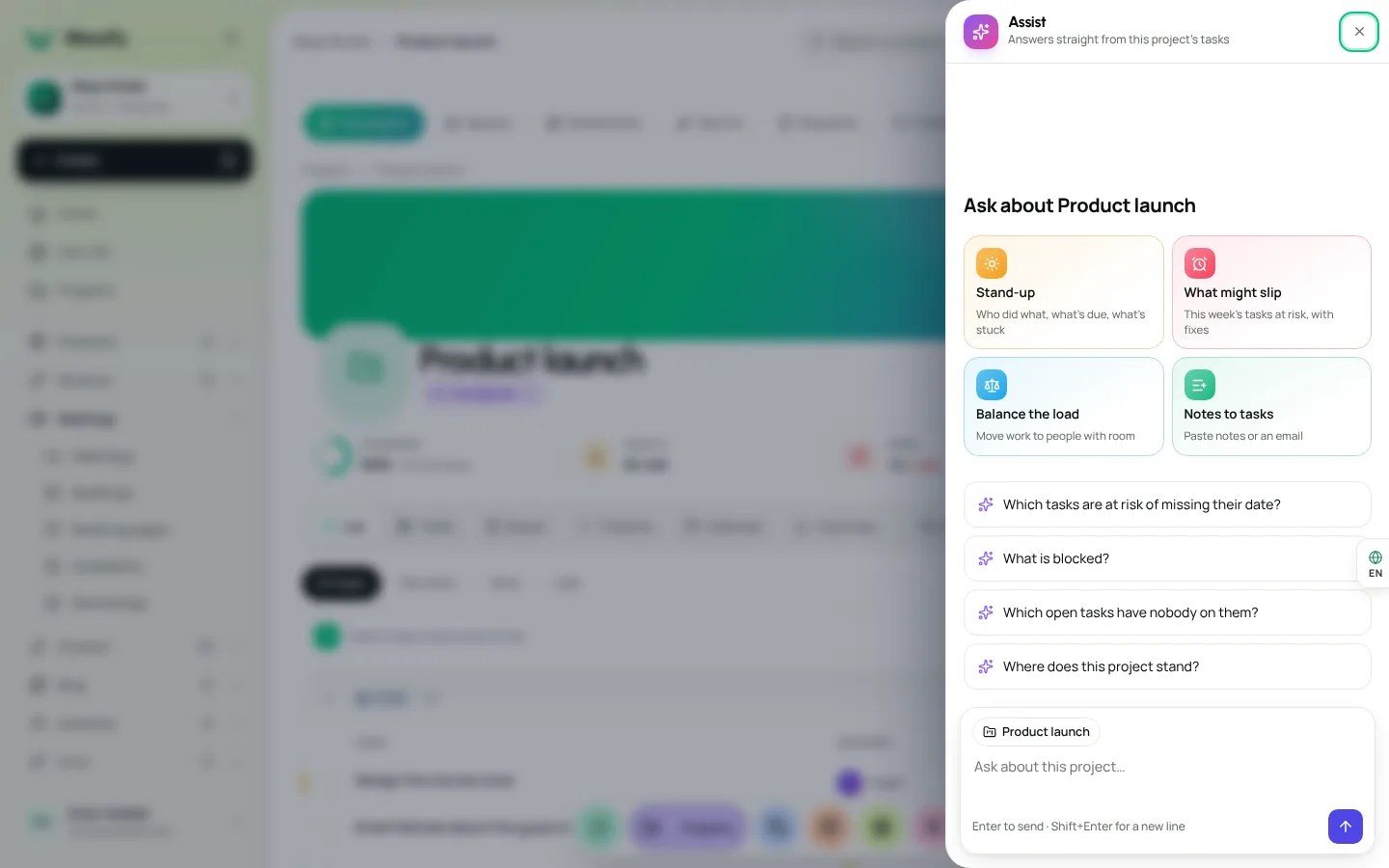
Every project has an Assist button. It opens a panel that answers straight from that project's tasks. Four cards sit at the top, one for each job the co-pilot does best, and below them a few ready questions such as "Which tasks are at risk of missing their date?" or "What is blocked?". You can also ask in your own words.
The co-pilot runs on Weesify's own AI, on our own servers. Your project never goes to an outside AI company.
The stand-up, written for you
Press Stand-up and the co-pilot writes the update you would otherwise write yourself: who finished what since the last working day, what is due today and tomorrow, and what is stuck. It reads the project's real activity, so it never invents progress, and on a quiet day it says so.
If your team likes a daily update, turn on Post to the channel. Every working day at 9:00 (in your workspace's time zone) the stand-up is posted to the project's chat channel, so everyone starts the day knowing where things are, without a meeting.
What might slip this week
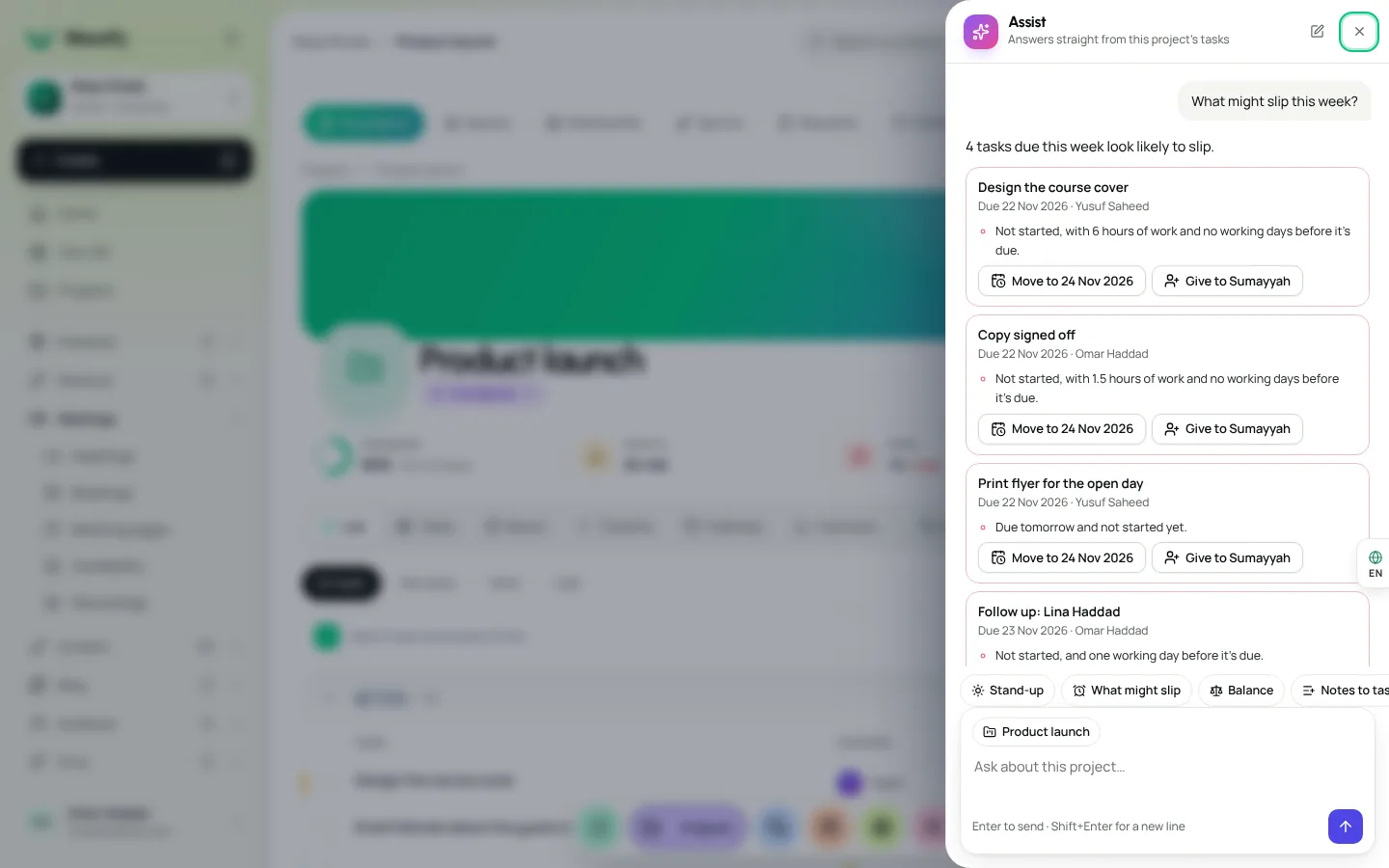
This is the card we use most. What might slip looks at every task due in the next seven days and asks a few honest questions about each one.
- Has it started?
- How many hours of work are left, and how many working days are there before it is due?
- Does the person it belongs to have room this week, or is their time already full?
- Is it waiting on another task that is not finished, or that is due after it?
Each task at risk is listed with the reason in one sentence, and with fixes you can apply in one click: Move to the next working day, or Give to someone on the team who has the time. If nothing is at risk, the co-pilot says so and explains why it thinks the week is safe.
Balancing the load
Balance the load compares booked hours with free hours for everyone on the project over the next two weeks, using each person's working days, their time off and the estimates on their tasks. When someone is over, it suggests moving specific tasks to people with room, one move at a time, each with the person and the task. You choose which moves to make; nothing changes until you press the button.
If nobody on the team has room, the co-pilot says that too, and suggests pushing dates or cutting scope instead of quietly overloading someone else.
Notes to tasks
Paste notes from a call, a list from a whiteboard or a client's email into Notes to tasks. The co-pilot reads who said they would do what, and by when, and hands you a list of tasks to check.
- Names are matched to people on your team, never guessed between two.
- Dates are understood the way people say them: "by Friday", "next week", "tomorrow morning".
- Plain lists are read line by line, so a quick list of to-dos becomes a list of tasks exactly as written.
- Each task can be edited or unticked before you add it.
Say you paste three lines from a client call: "Sara will send the logo options by Friday. Omar books the photographer next week. We still need the price list from the client." You get three tasks: one for Sara due on Friday, one for Omar dated next week, and one with nobody on it yet, so it stands out until someone takes it.
Only the tasks you keep are added to the project, given to the people named, with the dates found.
Meetings that become tasks by themselves
If your team meets in Weesify, the co-pilot can skip the pasting entirely. Turn on Turn meeting notes into tasks automatically for a project. When a recorded call in that project's chat channel, or a Weesify meeting named after the project, has its notes ready, each action item becomes a task in the project, given to the person who took it on and dated from what was said. The people involved hear about their new tasks, and the meeting stays linked from each one.
Work that starts itself
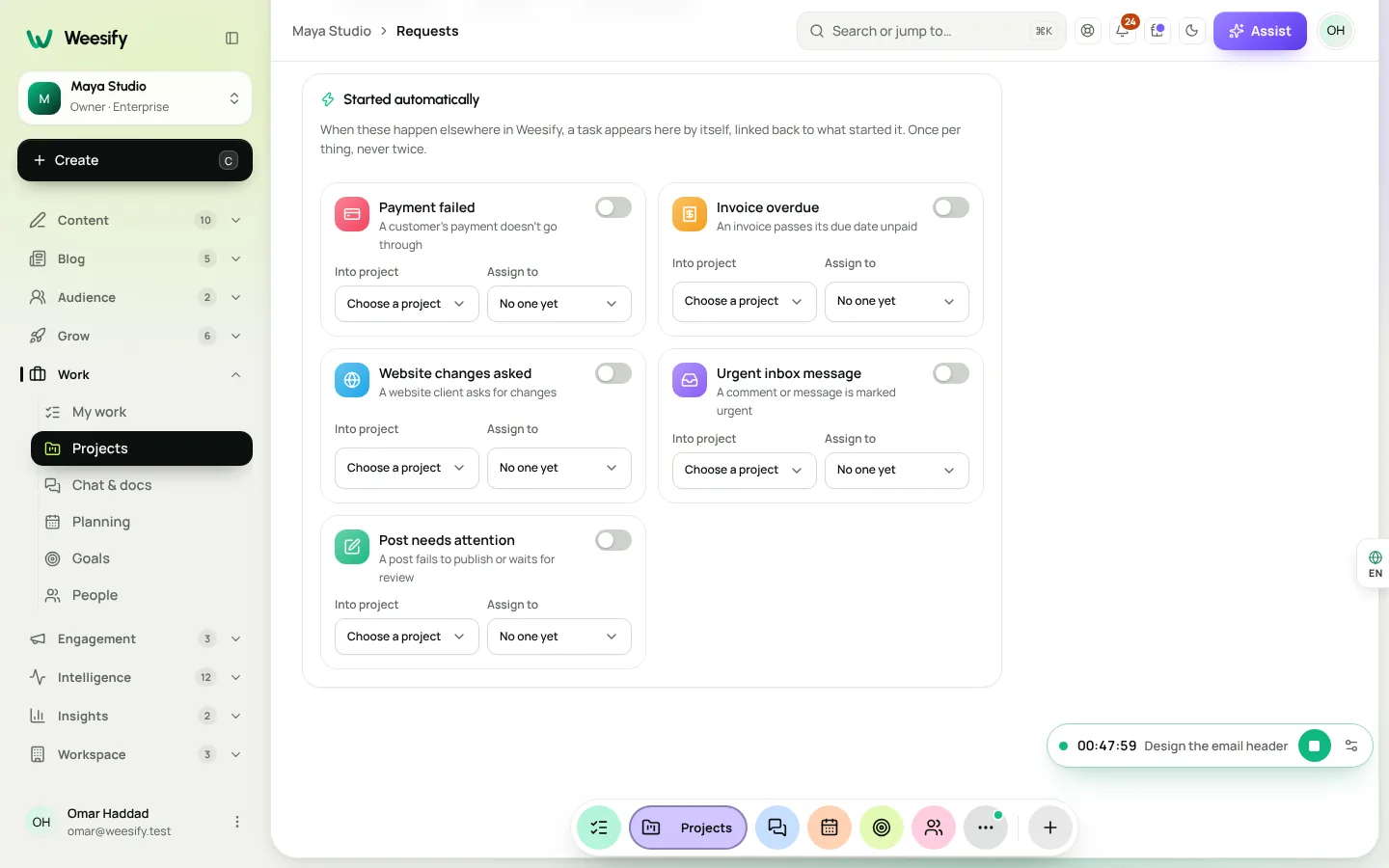
A lot of work begins outside the project tool: a customer's payment fails, an invoice goes overdue, a website client asks for changes, a message is marked urgent, a post fails to publish. In Weesify, all of those happen in the same workspace as your projects, so they can start the work themselves.
In Work › Requests, the Started automatically section lists those five events. Turn one on, choose the project it goes to and who it is given to, and from then on each event makes one task, once, linked back to what started it.
You can also make a task by hand from nine kinds of Weesify activity, such as a form response, a booking, an order or an inbox message, using the Create a task button you will find on each of them.
Privacy and control
We built the co-pilot to help, not to watch people.
- It only reads the project you open, and only what you are allowed to see. Private tasks stay private.
- Nothing is changed until you press a button: every move, reassignment and new task is a suggestion first.
- Reports and suggestions are about work and capacity, never a score that ranks one person against another.
- Everything it does is recorded in the project's activity, like any other change.
The co-pilot is included in Weesify Work on every plan. To see the rest of Work, start with Meet Weesify Work, and to see how the numbers behind the co-pilot are worked out, read Time tracking, profitability and forecasts.
احصل على المقالات الجديدة بالبريد
مقالات جديدة من مدوّنة Weesify، مباشرة إلى بريدك. بلا إزعاج، وبإمكانك إلغاء الاشتراك في أي وقت.
باشتراكك فإنك توافق على تلقي رسائل بريدية من مدوّنة Weesify. يمكنك إلغاء الاشتراك في أي وقت.
 الميزات
Client Portals, Proofing and Approvals in Weesify Work
Give every client a private portal where they follow progress, approve files with pinned notes, pay invoices and vote on ideas, without a login or a paid seat.
قراءة في 6 دقائق
 الميزات
إشعارات النماذج التي تصل إلى الأشخاص المناسبين
أرسل ردود كل نموذج إلى صندوق البريد المناسب: إلى الجميع، أو فقط عندما تطابق إجابة ما. كلماتك، وكل الإجابات، وزر إلى الرد، والردود تذهب مباشرة إلى الشخص.
قراءة في 6 دقائق
 الميزات
شرح رموز QR الديناميكية: اطبع مرة واحدة وحدّث إلى الأبد
يشير رمز QR الديناميكي إلى رابط تتحكم فيه، فيمكنك تغيير وجهته واحتساب كل عملية مسح دون إعادة الطباعة. إليك كيف تعمل هذه الرموز في Weesify.
قراءة في 7 دقائق
التعليقات
لا توجد تعليقات بعد. ابدأ المحادثة.