


Meet Weesify Work: Team and Task Management, Built In

Weesify Work brings projects, tasks, time, client portals and an AI co-pilot into the same workspace as your pages, store, bookings and emails. Here is what it does and how to start.
Most small teams run their work across three or four tools. Tasks live in one app, files in another, client approvals happen over email, time is tracked in a spreadsheet nobody trusts, and the actual business (the website, the store, the bookings, the newsletter) sits somewhere else again. Every hand-off between those tools is a place where something gets lost.
Weesify Work is our answer. It is team and task management that lives inside your Weesify workspace, next to everything else you already run there. Same login, same team, same files, same notifications. A booking can become a task. A failed payment can become a task. A client can approve a design and pay an invoice from the same page. And an AI co-pilot reads your projects and tells you, in plain words, what might slip this week.
In this guide
- What Weesify Work is, in one minute
- Projects your way: six views of the same work
- Tasks that hold everything
- Teams, people and who has room
- Clients, time and money
- The co-pilot
- Fair by design
- How to start
What Weesify Work is, in one minute
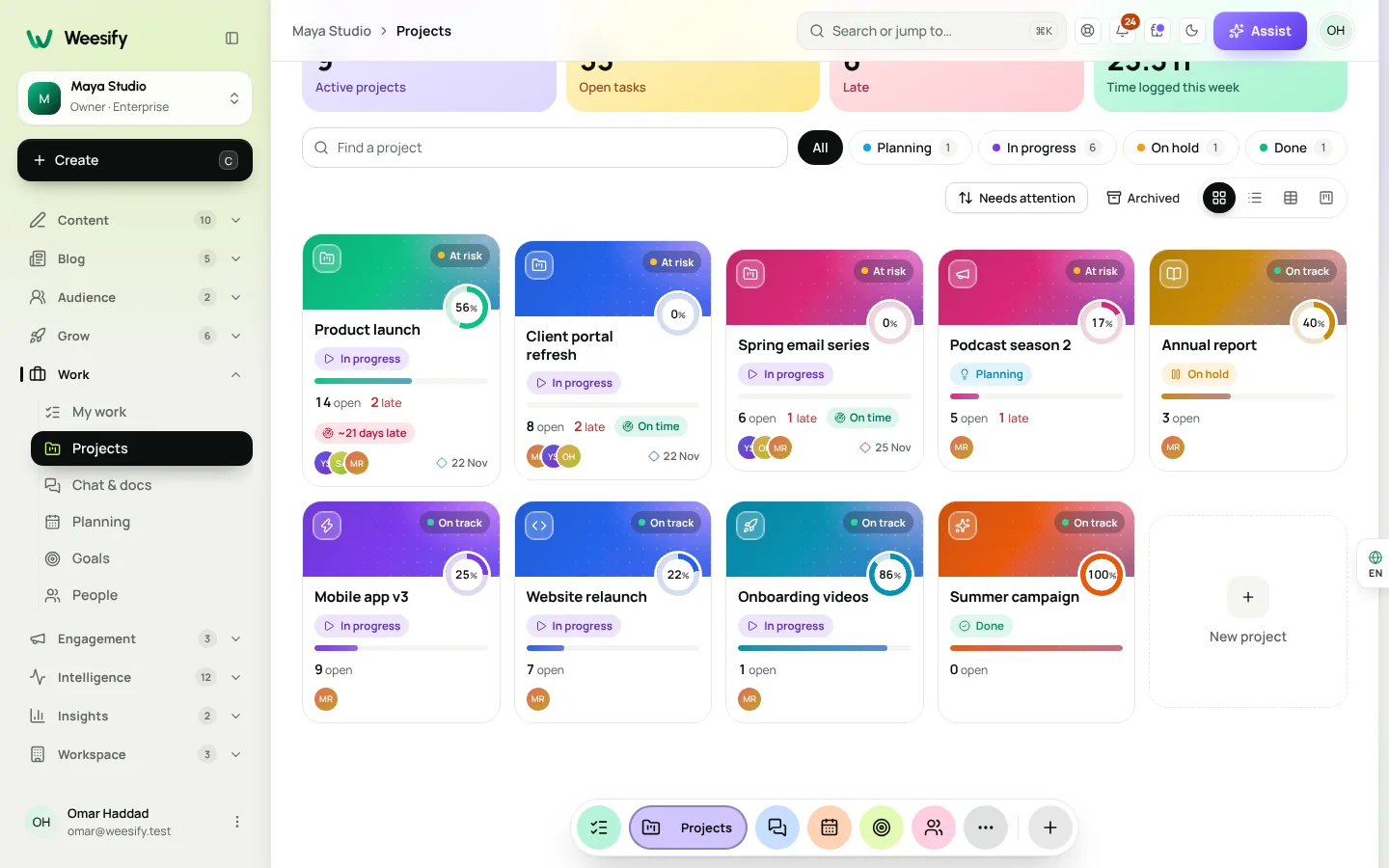
Work is a module in your workspace. Turn it on in Modules and a Work section appears in your sidebar with My work, Projects, Chat and docs, Planning, Goals and People. A project holds tasks, files, a chat channel, docs and an overview. Tasks can be given to anyone on your team, dated, estimated, labelled, linked to other tasks and tracked against the time you spend on them.
Because it is part of Weesify, Work also knows about the rest of your business. You can start a task from a form response, a booking, a contact, an event registration, a post, an order, an invoice, an inbox message or a piece of website feedback, and the task keeps a link back to where it came from.
Projects your way: six views of the same work
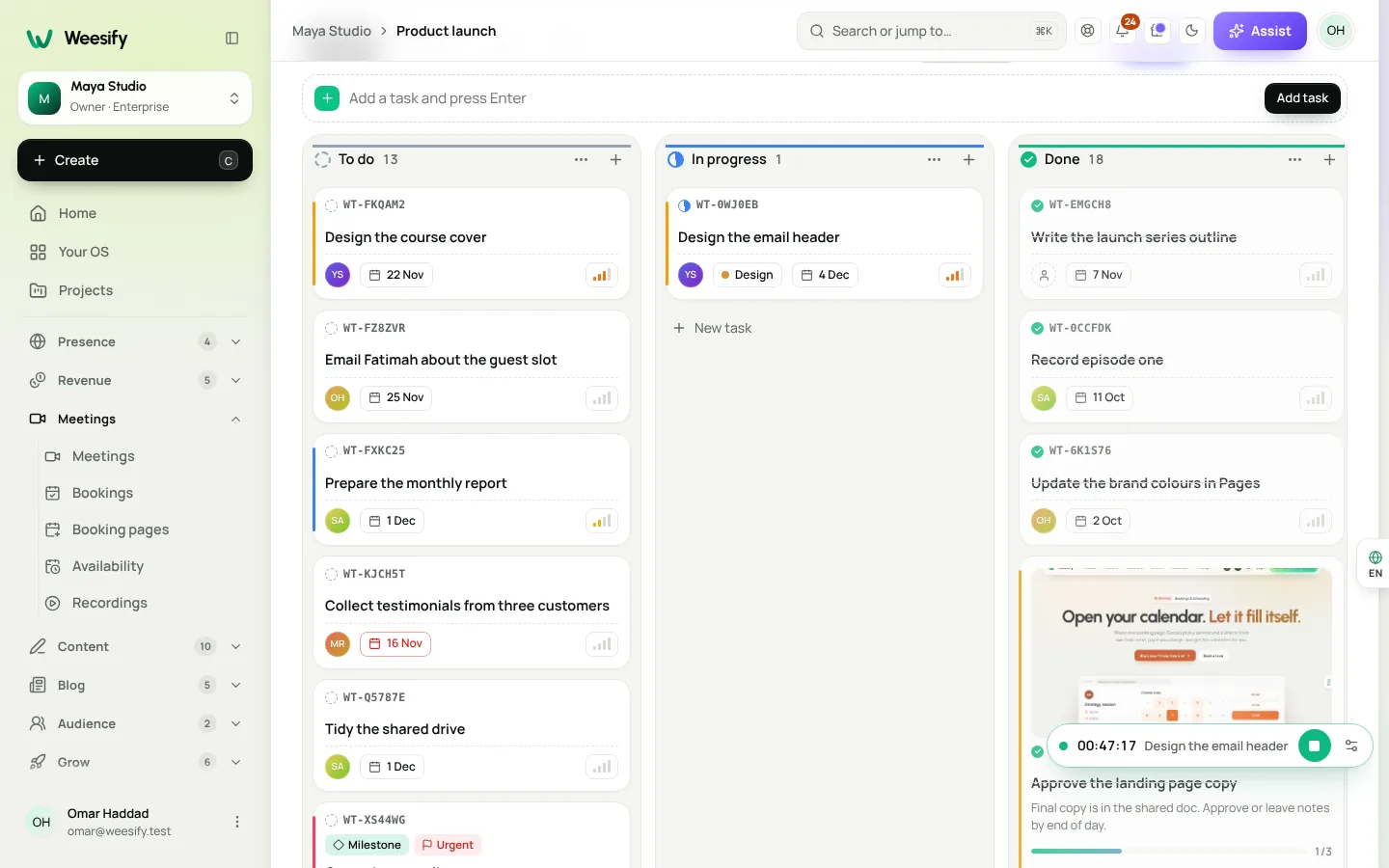
People think about work differently. Some like a list, some need a board they can drag, others want to see dates on a timeline. In Weesify Work every project can be seen six ways, and they are all the same tasks underneath, so a change in one view is a change everywhere.
- List: tasks grouped by status, quick to scan and quick to tick off.
- Table: a spreadsheet where every cell is editable. Click a cell, type, press Enter to move down. Sort by any column and download the whole thing as a CSV.
- Board: columns you can drag cards between, with priorities, labels and due dates on every card.
- Calendar: tasks on the days they are due, so you can see a busy week coming.
- Timeline: bars you can drag to move dates, with dependencies drawn between them.
- Overview: progress, health, who has what, what is late and a forecast of when the project will really finish.
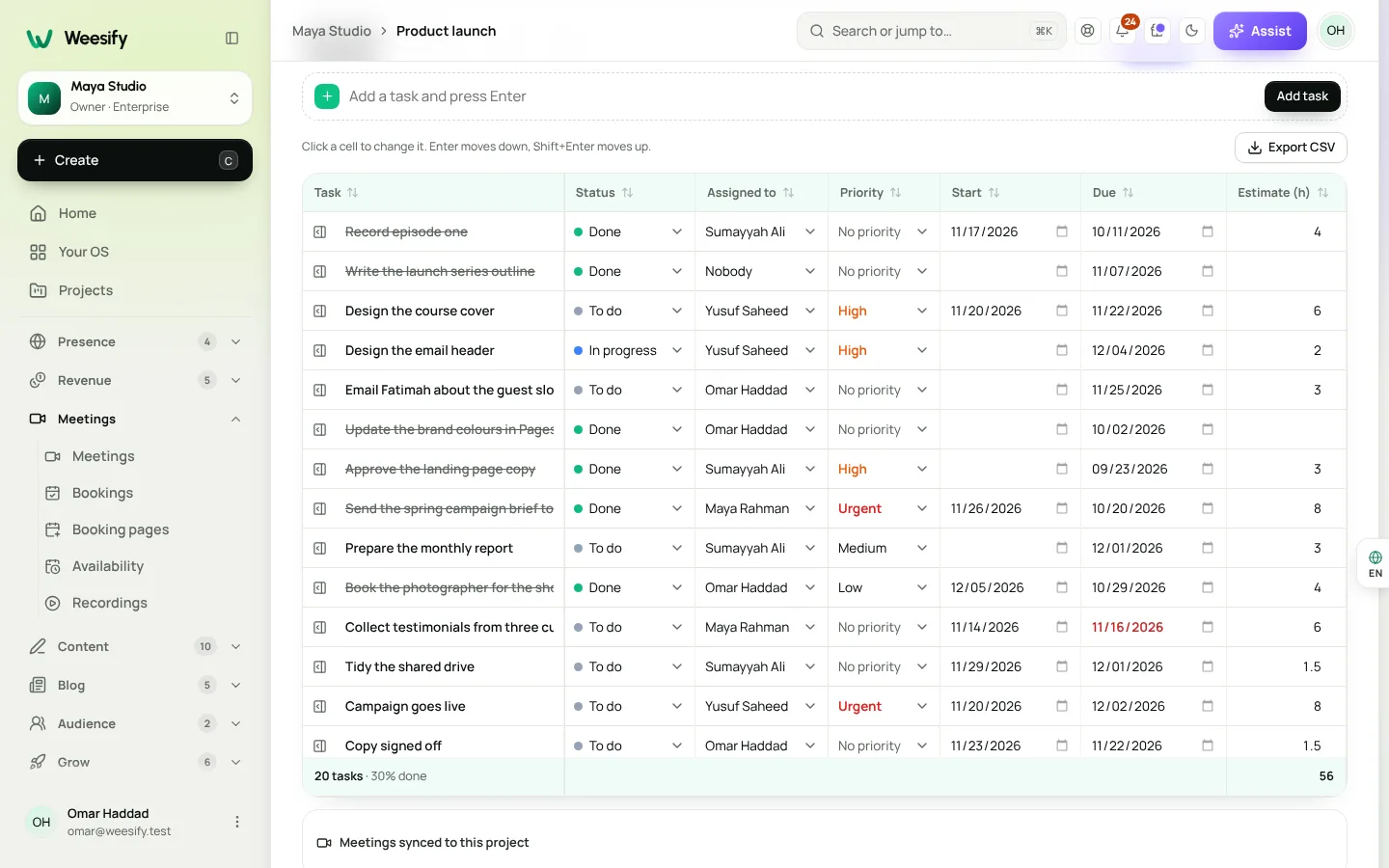
You can save the views you use most, with your own filters, and come back to them from the Views menu.
Tasks that hold everything
A task in Weesify Work is more than a line on a list. Open one and you get a calm panel with everything about it in one place.
- Sub-tasks and checklists to break big work into steps.
- Dependencies, so a task that is blocked by another one waits for it, and dates can move together when plans change.
- Repeating tasks for the things that happen every week, like a content review or a team report.
- Comments with mentions, so the right person hears about it without a meeting.
- Files and proofing: drop images and PDFs on a task, pin notes on them, approve them or ask for changes.
- Time: start a timer or log time by hand, marked billable or not.
- Custom fields and templates, so a design request or a new client always starts with the same questions answered.
Every change is recorded in the task's activity, and anyone looking at the same project sees it appear without refreshing the page.
Teams, people and who has room
Work has its own People section: everyone in the workspace with their title, team, working days and hours, and how much is on their plate. Teams group people together, an org chart shows who reports to whom, and time off feeds straight into planning, so nobody is booked on a day they are away.
The Workload view puts booked hours next to free hours for each person over the coming weeks. When someone is over, you can see it before it becomes a late night, and the co-pilot can suggest which tasks to move to someone with room.
Clients, time and money
Agencies, studios and freelancers do a lot of their work for clients, and that work has to be shown, approved and paid for. Weesify Work handles all three.
Turn on a client portal for a project and your client gets a private page with the tasks you share, files waiting for their approval, the invoices you have sent with a Pay button, and an ideas board where they can suggest things and vote. Clients never need to sign in, and they never see private tasks or your team's notes. We cover portals in detail in Client portals, proofing and approvals in Weesify Work.
On the money side, you can give each person a bill rate and a cost rate, give a project a monthly retainer, and see the value, cost and margin of every project. Read more in Time tracking, profitability and forecasts.
The co-pilot
Every project has an Assist button. Open it and the co-pilot offers four things straight away: a stand-up (who did what, what is due, what is stuck), what might slip this week with one-click fixes, a way to balance the load across your team, and a box where you can paste meeting notes or an email to turn them into tasks with owners and dates. It runs on Weesify's own AI, and nothing changes until you press the button. We explain how it works in A co-pilot in every project.
Fair by design
When we looked at what people dislike about the big project tools, the same complaints came up again and again: paying for a seat for every client, time tracking locked away in an expensive plan, and notifications that never stop. So Weesify Work does the opposite.
- Guests and clients are free. They don't take a paid seat. Pro includes 10 of them and Business 50.
- Time tracking is on every plan, not hidden in the top tier.
- Notifications are calm. Assignments, mentions and due work go to one inbox, with digests instead of a ping for every change.
- Reports are fair to people. They show work and capacity, never a score that ranks one person against another.
- Your data is yours. Any table downloads as a CSV, and you can bring work in from Jira with every link kept.
How to start
- Open Modules in your workspace and turn on Work.
- Go to Work › Projects and press New project, or start from a template.
- Add a few tasks, give them to people and set dates.
- Invite your team from Settings › Members. Invite clients and guests the same way; they won't use a paid seat.
- If your work lives in Jira today, press Import from Jira and watch it come across. Our post on faster imports you can watch shows how.
Weesify Work is available now on every Weesify plan, with the 14-day trial. If you already use Weesify for your pages, store or bookings, your team's work can now live right next to them, in one calm place.
Recibe nuevas entradas por correo
Artículos nuevos de Blog de Weesify, directamente en tu bandeja de entrada. Sin spam; puedes darte de baja cuando quieras.
Al suscribirte aceptas recibir correos de Blog de Weesify. Puedes darte de baja cuando quieras.
 Novedades del producto
Faster Imports You Can Watch, From Linktree to Jira
Moving to Weesify from another service or from Jira now shows live progress with friendly updates, finishes much faster and never ends on an error screen.
6 min de lectura
 Novedades del producto
Weesify Forms para WordPress: leads, etapas y correos
El plugin Weesify Forms ahora llama a lo que llega por su nombre real, lleva cada uno de Nuevo a Ganado, guarda notas privadas y envía tus propios correos con tu marca, directamente en WordPress.
8 min de lectura
 Novedades del producto
La API y la CLI de Weesify: guía para desarrolladores
Tokens con permisos acotados, una API REST documentada, webhooks firmados y una CLI de un solo archivo que despliega sitios web desde tu portátil o tu pipeline de compilación. Así encajan entre sí.
7 min de lectura
Comentarios
Aún no hay comentarios. Empieza la conversación.