


Replace Your Tool Stack with Weesify: One Connected Workspace

A link page, a shortener, a form builder, an email tool, a booking app, a shop, a course host. Here is how to replace your tool stack with one connected Weesify workspace, step by step.
Count the logins you use to run your online presence. A link page. A link shortener. A QR code generator. A form builder. An email tool. A booking app. A shop. A course host. A community app. A social scheduler. Each one has its own bill, its own customer list and its own idea of who your audience is. If you want to replace your tool stack with Weesify, this guide shows how to map what you use today, move it over in a sensible order and connect it all.
We will not compare Weesify to named products here. Every tool has its fans. Instead, we will look at the jobs your tools do and show where each job lives in Weesify.
In this guide
- Why a connected workspace beats a pile of tools
- Map your current stack, job by job
- The order to move things in
- What connects once everything is in one place
- When to keep a separate tool
- A migration checklist and FAQ
Why one connected workspace
The real cost of a tool stack is not only the subscriptions. It is the gaps between the tools:
- A form sign-up lands in one tool, but your email list lives in another, so you export and import CSVs.
- Someone buys your course, but your community app does not know they are a student.
- A booking comes in, but the reminder email is set up somewhere else, with a different template.
- Your analytics cannot tell you which QR code led to which sale, because the code, the page and the checkout are three different products.
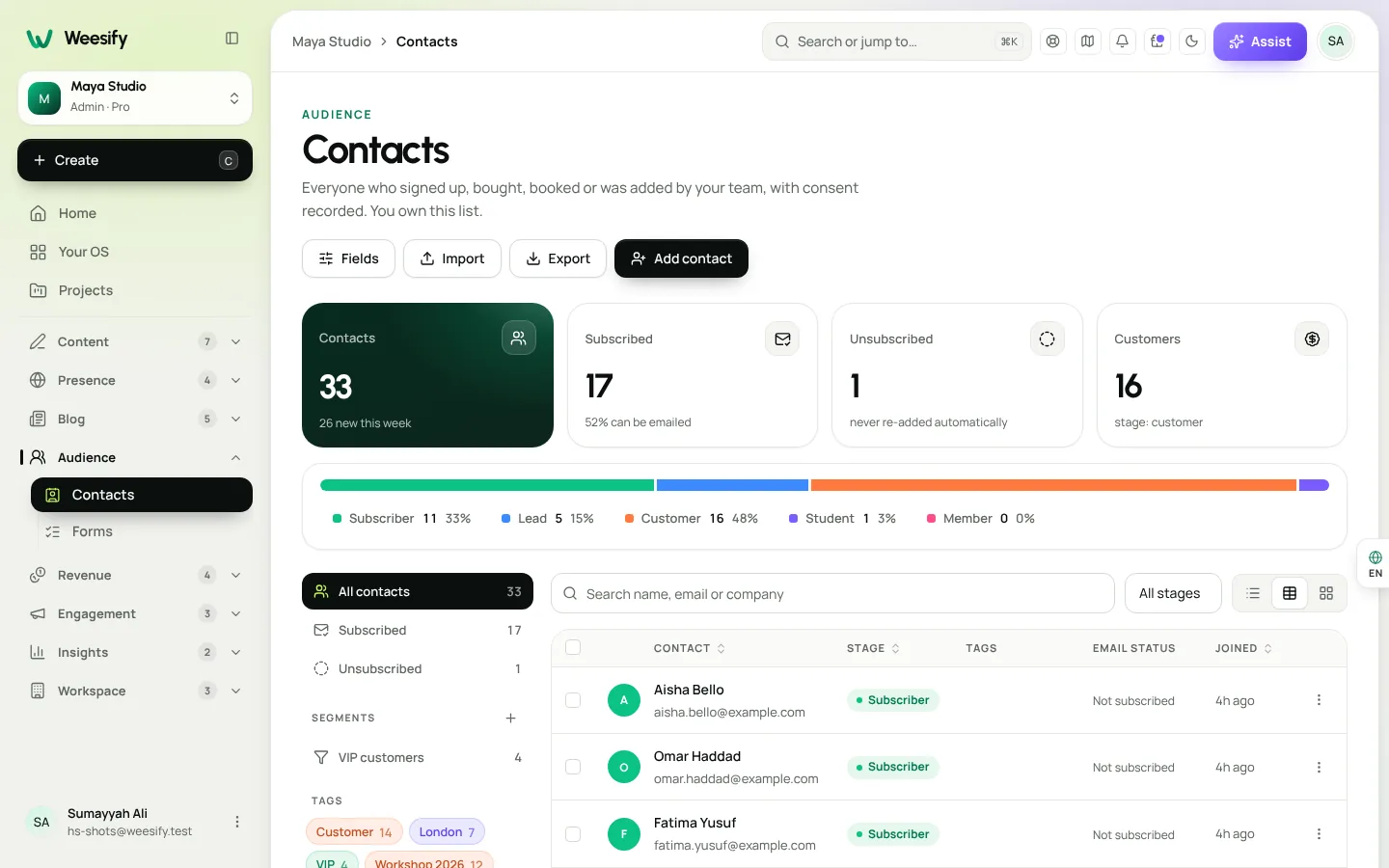
In Weesify, those gaps close by design. A form sign-up becomes a contact. A purchase becomes a customer. An event ticket becomes a guest. Every one of them lands in the same Audience, with a timeline of what they did.
Map your current stack, job by job
Take a sheet of paper and list each tool you pay for. Then find its job in this table.
| The job | Where it lives in Weesify | Read more |
|---|---|---|
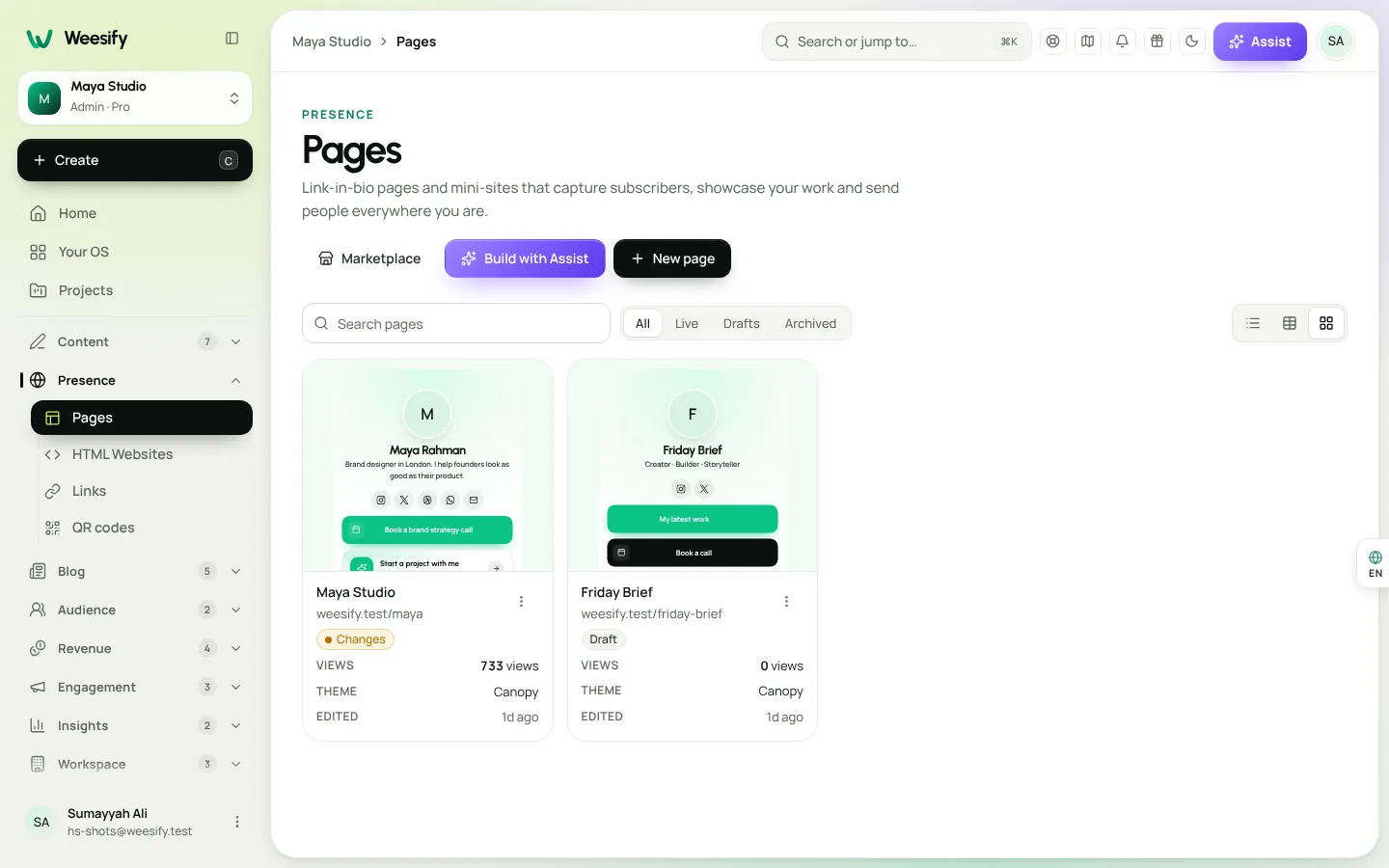
| Link-in-bio page | Presence › Pages with blocks, themes and Assist | Link-in-bio page that sells |
| Short links | Branded short links with schedules, expiry and UTM tags | Branded short links guide |
| QR codes | Dynamic QR codes with scan counts | Dynamic QR codes explained |
| A simple website | HTML Websites, or pages on your own domain | Host an HTML website |
| Blog | The Weesify blog module | Start a blog on Weesify |
| Forms and surveys | Step-by-step forms with logic | Forms that capture leads |
| Email list and newsletters | Contacts, segments and broadcasts | Email newsletters that get read |
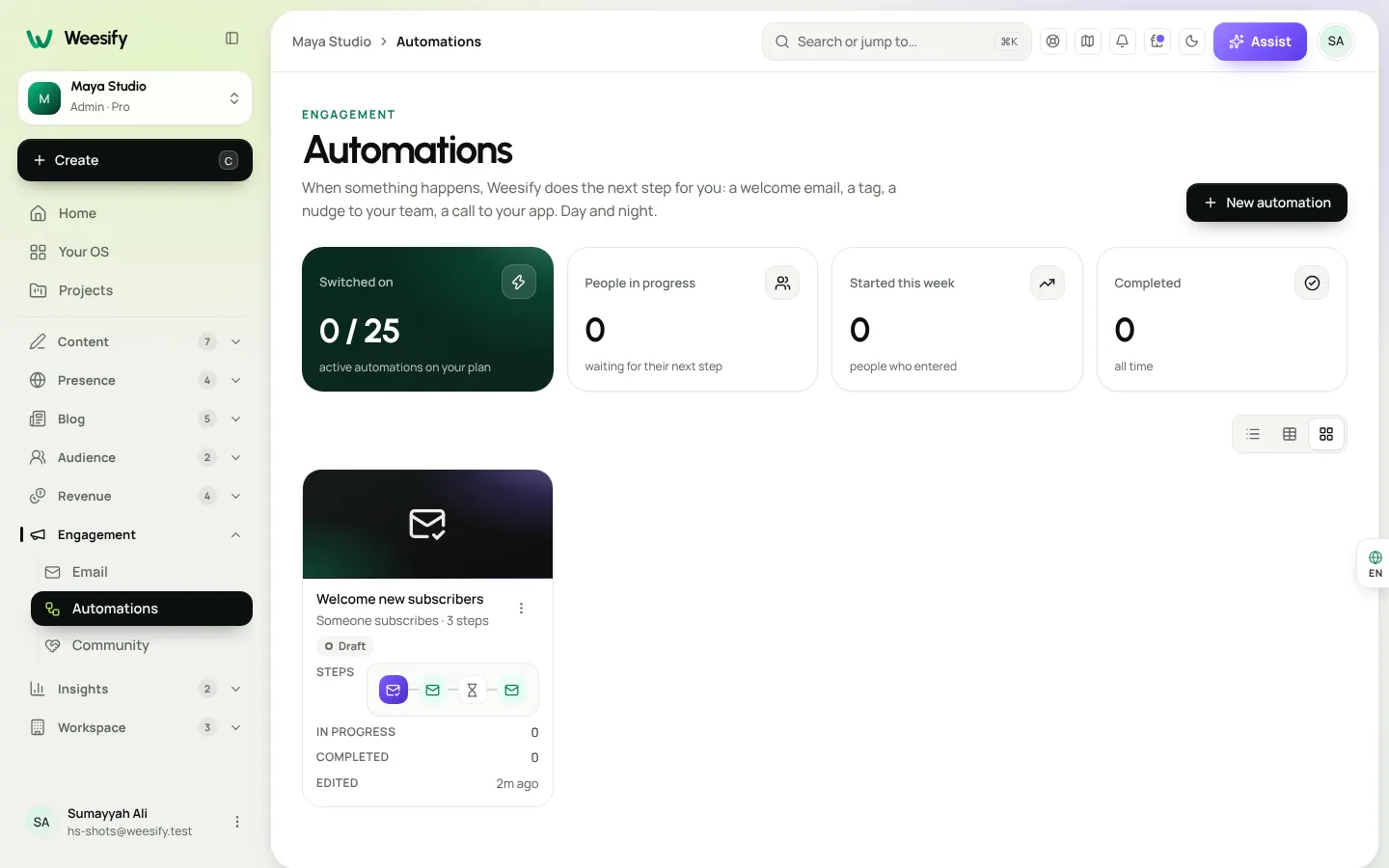
| Email sequences | Automations | Automations: a welcome sequence |
| Digital product shop | Store with ten templates | Sell digital products online |
| Online courses | Courses with drip, quizzes and certificates | Launch an online course |
| Appointment booking | Bookings with paid sessions and reminders | Booking page for consultants |
| Event ticketing | Events with tickets and QR check-in | Host and sell event tickets |
| Community or membership | Community spaces, free or paid | Build a paid community |
| Social scheduling | Content OS planner, publishing and inbox | Publish to social networks |
| Video editing for socials | Video Studio | Edit your existing footage |
| Web analytics | Cookieless analytics | Know where visitors come from |
Mark each tool as move now, move later or keep. Most people find that the majority of their list moves.
How to replace your tool stack, in order
Moving everything in one weekend is a recipe for a broken link somewhere. A calmer order:
1. Your page, links and domain
Start where people find you. Build your page in Presence › Pages. If you already have a website or social profiles, use Build with Assist, paste your links, and Assist drafts a page from what they really show. Then connect your domain. See Custom domain setup guide.
2. Your audience
In Contacts, choose Import and upload a CSV with an email column; name, phone and tag columns are matched for you. Say whether these people agreed to hear from you, because only people who agreed receive broadcasts. Tag them by where they came from, such as "old newsletter" or "past buyers", so you can treat them differently later.
3. Forms
Rebuild your main sign-up and enquiry forms in Forms. Each response now creates or updates a contact automatically, so you no longer need an export step.
4. Selling: store, courses, bookings and events
Move one offer at a time. Recreate the product, course, bookable service or event, test the checkout yourself, then swap the link on your page. Keep the old tool running until the last customer of an open cohort or event has been served.
5. Email and automations
Rewrite your welcome sequence as an automation triggered by a sign-up, purchase or booking. Because these events now happen inside Weesify, the triggers fire without any extra wiring.
6. Content and video
Finally, bring your posting routine into Content OS: capture ideas, plan on the calendar, connect your social accounts and let scheduled posts go out. Edit your talking-head clips in Video Studio.
What connects once everything is in one place
This is the payoff. With your stack in one workspace:
- A QR code scan, the page visit it led to and the sale that followed are all in the same analytics.
- A buyer of your course can be invited to your community, tagged as a student and sent a welcome automatically.
- An event guest becomes a contact you can invite to the next event.
- Your team shares one set of roles in Settings › Members, instead of separate logins in ten tools.
- Assist can answer questions about the screen you are on, using what your role can see.
When to keep a separate tool
Be honest about edge cases. Keep a separate tool when:
- You sell physical products with shipping. Weesify's store currently sells digital products, services, donations, gift cards and paid questions.
- Your website needs server code such as PHP. HTML Websites hosts static sites only.
- A specialist tool does a job Weesify does not cover at all.
You can still link to those tools from your Weesify page, and the Weesify API and webhooks can connect them to your contacts.
Migration checklist
- List every tool you pay for and its job.
- Mark each one move now, move later or keep.
- Build your page and connect your domain.
- Import contacts and tag them by source.
- Rebuild your main forms.
- Move one offer at a time, testing checkout each time.
- Recreate your welcome sequence as an automation.
- Update the links on your social profiles and printed materials.
- Cancel old subscriptions only after their last open commitment ends.
Frequently asked questions
Do I have to move everything at once?
No. Move in stages. Many people start with their page, links and forms, and move selling and email once they are comfortable.
Will my printed QR codes break?
Codes from another tool point to that tool's addresses, so they keep working until you cancel it. For new prints, use Weesify dynamic QR codes, which you can repoint later without reprinting.
Can I keep using my own domain?
Yes. Connect your domain to your Weesify pages and links, or to an HTML website.
What if Weesify does not do something I need?
Keep that tool and link to it, or connect it with the API and webhooks. You can also suggest an idea and vote on the public roadmap.
Can I try this before cancelling anything?
Yes. Every plan starts with a 14-day trial, which is a good window to rebuild your page and one offer side by side with your current tools.
One workspace, fewer gaps
You do not have to replace everything on day one. Start with the job that causes the most copy-and-paste, and let each move make the next one easier.
Start your 14-day trial. Every plan starts with a 14-day trial; you add a card to start and nothing is charged during the trial. Read how to get the most out of it.
تابع القراءة
 Guides
Content Calendar Planner: A Step-by-Step Guide
A content calendar only helps if it is honest about your time. Here is how to use Weesify's planner to map campaigns, catch clashes and keep a steady rhythm.
Guides
Content Calendar Planner: A Step-by-Step Guide
A content calendar only helps if it is honest about your time. Here is how to use Weesify's planner to map campaigns, catch clashes and keep a steady rhythm.
 Guides
Remove Pauses and Filler Words From Video Automatically
Long pauses and 'um's make good videos feel slow. Here is how Weesify Video Studio finds them for you, lets you review each one, and removes them in one tap.
Guides
Remove Pauses and Filler Words From Video Automatically
Long pauses and 'um's make good videos feel slow. Here is how Weesify Video Studio finds them for you, lets you review each one, and removes them in one tap.
 Guides
Welcome Email Sequence: Build One With Automations
The first days after someone subscribes are when they pay the most attention. Here is how to build a welcome email sequence in Weesify Automations that greets every new subscriber on time, every time.
Guides
Welcome Email Sequence: Build One With Automations
The first days after someone subscribes are when they pay the most attention. Here is how to build a welcome email sequence in Weesify Automations that greets every new subscriber on time, every time.
التعليقات
لا توجد تعليقات بعد. ابدأ المحادثة.