


Start a Blog on Weesify: Write, Schedule and Share

Weesify Blog gives you a calm editor, scheduling, categories, moderated comments, RSS and your own address, in the same workspace as your pages, store and email.
Social posts disappear in a day. A good article keeps working for years. It answers the same question for every new person who searches for it, gives you something worth sending to your email list, and shows people how you think before they ever book a call or buy a course.
If you have been meaning to start a blog but did not want another tool, another login and another bill, Weesify Blog is already in your workspace. You get a calm, distraction-free editor that saves as you type, scheduling, categories and tags, moderated comments, RSS, search and sharing details, and an address on your own domain. This guide covers setting it up and publishing your first post.
In this guide
- Why a blog belongs next to your pages and store
- Set up your blog in five minutes
- Write your first post
- Organise with categories and tags
- Publish now or schedule for later
- Comments without the spam
- Get your posts seen
- A starter plan for your first month
Why a blog belongs next to your pages and store
A blog on its own platform is an island. On Weesify it sits beside the things your readers might want next:
- a Blog block on your bio page shows your latest posts to everyone who visits from social media,
- your email tool can send new posts to your list (Email newsletters that get read),
- your store, courses and bookings are one link away when a post makes someone want more.
It also means one team, one set of roles, and one place to look at results.
Set up your blog
Open Blog in the sidebar, then Blog settings. Name your blog, choose how its front page looks, and decide how comments work.
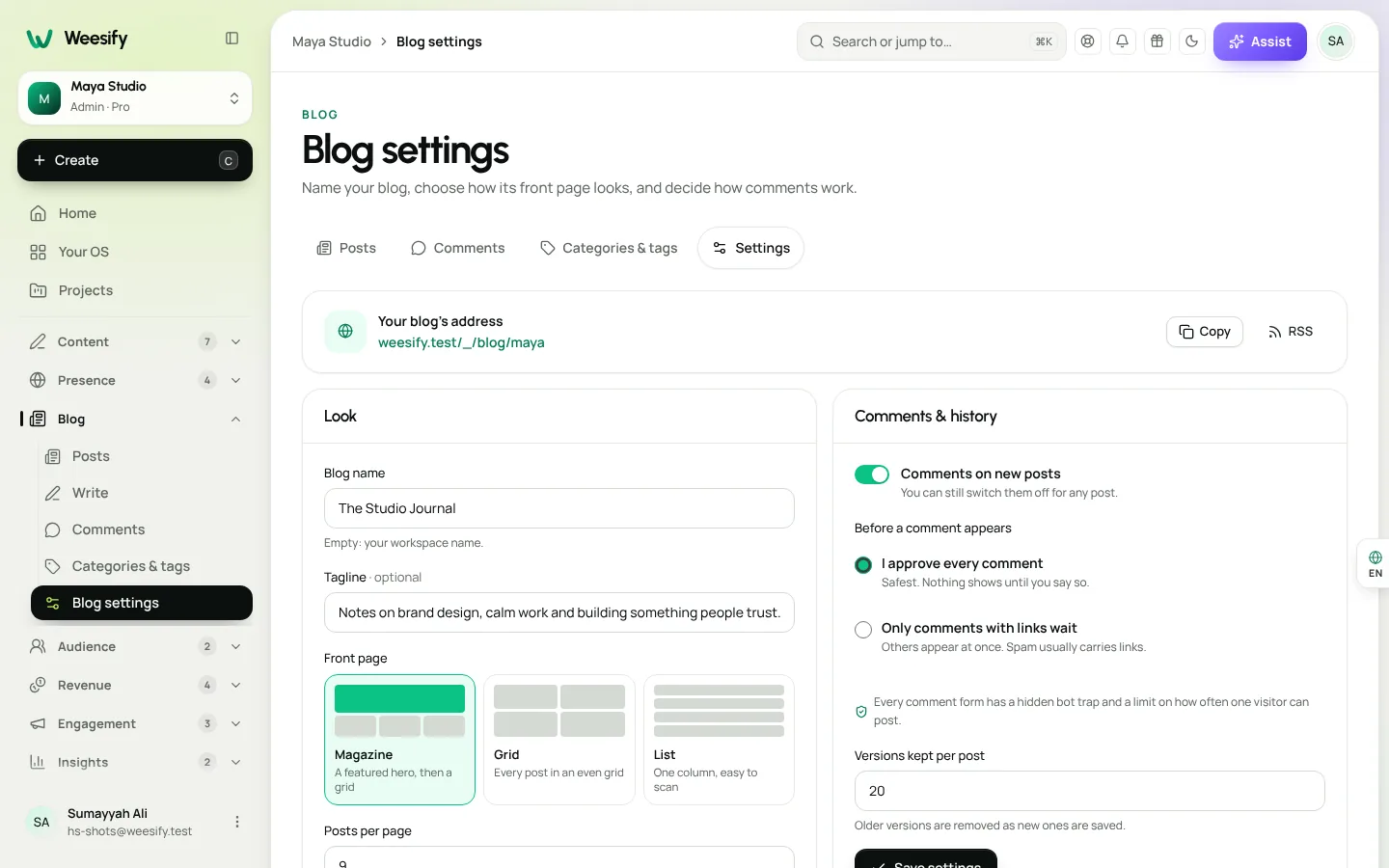
Name and tagline
Blog name defaults to your workspace name if you leave it empty. Add a short Tagline that says what readers will find, such as "Notes on craft, community and good work".
Front page
Choose one of three layouts:
| Layout | What readers see | Good for |
|---|---|---|
| Magazine | A featured hero, then a grid | Blogs with strong cover images |
| Grid | Every post in an even grid | Visual topics, tutorials |
| List | One column, easy to scan | Text-led writing, announcements |
Set Posts per page and an Accent colour to match your brand.
Address
Your blog has a Weesify address straight away. To host it on your own domain, connect a domain in Domains and pick it here. Your blog then also answers at yourdomain.com/blog, and that becomes its main address. Our custom domain setup guide covers the DNS side.
Write your first post
Choose Write in the sidebar (or Write a post). The editor is designed to stay out of your way.
- Give your post a title. Clear beats clever: say what the reader will learn.
- Start writing. Use the toolbar for headings, lists, quotes, images, links, code and dividers.
- Add a cover image and a Cover description for people using screen readers.
- Add a short summary readers see first. It is optional, but it helps on the front page and in shares.
- Turn on Focus mode when you want nothing on screen but your words.
The editor saves as you type, and nothing goes live until you publish or schedule it. Only your team can see a post until then.
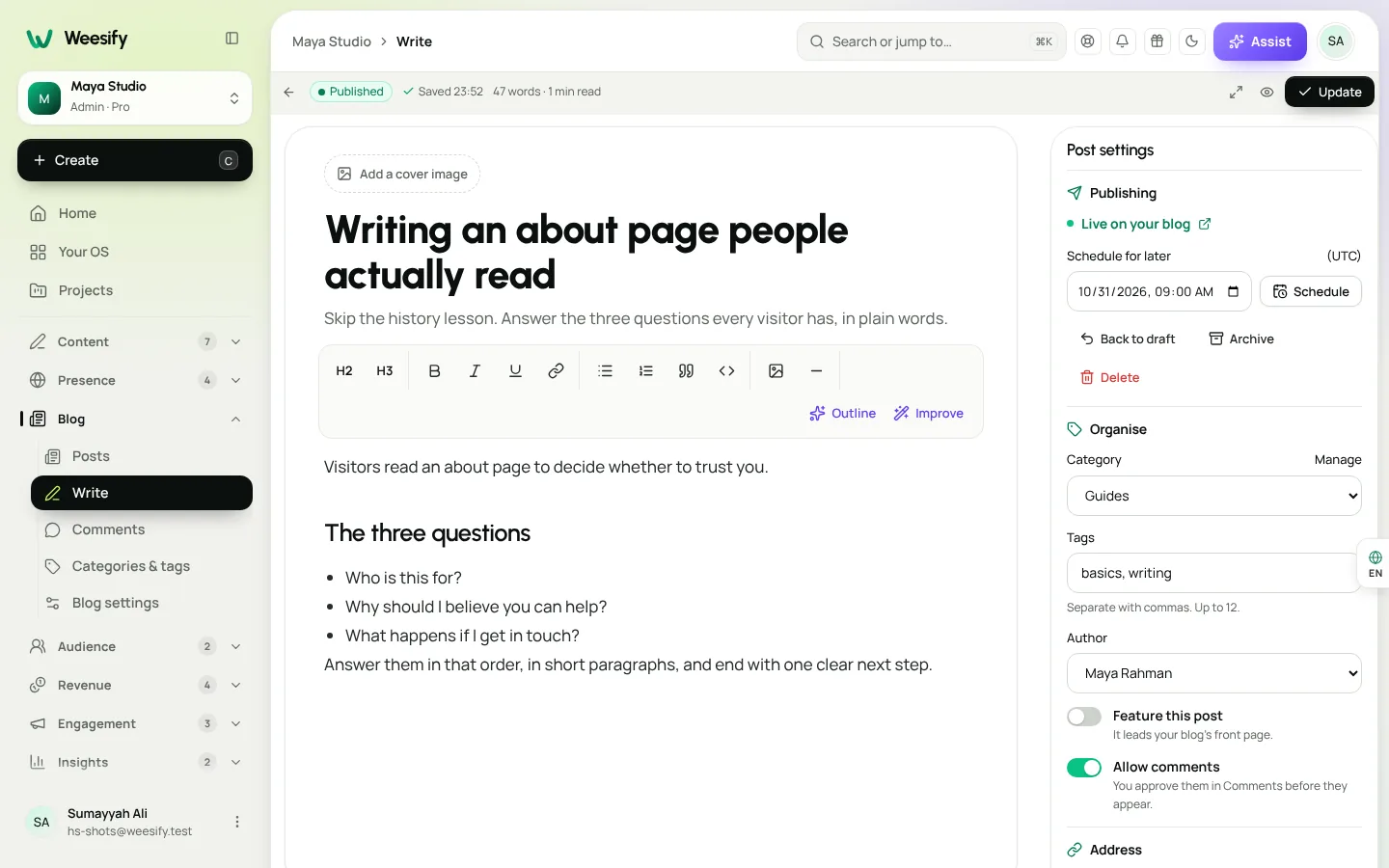
AI writing help, if you want it
Where your plan includes it and AI is on for your workspace, the editor can help:
- Draft an outline from the title gives you a suggested outline; choose Use this outline if it helps.
- Improve and Tidy up the text offer a tidier version of a passage; you choose Use this version or keep your own.
- Write it with AI drafts from a brief. Then say it in your own words: readers come for your voice.
Your current text always stays in the history, so you can go back.
History
Comments & history keeps earlier versions of each post. Bring back any version and your current text stays in the history too. In settings, Versions kept per post controls how many are kept.
Organise with categories and tags
Open Categories & tags. Categories become the pills readers tap on your blog. Tags link related posts together.
- Start with two or three broad categories, like Guides, News or Stories. You can add more later.
- Use tags for specific topics, separated by commas (up to 12 per post).
- Renaming a tag to the name of another merges the two, which keeps things tidy as your blog grows.
- Removing a category keeps its posts; they just lose that category.
Publish now or schedule for later
When the post is ready:
- Publish now puts it live on your blog.
- Schedule for later picks a date and time. Scheduled posts go live on their own, and the posts list shows when each one goes live.
To lead your front page with a particular piece, choose Feature this post. It leads your blog's front page until you choose Stop featuring.
The Posts screen lets you filter by status (Drafts, Scheduled, Published, Archived), search, and sort by Recently edited, Most viewed or Title A–Z.
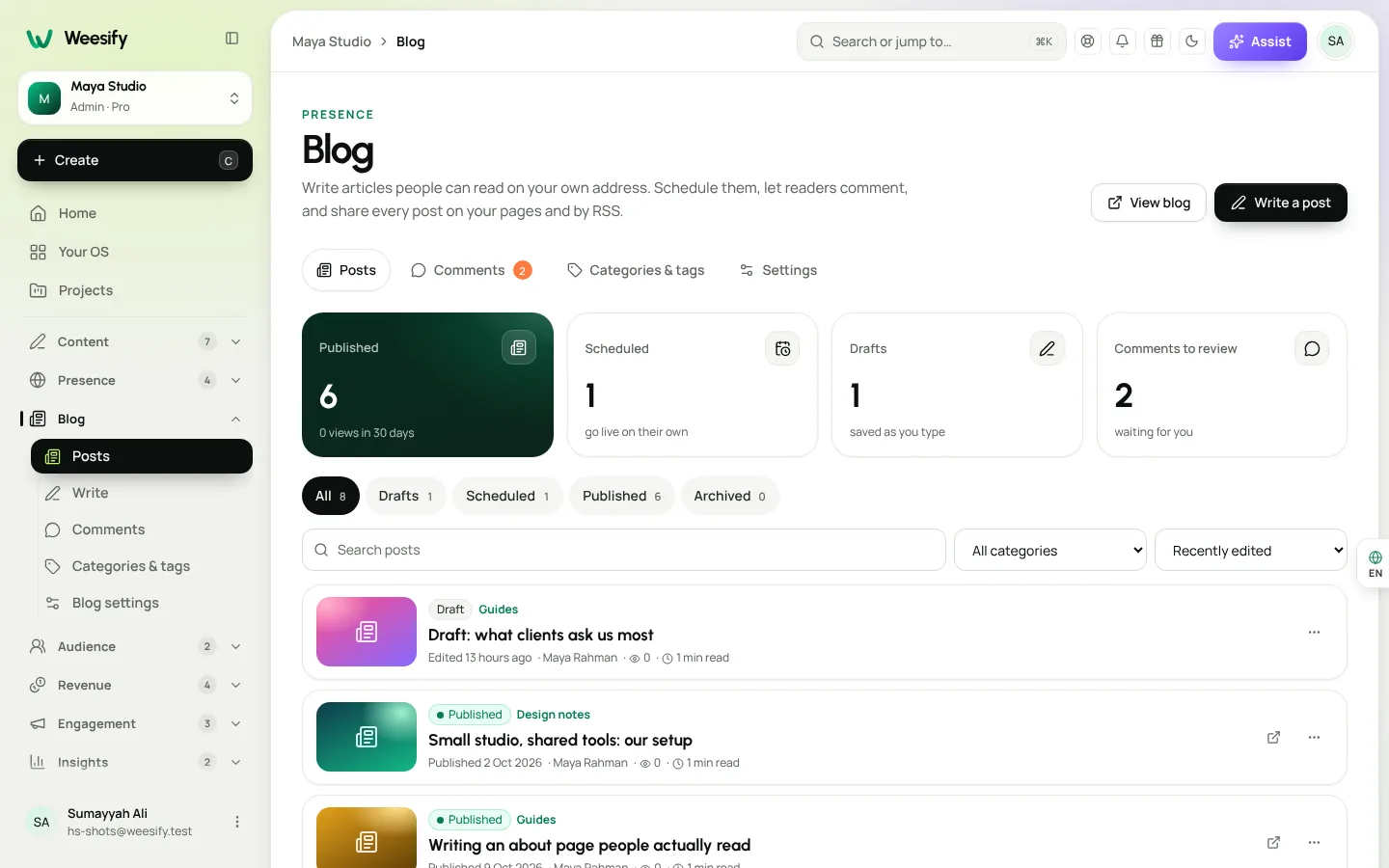
Comments without the spam
Comments turn readers into a community, but only if spam stays out. In Blog settings, choose Before a comment appears:
- I approve every comment: safest, nothing shows until you say so.
- Only comments with links wait: others appear at once, because spam usually carries links.
You can switch comments off for any post with Allow comments. Every comment form also has a hidden bot trap and a limit on how often one visitor can post.
New comments that need approval wait in Comments. Approve them, reply as the author, or send spam away with one tap. Approve all clears a queue of genuine replies quickly.
Get your posts seen
Search and sharing
Every post has a Search & sharing section:
- SEO title and SEO description for search results,
- a Sharing image for previews in chats and feeds (it uses the cover if you leave it empty),
- a Canonical address, only if the post was first published somewhere else,
- the Post address, which you can tidy before publishing.
Our SEO basics for creators explains how to write these well.
Your bio page
Publish, then add a Blog block to your page. Visitors from social media see your latest writing without hunting for it. See Link in bio page that sells.
RSS
Your blog publishes an RSS feed, so readers who use feed apps can follow along, and other tools can pick up new posts.
Repurpose
A strong article can become several social posts. The Content OS helps with that: Repurpose one video into many posts shows the idea, and the same thinking works for writing.
A starter plan for your first month
| Week | Post | Why |
|---|---|---|
| 1 | "Start here": who you are and who you help | A home for new readers |
| 2 | Answer the question clients ask most | Search traffic and fewer repeat emails |
| 3 | A step-by-step guide to something you know well | Shows expertise |
| 4 | A behind-the-scenes post about how you work | Builds trust |
Schedule all four on day one and let them go live on their own. For a wider plan, see A content marketing funnel for creators.
Frequently asked questions
How do I start a blog on Weesify?
Open Blog in the sidebar, set your name and front page in Blog settings, then choose Write to create your first post. Publish it now or schedule it for later.
Can my blog use my own domain?
Yes. Connect a domain in Domains, then pick it in Blog settings. Your blog answers at yourdomain.com/blog, which becomes its main address.
Can I schedule blog posts?
Yes. Choose Schedule for later and pick a date and time. Scheduled posts go live on their own.
How do I stop spam comments?
Choose I approve every comment or Only comments with links wait in Blog settings. Every comment form also has a hidden bot trap and a posting limit, and you can turn comments off for any post.
Does Weesify Blog have AI writing help?
Where your plan includes it, the editor can draft an outline from your title, tidy a passage or draft from a brief. You always choose whether to use a suggestion.
Start writing this week
The best time to start a blog was a year ago. The second best time is this week, in the workspace you already use.
Start your 14-day trial and publish your first post today. Explore everything else on the features page.
Sigue leyendo
 Features
Dynamic QR Codes Explained: Print Once, Update Forever
A dynamic QR code points at a link you control, so you can change where it goes and count every scan without reprinting. Here is how they work in Weesify.
Features
Dynamic QR Codes Explained: Print Once, Update Forever
A dynamic QR code points at a link you control, so you can change where it goes and count every scan without reprinting. Here is how they work in Weesify.
 Features
How to Make Quiet Audio Louder in a Video (Without Distortion)
A quiet recording can sink a good video. Weesify Video Studio measures your footage, warns you when it is too quiet, and makes it louder to the level social platforms expect, with a limiter so it never distorts.
Features
How to Make Quiet Audio Louder in a Video (Without Distortion)
A quiet recording can sink a good video. Weesify Video Studio measures your footage, warns you when it is too quiet, and makes it louder to the level social platforms expect, with a limiter so it never distorts.
 Features
Self-Hosted Video Meetings: Meet Clients Inside Weesify
Weesify Meetings gives every online booking its own private video room, hosted on Weesify's own servers. No outside meeting links, no app for your guests.
Features
Self-Hosted Video Meetings: Meet Clients Inside Weesify
Weesify Meetings gives every online booking its own private video room, hosted on Weesify's own servers. No outside meeting links, no app for your guests.
Comentarios
Aún no hay comentarios. Empieza la conversación.