


Weesify Forms for WordPress: Leads, Stages and Emails

The Weesify Forms plugin now calls what arrives by its real name, moves each one from New to Won, keeps private notes and sends your own branded emails, right inside WordPress.
Most WordPress form plugins stop at the moment someone presses Send. You get a row in a table, maybe an email with a wall of fields, and the rest is up to you: copying the person into a spreadsheet, remembering whether you called them back, guessing which of last week's enquiries turned into work.
Weesify Forms for WordPress takes a different view. A form is the start of a conversation with a person, and the screen where that conversation lands should treat them like one. This release of the plugin turns your WordPress dashboard into a calm, focused inbox for everything your forms bring in, in your own words, with stages, notes, replies and emails you design yourself.
In this guide
- What the plugin does, in one minute
- Call them what they are: leads, bookings, subscribers
- Move each one along its stages
- Notes, replies and the side panel
- Email notifications you design
- The digest and the admin bar
- Putting forms on your pages
What the plugin does, in one minute
Weesify stores every submission first, with the person added to your audience, tags applied and automations started. The plugin does two jobs on top of that.
First, it shows your Weesify forms anywhere on your WordPress site: with the Weesify Form block, with the Weesify Form widget in Elementor, or with a shortcode in any other builder. Change a form in Weesify and it changes on every page that shows it.
Second, if you turn it on for a form, it keeps a copy of every submission in WordPress. Each copy is signed by Weesify and checked by the plugin before it's saved, so nothing else can write into your list.
Connecting takes one click: Weesify opens your WordPress admin with the pairing filled in, and you press Approve. If you prefer, you can paste a pairing code instead.
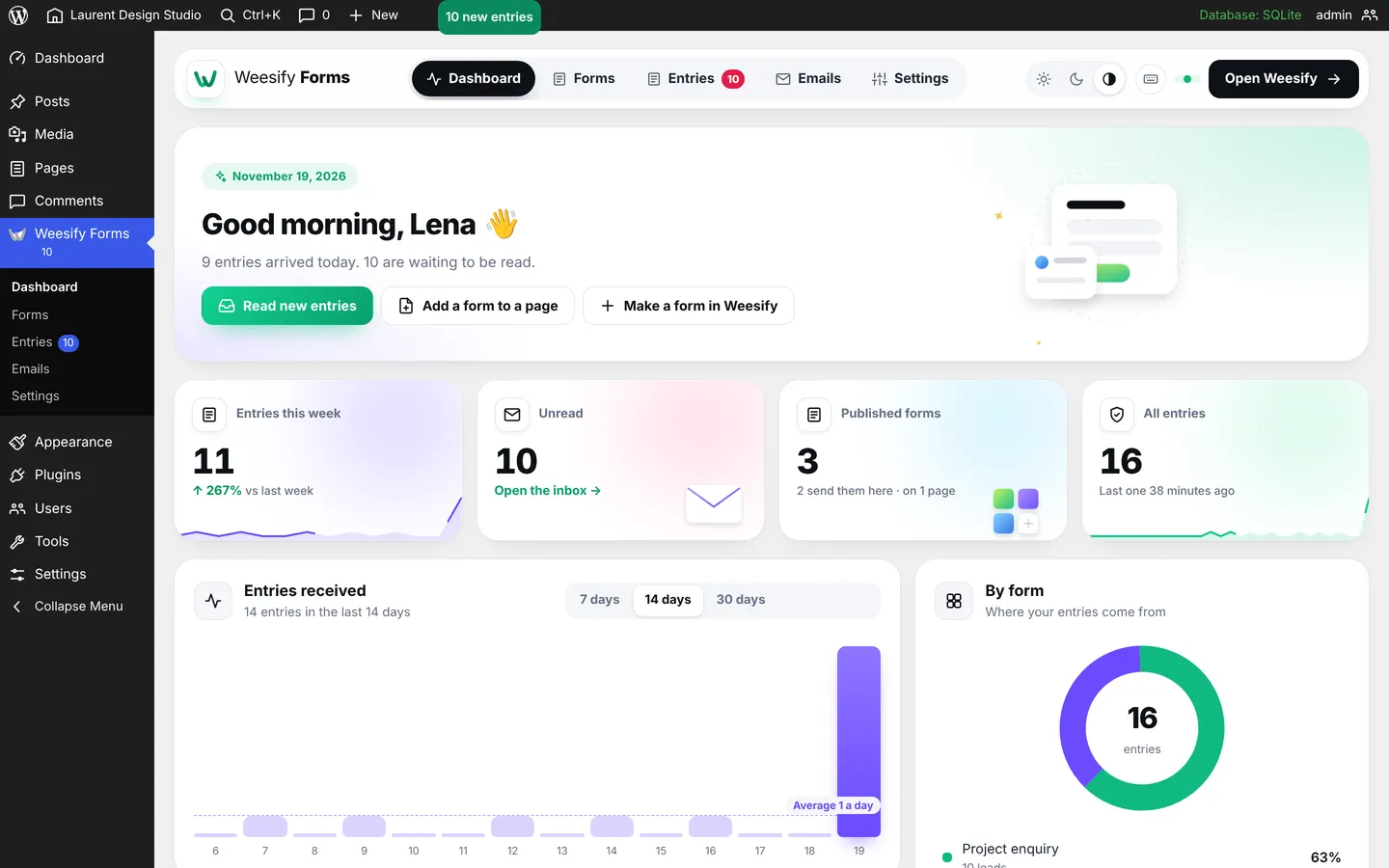
The dashboard greets you by name and tells you what arrived today. Underneath sit the numbers that matter for the week, a chart you can switch between 7, 14 and 30 days, where your entries come from, and the latest ones as they arrive.
Call them what they are: leads, bookings, subscribers
A contact form on a design studio's site doesn't bring in "submissions". It brings in leads. A newsletter box brings in subscribers. A workshop form brings in registrations, and a job page brings in applications.
So the plugin now uses your words. On the Forms screen, each form card has Brings in. Choose from leads, enquiries, subscribers, registrations, bookings, applications, orders, responses, donations, sign-ups or entries. The plugin makes a first guess from the form's name ("Newsletter" becomes subscribers, "Book a call" becomes bookings), and you can change it whenever you like.
For the whole plugin, Settings › Your words lets you pick one word, or leave it on Automatic. Automatic looks at what actually arrives: if most of it is leads, the dashboard says "Leads this week" and the menu says Leads. If it's a real mix, it says Entries. The admin bar, the emails and the export follow the same word.
It sounds small. It changes how the screen feels. "10 new leads" is a to-do list you understand at a glance; "10 new submissions" is admin.
Move each one along its stages
Every kind of entry has its own stages, because a lead and a booking don't move the same way:
- Leads: New, Contacted, Qualified, Won, Lost
- Bookings: Requested, Confirmed, Completed, Cancelled
- Registrations: Registered, Confirmed, Attended, Cancelled
- Applications: Received, Reviewing, Interview, Accepted, Declined
- Orders: New, Processing, Fulfilled, Cancelled
- Enquiries: New, Replied, Resolved
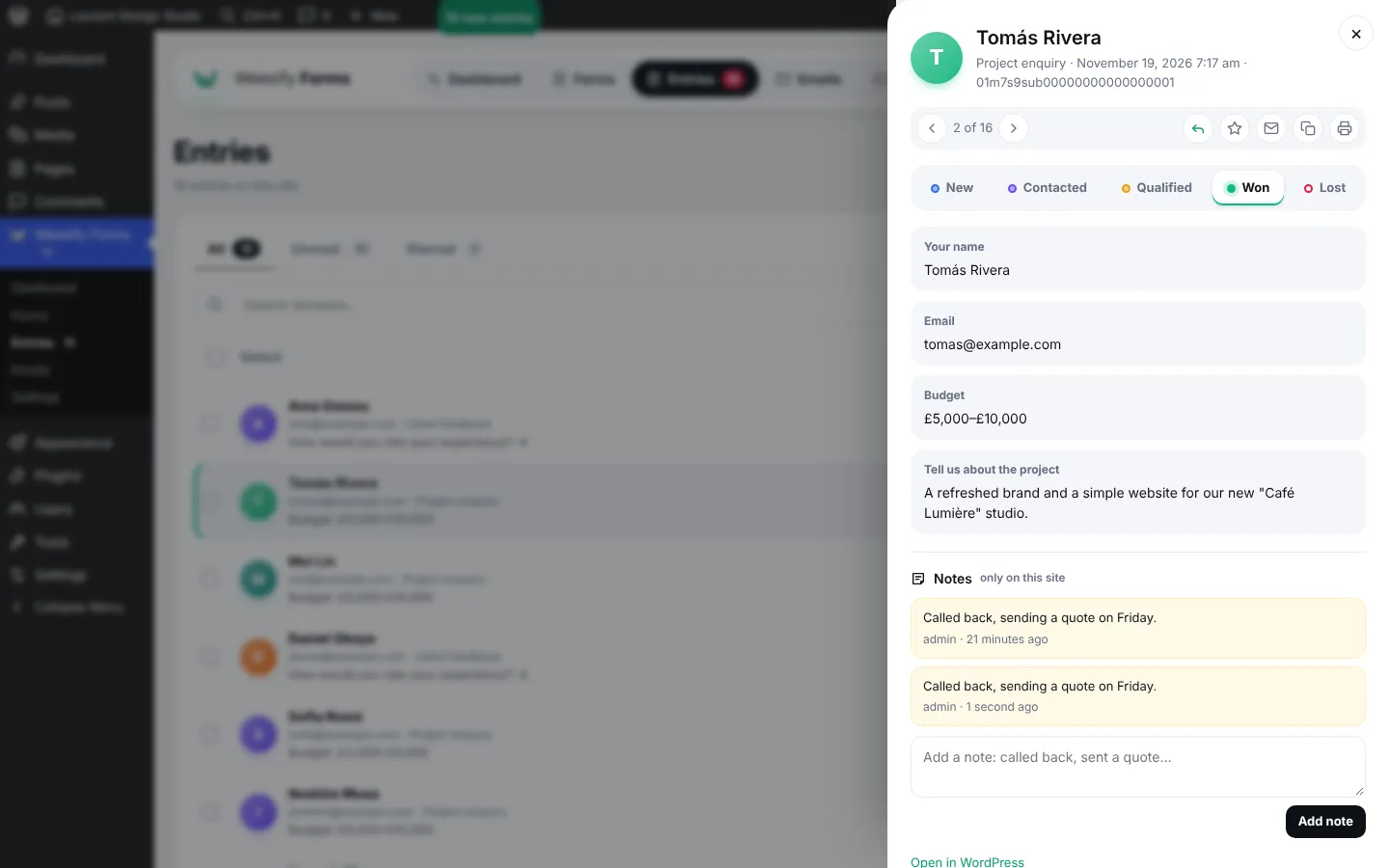
Open any entry and the stages sit across the top of the side panel. Press one to move it. Select many in the list and use Move to… to move them all at once. Each row shows its stage as a small coloured tag, and the filter above the list shows only one stage, for example every lead still marked New.
On the dashboard, a card called Where they are shows how many are at each stage, with a bar for each and, where it makes sense, a share such as "20% won". If your site brings in more than one kind, tabs switch between them: leads, then responses, then registrations. Press a stage to jump straight to that filtered list.
Notes, replies and the side panel
The side panel is where you spend most of your time, so it does more than show answers.
- Private notes. Write "Called back, sending a quote on Friday" and it's saved with your name and the time. Notes stay on your site; they never go to Weesify or to the person.
- Reply by email. One button opens your email app with the person's address and a subject ready.
- Star, mark unread, copy, print. Star the ones to come back to, copy every answer in one go, or print a clean page for a meeting.
- Previous and next. Move through the list without closing the panel. On a keyboard, j and k do the same, s stars and u marks unread. Press ? to see every shortcut.
The CSV export now includes the kind, the stage, the star and your notes, so a spreadsheet tells the whole story.
Email notifications you design
The old setting was a single switch: email me when something arrives. The new Emails screen lets you build as many email notifications as you need.
Each email has:
- When it's sent: when one arrives, or when one is moved to a stage. "Booking confirmed" can go to the person the moment you move their booking to Confirmed.
- Which forms: every form, or one.
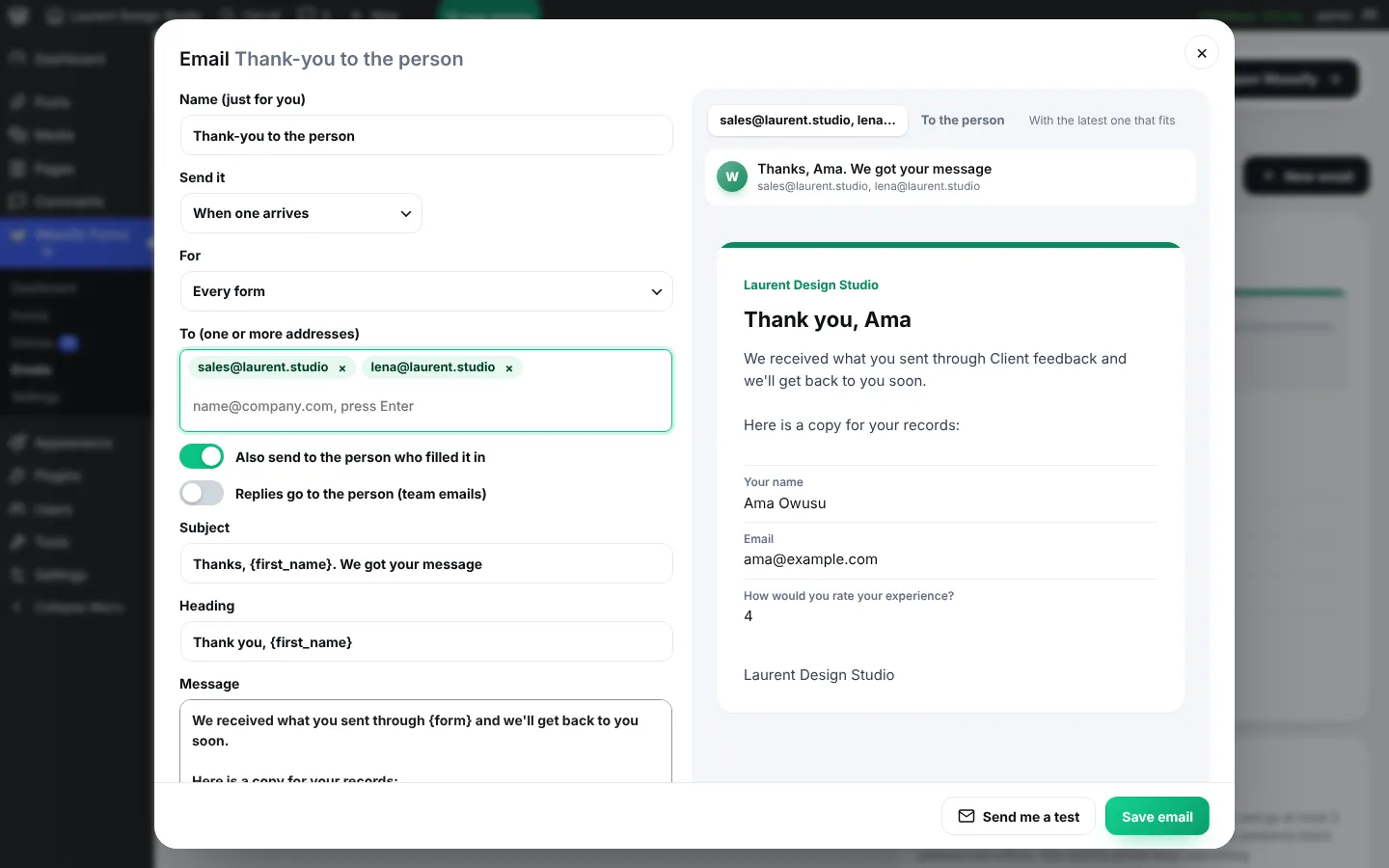
- Who gets it: one or more addresses, typed as chips, and/or the person who filled in the form.
- Your words: subject, heading and message, with tags such as
{first_name},{form},{answers}or{field:Budget}for any single answer. - Your look: one colour for all your emails, your site icon at the top and a footer line of your own.
You don't start from a blank page. Six templates cover the common cases: Team alert, Thank-you to the person, New lead to sales, Booking confirmed, Application received and Deal won. Each opens in the editor with a live preview on the right that uses your latest real entry, so you see exactly what will arrive. Send me a test puts one in your own inbox.
Two safety rules are built in. Emails to the person who filled in the form carry no links from their answers, and go at most three times a day to the same address. Anyone can type someone else's address into a public form, and these rules stop your site being used to send unwanted mail. Your team's emails keep everything, including a link back to the entry.
If your host's email tends to land in spam, the same screen has How emails are sent. Send the plugin's emails, or every email from your site, through your own SMTP server: your mail host, Google Workspace, Microsoft 365, Zoho, Brevo, Mailgun, SendGrid, Amazon SES or Postmark. The password is encrypted with your site's own keys and never shown again, Send a test tries the settings before you save them, and the screen tells you when the last email went out and whether it worked.
The digest and the admin bar
Some teams want an email for every lead. Others want one tidy summary. In Settings, the digest sends a short email every morning or on Monday mornings: "This week: 7 leads, 3 subscribers", with the latest names and a button to open them. It goes to one address or several, and it's skipped when nothing arrived.
The admin bar now shows new arrivals on every screen, for example "10 new leads", with quick links to the dashboard, forms and starred entries. You can turn it off in the same place.
Putting forms on your pages
Nothing about placing forms got harder, and a few things got easier:
- New page with it creates a draft page with the form already on it and opens the editor.
- Display options builds a shortcode for you: in the page, popup, slide-in, floating button, bar or full screen, when it opens (on a click, after a few seconds, on scroll or when someone is about to leave), how often it shows again and what the button says. A small live stage shows the result as you choose.
- Preview shows the form at phone, tablet and desktop widths.
- Each form card tells you which pages already use it, with links to edit them.
In Elementor, the widget now sits in its own Weesify category with the Weesify mark, so it's easy to find.
Good to know
- The plugin follows your choice of light, dark or your device's setting, per person.
- Removing the plugin removes its settings. The copies of submissions stay, because they're your data.
- Weesify always keeps the original submission, so turning copies off never loses anything.
If you already use Weesify forms on WordPress, update the plugin from your Weesify workspace (Forms › Websites) and open the new Emails screen first: it's the quickest way to feel the difference. If you're new to Weesify forms, our guide to forms that capture leads is a good place to start.
Get new posts by email
New articles from Weesify Blog, straight to your inbox. No spam, unsubscribe any time.
By subscribing you agree to get emails from Weesify Blog. Unsubscribe any time.
 Product news
The Weesify API and CLI: A Developer's Guide
Scoped tokens, a documented REST API, signed webhooks and a one-file CLI that deploys websites from your laptop or build pipeline. Here is how they fit together.
7 min read
 Product news
Meeting Recordings, Transcripts and AI Summaries
Record a client session in Weesify Meetings and get a speaker-labelled transcript and an AI summary with highlights, action items and decisions, all made on Weesify's own servers.
7 min read
 Product news
Weekly Series: Sell Paid Sessions in One Checkout
New in Weesify Bookings: sell a set of sessions, same day and time each week, in one checkout. Every week is checked before payment, and fair refunds are built in.
6 min read
Comments
No comments yet. Start the conversation.