


Form Email Notifications That Reach the Right People

Send each form's responses to the right inbox: everyone, or only when an answer matches. Your words, every answer, a button to the response, and replies straight to the person.
A form is only as good as what happens after someone presses Send. If the right person doesn't hear about a new lead for two days, the lead goes cold. If every response lands in one shared inbox, the urgent support request sits between a newsletter sign-up and a feedback score.
Weesify now gives every form its own team emails, and every workspace a safe way to send notices to more inboxes than its members. This post shows how both work, with a few set-ups you can copy.
In this guide
- Two places, two jobs
- Notification emails: more inboxes for your workspace
- Team emails on a form
- Only when an answer matches
- What the email says
- Three set-ups to copy
- Why recipients are checked
Two places, two jobs
There are now two ways to tell people about what happens in Weesify, and they fit together.
Settings › Notification emails is for the whole workspace. Add addresses such as sales@ or support@, or a manager who doesn't use Weesify, and choose which kinds of notices each one gets: form responses, new sales, bookings, event registrations, page messages and more.
Form › Settings › Email your team is for one form. It sends emails written in your words, with the answers, to the people you choose, for every response or only when an answer matches.
Your owners and admins keep their own notification choices in their account, as before. Nothing here changes what they already get.
Notification emails: more inboxes for your workspace
Go to Settings › Notification emails. Type an address, tick what it should get and press Add and send confirmation.
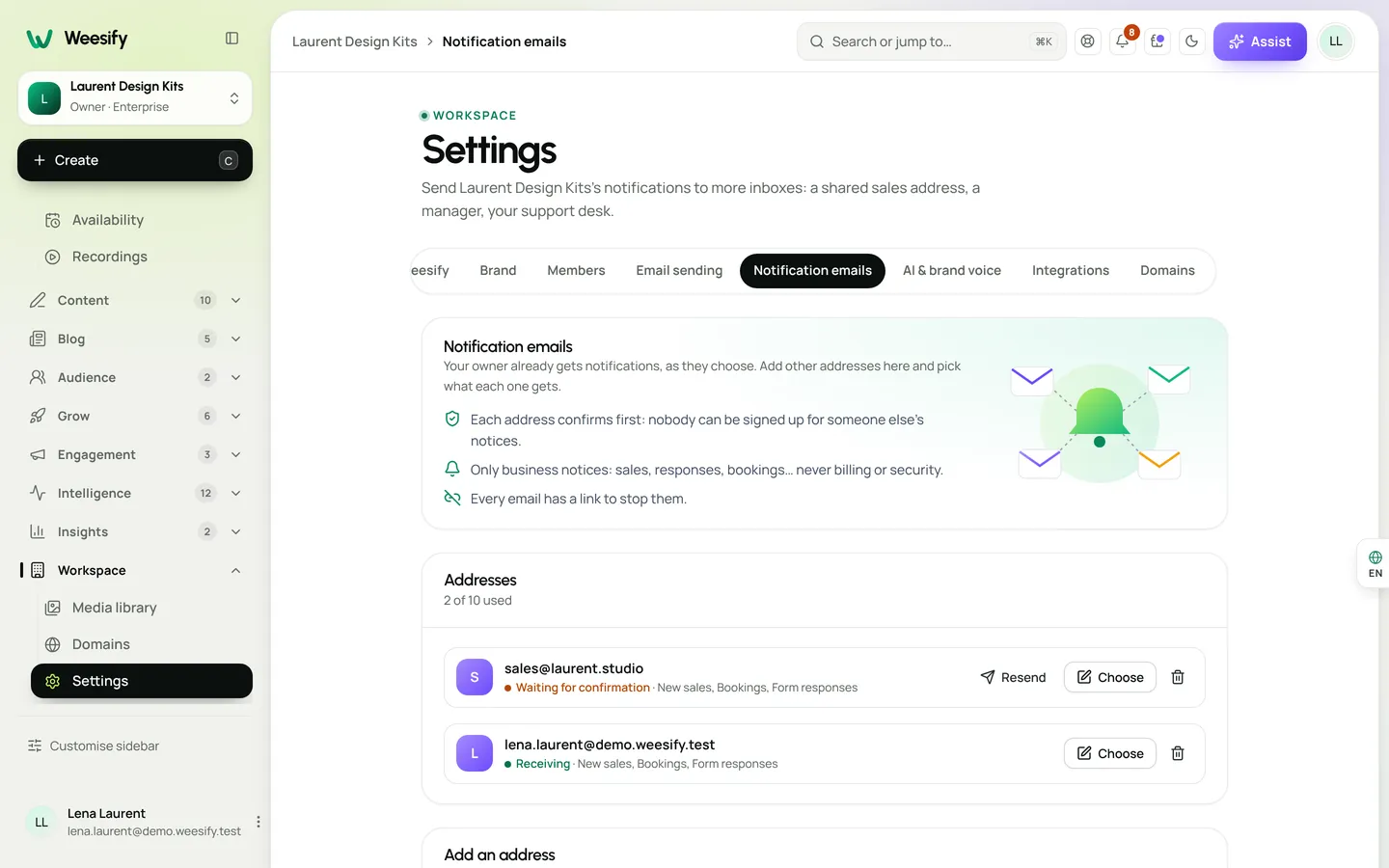
Weesify sends that address a short email with a link. Until someone at that inbox presses it, nothing is sent there. A teammate's own address skips this step, because they already receive mail from your workspace.
A few details that matter once you rely on it:
- Only business notices. Sales, responses, bookings, stock alerts, payments activity, event changes, course and community activity, automation alerts, website monitoring and similar. Billing, security and personal notices never go to extra addresses.
- A way out in every email. Each one has a "Stop sending these here" button, so whoever reads that inbox stays in control.
- Calm on busy days. Each address gets at most one email per kind of notice every 10 minutes. The next one waits rather than flooding the inbox.
- Up to 10 addresses per workspace, each with its own choices. Press Choose to change them, or the bin to remove one.
Team emails on a form
Open a form, go to Settings and scroll to Email your team. Pick a template to start: Team alert, New lead to sales, Support request, Booking request or Only when it matters. The new email opens, ready to adjust.
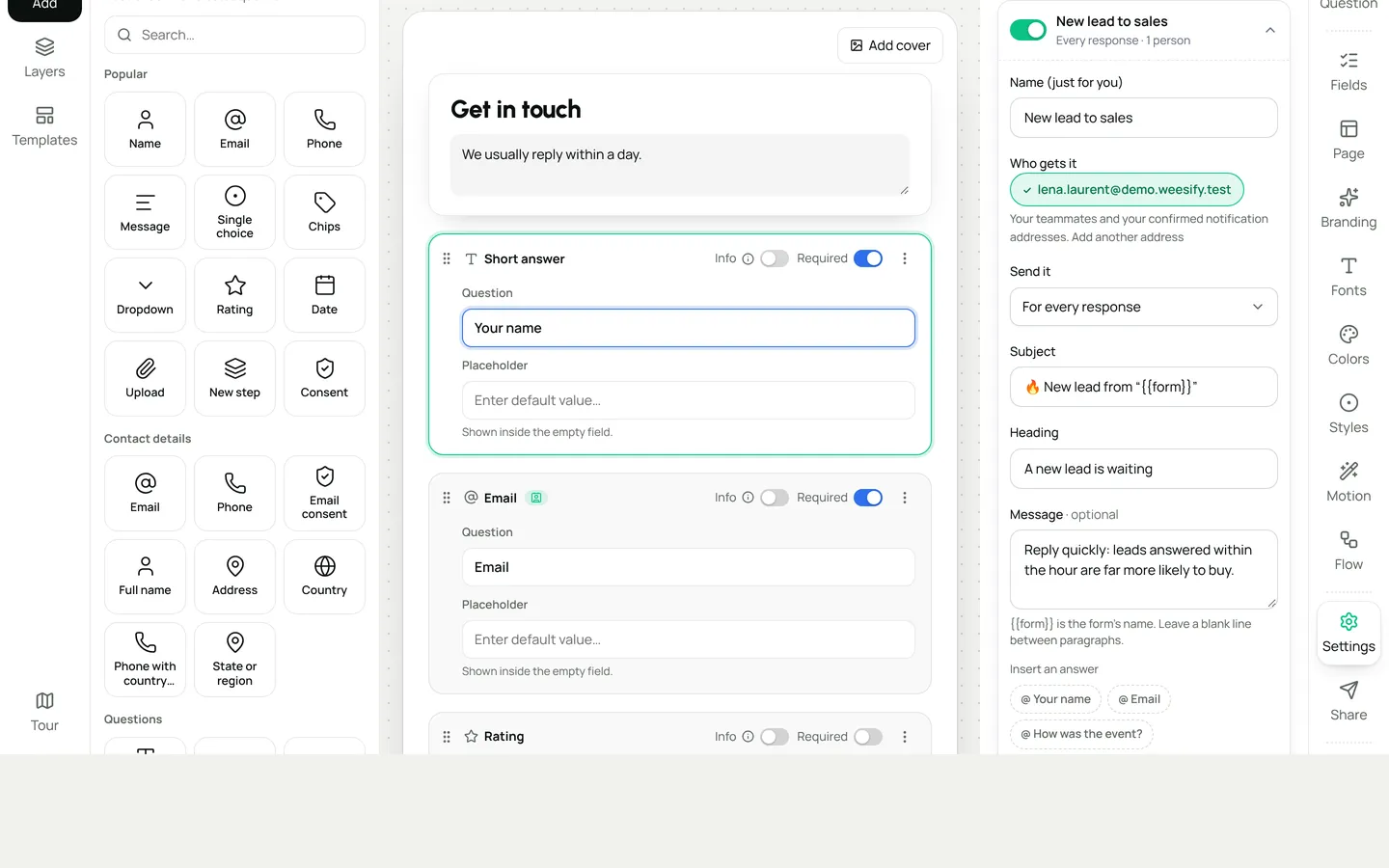
Who gets it lists your teammates and every address confirmed in Notification emails. Tick the ones you want. If someone is missing, the link underneath takes you to add them. You can choose as many people as you like for each email, and a form can have up to 10 team emails.
Only when an answer matches
Change Send it from "For every response" to "Only when an answer matches", then choose a question and a condition:
- is or is not, for a choice such as Topic or Service;
- contains, for words in a longer answer, such as "urgent" or "refund";
- is answered, for an optional question such as Phone;
- is more than or is less than, for numbers such as Budget, Team size or Rating.
Conditions are checked on Weesify's servers when the response is saved, with the answers exactly as they arrived. If several team emails match, each one is sent.
What the email says
Every part of the email is yours to write:
- Subject and heading.
{{form}}stands for the form's name. - Message. Leave a blank line between paragraphs. Insert an answer puts someone's answer into the text, for example their name, their budget or the date they picked.
- All the answers, in the order of the form. Files and signatures say they're attached and stay safely in Weesify.
- Button to the response, which opens it directly in Responses.
- Replies go to the person. Press Reply in your email app and you're writing to whoever filled in the form, not to Weesify.
- Attach the PDF of the response, in your PDF design.
Before you publish, press Preview to see the email with your latest real response, or sample answers if nothing has arrived yet. Send me a test sends a copy to you, marked [Test].
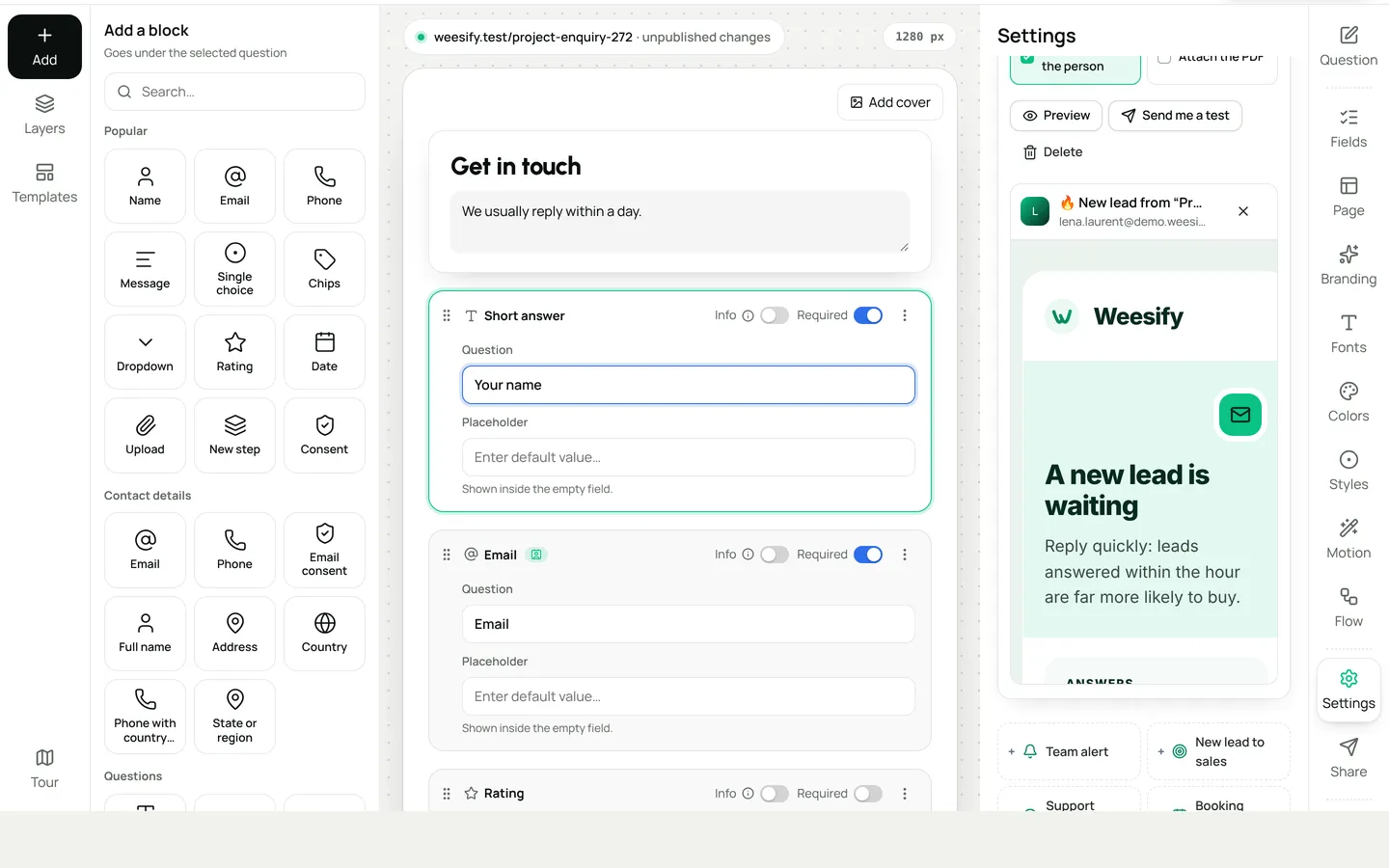
Team emails go out from your workspace's sender, set in Settings › Email sending, so they look like they come from you.
Three set-ups to copy
A small studio's enquiry form. One Team alert to the owner for every response, with replies going to the person. A second email, "Big project", to sales@ only when Budget is more than 10,000, with the PDF attached for the proposal meeting.
A support form. A Support request email to support@ for every response, with replies to the person, so the desk can answer straight from their inbox. A second email to the manager only when Topic is "Complaint". The person who wrote in gets a confirmation through Email them a copy, in the same Settings tab, with their answers.
A booking request form. A Booking request email to the person who runs the calendar, with the date and time inserted into the subject using Insert an answer, and the PDF attached. Pair it with a booking page if you want people to pick a free time themselves; our guide to a booking page for consultants shows how.
Why recipients are checked
It would be easy to let a form email any address typed into its settings. It would also let anyone with a Weesify account turn a public form into a tool for sending mail to strangers. So team emails only go to people you already trust: your teammates, and addresses that confirmed they want your notices.
The same thinking sits behind the confirmation email the person receives through Email them a copy. That one never carries links from their answers, says why it was sent, and is capped per address, because anyone can type someone else's address into a form.
Good to know
- Team emails follow the published form. Change them in the draft, then publish.
- Turning a team email off keeps it, so you can turn it back on later.
- Responses are always stored in Weesify first. Email is a way to hear about them, never the only copy.
- If you also show your forms on WordPress, the plugin has its own email notifications for the copies kept there. Our post on Weesify Forms for WordPress covers them.
To try it now, open your busiest form, add a Team alert from the template and press Send me a test. It takes about a minute, and the next lead won't wait for anyone to check an inbox.
Get new posts by email
New articles from Weesify Blog, straight to your inbox. No spam, unsubscribe any time.
By subscribing you agree to get emails from Weesify Blog. Unsubscribe any time.
 Features
Dynamic QR Codes Explained: Print Once, Update Forever
A dynamic QR code points at a link you control, so you can change where it goes and count every scan without reprinting. Here is how they work in Weesify.
7 min read
 Features
How to Make Quiet Audio Louder in a Video (Without Distortion)
A quiet recording can sink a good video. Weesify Video Studio measures your footage, warns you when it is too quiet, and makes it louder to the level social platforms expect, with a limiter so it never distorts.
7 min read
 Features
Self-Hosted Video Meetings: Meet Clients Inside Weesify
Weesify Meetings gives every online booking its own private video room, hosted on Weesify's own servers. No outside meeting links, no app for your guests.
6 min read
Comments
No comments yet. Start the conversation.